orknux

Documentation

Read from the pages orknux keeps beside its own screens, so this is what main says about itself rather than a second account of it that could drift.

Getting started

Orknux runs work that would otherwise be somebody's job to remember: an event arrives, a workflow decides what to do about it, and a record of what happened is kept. This page is the short version of everything the rest of these pages go into.

Running it

If somebody has already put an Orknux in front of you, skip this.

deploy/compose.yaml in the server repository is a whole installation in one file: the server, the interface, Postgres, a directory to sign in against, and Temporal, from the published images. Three lines:

curl -O https://raw.githubusercontent.com/michjak-szymanski/orknux-server/main/deploy/compose.yaml
export ORKNUX_SECRET_KEY="$(openssl rand -base64 32)"
docker compose up -d

Then open http://localhost:8080 and sign in as alice / password. That one port is the only one published: the interface forwards /api, /graphql and /mcp to the server, so the browser only ever talks to one address. The first start takes a minute or two while Temporal and the server apply their schemas.

ORKNUX_SECRET_KEY has no default, and the stack refuses to start without one. That refusal is deliberate. Every credential the server is trusted with - a model provider key, a Slack token, an MCP secret - is encrypted with that key, so changing it or losing it leaves all of them unreadable, with nothing to do but enter them again by hand. It is the thing to get right before you save your first provider key rather than after, and it belongs wherever you already keep secrets, backed up somewhere other than the database it protects.

That file runs Postgres, which is what a deployment should use. An installation for one person or one team can run on a SQLite file instead and drop the container entirely; see The database under Administration for what that costs.

If you only want to look at Orknux, there is a smaller way in still. orknux-one is the server, the interface and a SQLite file in one container, with nothing to supply and nothing to copy:

docker run -d --name orknux -p 8080:8080 -v orknux-data:/var/lib/orknux orknux/orknux-one

It writes its own encryption key on the first start and prints an administrator's password in the log. Use it to try Orknux, to develop against and to show somebody - and not for work whose runs matter, because there is no Temporal in it: a restart in the middle of a run fails the step it was on — an agent answering a message apart, which is asked again — and nothing else resumes. It has no directory and no single sign-on either. This manual describes the product rather than that container, so the pages that follow are true of it except where they are about those things; deploy/README.md sets out the whole trade.

The compose.yaml at the root of the repository is a different file and not a smaller version of this one. It brings up only the dependencies, for working on Orknux rather than for running it.

deploy/README.md, beside the file, is the full account: what each service is there for, what to change before the installation holds anything real, and what to look at when it does not come up.

Signing in

The sign-in screen

Accounts come from your organisation's provider - there is no sign-up form, and nobody signs themselves up. Depending on how the installation is configured, that is either a directory you sign in to with the same username and password you use elsewhere, or a single sign-on provider that answers for you. An administrator can also make an account here for somebody the provider does not know; see Administration.

Reset, beside the password box, is for a forgotten password on one of those locally made accounts. It sends a link to the address on the account; the link works once and stops working an hour after it was sent, and using it signs that account out everywhere. A directory or single sign-on password belongs to the provider, and there is nothing here to reset.

Wrong passwords are counted. Enough of them in a row bring a pause that grows before each further try, and you are told how long to leave it. Nothing locks - the pause always ends, and getting it right clears the count - because a lockout would let anybody shut a colleague out by guessing at their name badly on purpose.

What you can see afterwards depends on the roles your provider's groups and claims are mapped to.

Workspaces

The workspace, with its catalogue down the left and the workflows it holds

A workspace is where the work lives. Everything with a name — workflows, agents, models, variables, connections — belongs to exactly one workspace, and nothing leaks between them.

Which workspaces you see is decided by the roles you hold. Administrators see all of them and are the only ones who can create one.

A fresh installation starts with one, called Default, set up the way Admin → Workspaces sets one up - so once a model is added under Models, a chat works straight away. That is the first start on an empty database only: removing it later does not bring it back, and a database that already had workspaces is never given one.

A page that saves has Save and Discard in a bar along its foot, always in the same place, and both stay off until something on the page has changed - Preferences, a model's page, an agent's, every settings page. Leaving with a change not yet saved asks first. The editors that save as you go - workflows, diagrams, documents and wireframes - have neither.

A workspace you cannot see is one you cannot address either. Anything named by an id your roles do not reach answers exactly as an id nobody ever used does: there is no such thing. That holds whether you were reading it or changing it. It is a strange answer the first time you meet it, and it is the right one - the alternative tells anybody with an account roughly how much this installation holds and what of, one number at a time.

The top bar

The top bar carries the whole of it. On the left, beside the mark, are the six parts of the product you work inside, in the alphabet's order so a part added later has one obvious place. Each one opens a menu of its own down the left-hand side:

  • AI — what a model is given to work with: agents, models, tools, skills and memory; the tasks they are set and the sessions they keep; their watchers and schedules. See Models and agents.
  • Chat — talking to a model, with your workspace's agents and tools within reach. Can be switched off for an installation. See Chat.
  • Design — what you make with a model's help rather than run: Images and the image editor, Videos, Documents and Wireframes. Each has a chapter of its own.
  • Explore — working out what something is: Diagrams, drawn by you or by an agent, and Research, a question answered from the web and the workspace's documents. Each has a chapter of its own.
  • Flow — the work itself and what it is made of: workflows and their runs (Executions), actions, functions, triggers, conditions and objects. It was called Workflow; the pages kept their addresses.
  • Workspace — what the whole of it is set up with: variables, plugins, issues, artifacts, the audit log, integrations and settings.

A page belongs to exactly one of them, so opening a link somebody sent you lights the part it lives in and puts that menu beside it. Nothing changed address when the sections were split up: a bookmark saved before still opens the same page.

On the right, in front of your account: the workspace picker, then Docs, then Admin - the organisation, its workspaces, its connections and what this installation allows, offered only to administrators - and the notification bell. Your account is shown by your display name where the installation has one - the name your directory or single sign-on gives you - and by your username where it has none, with the role you hold underneath it. Both are cut short with an ellipsis when they are long, and hovering shows them whole.

The picker is there on every screen, including the docs and the admin section, which are exactly the places somebody wants to get back to a workspace from. Changing it keeps you where you are when that means anything: a list stays the same list in the workspace you moved to, while a page about one particular thing falls back to its list, since issue #4 somewhere else is a different issue or none at all.

The menu down the left collapses to its icons, by the round handle on the edge of the column. It stays collapsed until you open it again, on every page and in every workspace, because the pages that most need the width - a graph, a long issue - are the ones you stay on.

Each workspace also keeps a tracker of what is wrong with its work; see Issues. The bell beside your name is where anything that concerns you on one of them turns up, whichever workspace it happened in.

Finding things

Quick actions, open on "refund": a workflow, a document with the words
around the match, and a diagram's node, in one list

The box in the middle of the top bar is Quick actions. Open it with your Quick Actions shortcut — Ctrl+Q unless you have changed it in Preferences — type a few letters, and press Enter.

It knows every page in the current workspace and the admin ones, and it knows what the workspace holds: a trigger, a function, an agent, a variable and the catalog it is in are all reachable by name, and so is an open issue, by its title or by its number. Each row says what kind of thing it is, so two things with similar names can be told apart before you press Enter.

It reads inside two kinds of thing as well as their names:

  • Documents are found by their name and by any word in them. The row says Document in and the catalog it is filed in, and underneath it the words around the match, so a sentence half-remembered is enough to get back to the page it is on.
  • Diagrams are found by their name, and so is any node in one, by its label. Choosing a node opens the diagram's editor on that node, selected, rather than on the whole drawing.

Those two are asked for a moment after the rest of the list - they are read from what the documents and diagrams say, not from a list of names - so a row for one can arrive just after you stop typing.

And it holds a few things to start — Create issue, Create function, Create condition — each marked with a plus, and each offered before you type anything at all. Those are what it is named after.

The same box also remembers where you have been. Your Recently Opened shortcut — Ctrl+Shift+E unless you have changed it — opens it straight onto the last dozen things you had open in this workspace, newest first; the three most recent sit above the list whenever you open it any other way. It keeps addresses and nothing else, in this browser rather than against your account, so something renamed since you last opened it is listed under the name it has now and something deleted is not listed at all.

Your first workflow

  1. Open Flow → Workflows in a workspace and create one.
  2. Give it a trigger — what starts it. A schedule, a message on a connection, or a webhook.
  3. Add nodes to the canvas and join them: actions do things, conditions choose between paths, agents ask a model, objects assemble a shape for the next node to read.
  4. Watch the Things to fix panel. It refreshes as you edit and lists what is still missing — an unset parameter, a node with nothing feeding it.
  5. Publish it. Publishing takes a copy of the graph, and that copy is what a trigger runs; a workflow nobody has published has nothing to run. There is no Save to press first: the editor saves the graph as you draw it.
  6. Enable the workflow. Every run then shows up under Executions, with the graph, the steps, and what each one passed on.

Your own preferences

Preferences, at its Chat and Appearance sections: Answer Cost and Avatar in Chat, the theme, the accent colours and the drag effect

Preferences, from your name in the corner, belong to the person signed in rather than to any workspace — the theme and the language among them — so they follow you into every workspace you can see. The page is in sections: Profile, Access Tokens, Notifications, Chat and Appearance, then the keystrokes.

Chat holds two switches about what your own chats draw:

  • Answer Cost puts what an answer cost beside how long it took - the whole turn, every round an agent went through, not only its last call. It is on unless you turn it off; it used to start off, and an upgrade switched it on for everybody, so somebody who prefers it off sets it here once.
  • Speed in Chat shows the model's eval speed, how fast it reads the prompt, and its decode speed, how fast it writes, in tokens a second beside the tokens under a chat, as eval speed 1,200 t/s · decode speed 42 t/s. Eval speed appears only where a prompt was really read rather than found in the cache. It is on until you turn it off. While an answer arrives it is an estimate, marked ~; once done it is the provider's own figure where it gives one.
  • Avatar in Chat draws your initials beside each message of yours, at the top of the bubble, as the agent's mark is drawn beside its answers. On unless you turn it off.

Both are kept with your account rather than in the browser, so they follow you to another machine.

Appearance is how the interface is drawn and read:

  • Language and Time Zone, below.
  • Interface Theme — Dark Mode or Light Mode.
  • Accent Colour — the colour of primary buttons, your own messages and what is selected: Moss (the brand's), Blue, Teal, Violet, Magic, Rose, Amber and Slate. Blue is what somebody who has never chosen sees. Magic is blue running into violet, more blue than violet: filled surfaces are painted with the gradient, while text and borders in the accent take a single blue-violet, because a gradient cannot be the colour of a word. The accent is kept in your browser rather than with your account, because it is applied before the page first paints and a colour fetched afterwards would flash the old one on every load.
  • Node Drag Effect — how a node moves when you drag it on a canvas: Jelly, Jelly and slide, or Off for none.

The interface is in English and in Polish; what the server refuses is said in the same language, because a form that asks in one and refuses in another is worse than one that asks in English throughout. The interface is in English and in Polish; what the server refuses is said in the same language, because a form that asks in one and refuses in another is worse than one that asks in English throughout.

Time Zone decides the zone every date and time in the interface is drawn in: the runs, the session lines, the hover on a watcher's next check. It is kept with your account, so it follows you to another machine; left unset, your browser's own zone is used.

A change here is held until you press Save, in the bar along the foot of the page, which counts what is waiting; Discard beside it puts everything back. Each one used to take effect the moment it was made - a shortcut recorded, a theme pressed, a language chosen - with nothing to press and nothing to say whether it had taken, which is not how any other settings page here reads.

Access Tokens is where somebody with an account made on this installation makes, sees and revokes their own tokens, without asking an administrator. A directory or single sign-on account gets no such section: its token would outlive whatever the provider later decides about that person. See Access tokens under Administration.

Every keystroke this application listens for is set here too: Quick Actions, Recently Opened, Save, Format, Turn Node, Add Node, Undo, Redo, Duplicate Node, Publish and Voice Mute, which mutes your microphone in voice mode and is Alt+M unless you choose another; the workflow canvas's Cut Nodes, Copy Nodes, Paste Nodes, Rectangle Select and Joint Tool; the image editor's tools; and Find, Zoom In, Zoom Out, Arrange, Next Tab, Previous Tab, Next Window and Previous Window. Each is changed by pressing the keys you want rather than by picking from a list, because which keys are free depends on your browser and your machine and not on this application. All of them but Turn Node and Add Node have to carry a modifier: a bare letter would fire while somebody was typing, and those two are only ever heard on the canvas, which is not a text field.

Connected clients is where your own browser, computer and Claude Code join: Orknux Shell, the extension for Chrome, Orknux for Windows and for Linux, and My Claude Code each connect with a pairing link made here, and are listed here with when they last spoke. The corner of every page shows a pill for each, lit while it is connected. Your browser and your computer describes them, and Orknux Shell the terminal.

What is where

The rest of these pages, by the part of the top bar they are about:

Part Chapters
Flow Workflows, Triggers
AI Models and agents
Chat Chat
Design Images, Videos, Documents, Wireframes
Explore Diagrams, Research
Workspace Variables, Issues
Admin Administration, Reports
Elsewhere Orknux on the desktop, the command line

Edit this section on GitHub

Workflows

A workflow is a graph: a trigger at the top, nodes underneath it, and edges saying what runs after what. It runs when its trigger fires, and only while it is enabled. What it runs then is the copy that was published, which is not always the graph you are looking at; see Draft and published, below.

The list

Workflows, under Flow in the menu down the left, is every workflow the workspace has, with when each of them last ran and when it is next due.

Press a column's heading to order the list by it - Workflow, Description or Last Run - and press it again to turn the order round; an arrow beside the heading says which way it runs. A name starts at A to Z, because a column of names is read that way round, and Last Run starts at the newest. The ordering is the server's, over the whole list rather than over the rows on screen: sorting ten of a hundred looks like it worked until the row somebody wanted turns out to be on page three. Next Run is a column and deliberately not something to sort on — it is the soonest of however many cron expressions the workflow's triggers carry, worked out one workflow at a time, and nothing has ever written it down to order by.

Search workflows... narrows the list as you type. Show built-in adds the workflows the product made for itself - the research modes (see Research) - which the list leaves out until asked; they open and run as any other.

+ Create Workflow asks for a name and opens the new workflow's editor straight away, as duplicating one does.

The line at the bottom says how many there are and how many are shown, and how many at a time sits in it: 10, 25, 50 or 100. The order is in the address, so "the ones nobody has run" is a link rather than a paragraph of instructions; how many at a time is remembered in your browser instead, because it says how much of a screen you have rather than what you are looking at.

The editor

The workflow editor: the graph on the canvas, what can be added along the top, and the selected node's settings on the right

The canvas is the workflow. Drag nodes to arrange them, drag from a node's handle to another node to join them, and select a node to open its panel on the right. An edge is dragged by either of its ends: take hold of the arrow and drop it on another node's input to send it somewhere else, or take hold of the other end to change where it leaves from. A line dropped on nothing goes back where it was, and one dropped on wiring the graph already has is left alone.

Lines are routed for you, and where two nodes sit awkwardly a line can run through whatever is between them. A line is pulled through points: a small handle at its middle, or its label where it has one. Drag a point and the line bends to follow it.

A line takes as many points as it needs, because a line that has to get round two things cannot be bent through one. Double-click the line to put a point where you clicked — it goes into the gap you aimed at, so a line already bent twice can be bent again between those two — and double-click a point to take it off. Taking the last one off leaves the line running where it was routed.

A point that has focus can be worked from the keyboard: the arrow keys nudge it, Delete or Escape takes it off, and + puts another one after it. Delete there means this point rather than this line, which is what the canvas would otherwise have done with it.

Where a line has been pulled to is remembered by your browser and nowhere else. It is an arrangement of your own view: a colleague opening the same workflow sees the lines routed as they were drawn for them, and it does not travel with an export. A line deleted from the graph forgets its points, so drawing it again starts it straight.

  • Things to fix lists what is not yet valid, and refreshes as you edit. A workflow with entries here can be saved but should not be trusted to run.
  • Parameter connections are drawn as labelled edges: where a node reads a value from an earlier one, the edge says which fields travel along it.
  • Input and output dots are told apart by shape: an input is hollow and an output is filled, a socket and a plug. A turned node moves where each dot sits, so where it sits cannot be what tells you which it is. Shape rather than colour, because colour is already carrying which of a condition's two ways out is which.
  • Icons can be given to any node. A node made from a definition inherits the definition's icon.
  • Nodes resize, and long text wraps rather than spilling.

Working in it

  • Undo and redo step back and forward through what you have drawn: Ctrl+Z and Ctrl+Shift+Z, with Ctrl+Y heard for redo as well. They are ignored while a caret is in a text box, where the browser's own undo is the right one.
  • There is no Save button. The editor saves what you draw as you draw it; see Working on a workflow together, below. Ctrl+S still saves at once, for somebody whose hands already went there.
  • Refresh reads the graph and the lists its nodes pick from again, so a trigger or an agent made in another tab - or a workflow an agent changed meanwhile - appears without leaving the editor.
  • Run stands before Publish and starts the workflow as it is on screen, saving first if anything is still on its way, and then opening the new run's page. That page is where the steps, their inputs and the log are, which is what pressing Run was for; going back to the list to hunt for the newest row is a detour past it. A start that is refused - a graph with no nodes has nothing to run - is said beside the workflow's name and leaves you in the editor, because there is no run at the other end to go and look at.
  • A node can be turned, three ways that are one act: the Turn button, a rotate arrow standing just off the selected node's top-right corner, Facing in its panel, or R on the canvas. The button is there because turning is something somebody does four times in a row, and a panel on the far side of the screen is a long way to go for that. It moves where the lines join the node - left to right, top to bottom, right to left, bottom to top - and changes nothing about what runs. A long chain simply reads better down a screen than off the side of one. Each node is turned on its own, so a graph can bend where it needs to.
  • A node can be copied: Duplicate in the toolbar, or Ctrl+D on the canvas. The copy points at the same action, trigger, condition, agent or object - two nodes running one action is the ordinary case - and carries its description, its icon, which way it faces and what it passes on. It is not wired to anything: a copy joined to everything the original was joined to is rarely the graph anybody wanted, and for a condition it is not even clear which of the two answers the copy's lines should leave by. It is named after what it was copied from - Fetch the order copy, then copy 2 - so no two nodes read identically, and it lands a little below and to the right rather than under the original.
  • Pickers are typed into rather than scrolled. Agents, triggers, actions, objects, conditions, functions and connections all narrow as you type, with the arrows to move and Enter to take.
  • Beside each picker is New, which opens the builder in a panel down the left rather than over the canvas: what you are making and the graph you are making it for stay on screen together. A trigger, an action, a condition, an object and an agent can each be made this way, and what you make is chosen into the node as soon as it exists.
  • + New function, at the top of an action's or a condition's function picker, asks for a name and a description in a panel beside the form - beside the node panel here, and as a dialog on the action, condition and trigger pages - and makes the function with a stub that names it, chosen into the picker; the picker keeps what it had until the new one exists.
  • A node's long text fields - a description, a prompt - are dragged taller by their corner rather than opened in a bigger box, and a run step's input and output are too.
  • The way out, the mark beside the picker on a node that already points at something, opens it in that same panel — a trigger, an action, a condition and an agent alike. Reading a node is a question about the graph, and answering it by taking the graph off the screen is a poor answer. An object is the exception and opens its own page, because its fields are given there and a panel has nowhere to put them. It is still a link, so Ctrl, Cmd, Shift or the middle button opens the definition's own page in a tab of its own.
  • Anything that navigates is a link. Clicking one saves the graph and goes; Ctrl, Cmd, Shift or the middle button opens it in a new tab and leaves what you were doing where it was.

The builder, open down the left: what is being made, and the graph it is being
made for, on screen together

Every one of those keystrokes is yours to change, in Preferences.

Selecting several nodes

Rectangle select on, and a rectangle drawn over the lookup and the agent: two
nodes selected, and the panel says so above the first one's
settings

Most of what is done to one node can be done to several: moving them, cutting or copying them, deleting them. There are three ways to select more than one.

  • Shift and click adds a node to the selection, or takes one out of it.
  • Shift and drag over empty canvas draws a rectangle, and every node it touches is selected.
  • Rectangle select, the first button on the right of the toolbar or S on the canvas, turns the second into the ordinary drag. While it is lit a drag on empty canvas selects instead of moving the view, and the middle button is how you move the view instead. It is a mode rather than an act, so it stays on until you press it again.

Selected nodes move together when one of them is dragged. The panel on the right says how many are selected - "2 nodes selected - drag one to move them together, Delete removes them all" - above the settings of the first of them, which are still that one node's. Delete or Backspace removes them all, and Escape lets the selection go.

Cut, copy and paste

Cut, Copy and Paste are in the toolbar and on Ctrl+X, Ctrl+C and Ctrl+V. They take the selected nodes and the joints on the lines between them, and paste them into the same workflow or another one - open the other workflow's editor and paste there. What is pasted points at the same actions, agents, conditions and triggers the originals did, and the lines between pasted nodes come with them; a line to a node that was not copied does not.

Nodes copied in one workspace cannot be pasted into another: the copy names its actions and agents by their ids in the workspace it came from, and those mean nothing anywhere else. The editor says so rather than pasting nodes pointed at nothing.

Adding a node

The Add menu, opened where the pointer was by pressing A, with the Workflow
entry under the pointer and what it does beside it

The + button in the toolbar opens the Add menu, and so does A with the pointer over the canvas. Opened by the key, the menu is drawn where the pointer is, and the node is put there too, so a node is added where it is wanted rather than in the middle of the screen to be dragged across.

The menu is worked from the keyboard as well: Down steps onto the first entry, the arrows move through them and wrap at the ends, and Enter adds the one under focus. Each entry says what it does beside the list as it is pointed at or focused. Text to speech, at the end, is not a kind of node but an Action node already pointed at the Speak action, spelled out because nobody hunting for speech would look for it under Action.

An Action node's and a Condition node's pickers list more than the workspace's own definitions: every loaded plugin's actions and functions are there too, each marked with the plugin it comes from - and in a condition, the plugin functions that answer yes or no. Picking one makes the node's own definition around it, which used to take Custom, a subtype and the plugin's entry. The quick filters above the list - All, Workspace, and one per plugin, several at once - narrow it to where things come from.

Joints

A joint is one of the points a line is pulled through (see above). Besides double-clicking a line, there is a tool for it: turn on Joint in the toolbar, or press J, and a single click on a line puts a joint there, with a preview following the pointer along the line of where it will go. It is a mode, lit while it is on, for the afternoon spent tidying a large graph. Click a joint and press Delete to take it off. Joints are kept as the points are, in your browser; copying nodes copies the joints on the lines between them too.

A node's shape

One graph in several shapes: the trigger as a pill, the lookup rounded, the
check a hexagon, the agent notched, the call to another workflow a star

Shape, in a node's panel, is the outline its card is drawn with: Rectangle, Rounded, Pill, Notched, Hexagon, Circle, Triangle or Star. It changes nothing about what runs. What it is for is a graph read at a glance: give every node that talks to a customer the same shape, or every check, and a graph of thirty nodes says what it does before anybody reads a label.

Switching a node off

Enabled, near the bottom of every node's panel but a trigger's, takes a node out of the run without taking it off the graph. A disabled node keeps its lines and its settings and is drawn faded; a run skips it and hands what reached it straight on to whatever comes next. A disabled condition takes its upper way out. It is the way to try a workflow without the step that sends the email, and to put the step back afterwards without redrawing it. A trigger has no such switch: a run has to start somewhere, and a trigger is silenced by its own Enabled.

Working on a workflow together

The editor as somebody else has it open too: their initials beside the
workflow's name, and their pointer, labelled with their login, over the
agent

Several people can have one workflow's editor open at once, and each of them sees the others at work.

  • Who is there. Beside the workflow's name, a round mark with the initials of everybody else who has the editor open, each in a colour of their own. Hover one for the whole login.
  • Where they are. Each of them has a pointer on your canvas, in their colour and labelled with their login, that moves as they do. It is drawn where they point on the graph, so it stays on the node they are looking at whichever way you have scrolled or zoomed.
  • What they change. A node moved, added, renamed or rewired by somebody else appears on your canvas as they do it, without a refresh.

The editor saves as it goes. There is no Save and no Discard: a change is saved, and seen by everybody else in the editor, a moment after it is made - also while a node is still being dragged or a name still typed. How long that moment is, is Workflow Autosave under Admin Settings → Workflow runs (300 ms unless an administrator changed it). Ctrl+S saves at once. Nothing is said while saving goes well; Not saved appears beside the toolbar only when a save has failed, and goes once one succeeds.

Two changes made at once are merged, not one written over the other. Every save is made against the version of the graph it was drawn on; when somebody else saved in between, the save is refused, the newer graph is read, your change is put on top of it and sent again. So two people dragging different nodes both keep their move, and the one rule worth knowing is that two people changing the same field of the same node end with whichever of them saved last.

A pointer is sent only while somebody else is there, and taken away when it leaves the canvas, so an editor nobody shares sends nothing at all.

Publishing is still one person's act: Publish publishes the graph as it stands, for everybody.

Kinds of node

Node What it does
Action Calls something outside: an HTTP request, a message on a connection.
Condition Chooses which edge to follow, on an expression over what it was given.
Agent Asks a model, with the workspace's skills and tools available to it.
Function Runs JavaScript on the values handed to it.
Object Assembles a named shape, field by field, for later nodes to read.
Session Names the conversation the agent it leads to keeps, so what is said outlives the run.
Image Draws a picture from a description, with the workspace's text-to-image model.
Decision Asks a decision model or a chat model typed questions about what reached it, and can branch on the answer.
Workflow Runs another workflow of the workspace, waits for it, and hands on what it produced.

Each kind can be inline — defined in this workflow only — or made from a definition in the workspace catalogue, which several workflows can share. Editing the definition changes every workflow using it.

A session node is the one kind nothing may lead into, and it leads only to an agent. It carries two parameters: sessionKey, which is what the conversation is called, and sessionKeyPrefix, which is optional and is what it is filed under. Both are values or references like any other parameter, so a key read from the event — the ticket a mention names, the customer an order belongs to — gives each of them a conversation of its own, and a run a week later that computes the same key carries on where the last one left off. An agent with no session node beside it answers and forgets. What is kept is on the workspace's Sessions page, described under AI.

An agent node hands on what its agent writes, not only its last message: what it says beside its tool calls, and then its answer. Its thinking, its tool calls and its notes are left out. When each of those goes on, and how much of it the agent writes, are the node's own settings - Output streaming and Progress messages, under An agent node's own settings below. A workflow that posts an agent's output to Slack posts its progress remarks too, unless the node's Progress messages are None.

An agent step that sets a watcher does not wait for it. The step completes with the agent's answer and the run goes on; when the watcher fires, the agent is woken in the same session and its new answer runs the nodes after it again, so a reply reaches the same Slack thread. See Watchers under AI.

An image node keeps its prompt where you typed it, and passes the picture on beside what reached the node rather than in place of it — so a node after it still has the payload it would have had, with the drawing added. What it drew is shown under that node in the run log, and is on the workspace's Artifacts page afterwards. A workspace with no text-to-image model chosen cannot run one, and the node says so rather than failing somewhere further in.

An image node selected in the editor: the model it draws with, the size, and
the prompt

The run where it drew: the picture in the panel of the node that drew it

A decision node runs on either kind of model. A decision model is any server that speaks the Jev format (POST /v1/systemone), hosted or on your own hardware; it is faster and its confidence is calibrated. Add one under Models as a provider of the type Decision model (Jev format), with its address and a key if the server asks for one, and give it a model of the kind Decision named as the server names it. A chat model works with any provider, but the probabilities it gives are its own estimate rather than calibrated ones. The answers come back in the same shape whichever answered, so the branches behave the same - though a decision model's calibrated confidence runs lower, so it clears the same threshold less often.

The node sends a state — what reached it, or a value or reference you map instead — and asks one or more questions about it, each under a key of your choosing:

Question What comes back
Choice One of the options you name, with a probability for each.
Score A level on the scale you give, lowest first.
Yes or no The probability that the statement holds.

Each answer is passed on under its key with its confidence, and whether it was sure — whether it cleared the node's threshold. A node that branches on a choice question draws one line per option and one more, Unsure, which is the way out when the answer is under the threshold. A node can branch on a yes or no question instead, and then draws Yes, No and Unsure: Yes or No when the answer clears the threshold, Unsure when it does not. Draw a line for every way out; one left without a line is warned about when you save, because a run that takes it stops there.

The Workflow node

A Workflow node selected: the workflow it runs, the way to open it, and what it
passes

A Workflow node runs another workflow of the same workspace as one step of this one. It is how a piece of work several workflows share - answering in a Slack thread, filing a ticket the house way - is drawn once and called from each, rather than copied into all of them and kept in step by hand.

  1. Add a Workflow node from the Add menu and choose the workflow it runs in its panel. Only the workspace's other workflows are offered; one cannot run itself.
  2. Give it parameters, if the workflow it runs needs particular fields. Each is written or referenced like any other node's, and they are what the called workflow's trigger is handed. With no parameters, the called workflow is handed whatever reached this node.
  3. Wire it like any other node. The run waits at it until the called workflow has finished, and what that workflow produced is handed on to the nodes after it.

The way out beside the picker opens the called workflow's editor. A failure in the called workflow fails this node's step, and the run stops there as it does at any failed step; retries and a failure line belong to the nodes inside the called workflow, where the work that failed is.

On the run's page, the Workflow node's step has a Called run line linking to the run it started, and that run's summary has a Called by row linking back - so following a run that went through three workflows is three clicks, not a search through Executions.

An agent node's own settings

An agent node selected, its panel scrolled to the settings that are the
node's own: Output streaming, Progress messages, Times it runs and Timeout

An agent node runs one of the workspace's agents, and most of what it does is the agent's - its instructions, its model, its tools. A few things can be set for this node alone, without changing the agent everywhere else it is used.

Model is a parameter: the id of a chat model the workspace may use, written in or read off the run, and the agent thinks with that model on this node instead of its own. Empty is the agent's own model. A model the workspace cannot use fails the step, rather than quietly falling back to another. It is how one agent can be asked cheaply on one node and carefully on another.

Reasoning effort is how hard that model thinks on this node, in place of the model's own setting. It is offered only where the node's model takes one, and offers the words that model takes; Default uses the model's own. When the model is read off the run, the node cannot know in advance which words it will take: a word the model the run reaches does not take is said in the run's log, and the model's own setting is used instead of failing the step.

Progress messages is how much the agent writes while it works, before its answer:

Setting What the agent writes
Default What the agent's own setting says.
None Only the answer. Anything it writes beside its tool calls anyway goes into the run's log and nowhere else.
Low One line on what it is about to do.
Medium That, and every few calls what it has found. Every agent that predates the setting is on Medium.
High A line at every step.

Output streaming, on unless you turn it off, decides when those messages go on. On, each message the agent writes beside its tool calls is handed to the nodes after this one as it is written - a run of its own, carried on from this one, so a Slack reply that says "Looking into it" goes out while the agent is still working - and the step's own output is its last answer. That includes the message an agent writes as it ends a turn to wait for an agent it asked: it goes out then, not with the answer minutes later. Off, the node finishes first and hands everything it said on together, each part separated by a blank line.

A message that cannot go on as it is written - nothing follows the node, or the node answers in a fixed shape - stays with the step's answer, and the agent's session says why. A run's page says, under the agent step's Parameters, whether Output streaming was on, so a message that reached Slack late can be told from one the step held on purpose.

Times it runs and Timeout (seconds) are on an agent node as on an action; see below.

The catalogue

A definition made once and used by several workflows lives in the workspace's catalogue, listed under Flow in the menu down the left.

The action catalogue: what each action calls, and what it hands
back

Actions are the calls out — an HTTP request, a message on a connection, a function, a wait. Each declares its inputs and outputs, and those are what a node pointing at it is offered to map.

An action is a page too, at /actions/<id>, with a new one written at /actions/new — for the reasons a condition is one, and for one more: this form names a connection, a mail server, a function or a condition, and Open definition beside each of those opens it in a tab of its own. The page also says which workflows run this action, above the Danger Zone that removes it.

Conditions: the question each one asks, and what it asks it
of

Conditions are the questions: a property, a check, and the values to check against. A condition node follows one edge or the other on the answer.

A condition on its own page: what it asks, and what it asks it
of

A condition is a page, at /conditions/<id>, and a new one is written at /conditions/new. That matters because an address can be kept: a half-written condition survives a reload, can be sent to somebody, and opens in a tab of its own from the list.

A condition can ask a function instead of a property, and then Open definition sits beside the picker and opens that function in a new tab rather than in this one. The form you are in is holding edits nobody has saved, and in the workflow editor the same form is a panel beside the graph - a jump in the same tab would take both off screen.

It is the same form wherever it is: this page, the editor's node panel, the trigger dialog and the action form all draw it, so there is one thing to learn rather than two that drift apart.

The workspace's functions

Functions are JavaScript called from an action node with the arguments that node maps to them.

The function editor: the source, the parameters it takes, and what it
returns

A function is written in TypeScript and stored together with the JavaScript compiled from it, so what runs is always what was written. Its parameters are declared rather than guessed at, and the workspace variables it may read are granted one by one — naming a secret is not enough to reach it.

The function editor takes the whole window: the details - name, parameters, the workspace variables it is handed, imports, libraries and what it returns - down the left, the code in the middle, and a chat down the right. Ask the chat about the function, or to change it: it reads the code as it stands in the editor, saved or not, and a change it offers is drawn against the code with Accept and Reject over it. Accepting saves it, as Save does; on a function not created yet it puts the change in the editor and leaves Create to you. The wand beside Validate asks the chat for help in one click.

Auto-completion, the switch beside the wand, suggests how the code at the caret goes on, from the workspace's completion model - a line or a few, drawn grey after the caret for Tab to take. It is on until you switch it off, and stays the way you left it. It needs a completion model chosen in the workspace's settings, or the workspace set to Default and one chosen under Admin → Settings; without one nothing is suggested.

The objects a workspace has declared

Objects are the shapes that travel between nodes: named fields with types, which an object node fills in and later nodes read field by field.

Functions in Python

A function can be written in Python instead of TypeScript. A new function's editor has a language picker beside the code, offered while the code is still the starter it opens with; once somebody has written in it the choice is closed, since switching would throw their code away. A function that exists says which it is in the same place. Changing it later means saving code written in the other language in the same save.

A Python function defines main, and is called with its parameters in the order the panel lists them, the workspace variables it is handed after them. The panel and the def main(...) line follow each other the way a TypeScript declaration does - by name, since a Python parameter says no type; the panel holds the types. What main returns goes to the next node as JSON: a dict, a list, a string, a number, True, False or None.

import statistics

def main(scores, threshold):
    passed = [one for one in scores if one >= threshold]
    orknux.log.info('passed', len(passed), 'of', len(scores))
    return {'passed': len(passed), 'mean': statistics.mean(scores) if scores else 0}

It runs in the same sandbox as any function, with the same limits, and is given the same orknux helpers as the global orknux; print writes to the run's log. The standard library is there; files, sockets, processes, threads and pip packages are not. Validate asks the sandbox's own Python parser, and the assistant beside the code and the wand both write Python for a Python function, and are refused if they offer anything else.

A Python function takes part in no imports. It cannot import the workspace's functions or libraries, which are JavaScript, and nothing can import it - what an import brings in runs as JavaScript beside the code that imported it. A workflow reaches a Python function through an action, like any other, and a function something already imports stays TypeScript until the import is taken off.

One function calling another

What was written once and pasted into three functions can be written once. A function may import other functions of the same workspace, and so may a tool. The rows are in the Imports section of the editor's side panel: pick the function, and give it a name for this code to call it by. Add Import makes another row.

The code reaches them through one frozen object called imports, keyed by the names you chose:

export default function shout(word: string) {
  return { said: imports.upper(word) };
}

Nothing about the imported function's own signature moves, because an import is not an argument. A script that imports nothing has no imports object at all.

The row holds an id and the name is your own word for it, and holding those two apart is the point of the whole thing. Rename the imported function and the calling code is untouched: the row still points at the same function, and the call still says what it always said. The reverse follows as well — changing the name in the panel does not rewrite your code, so the calls have to be changed to match.

A function reached through two others is evaluated once, because its state is one state. The editor knows what an import takes and returns, so a call with the wrong arguments is underlined before it is saved.

What is refused, and when

An import that cannot work is refused where somebody is looking rather than mid-run, so the save is what fails.

  • A loop is refused, and the refusal names it however many functions it goes round — That import would make a loop: slug imports title imports slug. Only functions can be in one; nothing imports a tool.
  • A plugin's function cannot be imported — Weather is provided by a plugin, so it cannot be imported. Point an action at it instead. It does not run in this sandbox. The picker does not offer one either.
  • Two imports cannot share a name — This already imports something called "upper" — and a name has to be one JavaScript can be called by.
  • Another workspace's function is answered There is no function 41 to import, which is what a function that never existed is answered. A catalogue is the workspace's, and an id from elsewhere is not a thing to be told about.
  • A function something imports cannot be deleted. See Deleting something in use, below.

Libraries — JavaScript an administrator loads for the whole installation — are imported the same way, in a Libraries section beside Imports, and arrive in the same imports object. They are described under Administration.

Sending mail

A workflow can send email, and it takes two things: a connection that knows the mail server, and a Send Email action that says what to send.

The connection is made under the workspace's Integrations, as Email (SMTP). It holds the host, the Security it speaks (STARTTLS, TLS, or none at all), the port, and the From Address every mail sent through it comes from. A login is optional: leave the username empty and it sends without authenticating. The password is encrypted where it is stored, like every other credential here. Test Connection opens a session and authenticates without sending anything, so a wrong password is found before a workflow finds it.

The action takes To, Subject, Body, Cc and Reply To. To and Cc each take several addresses, separated by commas or semicolons. The body is plain text. What is written on the definition is where each node starts, and a node may say something different, which is how one Send Email serves several workflows.

The from-address is the connection's and is not a parameter: a provider that has not authorised an address will refuse the message however good the password is.

Mail does not go through the installation's proxy rules. Those match an address and cover outbound HTTP, and a mail server is named by host here rather than by URL; see Administration.

A node with nothing to send - no recipients, or neither a subject nor a body - is skipped rather than failed. A server that refuses the message fails the step, and the failure says whether trying again is worth anything.

Making an HTTP request

An HTTP action takes a method, a URL, a body and its headers, and the headers are rows rather than a blob of JSON. Each row is a name, a switch reading Value or Reference, and the thing itself.

Value is used exactly as written. Reference points the row at one of this workspace's variables, which is read when the action runs and is shown nowhere else - not back in this form, not in a run's record, not in the text of an error. That is the reason the switch exists: a bearer token in a header used to be pasted in as literal text, into a field that was never a credential field, stored unencrypted, and readable by anyone who could open the action.

A variable a header names counts as in use, so deleting it is refused with the action named - the same refusal a function's granted variable has always had.

Headers saved before this were a JSON blob and are left exactly as they are until somebody saves the form. One that no longer reads as JSON is not silently dropped: the form says so and keeps the text, because a request that quietly sends no headers at all is worse than one that says it cannot.

Finding a connection from code

A function, a JavaScript tool or a plugin can ask which connections its workspace has with orknux.connections.query({ type, name }), both filters optional. It answers { connections: [...] }, each with its id, name, kind, plugin type, address, how it authenticates, its status and the names of its headers — and for SMTP its port, username, from-address and security.

It never answers a credential. What crosses is built from a list of fields that may, rather than from a connection with the secrets taken out, so a field added to a connection later stays on this side until somebody decides otherwise. The address loses any user:password@, its query string and its fragment, because a token in a query parameter is exactly the shape an incoming-webhook URL takes, and nothing here can tell that parameter from a harmless one.

The answer is the run's own workspace and no other: the script cannot name one, and a call made outside any workspace is refused. A workspace's own functions and tools may call it as they are; a plugin needs CONNECTIONS_QUERY granted by an administrator. A new function's stub names it.

Talking to Slack through a connection

A Slack connection's tokens never cross into the script either, yet a function or a plugin can still use them - by naming the connection and letting the server make the call:

  • orknux.slack.api(connection, method, args, { as }) makes one of Slack's reading calls - auth.test, conversations.list, users.conversations, conversations.history, conversations.replies, users.list, users.lookupByEmail or files.info - with the connection's bot token, or its user token with as: 'user', and answers Slack's own JSON.
  • orknux.slack.download(connection, fileId) fetches a Slack file with the bot token, as text or as base64, up to 5 MB.
  • orknux.slack.upload puts a file on Slack, and orknux.slack.remoteFile adds one kept at an address outside Slack as a Slack remote file - both with the connection's bot token.

The first two are the SLACK_WEB_API_READ capability and the last two SLACK_UPLOAD_FILE. A plugin that uses them asks an administrator for the grant (see Plugins in Administration); it no longer needs a copy of the bot token in a parameter of its own, which is a second place a secret was kept and a second place it could leak from.

Values and references

Every parameter is either written or referenced. A referenced value is chosen from the dropdown of what is actually in scope; a written one is used as typed, except for the placeholders in it (below).

References are paths — trigger.threadTs, classify.output.label — and the picker only offers paths that exist at that point in the graph. This is why the graph knows which fields travel along which edge, and why it can tell you before you run it that a node is reading something nothing produces.

The picker also has a Workspace variables group: a parameter can read one of the workspace's values, and it is read when the step runs, so changing the variable changes the next run without touching the workflow. Secrets are not offered, and never resolve there. A parameter is handed on as text - into a message, into a prompt - and a secret referenced into one would be published. A secret belongs in a function's external parameters or a credential field, where it is used rather than shown; see Variables.

A field that reads a variable - a plugin's parameter, an action's header, a secret field - has an open button beside the reference, which lands on the variable in its catalog. And a reference to a variable can be cleared, from the same place, which switches the field back to a written value; switching a field to Value is saved like any other change.

Placeholders

A written value can name a field of the run inside double braces: Refund requested on {{trigger.ticket}}: {{trigger.text}}. When the step runs, each placeholder is replaced by what that field holds, and the rest is used as written. It is how a message is put together from several fields without a function to do the joining.

  • Typing {{ in a written value suggests the fields in scope at that point of the graph, the same list the reference picker offers. Placeholders are highlighted in the value, and each draws the same green dependency line to the node it reads from that a reference does.
  • A placeholder is checked on save. One that names a field nothing in the graph produces is refused, saying which, rather than saved and left to come out empty in production.
  • Workspace variables go in the same way: {{variables.<id>}}, offered by name after {{. They are read when the step runs, so changing the variable changes the next run. A secret is never offered and never filled, for the reason above.
  • A condition node's written value may name a field too: {{trigger.review}} on a condition is that field's value, as on any other node.
  • A field the run does not carry comes out empty, not as the braces written out, because a message to a customer reading {{trigger.name}} is worse than one missing a name.

Objects

An object node declares a shape and fills it in. Pick a shape from the workspace's objects, or define the fields inline, and write or reference each field. What comes out is one value under the node's output name, which the next node can read field by field.

An object inside an object

A property can be an object of its own. In the object editor, object is one of the types a field can have; choose it and the field gets fields of its own, drawn as rows inside its row, as deep as the installation allows. An Object node that defines its own fields can do the same.

An object can also be made from a pasted JSON Schema, from the Objects page and from the workflow editor's Create Object panel. The schema is read as it is typed - Valid or Invalid beside it, the details on hover - and each of its properties becomes a field. A key a reference could not follow, such as issue-related-events or 2fa, is written with underscores instead, and the key it came from is kept in the field's description.

In the editor, an Object node's fields are drawn as a tree, an object's own fields folded under it until you unfold them, and a later node can point at one inside by its dotted name - order.customer.email. The field picker also offers the whole object as one row, for a node that wants all of it.

Object Depth, in Admin Settings, is how deep an object may nest and how deep a value is checked against one. A fresh installation starts at 30 (ORKNUX_OBJECT_MAX_DEPTH); an object deeper than that is refused when it is saved rather than accepted and then not checked.

When a node fails

A step that fails stops the run where it happened, which is the right thing when nothing else was going to work either and the wrong thing when the failure was a provider having a bad minute. So an action and an agent each carry two settings of their own, in the node's panel. Nothing else does: a condition that does not hold has answered, and an object node assembles what it was already handed.

Retries is how many goes in all rather than how many extra ones — one is the single attempt every step has always had. Beside it, initial wait is what the node leaves before its second attempt, and multiplier is what that wait is multiplied by after each one: 1 repeats it, 2 doubles it, and 1.5 grows it without doubling. A provider asking to be left alone is then left alone for longer each time instead of being knocked on at the same interval.

Under the three is a line saying what they come to — "up to 5 attempts over about 2m" — because the numbers compose in a way nobody works out in their head, and that sentence is the one worth reading before saving.

Three more sit behind Ceiling, jitter and budget, and most nodes never need any of them:

  • Maximum wait stops the curve growing past a number you choose. It is only offered where the wait grows, since a wait that repeats cannot reach a ceiling. No single wait ever passes an hour whatever is set here.
  • Jitter is how much of a wait may be taken off it at random — 0 is none, 0.25 takes off up to a quarter, 1 draws each wait from anywhere up to what the curve asked for. It only ever shortens, so every other number stays the most that can happen. It is what stops a hundred runs that failed on one outage all coming back at the same instant, which is how a service that is struggling gets held down.
  • Budget is a wall clock: give up after this long whatever you are doing. It is the only setting that can stop a node with attempts still in hand, and the only one that counts the work as well as the waiting — five attempts at a request that times out after a minute is five minutes of run that none of the waits above account for. A node that reaches it stops there, and says so in the run's log.

A node saved before any of this had a fixed wait, or that wait doubling, and means exactly what it meant: doubling is a multiplier of 2, and a fixed wait is a multiplier of 1.

A failure that is already settled never spends an attempt. A request refused for what it said will be refused the same way in ten seconds; only the failures that might come out differently — a timeout, a rate limit, a connection that dropped — are asked again. Worth knowing before you turn retries on for an agent: every attempt is another call you are billed for, and nothing here caps that.

A rate limit is waited out before any of that, and spends no attempt: the call is made again after the time the provider asked for, or after a short doubling wait where it names none. That includes the one Azure sends inside an answer it has already begun streaming with a 200, which used to be read as a settled refusal — so an agent step failed on the first rate limit of a busy hour.

When it fails is the other one. Off, a failure ends the run. On, the node grows a second handle and the run carries on down whatever is wired to it, drawn as a red If fails line beside the green If works one — so the graph says what to do about a failure rather than the run simply stopping. Both ways out can be renamed, the same as a condition's two, because the words beside the handles are most of what makes a graph legible. The step records its failure either way; what changes is whether anything happens next. Switching it back off takes the failure line with it, since a line leaving by a door that is no longer there could not be saved.

Doing a node's work more than once

Times it runs, on an action or an agent node beside its retries, is how many times the node does its work in one run. Each time is handed what the time before produced, and the node after it gets the last. It is for work that is better done in passes - a draft and then a better draft, a page of results and then the next - without drawing the node three times in a row.

One is once, and is what every node does unless told otherwise. A failure in any pass is the node's failure; its Retries count afresh for each pass, so a retry policy of three attempts means three attempts at the second pass even if the first used two. Admin Settings caps how many times any node may run (node.repeats.most, 100), and a number above it is saved as the cap.

How long a node may take

Timeout (seconds), on every node but a trigger and an object - an action, an agent, a condition, a decision, an image node and a Workflow node among them - is how long one attempt of it may take. Empty is no limit, as before.

The clock starts when an attempt does and counts everything in it, waits included. An attempt past its timeout is stopped - a model call is hung up on, a script is cancelled, a called workflow is asked to stop - and the step fails with the reason: "Fetch the order took longer than its timeout of 30s". From there it is a failure like any other: Retries try again, each attempt with a full timeout of its own, and When it fails sends the run down the failure line. With Times it runs, each pass has its own timeout too. A step that was waiting past its timeout is woken at the deadline and fails then, rather than when it would have woken.

Admin Settings caps how long a timeout may be (node.timeout.most.seconds, a day). Work that ignores being told to stop - a call that neither hangs up nor notices it was interrupted - cannot be killed from outside; the step is still recorded as failed when it returns.

What a component was

Every save of a function keeps the version it replaced, and so does every save of a tool, a skill and an agent. History is that list: who saved it, when, what it was called then if the name has changed since, and — when a row is opened — the code or the prose it held. It sits in the panel beside what you are editing for a function, a tool and a skill, and on the agent's own settings page. Restore this version makes an older one current again.

Each row also says what that save changed, before it is opened - Model: Fast → Careful, Prompt edited, No change - and an opened row draws the version as JSON against the one before it, with what was taken out and what was put in marked, so finding the save that broke something is reading down a list rather than opening every row. An agent's history keeps which agents it may ask, with the rest of its grants.

The list is fetched when the panel is opened rather than with the component. A tool edited fifty times in an afternoon is fifty copies of its source, and none of that is wanted by somebody who came to change a description.

Restoring asks nothing first, deliberately. It keeps what it displaces exactly as a save does, so the button that made the mistake is the button that takes it back, and a dialog guarding an undoable act is a dialog people learn to dismiss. What the editor was holding is read again afterwards, because a form left with the version from before the restore would put that version straight back on its next save.

A component's history begins with the first save after this arrived. Nothing from before it was kept, there having been nothing keeping it.

How long these are kept is an administrator's setting, fourteen days unless it has been changed; see Administration. A version is a whole copy of what the component was rather than a note of what changed, which is why there is a number on it at all.

A workflow has a history too, and it is versioned by publishing rather than by saving; see Draft and published, below. Variables are deliberately not versioned. Their values are encrypted, and keeping old ones would mean keeping old secrets.

Trying a function before a workflow uses it

A function's editor has a run mark in its corner. It opens a window with a field per parameter, each offered as the type that parameter has — a number field for a number, and a JSON box only for the shapes that have no spelling as a plain word.

What runs is what is stored, not what is in the column: the same sandbox an action node would use, the same imports and libraries, and the workspace's variables it is granted resolved the same way. So save first to try a change, and the window says so when the column has moved on.

The variables it is granted are fields too, each left blank meaning the workspace's own value. Fill one in and the run is given that instead — which is how you test a signature check against a secret nobody may read back, or on a workspace where the variable has not been set yet. Nothing that runs on its own can pass one, and the workspace's audit names the ones that were given by hand, so a run that behaved differently from the real one is never mistaken for it.

Leaving with something unsaved

The function, tool, object and skill editors hold work the server has not been told about - the workflow editor no longer does, since it saves as it goes - and all four used to lose it without a word: a link followed, a Back press, and twenty minutes were gone.

They ask now. The question is only asked where something has actually changed — what is on screen compared against what was loaded, rather than a flag set by the first keystroke, so somebody who types a character and deletes it is not stopped by it. It offers to save and go as well as to go anyway, because the alternative is three gestures for the answer almost everybody wants. A save the server refuses leaves you where you are with the reason on the page, since leaving on a save that did not happen is exactly the loss the question exists to prevent.

Closing the tab or reloading is the browser's own warning rather than this one. Asking is the whole of what a page may do about it there.

Deleting something in use

Deleting a definition that something still points at used to go through, and what it left behind was a workflow that stopped working with nobody having touched it. An action calling a function that is gone, an agent granted a tool that no longer exists, a webhook checked against a shape nobody kept: each of those fails later, somewhere else, and says nothing about the delete that caused it.

The delete is refused instead, and the refusal names what is in the way — Act is used by the published workflow Answer, so it cannot be deleted. It covers actions, agents, conditions, functions and triggers, which are pointed at by an id, and tools, skill catalogs and memory catalogs, which are granted to an agent by name. A variable is refused for the same reason where an action's header references it, which is new: a header pointing at a variable that is gone would send an empty one. The way through is to change what is in the way first: take the node off the graph, take the grant off the agent, and the delete goes through. It is the rule a variable has always had.

A function another script imports is refused as well, and that is a second sentence rather than the same one — slug is imported by title, the tool Summarise. A caller is a node you repoint; an importer is code somebody has to open and change. Naming both kinds says which job it is.

A published copy counts as well as the graph on the canvas. A workflow published months ago goes on calling the definitions its nodes name, so an action whose node was taken off the canvas and never republished is exactly the case that asking the drawing alone would have let through.

And the same answer is on the thing's own page, before anybody tries. A function, a tool, an agent, a condition, a trigger and an object each carry a Used by panel, under the History one, listing what points at them — and every row opens that thing, so being told an action is in the way is also being taken to it. A published copy is marked as one, because redrawing the canvas will not move it. Nothing pointing at it says so in words rather than leaving an empty box: Nothing uses this yet. A long list comes a page at a time. An agent is used by the workflows that run it and also by the agents that may ask it, so taking it away from a team of agents is not a surprise to any of them. A model has the panel too, on its page: the agents that think with it, the workspace settings that name it, the actions that speak with it and the workflows whose image or decision nodes use it; a provider's page lists its models. Removing a model still in use is refused with that list, and so is removing a provider while any of its models is.

It is deliberately the same list the refusal is worded from. A panel saying a function is used by nothing, followed by a delete refused for two reasons, would be worse than no panel at all — so there is one question asked in one place, and the sentence and the list cannot drift apart.

A grant is a name rather than an id, which is why a tool or a catalog is refused even though nothing would have been left dangling by it. Nothing dangles, and that is the problem: the agent's screen goes on listing a grant that now means nothing, and a name can be bound again — make a tool called weather tomorrow and every agent still holding that grant is handed whatever it now does, which nobody chose.

Objects are the deliberate exception, and only half an exception. A function's parameters, a tool's parameters and a node on a canvas name an object as an annotation: losing it degrades what the editor draws above the code, on the screen where somebody would fix it, and no run resolves it. A webhook's input object is not an annotation but the contract every arriving request is checked against, and a request that matches nothing is answered 404 — so an object a webhook names is refused, and so is one another object's field points at.

What depends on what

The Dependency graph of the support responder: the workflows that use it on
the left, the models and tools it uses on the right

Dependency graph, a button on the Used by panel of any component's page, draws the whole chain at once: what uses it branching out to the left, and what it uses to the right, each followed to the end. An agent's graph shows the workflows that run it on one side and its model, its provider and its tools on the other, so the question what breaks if I change this has a picture as its answer.

Choose a box and it opens that part's own page - or makes it the middle of a graph of its own, to follow the chain from there. A part that turns up twice is drawn once and marked shown elsewhere the second time, so a graph with a shared model in it does not repeat the model's whole tree. The window can be dragged bigger.

A workflow has a Used by panel too, on its settings page, listing the workflows that run it with a Workflow node.

Draft and published

Saving and publishing are two different acts, and the difference decides what an event actually runs.

  • Saving writes the draft, and the editor does it as you draw. The draft is the graph on your screen, and editing a published workflow puts it back into draft.
  • Publish takes a copy of the draft and stores it. That copy is what runs from then on, and it does not change again until it is published again.

What runs which:

Started by Runs
A trigger, a schedule, a webhook the published copy
The API, and an assistant over MCP the published copy
Run, pressed by a person the draft

Run uses the draft because that is what pressing it means: the graph on my screen, now. Everything else uses the published copy, because a half-finished edit saved at five o'clock should not be what answers a webhook at six.

A workflow that has never been published has nothing to run. Its trigger fires, finds no published copy, and the firing is recorded as a failure in the trigger's history. The badge beside the workflow's name in the editor says Draft or Published, and Publish stays lit while there is anything left to publish - a graph that was never published, or one edited since it was.

Publishing saves first, so what is published is always what is on screen. A graph with no nodes in it is refused: Add at least one node before publishing.

Every publication is kept. The workflow's settings page lists them — when, and by whom — marks the one that runs as Live, and Restore puts an older one back into service. Restoring publishes that graph again rather than reviving its row, so the list only ever grows and a rollback is something that happened rather than a gap where something used to be; the row it adds says which publication it copied.

Restoring does not touch the draft on the canvas. The draft is what somebody is in the middle of, it is not versioned, and overwriting it would destroy unpublished work with nothing to get it back from. What changes is what triggers and schedules run — and the badge reads Draft while the two differ, rather than pretending the canvas is what is running.

So a workflow's versions are its publications and not its saves: a draft is a draft. The way back from a change you regret is Undo, while the editor is open; there is no Discard any more, since the editor saves as it goes and there is nothing unsaved to throw away.

How long publications are kept is the same administrator's setting that governs the rest of the component history, and the live one is never swept whatever its age — it is not history, it is what the workflow runs. See Administration.

What is published is the graph, not the components it calls. The copy holds the nodes, what each one passes and the arrows between them - and, for the function, agent or condition a node names, only which one. Editing that function changes what the published workflow does the next time it runs. Nothing is republished and the badge does not change, because the graph did not. If you need a published workflow to keep behaving exactly as it does, take a copy of the function rather than editing the one it calls.

Running

The executions list: every run, how it ended, how long it took and what started it

Enable the workflow to let its trigger start it. Each run appears in Executions with:

  • the Run column, which opens that run — its graph, its steps, timings, and what each step passed on;
  • the Workflow column, which opens the definition it ran from;
  • the execution id, for matching against logs.

Removing a workflow leaves every run of it here, and those runs say so. The name stays on the row and on the run's own page, because it is the only record of what ran, with removed beside it and nowhere to click: the editor would answer No workflow assignment with id 373, which reads as a broken page rather than as a workflow somebody deleted. The Workflow filter is built from the workflows the runs actually name rather than from the ones the workspace still lists, so those runs can be singled out instead of only scrolled past, and the removed ones are marked (removed) in it — the filter gains the reach without passing them off as live ones.

One run: its summary, and the graph as it ran with each node marked by how it
went

Opening a run shows the graph as it ran, each node carrying its own outcome and timing, with the log underneath. The lines the run travelled are drawn in green, and the line into a step still running moves; a step it did not reach because nothing led there - the other side of a condition, a node no trigger leads to - is grey, so the path it took reads off the canvas at a glance.

Re-run puts the same event through the workflow again. The input is carried over, because a re-run starting from nothing is a run with nobody left to answer, and the point of it is the thing that happened put through a graph you have changed since. It is recorded as manual however the first run started, since a person pressed it, and it runs the same kind of graph the first run did: the draft for a run somebody started by hand, the published copy for one a trigger started. Re-running what a webhook did against a half-finished edit would not be re-running what the webhook did.

Re-running from a step

A run that failed at the last node of six should not have to redo the five that worked. For a node that sends a message, files a ticket or takes a payment, doing it again is not a repeat but a second occurrence, so the safe thing to do with a fixed node further down was often to do nothing at all.

Select a node on a finished run's page and its details offer Re-run from here. The workflow starts again at that node, carrying what the earlier run had produced by the time it reached it. The steps ahead of it are not performed again: they appear in the new run as what they were, marked Carried over, showing the earlier run's status and times. Leaving them blank would have read as a run that never started, and a step saying it completed at 09:14 when the run began at 11:02 is a lie unless something on it says where it came from.

It refuses, and says which, wherever starting there would mean guessing: a step that never ran, a node the graph no longer has, a branch the earlier run did not take, a condition whose answer was not recorded, a run that has not finished, and a node edited since to read something the earlier run never produced. A run that quietly reads blank where the earlier one read a channel is worse than being told it cannot be started.

A run made by either kind of re-run says where it came from: a Started from → Run #N row under the Run ID, linking back to the run it was started from.

Reading a step

A run of the Slack workflow, its agent step selected: Parameters with the
prompt it was handed, and Output streaming

Select a node on a run's page and its panel says what that step did. Above its Input, which is only what the run was carrying, Parameters lists what the node was told to pass and what each came to - an agent's prompt, an action's arguments - worked out from what the step received. A reference shows the field it read beside its value. Workspace variables are left as written, so a parameter that reads one does not put its value on the run's page.

An agent step's Parameters end with Output streaming, On or Off as the node had it when the run started (see An agent node's own settings).

What a function or a plugin action wrote with orknux.log is under its step in the run's log, whether the step returned or threw: an error as an error, and a warning marked Warning. How many lines are kept is an installation setting (ORKNUX_TUNING_SCRIPT_LOG_LINES, 500).

A run of an older version

A run that started while the workflow's draft had changes its publication did not is marked Older version above its graph, with the date of the publication it ran - and the graph drawn is the one it ran, not the workflow as edited since. A node is not then debugged against wording it never had. Whether a run is older is decided when it starts: a run of what was newest at the time is not made old by edits made afterwards.

Runs are carried out by Temporal, so a run that fails part-way is retried according to the workflow's settings rather than silently lost. Administrators can open the underlying Temporal workflow from the run page and from Monitoring.

Edit this section on GitHub

Triggers

A trigger is what starts a workflow. One workflow, one trigger. Triggers live in the workspace catalogue, so the same trigger can start more than one workflow.

Kinds

The triggers a workspace has defined

  • Schedule — a cron expression. Fires whether or not anybody is looking. The form reads the expression back in English under the field as it is typed — and says instead that it cannot be parsed, or that it names a date which never comes round, which is the moment that warning is any use. The hint beside the field names the six positions, seconds first, in the order the server reads them.
  • Connection — something arriving on an integration: a Slack message in a channel the workspace is connected to.
  • Webhook — an HTTP request to a path on this installation.
  • Manual — somebody presses Run.

The list can be narrowed to where triggers listen: Source, beside the search box, offers All sources and every source the workspace's triggers use - schedules, webhooks, and each connection by name - so the triggers listening on one Slack connection can be read on their own.

What a Slack connection trigger needs

A Mention arrives on any working bot token, because every Slack app that can be mentioned is already subscribed to app_mention — it is what the app was set up for. A Message and a Reply need two more things, and they are configured in two different places on Slack's own site. Missing either one gives the same symptom: the trigger is enabled, a workflow instances it, its log is empty, and nothing ever happens.

1. The event, under Event Subscriptions. In api.slack.com → your app → Event Subscriptions → Subscribe to bot events, add the events for the conversations you want to hear:

Conversation Event
Public channels message.channels
Private channels message.groups
Direct messages message.im
Group direct messages message.mpim

A new app has only app_mention in that list. This is the one that catches people out, because adding the scope in the next step feels like it should be enough and is not: a scope says what the token is allowed to read, and a subscription says what Slack will trouble itself to send. Without the subscription Slack sends nothing, so there is nothing to be allowed to read.

2. The scope, under OAuth & Permissions. channels:history for public channels, and groups:history, im:history or mpim:history for the other kinds. Slack adds the matching scope for you when you add the event above, but check it: a token that predates the change carries the old scopes until the app is reinstalled to the workspace, which is the step people skip. A bot token set up only to post carries none of them.

Add the bot to the channel as well. A subscription and a scope do not put it in a room it was never invited to.

What the product can and cannot tell you. It asks Slack which scopes a token holds and says so where it matters: the trigger's row in the list is marked Will not fire, its own settings page prints the reason under the Action picker, and the connection's page says what its token cannot do. Nothing is marked where Slack said nothing about scopes at all — an absence nobody reported is not an absence.

It cannot see your event subscriptions. Slack exposes an app's subscription list to no bot token, so a connection with every scope granted and no subscription looks, from here, exactly like one nobody has written to. What it does instead is say when something did arrive: the first reply that reaches a reply trigger without being an answer to one of its watched bots leaves a line in the trigger's own log. So an empty log means Slack has sent nothing — go and look at Event Subscriptions — and a log with one line in it means delivery works and the trigger is watching the wrong bot.

Webhooks

A webhook trigger takes two things:

  • a URL, which is a path on this installation. It must be relative — absolute URLs are refused, because the endpoint is served here and nowhere else.
  • an input object, which is the contract. A request whose body does not match that shape is answered 404, the same as a path nobody has claimed: an endpoint that only half exists is not an endpoint.

A body that is not JSON at all gets the same 404, and so does a path whose trigger is switched off. The point is that every no reads alike. The endpoint is open to the internet by necessity - a build server cannot sign in - so anything that answered a real path differently from an absent one would let a stranger map out which paths this installation has armed, one request at a time. Nothing is lost by it: the owner is told, in the trigger's own history, which of those it actually was.

A body is capped at 1 MB. Anything larger is refused with 413 before it is read, and never reaches a trigger or its history - an anonymous caller should not get to choose how much memory a request costs. ORKNUX_WEBHOOK_MAX_BODY_SIZE raises it where a sender genuinely posts more.

Authentication

Webhook authentication is chosen per trigger.

  • None — the endpoint is open. Anybody who knows the path can fire it.
  • Function — a workspace function is called with the request, and must return a boolean. true fires the trigger; anything else is answered 404, like a path nobody has claimed, and the refusal is written to the trigger's history.

A refused caller used to be answered 401, which told a stranger that the path was real and only the credential was wrong. Now every no on a webhook reads the same from outside, for the reason above; the owner still sees, in the trigger's history, that it was the authentication function that said no.

GitHub and Microsoft Teams

Neither is a connection type, and neither needs a release of this application to support. Both are plugins — github and teams in the orknux-extension repository, loaded on the Plugins screen — sitting in front of a webhook trigger and checking the signature the sender puts on every delivery. A host that changes its signature scheme is a new version of that file.

For GitHub: load the plugin, point its webhookSecret at one of the workspace's variables, and give the trigger's URL to the repository. Pull requests, review comments and pushes then start workflows, and the plugin names what arrived so a condition can tell one from another.

Teams is the same shape with one thing to know: it has no equivalent of Slack's socket, so the receiving half needs this installation to be reachable from Microsoft. A message starts a workflow by way of a Teams outgoing webhook aimed at a webhook trigger; answering is an HTTP request action against Graph, and the Graph token lives in a workspace variable that has to be refreshed about hourly. Each plugin's README has the setup.

What a trigger runs

A trigger starts the workflow's published copy. Editing and saving a graph does not change what fires tonight; publishing does. See Workflows.

A run begins at its trigger

In a workflow with a trigger, a run starts at the trigger and follows its lines. A node the trigger does not lead to - a branch somebody drew and has not yet joined up, an old step left on the canvas - is skipped, not run beside the graph as it once was. So a half-built graph does only what is wired, which is what anybody drawing one expects.

The case that catches people out is the other way round: a workflow drawn without the line from its trigger does nothing at all, since there is nowhere for a run to go. Its run's log opens by naming the trigger and saying to draw the line from it. A workflow with no trigger at all - one only ever run by hand or from another workflow - runs every node as before.

What it was started with

The first line of every run's log is the trigger's: <trigger> fired with: ..., then the payload it started the run with - the Slack message, the webhook's body, the schedule's time. Every kind of trigger writes it, so the question what did this run actually receive is answered at the top of its log rather than reconstructed from the steps.

A workflow that has never been published cannot be started by a trigger at all. The firing still happens and is still recorded, saying it started none of the workflows it was for - which is the thing to look for when a schedule appears to be doing nothing.

Switching one off

A trigger carries an Enabled switch, in three places: the toggle on its row in the list, and the same switch on the form that creates one and on its own settings page. Off is not deleted — the definition stays, the workflows pointing at it stay pointed at it, and nothing starts. A new trigger arrives switched on unless the form is told otherwise, which is worth doing for a webhook defined before its caller exists.

Nothing that fires reads it later than it has to: an arriving event and the scheduler's tick only ever look at enabled definitions, and a request to a switched-off webhook is answered 404 like any other path nobody has claimed. Whichever switch is used, the workspace's audit log says so in the same words.

History

Every trigger keeps a history: when it fired, what set it off, and what came of it. It is a table, the same shape as the audit log, and it records failures as well as successes — a request that failed authentication, a payload that did not match the contract, or an error raised while the trigger ran. If a workflow is not running when you expect it to, this is the page that says why.

Edit this section on GitHub

Models and agents

Providers and models
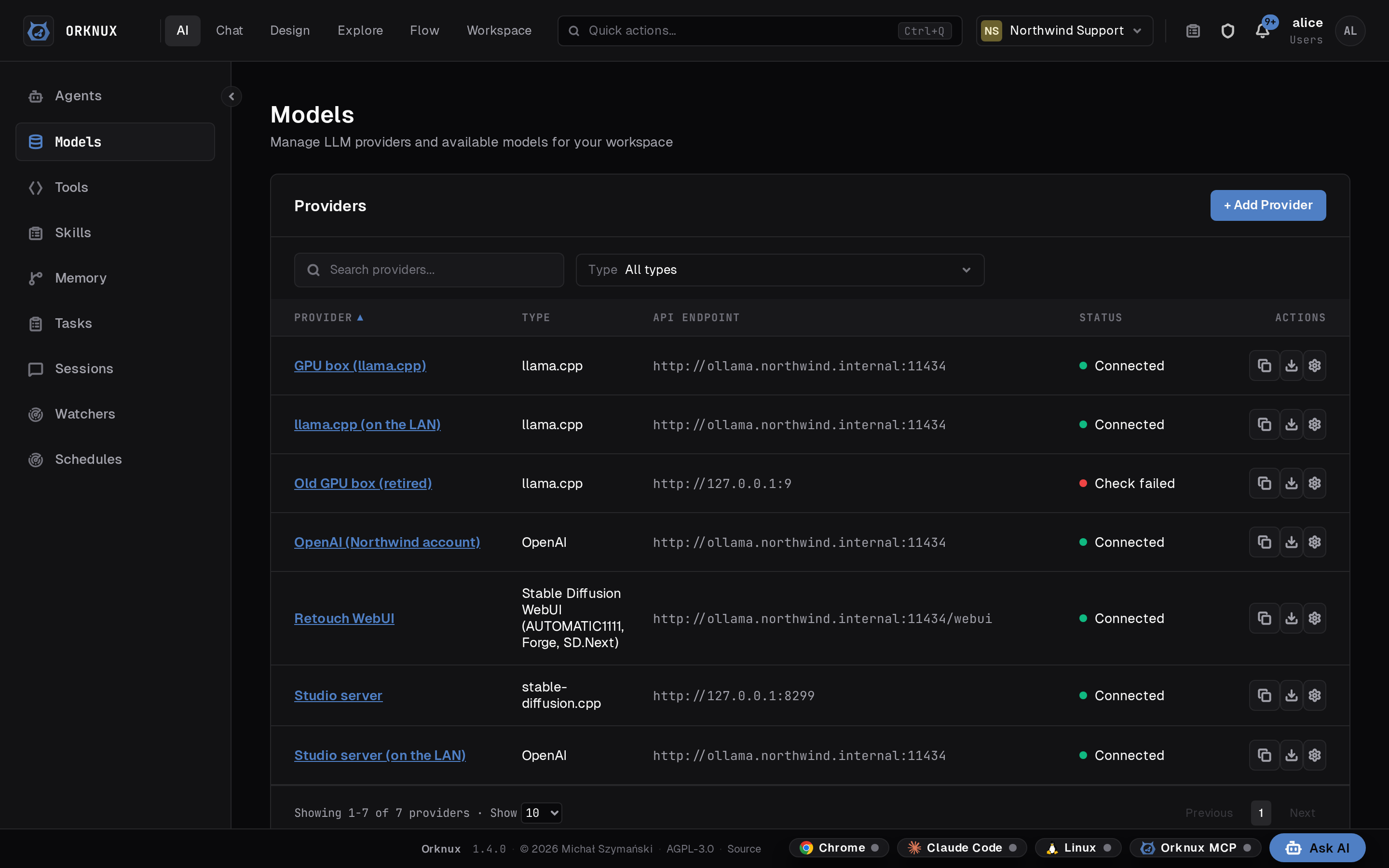
Providers with their endpoints and status, and the models reached through them

A provider is somewhere models are reached: an OpenAI-compatible endpoint, whether that is OpenAI itself, a local llama.cpp or vLLM server, or a proxy of your own. A model is one model on one provider.

Add a model from Models in a workspace. The dialog asks for the type first, because the rest of the form depends on it:

  • Chat — the models a chat or an agent can talk to. Adding one usually discovers what the provider offers and lets you pick from the list.
  • Transcription — speech to text. Provider is an OpenAI-compatible API, given as a server URL and an optional key. No model discovery is attempted: a transcription endpoint is not required to have a model list.

Transcription models never appear in the chat model dropdown. They are for hearing, not for answering.

The model list shows each model's type, its provider, and whether it is switched on. Usage over time is charted on the model's own page. The providers table says each row's type, and both lists - and the connections on Integrations - have a Type filter, All types until you pick one, beside their search.
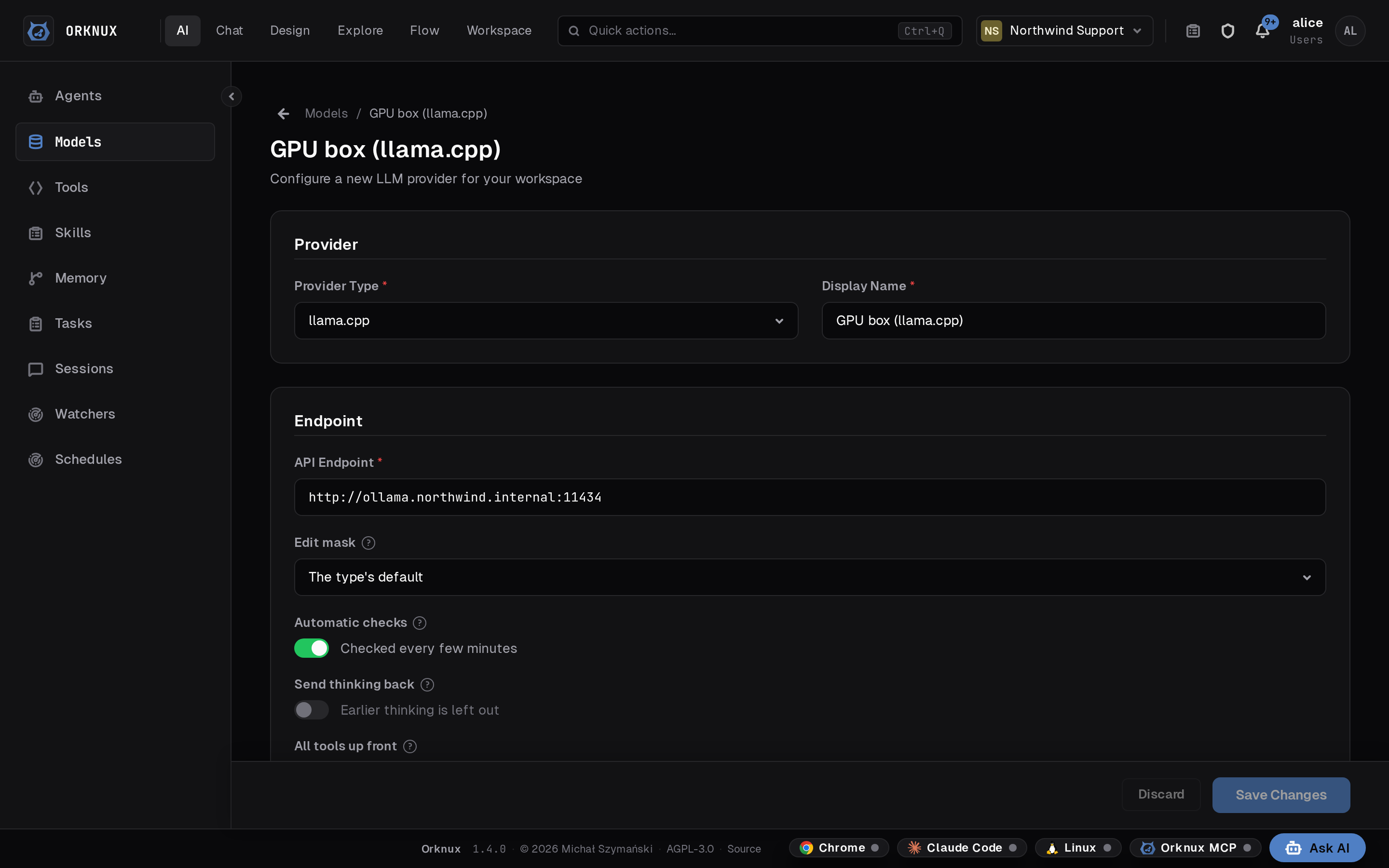
A provider on its own page: where it is, how it authenticates, and what it
said when it was last asked

A provider has a type of its own: OpenAI, Anthropic, Azure OpenAI, Ollama, llama.cpp, and the Decision model (Jev format) described under Workflows. It decides how the address is built and how the key is sent rather than which company answers, so anything speaking the OpenAI shape at an address of its own is an OpenAI provider with that address typed into its endpoint. That is how Google's models are reached: the endpoint is https://generativelanguage.googleapis.com/v1beta/openai with a Gemini key, and the model list, chat, streaming and tool calls all behave. There is no Google type, and there is no Custom one either. Custom said only that we had not heard of the service, which sounded like a promise to speak whatever it speaks and sent an OpenAI request every time; providers stored as it are OpenAI providers on upgrade, endpoint and key untouched, and nothing about the calls they make has changed.

Ollama takes the address the daemon listens on — http://localhost:11434, which is where an operator naturally points it. Its OpenAI-compatible half lives under /v1 and the type adds that segment itself, so nobody has to know it, and an endpoint already written .../v1 is left as it is rather than doubled. That segment used to be yours to remember: pointed at the bare port, a provider that was perfectly correct reported "No model list — check the endpoint" about an endpoint that was right.

llama.cpp is spoken to exactly as OpenAI is, at the address its server listens on - http://localhost:8080 unless it was started elsewhere - and any key will do unless the server was started with --api-key. What the type adds is one question OpenAI has no way to ask: how far the server has got reading a prompt. A long session on a local model is read for minutes before the first word comes back, and that used to be minutes of nothing on the screen. Now the chat and the session page say Reading the prompt… with how many tokens of how many have been read, how many of them came from the server's cache, and the percentage. It is shown only once a read has gone on for five seconds, so the short reads a warm cache makes do not flash a card at you; Reading Progress Shown After in Admin Settings moves that, and 0 shows every read. A llama.cpp server registered as an OpenAI provider before the type existed goes on working as it did; move it to the new type to see the reading.

An API key is needed only where the server asks for one. An OpenAI-compatible endpoint, Ollama and llama.cpp may be added with the key left empty - a server on your own machine usually checks none - and one that does check answers 401, which the provider's card says in words. Anthropic and Azure OpenAI always need one.

The key a provider calls with is one of two things, and they are exclusive. It is either the provider's own value, which is what nearly every provider has and what has always happened here; or it is read from one of the workspace's variables — a secret, not a value — that somebody else maintains. Every provider type offers both.

The choice belongs to the field, not to the form. It sits beside the name of the box it decides — Value or Reference, next to API Key, or next to Client Secret where the authentication method makes it one — and only the control belonging to the half chosen is drawn: a box to type into, or a list of the workspace's secrets to pick from. That is on purpose and it is not only tidiness. A form holding a key and a reference at once is a form somebody fills in twice, and the pair is refused; and where something asks for two secrets, as a Slack connection does with its bot token and its app token, each one answers for itself rather than both being decided by a switch above them.

Reading a secret is worth it wherever one key is behind more than one provider. Three providers on one OpenAI key meant typing it into each of them, and rotating it meant remembering which ones; pointed at a secret instead, the rotation is one edit on the Variables page. The secret is read at the moment the provider is called, so a new value is in use immediately, with nothing to save here.

The reference is held by identity rather than by name. Renaming the variable, or moving it to another catalog, does not disturb the provider — and deleting it is refused while any provider reads it, naming the ones that do. Only a secret will do: a value is returned with the variable listing, and a key on a listing is a key on a screen.

A provider reading a secret has no key of its own to reveal; reveal it from the Variables page, where the reading is recorded against the secret.

A provider's page is also where it is tested. The status is the answer to the last check, not a guess: a provider with no credential fails the check rather than waiting to fail at the first question. Where the credential is a reference that has come apart — a restore, or a database edited by hand — the provider says so in words about the variable, on its row and on its page. That is deliberate. A provider that cannot read its key fails a check exactly the way an unreachable one does, and "check the endpoint" is the wrong afternoon.

Every configured provider is asked the same question every few minutes, so that "Connected" means today rather than the day somebody last pressed the button. That is right for a provider you pay for and wrong for an endpoint that is only sometimes running — a model server on a laptop, a box started for an afternoon — where being off is the normal state and the sweep leaves a failed row and a connection refused in the log every five minutes. Automatic checks on the provider's page turns that off for that provider alone. It stops the timer and nothing else: Test Connection still runs, and so does every chat and task that uses the provider.

Test Connection asks with what is in the form, saved or not, and stores nothing - so an endpoint or a key can be tried before it replaces the one that works. Duplicating a provider copies the provider alone; its models stay where they are, rather than appearing twice under two providers.

A model's own page carries the two numbers that decide how much can be put in front of it: its Context Window, which is how much it reads at once, and its Max Output, which is the most it will write in one answer. Both are in tokens, both are as the provider states them — nothing here asks the model — and either can be left empty, which means not recorded rather than zero. They belong to the model and not to the provider: one provider serves models whose windows differ by an order of magnitude, so a single number kept beside the key would be wrong for all but one of them. The window is what a session's memory is a share of, so a model with none recorded leaves every agent on it with the built-in allowance, and setting a share against it is refused until the number is there. Picking a model a llama.cpp server offers fills its Context Window in for you - the window the server actually runs it with - and puts 0 in both its prices, since a model on your own machine costs nothing per token.

Reasoning effort, on a chat model's page, is how long a reasoning model thinks before it answers: None, Minimal, Low, Medium, High, Extra high or Max, offered for OpenAI, OpenAI-compatible, llama.cpp, Ollama and Azure models. Left at the default nothing is sent and the model does what it always did. A llama.cpp server hands the word to the model's own chat template, where None turns thinking off; Ollama maps it onto its own thinking levels. Anthropic models take none. A chat can choose another for its own turns (see Chat), and so can an agent node (see Workflows).

What a provider is sent

Four settings on a provider's page decide the shape of what goes to it.

All tools up front hands an agent every tool it holds from its first request, past its own Tools carried at once and its Offer marks, up to the provider's limit, so nothing has to be loaded. It is off by default for every type, and the price of switching it on is a first prompt as large as the agent's whole toolset.

Extend the tool list with loaded tools decides what happens to a tool an agent loads with tool_load. On, it joins the tool list at the agent's next turn and is called by its own name from then on. Off, the list stays as it was for the conversation and the tool is called through tool_run - until the conversation is compacted or a new one starts, when it is in the list from the beginning. It is off by default for llama.cpp and on for every other type: llama.cpp writes the tools at the top of the prompt, so each turn after a load reads the whole conversation again, a minute and more on a long one. With it off, an agent on llama.cpp is told plainly that tool_run is the only way to call a tool it loaded. All tools up front avoids the question altogether.

Most tools per request is how many tools one request may carry, on top of an agent's own Tools carried at once; the lower of the two wins. Left empty it is what the type takes: 200 for an OpenAI provider - an OpenAI-compatible server - but 128 where its endpoint is OpenAI's own API, which refuses more; 128 for Azure OpenAI, which refuses more too; 300 for Ollama and llama.cpp, which refuse no number and read the list at the head of the prompt, so it may as well hold a large agent's every tool from the start; and 256 for Anthropic. Past it the rest are still found as needed. Set it lower for a server that refuses fewer, or to keep a small model's list short.

Send thinking back decides whether a model is shown its own earlier thinking in later requests. It is off by default, for every provider, including the ones that existed before the switch did. A model whose chat template drops old thinking anyway - Gemma on llama.cpp, for one - was being sent pages it threw away, and changing what is sent changes the prompt a cache holds. Turn it on for a provider that needs it: a reasoning model that loses its plan without it, or Azure's Responses API. The thinking is captured and shown either way.

The same reasoning runs through how a conversation is sent at all. A turn sends the model exactly what the last turn sent - every tool call, its reasoning and its result - and adds the new message to the end, so a provider with a cache reads only that message, and a hosted one that bills cached input for less bills less. What was sent is kept with the session, encrypted; once it outgrows half the model's window it is started again from what was said, in one step. Notes, the to-do list and the counts that used to sit in the system prompt are no longer there, because they changed it every turn and threw the cache away with them. A chat's running total says how much of what it sent the provider reused from its cache, where the provider reports it: every round sends the whole conversation, so without that number a long chat on a local server read as millions of tokens it had mostly never read again.

The tool list and the instructions are frozen for a conversation. What a conversation's first request carried - the tools and the system turn - is sent unchanged to its last, so nothing that changes along the way makes a local server read the whole prompt again. A tool granted in the chat, a new tool an MCP server or a plugin brings, plan mode switched on: each is said in a message added to the conversation instead, and a tool the list still names but the agent may not use now is refused in words when it is called. The list is made afresh when the agent, its model or the session changes, or when the conversation is compacted.

An agent holding more tools than its provider takes carries as many as fit from its first message, rather than its Always tools alone with everything else loaded one at a time; only the overflow is loaded, and its briefing marks only those as load it first. A tool the list does not carry is called through tool_run, or by its own name, and runs as itself - checked, approved and logged under that name - and tool_load answers with the tool's description and parameters rather than adding it to a frozen list.

When a model is slow, or says nothing

A call to a model may take up to an hour by default - Model Answer Time Limit in Admin Settings. It used to be cut at ten minutes, and a slow local model thinking at length was stopped mid-thought and reported as unreachable.

While a model writes a long tool call or a long answer, the chat and the session page say what it is writing and how much has arrived, so a model putting a whole file into one call does not look stalled.

An empty answer is asked again, up to five times by default, and a reply that cannot be used goes back to the model, twice by default; Empty Answer Retries and Unusable Reply Retries in Admin Settings set how often. Each retry says which attempt it is and how the provider stopped, which is usually what tells you whether the model or the server is at fault.

A model can have a time limit of its own, on its page beside Requests per Minute, for the one model that is slower or faster than the rest. Left empty, it takes the installation's Model Answer Time Limit. Anthropic models follow these limits too; they used to be held to ORKNUX_MODEL_TIMEOUT's two minutes, which is no longer read - an installation that set it sets the limit in Admin Settings, or on the model, instead.

How fast a model is
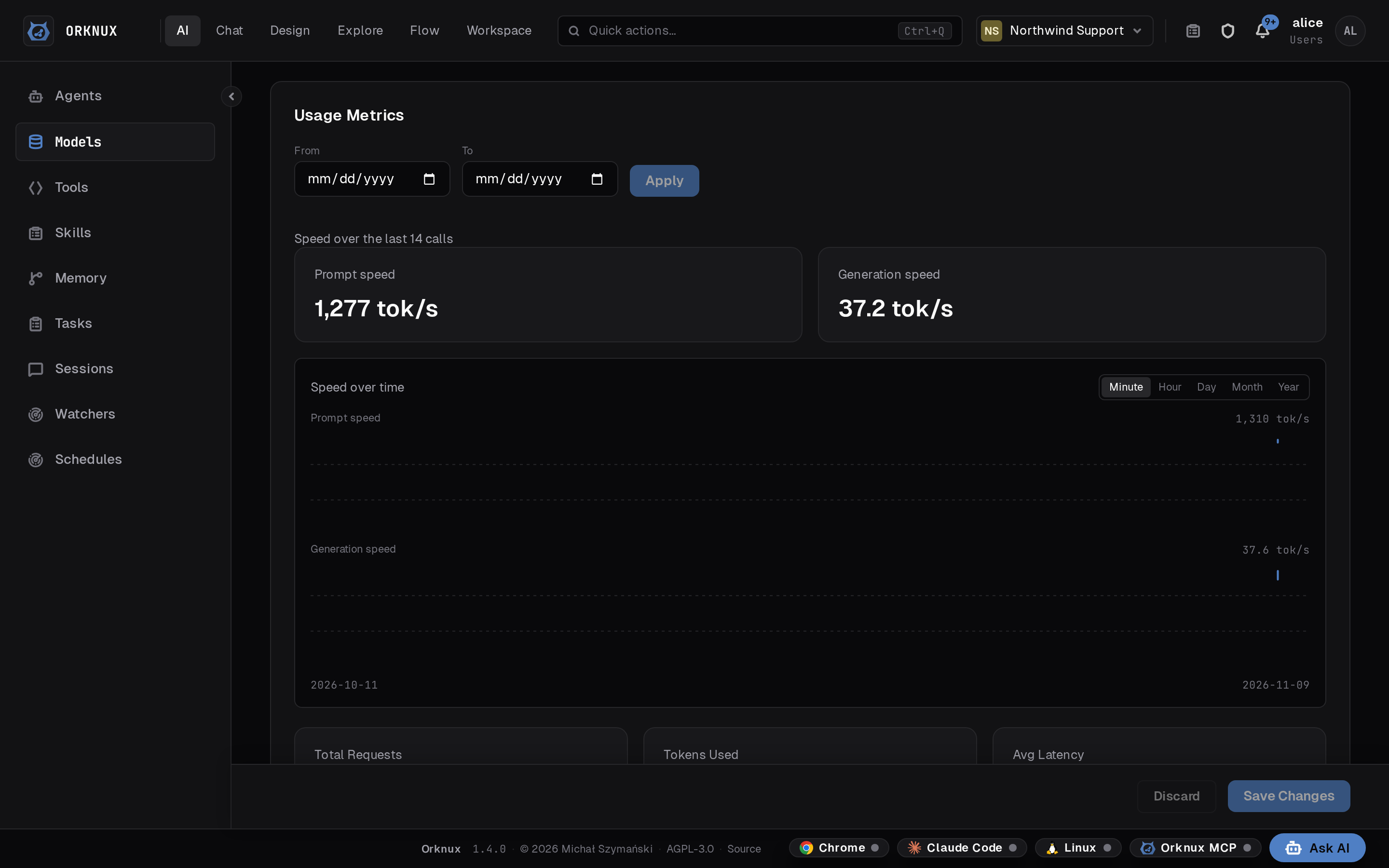
A model on a llama.cpp server: its speed over its newest calls, and the chart of
its speed over time

Some providers say how long a call took to read and to write - llama.cpp does, with every answer; OpenAI, Azure, vLLM, Ollama and Anthropic do not, and for their models nothing is shown. Where the timings arrive, Orknux keeps them with the call and shows them in three places:

  • On a session's page, beside its cost: the Prompt speed - how many tokens a second the model read - and the Generation speed - how many it wrote - averaged over those of the session's calls whose provider reported them, and saying how many that was.
  • On the model's own page, the same two numbers over its newest calls - fifty unless How many recent calls a model's speed is averaged over in Admin Settings says otherwise. That is how to tell whether a model is slower today than it was, without opening a session.
  • Under them, a chart of its speed over time, over the same dates as the usage card: averaged per minute, hour, day, month or year - Day unless you choose, or Hour where the dates are a single day. A period with no timed calls is a gap in the line, never a zero, because a model that was not asked was not slow. Past a thousand periods only the newest are drawn, and the chart says so; How many periods a model's speed chart draws in Admin Settings moves that.

The averages are weighted by tokens: a call that read twenty thousand tokens says more about how fast the model reads than one that read twenty, and an average of calls would let the short ones drown it out.

Prices, and what a conversation costs
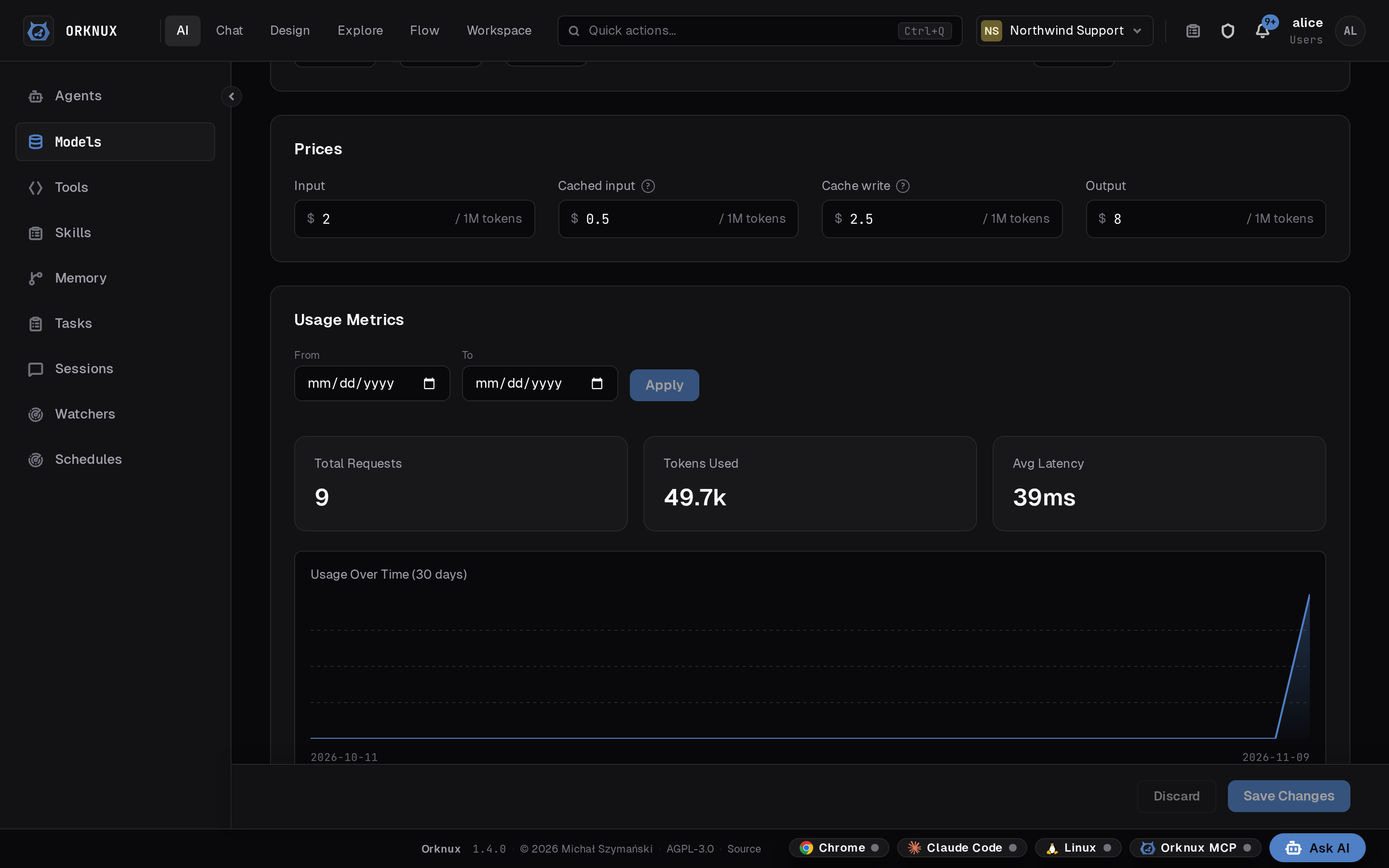
A hosted model's prices: input, cached input, cache writes and output, per
million tokens

A chat model's prices are set on its own page, under Prices, and in the Add Model dialog when it is made. Each is in dollars per million tokens:

  • Input - what the model reads.
  • Cached input - input the provider served from its prompt cache, which hosted providers bill for less. Empty, cached input is charged at the input price.
  • Cache write - input the provider wrote into its cache, which Anthropic bills for more. Empty, it is charged at the input price.
  • Output - what the model writes.

Every cost Orknux shows - under an answer in a chat, a chat's running total, a session's page, the reports - is worked out call by call at the prices the model had when the call was made, so changing a price changes what is charged from then on and leaves what was already spent as it was. How much of the input was cached is read from the provider's own usage report - OpenAI's and Azure's, the Responses API included, and Anthropic's cache reads and writes - and shown on the model's page and in Tokens by person. A cost of a dollar or more is shown to the cent.

A model with no prices costs nothing on the page - which is right for a model on your own hardware, and why a report that mixes priced and unpriced models says that some have no price rather than pretending the total is complete.

Moving models to another workspace

Models are set up once and used in many workspaces, so they travel:

  • Export on the Models page writes the workspace's models and the providers they are reached through into one file. A provider's own row has Export too, for that provider and every model on it.
  • Import on another workspace's Models page reads the file back in.

API keys are left out of every export, deliberately - a file is easily forwarded - so after an import each provider has to be given its key again on its own page, or pointed at a workspace secret. Until then it fails its check saying it has no credential, rather than failing at somebody's first question.

Workspace models

Two model choices belong to the workspace rather than to a conversation:

  • the companion model, used for the small jobs nobody should have to pick a model for — naming a chat, for instance. Clearing it switches those jobs off rather than falling back to something you did not ask for.
  • the speech-to-text model, used by the microphone in chat. Only a transcription model will do.

Both are set in workspace settings, by its administrators - see Workspace members under Administration.

Templates
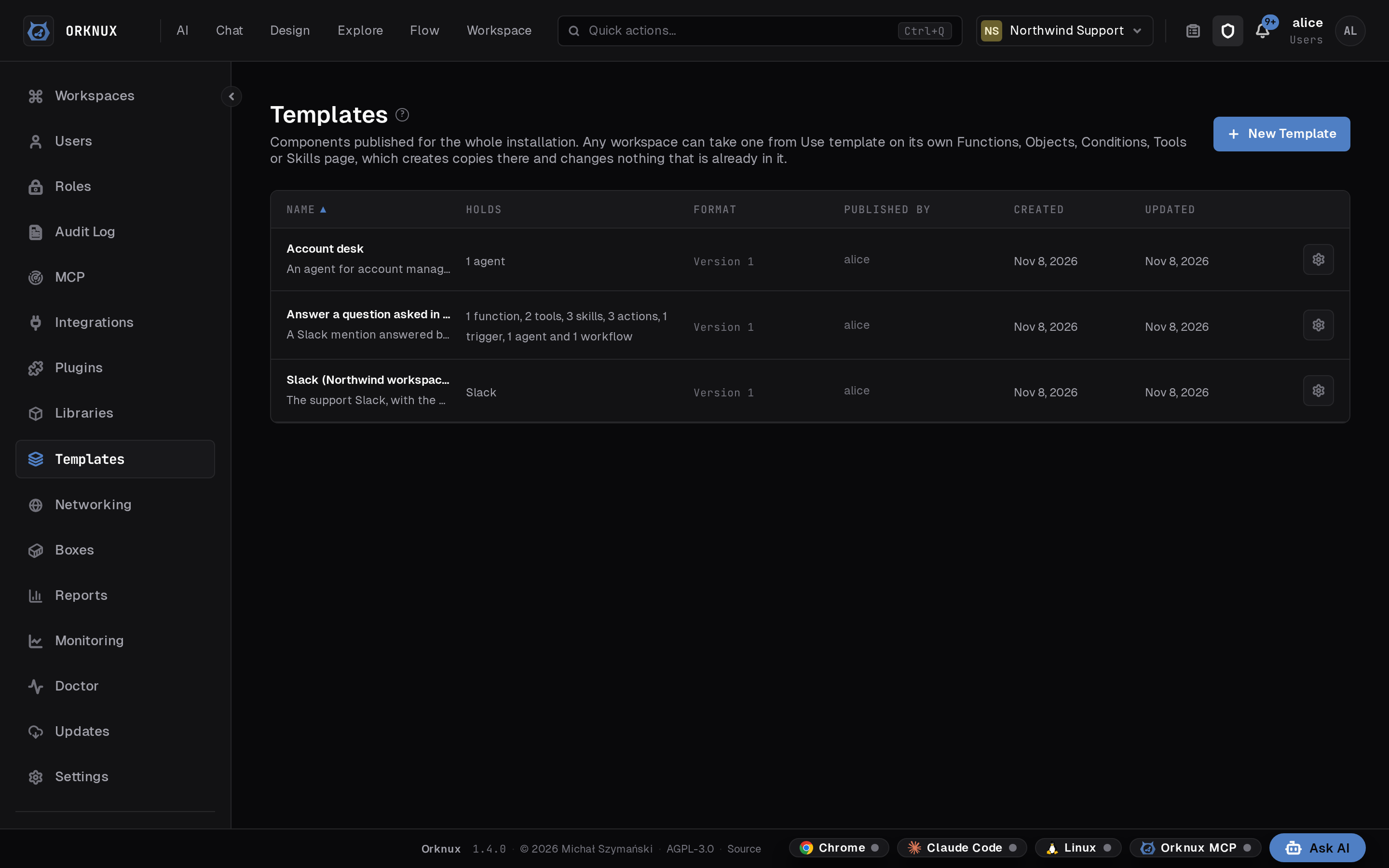
Admin → Templates: an agent and a Slack connection published for every
workspace to start from

A template is something set up once - an agent, a model, a connection, an MCP server, a workflow, any component - published for every workspace on the installation to start from. It is a stored export: what a workspace gets by using one is exactly what it would get by importing that file, so the same checks run and the same import plan says what will happen before anything is made.

Making one. On a component's own row, Save as template publishes it - asked for a name and a description, and administrators only, because a template offers one workspace's work to all the others. Models are published from their row on the Models page, and connections and MCP servers from theirs on Integrations. Admin → Templates lists everything published, opens one to rename it, reword it or replace its file, and publishes an exported file someone sent you as a template of its own.

What a template does not carry is a credential. A connection or an MCP server is published with its settings and without its token, key or password; a model template carries its provider without the API key. Using one makes the component in your workspace and then links to each one that needs its credential given again, so nothing is left half-configured without anybody being told.
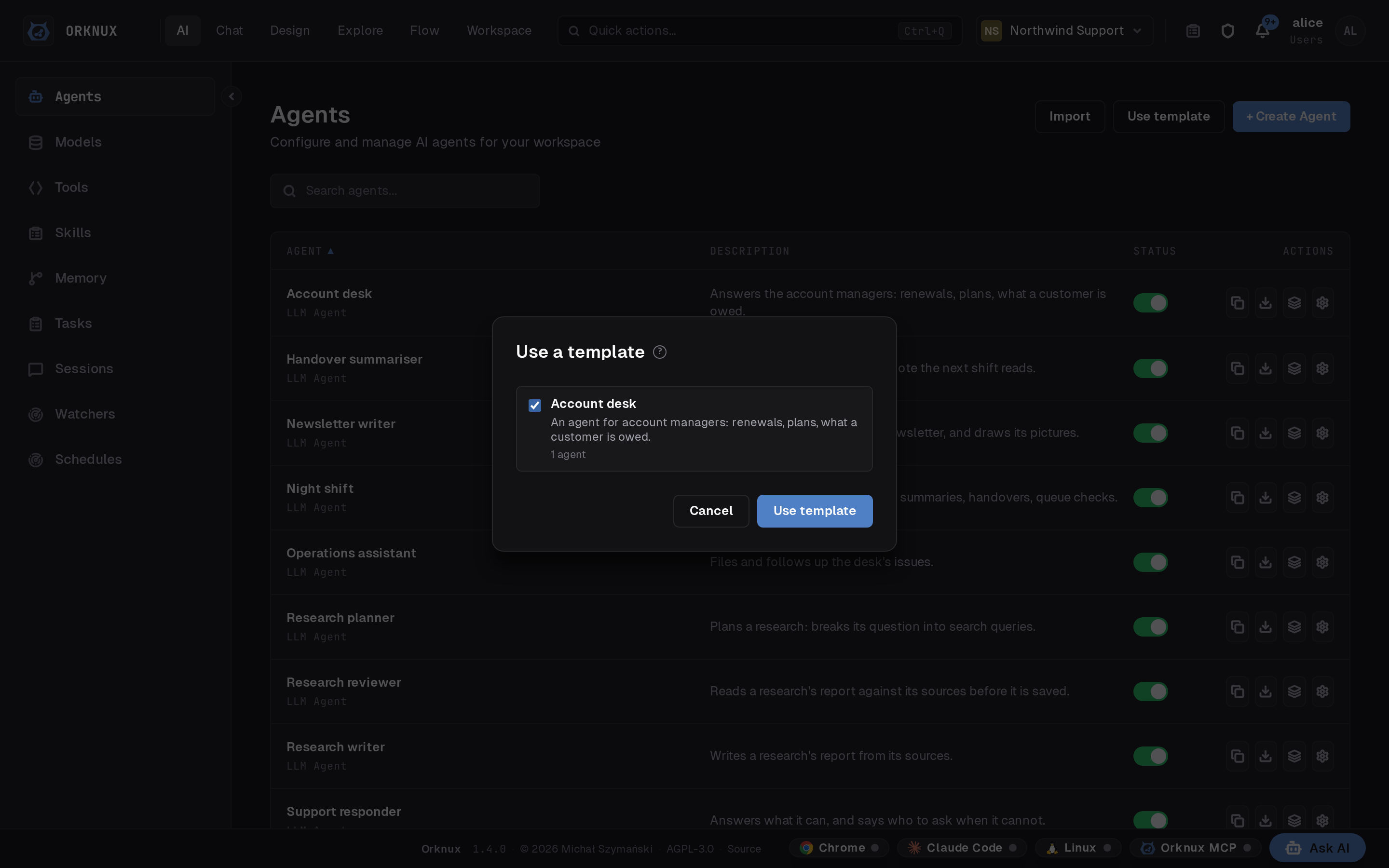
Use a template on the Agents page: the templates of that kind, with the choice to
leave the agent's model out

Using one. Use template on a page offers only the templates of that page's kind - the Agents page offers agents, the Workflows page workflows, the Models page models - and Use a template beside a card's Add on Integrations does the same for connections and MCP servers. Tick one or several and the import plan shows what each becomes before you confirm; it can be filtered by what happens to each row, and the dialog and the plan are resized from their corner.
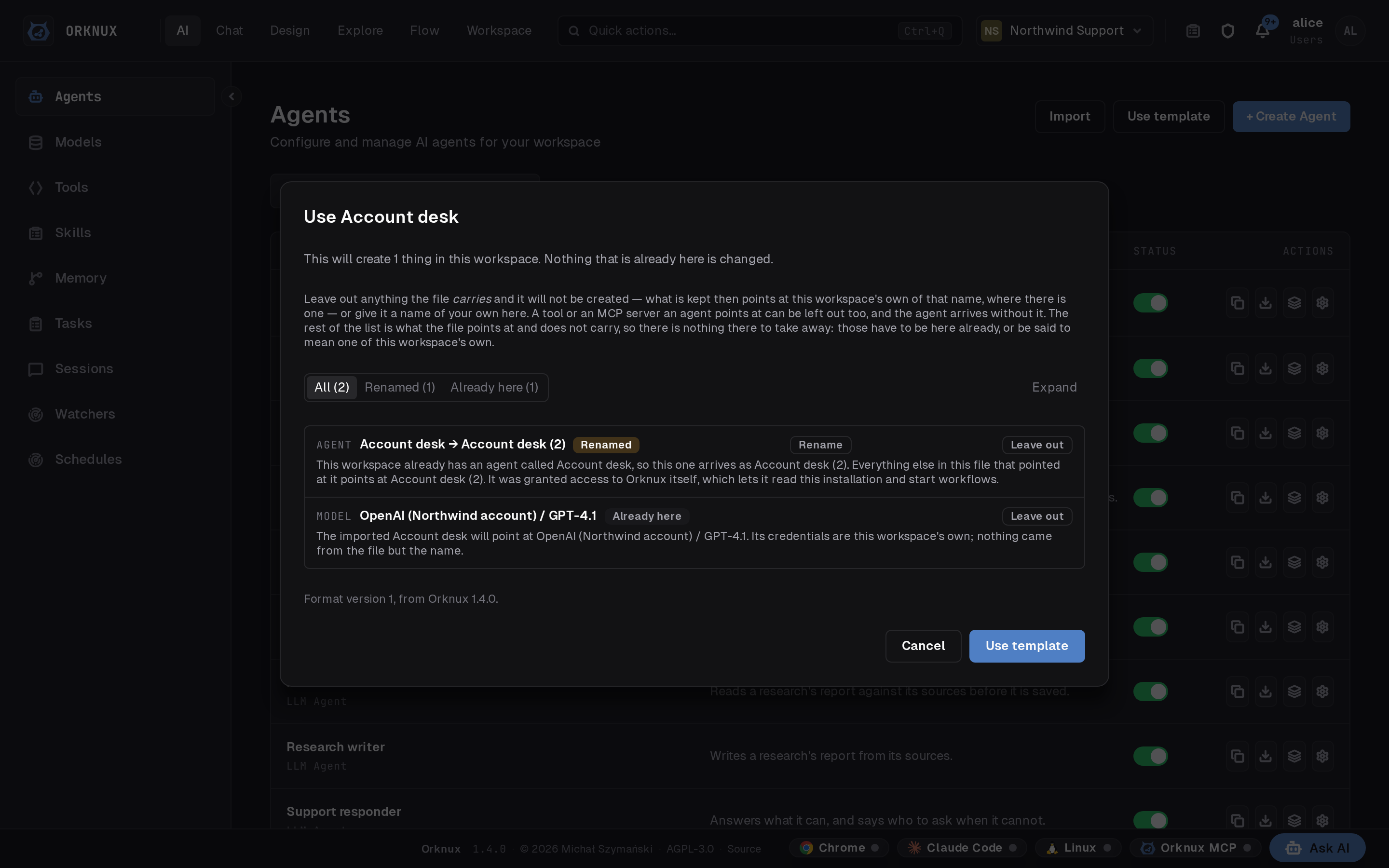
The import plan for the Account desk template: what will be made, and the
model it names with Leave out beside it

An agent's template names the model it was made on, which is often one your workspace does not have. In the plan, Leave out on the model's row makes the agent with no model chosen, for you to pick one on its page, rather than refusing the whole template over a model you were going to replace anyway. Keep puts it back.

A template holds a copy of the components as they were when it was published, and follows nothing: editing the agent one was made from does not change the template, and deleting a template does not touch what it already made in a workspace. To bring one up to date, Save as template again under its name: the dialog warns in amber as soon as the name is taken that publishing replaces its contents and description, and Replace template does it in one press, keeping the template. Replacing its file, on its page under Admin → Templates, does the same from a file. That list shows when each template was published and last changed, both sortable, with the exact time and who on hover.

Agents
The workspace's agents

An agent is a model with a brief: instructions, and access to the workspace's skills, tools and memory. Agents can be used from chat and as a node in a workflow, where their input comes from the parameters the node is given.

  • Skills are written instructions the agent can draw on, grouped into catalogs.
  • Tools are things the agent can call, including MCP servers connected to the workspace.
  • Memory is what a workspace has written down for its agents to read.

Everything this card names is defined somewhere else in the workspace, and every one of them carries the mark that opens it: the model beside its picker, and a catalog, a tool or an MCP server at the end of its own row. They open in a tab of their own, so going to read what something is does not throw away a form that has not been saved — and pressing one grants nothing.
One agent's settings: its brief, the model it answers on, and the share of
that model's window its sessions are given

An agent's settings page

An agent's settings with the menu down its side, scrolled to its Tool Rounds and
Progress messages

An agent's settings are a long page, so a menu runs down its side, as on the other settings pages: General, System Prompt, Model, Session Memory, Tool Rounds, Progress messages, the catalogs it is granted - Memory, Secret, Variable and Skill Catalogs - then Skills, Tools, Tools carried at once, Connections, the Agents it may ask, Orknux, Boxes, MCP Servers, its History, what it is Used by, and the Danger Zone. Pressing an entry scrolls to that part of the page, and Search settings above the menu narrows it to the entries that match.

Model. The model the agent answers on. Under the picker, Add a model opens the Models page with the Add Model dialog already open, for an agent being set up in a workspace that has no model yet. Only a model that chats will do: saving an agent with a newly chosen embedding, transcription or speech model is refused, because none of them can answer. An agent already holding one from before the rule is left as it is.

Tool Rounds. How many rounds one turn of the agent may take - a round being one call to the model, which answers or asks for tools. Three places set it, and the nearest wins:

  1. the agent's own number, on this page;
  2. the workspace's, under Workspace Settings → Agents, for every agent of that workspace that has no number of its own;
  3. the installation's, Tool Rounds in Admin Settings - 5000 unless changed.

Progress messages. How much the agent writes while it is still working - the short messages that reach whoever asked before its answer does. In a Slack thread they are the replies that arrive while the work is going on; in a chat they are the lines above its answer.

Level What the agent writes before its answer
None Nothing: it works in silence and says it all in its answer. The server holds it to that - anything it writes beside a tool call is kept in the session's log and goes nowhere else.
Low One line on what it is about to do, then nothing until its answer.
Medium That, and every few calls what it has found. Every agent that existed before this setting is on Medium, which is what agents had always been told.
High A line at every step.

A workflow node running the agent can set a level of its own, which wins for that node (see An agent node's own settings under Workflows). A person can set it for one message, too: a command word in the message - !progress-none, !progress-low, !progress-medium or !progress-high, with the workspace's own command marker in place of ! - sets the level for that turn only and is never mistaken for a skill. The chat's command menu offers the four, and the next message goes back to the agent's own level.

The connections it holds

An agent is granted connections by name on its Connections setting, and a grant is its permission to name one. That is the whole list it may use, wherever a connection is named: in what its briefing tells it it holds, in what find_connections answers, and in the connection argument it passes to a plugin's tool. A plugin's Prometheus or Jenkins tool used to accept any connection of that kind the workspace kept, granted to the agent or not; now a connection it does not hold is refused as though it did not exist, and the refusal and the tool's own description list only the ones of that kind it was given. An agent holding none is pointed at its Connections setting rather than told something failed.

find_connections is offered to every agent that has it on, however many connections it holds. It used to appear only past six, so an agent's tools changed with a count nobody sees, and an agent holding none could not ask whether it held any — it now gets an empty answer and a note saying where connections are granted. A short grant is still recited in the briefing.

A workflow node and the editor's Run have no agent, so they keep the rule they always had: any connection of the right kind in the workspace.

A connection can carry a description - what it is for, such as production Jira, the support project - and an agent is told it beside the connection's name, and find_connections searches it. Two connections to the same system are otherwise two names an agent has to guess between. A connection inherited from an administrator's default takes that default's description.

Grant to new agents, on a connection's own page, ticks it on every agent made from then on - the support Slack every agent ends up needing, say. Agents already made are left as they are; tick it on them where they should have it.

Asking for what it lacks

An agent that needs something it was not granted does not have to stop at "I can't". Two built-ins, on for every agent unless May ask for more tools is switched off on its page:

  • tools_ungranted lists what the agent could be granted and is not: built-in tools it has hidden or that are off until asked for, the workspace's own tools, the loaded plugins', its MCP servers, Orknux access, the workspace's connections, and box labels.
  • tools_request puts the ones it wants to the person, as a question in the conversation naming each one, its kind and what it does, with Accept and Refuse.

Accepted, the grant is written to the agent itself - the same lists its settings page edits, with a version and an audit line - so it is permanent, and the agent hears the outcome and is offered what it asked for from its next round. Refused, it is told so and carries on without. Asking grants nothing by itself; a person decides every time. That is how an agent holding a Jira tool and no Jira connection asks for the connection, and how an agent with no box asks for one by its label rather than only saying it has nowhere to run the code.

What it holds by default

A new agent is not empty. It holds every memory catalog its workspace has and every plugin's skill catalog, and a memory catalog created later, or a plugin that brings skills for the first time, is granted to the agents already there. Each can be unticked on the agent, and re-uploading a plugin does not hand back a catalog somebody took away. That way round because an agent that does not know what the workspace has written down, or how a plugin it was granted is meant to be used, answers worse, and the omission is invisible: it was a grant somebody had to remember on every agent, and mostly did not.

It is told, too, to look at its skills before it starts a piece of work - to list them once per conversation and load the ones that fit - where it used to be told to look only when a request needed one, which agents almost never decided it did. The Watchers skill is Always for every agent, so each conversation begins with the agent loading it: one extra call, for an agent that then knows to wait for something with a watcher rather than by guessing.

Tool Rounds - how many rounds of calling tools one turn may take - is 5000 on a fresh installation, in Admin Settings and on an agent, and goes up to 10000. It was 8. An installation that saved its own number keeps it, and one relying on the default gets 100 unless ORKNUX_CHAT_MAX_ROUNDS says otherwise.

Secrets and values it may hand on

Secret Catalogs and Variable Catalogs grant an agent the workspace's variables, by catalog, for one purpose: handing them to a command in a box, below. variable_list names what it holds - values with what they say, secrets by name only - and variable_get reads a value. A secret is used, never read. The agent names it, the command is given it as an environment variable, and the model never sees it: anything the box prints that holds one reads *** in the tool's answer, the session log, the chat and the Box panel, including the same secret base64- or URL-encoded. A value split across two reads of the output is the one thing that is not caught, which is a reason to grant a secret only to an agent that needs it.

A secret is set under its own name and upper-cased too, so github_token is also $GITHUB_TOKEN, and the answer says which names were set.
Skills and tools

The workspace's skills, in the catalogs they are grouped into

A skill is written instruction — how to answer in a thread, when to escalate somebody — kept as markdown that opens with a frontmatter header naming it. That header is what an agent reads to decide whether the skill applies before it reads the rest.
The skill editor

Agents are granted whole catalogs rather than single skills, so adding a skill to a catalog gives it to every agent already holding that catalog. It is also why a catalog an agent holds cannot be deleted, and the refusal names the agents: a grant is a name, so nothing would have broken loudly — the agent would simply have stopped knowing what the catalog held. A single skill carries no grant and deletes as it always did. See Deleting something in use under Workflows.

One search box sits above the catalogs, on the Skills page (Search skills...) and on Memory, and it searches every catalog at once - a plugin's included - and what a skill says as well as its name and description. The matches are grouped under each catalog's name, the column of catalogs counts them, and choosing a catalog narrows the search to it. A plugin's catalog is searched the same way as the workspace's own.
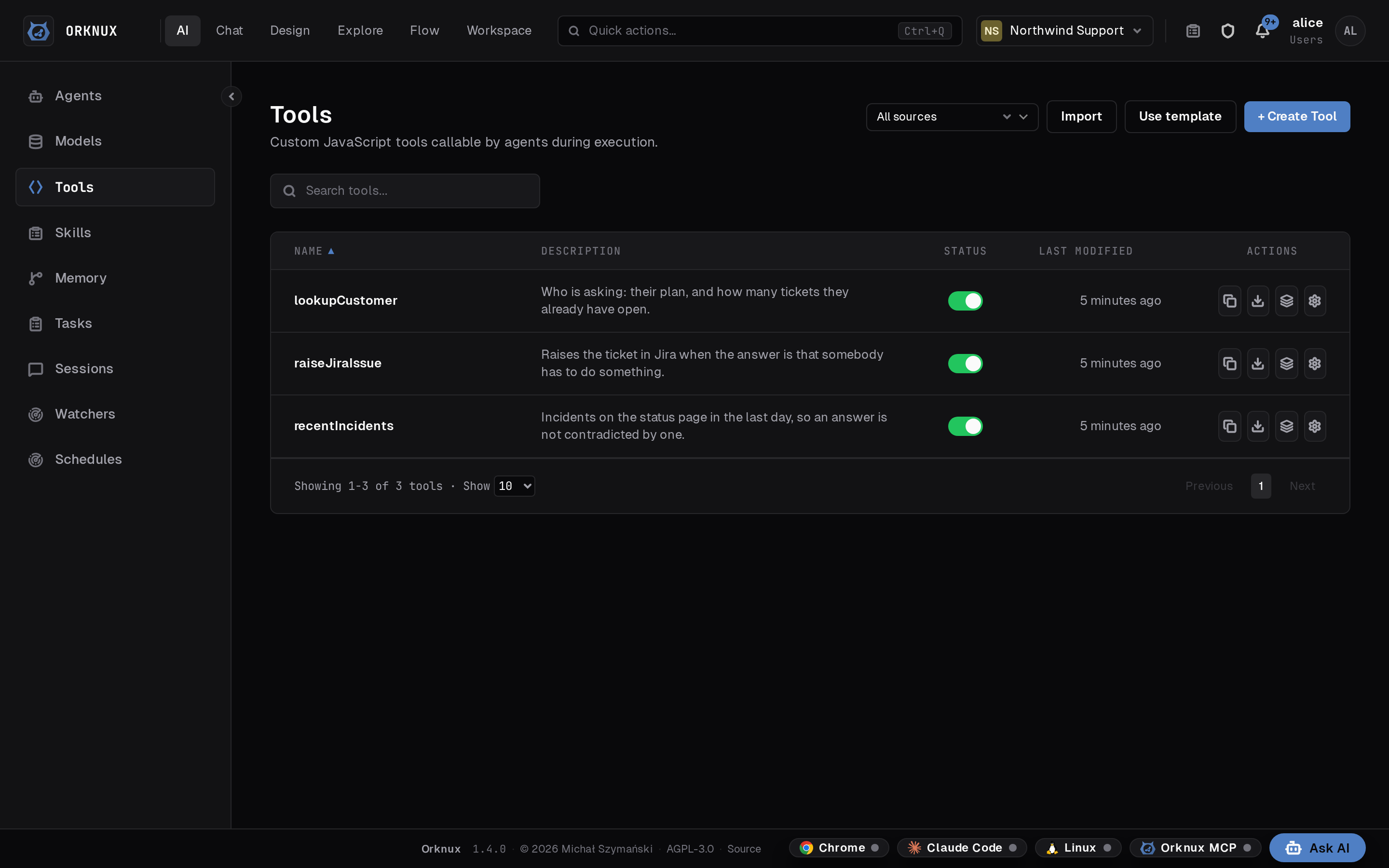
The workspace's tools

A tool is code an agent may call while it answers. Unlike a function, which a workflow node calls with arguments it mapped, a tool is offered to the model and called if the model decides to. A tool an agent has been granted cannot be deleted while the grant is there, for the reason a skill catalog cannot.

A tool may import the workspace's functions, so logic a workflow already has need not be written a second time for an agent to reach it. Its editor has the same Imports and Libraries sections a function's has, and the code calls them the same way — imports.name(…). Nothing imports a tool: the direction is one way, which is also why a tool cannot be caught in an import loop. It is set out under Workflows, in One function calling another.
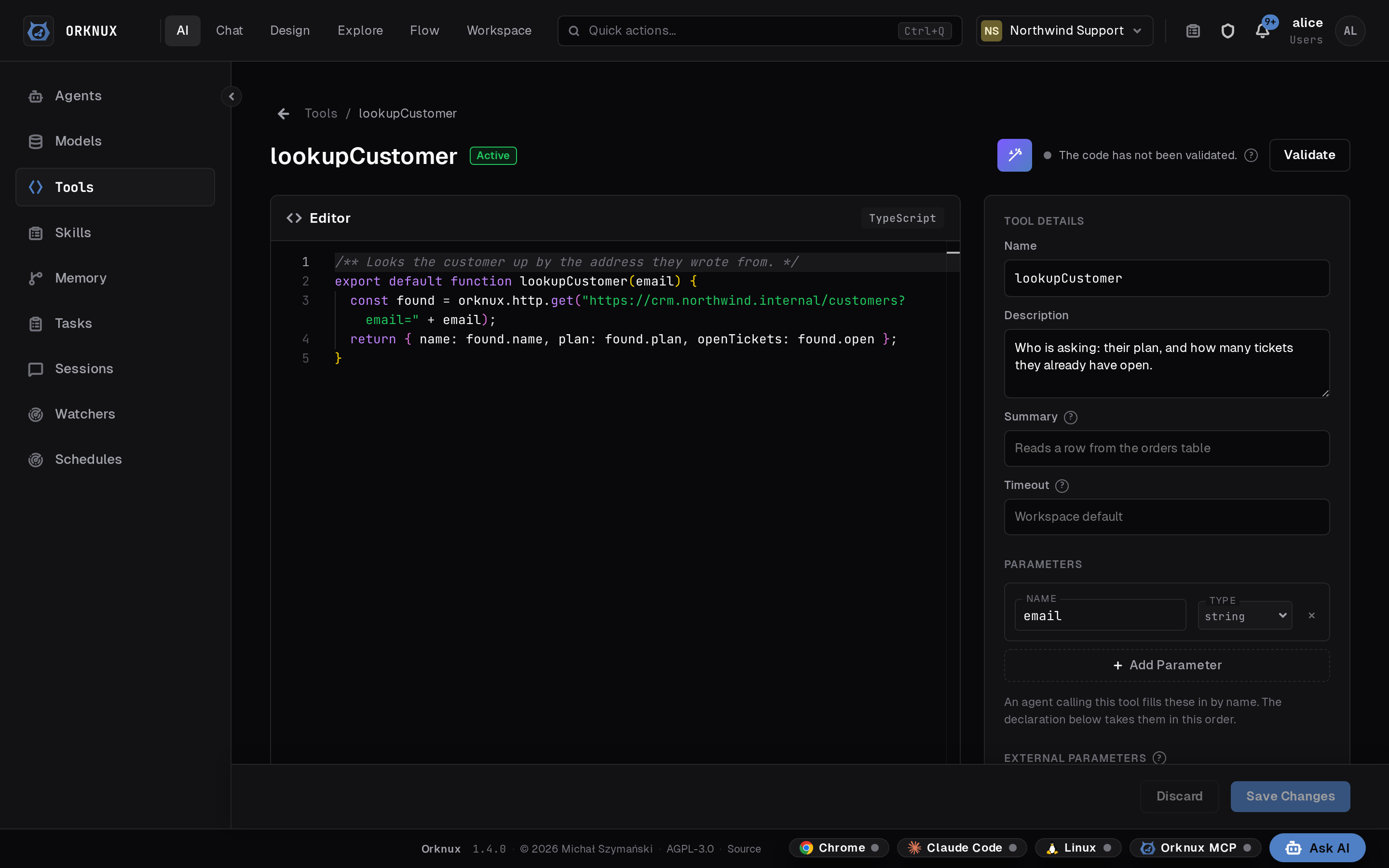
The tool editor

Beside Validate is a wand, and it is the quickest way to get help with what is on the screen. It opens the quick chat with this tool already in hand, so a question about the code does not have to describe the code first. What comes back, when the answer is a change, is drawn against what the tool says now, with Accept and Reject underneath it.

Accepting compiles the change in the browser and saves it, exactly as Save does - what runs is the JavaScript stored beside the TypeScript it came from. Nothing is written before that, and whichever you press is said back into the conversation, so a change that will not compile can be answered rather than silently dropped. The function editor has a chat of its own instead; see Workflows.

Tools in Python

A tool can be written in Python instead of TypeScript. The language is chosen in the Create Tool dialog and shown in the editor's corner; it is part of what the tool is, so changing it later means saving code written in the other language at the same time.

A Python tool defines main, and is called with its parameters in the order the panel lists them, the workspace variables it is handed after them - the same order a TypeScript tool takes them in. Adding or renaming a parameter rewrites the def main(...) line, keeping a default written on a parameter that stays. What main returns is handed to the agent as JSON, so it has to be something JSON can say: a dict, a list, a string, a number, True, False or None.

def main(text, times):
    words = text.split()
    orknux.log.info('counting', len(words), 'words')
    return {'words': len(words), 'loud': (text.upper() + '!') * times}

It runs in the same sandbox, with the same limits, and is given the same orknux helpers - orknux.http.get(url), orknux.slack.postMessage(...), orknux.session.store.put(...) and the rest - as orknux, without importing anything. A helper's last options object can be written as keyword arguments, and one that refuses raises OrknuxError with the helper's own sentence. print writes to the tool's log, as orknux.log.info does.

What it does not get is anything outside the sandbox: no files, no network but orknux.http, no processes, no threads, no native code. The Python standard library is there for everything that needs none of those - json, re, datetime, math, statistics, hashlib, base64 and the like. A Python tool cannot import the workspace's functions or libraries, which are JavaScript, so its editor has no Imports or Libraries sections. The first Python call after the server starts takes a second or two while Python is loaded; after that a call costs about what a TypeScript one does.

What an MCP server brings

Granting an agent an MCP server gives it the server's tools, and two more things where the server offers them. Resources - the documents a server publishes - are read with two tools under the server's name, <server>__list_resources and <server>__read_resource, which appear only where the server advertises any; a document that is not text comes back as a key, like a drawn picture. Prompts are skills: they arrive in a catalog called <server>_mcp, listed and loaded like any other skill, and skill_load passes the arguments a prompt takes. Nothing has to be granted for either beyond the server itself.

Whether a server is up is something every agent can ask, granted it or not. mcp_status lists the workspace's MCP servers as the MCP servers page does - reachable or not at the last check, when, what the check said, how many tools - and says beside each whether this agent holds it, so an agent whose MCP tool fails can tell a server that is down from one it was never given. Asked to, it checks one server again there and then - the one it names - as the page's Check button does. It never says a credential, a header or more of the address than its host. It is a row on the Tools list like the other built-ins, on and at Offer for every agent, and switched off there.

How an MCP server - or a connection - signs in is its Auth setting:

Auth Type into the secret What is sent
Bearer Token the token, abc123 Authorization: Bearer abc123
API Key the header's whole value, Token abc123 Authorization: Token abc123
Basic username:password, plainly: alice:s3cret Authorization: Basic YWxpY2U6czNjcmV0

For Basic do not encode anything yourself: Orknux turns alice:s3cret into its base64, YWxpY2U6czNjcmV0, on every request. A secret that was encoded by hand anyway - base64 that decodes to something with a colon in it - is recognised and sent as it is rather than encoded a second time, so either works; the plain form is the one to type, because it is the one you can read back.

An MCP server can be tested before it is saved. The Add dialog has Test, which connects with what is typed - address, Auth, secret - and says what came back, storing nothing. A saved server's page has Check on the status line under the form. A connection's Add dialog has Test Connection, which does the same.

Keeping what they were

An agent, a tool and a skill each keep the version they replaced every time they are saved, and each has a History beside it: who saved it, when, what the prompt or the code said then, and a button that puts it back. A tool's and a skill's are in the panel beside the editor; an agent's is on its settings page, under the form and above the way to delete it.

It is the same mechanism a function has, and it is set out under Workflows, in What a component was — including how long a version is kept, which is an administrator's to decide. It is worth most here: a prompt is written by trying something, and without this the version that worked is only in somebody's memory of what they typed.

Memory
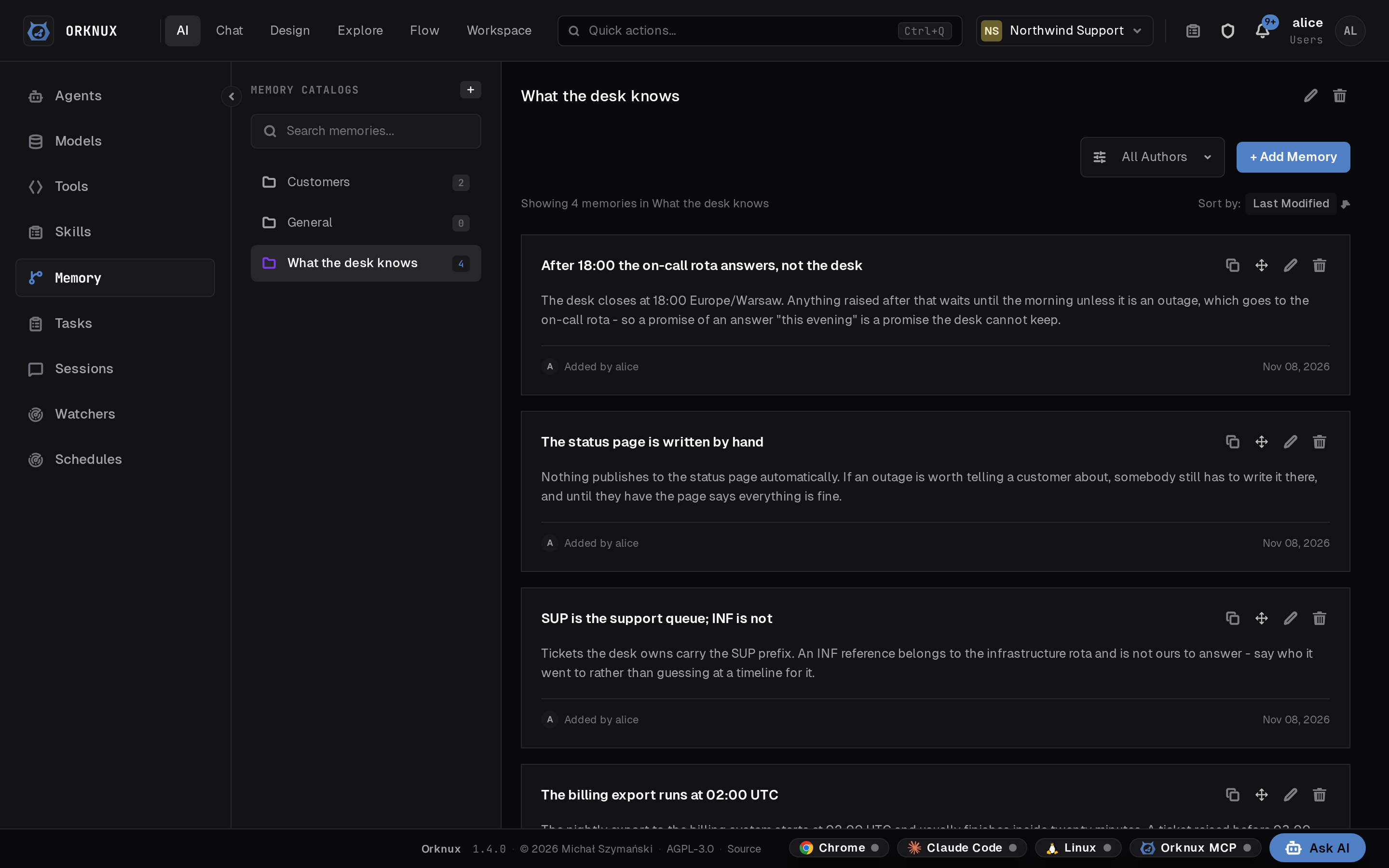
What the workspace has written down, in the catalogs it keeps them in

A memory is a fact about this workspace that nobody should have to work out twice — that the export runs at 02:00, that one customer asked never to be phoned. It is the other half of a skill: a skill says how to work, a memory says what is true here.

Memories live in catalogs, and agents are granted whole catalogs, exactly as they are for skills. Adding a memory to a catalog gives it to every agent already holding that catalog, and nothing has to be granted again.

An agent that holds at least one catalog is offered a tool called memory_search, and only the catalogs it was granted are searched. So memory is not pushed into every prompt: the agent asks when it thinks there is something to know, the same way it reaches for any other tool.

It can write as well as read. memory_save files something new, or rewrites a memory by its title; memory_update corrects one - new content, a new title, or both - and memory_delete removes one that is wrong or out of date. All three write only into catalogs the agent was granted, and the audit log names the agent that did it.

A memory catalog an agent holds cannot be deleted either, and the refusal names the agents holding it. Removing one memory from a catalog is not the same act and is not refused: the catalog is what an agent is granted, so deleting one takes the whole folder from everybody at once.

Each catalog has its own search, a filter by who wrote a memory and a sort, since a catalog somebody has been adding to for a year is longer than a page.

Sessions
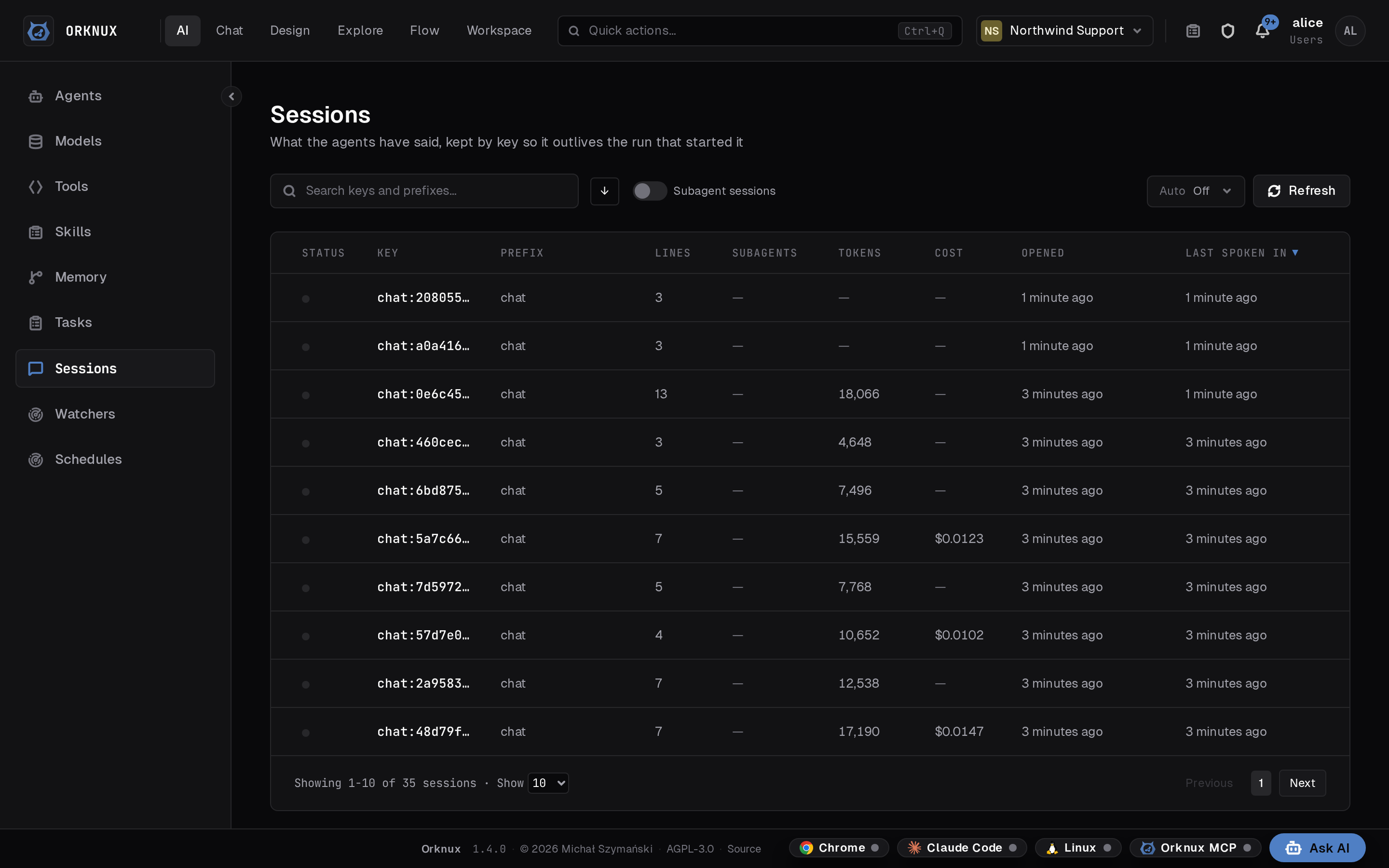
Every conversation this workspace's agents have kept, and how much was said in
each

A session is one running conversation, kept apart from any single run. An agent node answers and, ordinarily, forgets: the next run starts from nothing. A session is what makes the second run remember the first.

Nothing on this page creates one, and there is no button that suggests otherwise. A session appears the first time an agent node carrying a sessionKey runs, and every later node that computes the same key writes into the same conversation. Where that key is set is the session node in the workflow editor, described under Workflows. The key is what a conversation is called; the optional prefix is what it is filed under, and the two are shown together as prefix:key. Keys belong to a workspace, so two workspaces both keying on standup are keeping two separate conversations.

Because the key is usually computed rather than typed, one workflow keeps as many conversations as it has things to talk about. The workflow these pictures are taken from keys on the ticket a Slack mention names, so each ticket has a thread of its own and a second question about the same ticket continues the first.
One session, narrowed to what was said: a question, the answer, and the same
ticket asked about again a run later

Opening one shows the transcript, oldest first, a day at a time. Every line names somebody and says what kind of line it is:

  • User — what was put to the agent. On a workflow node that is the node's own name, since the node is who asked.
  • Agent — what it answered.
  • Tool — a call the model made, with the arguments it sent. Not what came back, which is why that line is often JSON and often long.
  • System — a note from orknux itself, such as an agent that could not answer and why.

A long line is folded to a few lines with the full length on the button that opens it, so a transcript with a thousand-line tool call in it is still readable. The search, the four kind filters and the sort apply to the transcript rather than to the list of sessions — and with none of the four picked you are looking at every kind, not at nothing. The picture above has User and Agent ticked, which is why the tool calls the agent made between the two answers are not in it.

Export CSV saves the transcript as a spreadsheet - every line, oldest first, narrowed by the search and the kinds the page is filtering with. A cell that starts like a spreadsheet formula is kept as text, so opening it runs nothing.

A chat's session is its owner's. Every chat with an agent writes a session, and that session - with the sessions its agent asked from it - is listed, counted and opened only for the person whose chat it is and for installation administrators. To everybody else in the workspace it is not there: not in the list, not by id, not in the CSV, the family panel or a session's scratchpads, to-dos, timers, boxes, watchers, schedules and requests, and not through orknux_sessions or orknux_session, where an agent reads only the chat it is answering in. The sessions of workflows, tasks and Slack threads stay the workspace's.

What the agent is handed on its next turn is the recent User and Agent lines, not the whole transcript and not the tool calls: enough of the conversation to carry on, without a fortnight of it arriving in one prompt.

How much of it is Session Memory, on the agent's own settings card. It is a share of the context window of the model that agent uses — one number, from which how many turns come back, how much of them, how much of what its tools last returned and how much of any single result are all worked out. A share rather than a count because the window is what the budget is spent out of, and on the agent rather than on the installation because what a sensible budget is depends on what that agent's tools give back: one reading whole files needs a different allowance from one reading issue lists, and both may be pointed at the same model.

Left at Default an agent has set no share of its own, and what it gets then is decided one step further out. Moving the slider shows what the share works out to against the model chosen just above it, in tokens — approximate ones: they are counted in characters, the only unit every model agrees on, and reported at four characters to the token. A share the model cannot give is refused before it is saved, with a sentence naming that model and its numbers, because the alternative is finding out on somebody's turn when the provider refuses the request. Choose the model first: until there is one, there is no window to take a share of and the slider says so by staying where it is. The mark beside the picker opens that model's page in a tab of its own, which is where its window is recorded and where a refusal about a window that is not recorded is put right.

There are three steps, and they are consulted in this order: the agent's own share, then the workspace's default, then the built-in allowance. An agent that has answered for itself is never overruled by the two below it. One that has not follows Default Session Memory on the workspace's settings page, under Agents; and where the workspace has decided nothing either — which is what every workspace does until somebody sets it — the fixed built-in allowance applies, which is what every agent had before any of this could be set. So an agent at Default says which of the two it landed on, under the slider: the workspace's 25%, or the built-in allowance.
Agents in workspace settings: the share every agent that has set none of its
own gets, and the model the figures under it are for

The workspace's default is set the same way, on the same track, and it is a percentage for the same reason — except that here the argument is stronger, because a workspace runs several models at once whose windows differ by an order of magnitude, and a share is the only unit that can be stated once and mean something against all of them. Which is also why it is judged on the bounds alone: refusing a default because the smallest model in the workspace could not give it would refuse a setting that is right for every other model in it, and for agents that may never use that one. The refusals that name a model still happen, against the model an agent actually uses, where its budget is worked out. To see what the default would mean on any one of them, pick it under Worked Out Against — the figures are that model's, and changing the picker changes nothing that is saved.

Continue in chat is how a person joins a conversation the agents have been having. It says before it opens one that the whole workspace can read what is said in it - the session was the workspace's and stays so - and the chat is labelled Workspace shared beside its title. The chat it opens is bound to this session and holds what was already said, so what you tell it is written back here and the next run to read the key finds it. It shows the tool calls too, drawn between the turns they were made between and marked as calls rather than as anything anybody said — a chat is opened to work out what an agent did, and an answer with no sign of the lookup that produced it reads as the agent having simply known. The model is still not given them, for the reason above: the calls are on the page, not in the prompt. Calls made in the chat itself stay on this page, which is where the whole conversation is. Remove session takes the conversation and every line in it, and says so before it does; nothing makes a session again by hand, because a session exists only because a run computed its key.

Beside the transcript

A session's page has a column of panels beside the transcript, each one updating as the agent works, and each shown even when it has nothing in it yet, so an empty panel says none in this session rather than leaving you to wonder whether the feature is on.

  • Sessions — the agents this one asked, each a session of its own, or the session alone where it asked nobody.
  • Boxes and Ports — the box sessions its agents opened and the ports they asked to expose; see Letting an agent work in a box, below.
  • To-do — the plan the agent keeps with its to-do tools, done items ticked off.
  • Notes — what it wrote down with note_to_self.
  • Watchers — the watchers it set, running ones first, each with what it is for and where it stands; a row opens the Watchers page.
  • Timers — one row per reminder, saying when it is next due and how often it rang, so a reminder the agent re-arms on every ring stays one row.

The column grows with its panels and the page scrolls to them; a long list still scrolls inside its own panel. A long block in the transcript or in a tool call folds from an icon at its top right, which says its size in characters and tokens.

What a session has cost is under its heading: the tokens every model call made into it was charged - in, cached and out - and the money, where the models carry prices. It is shown even at nought, with the reason on hover, because a meter that hid itself until something was counted read as switched off. A model with no price shows the tokens and nothing else, because no price is not a price of nothing. It is a workspace setting, Session pages show what a session has cost under Chat, on by default, and the same switch adds Tokens and Cost columns to the Sessions list, which sorts by either. Calls made before 1.0.7 were not recorded, so an older session counts from then.

When a session grows long

A session past a size - 40,000 tokens unless a workspace or Admin → Settings says otherwise, and zero turns it off - has its older turns summarised into one line of the log, which the model is given in their place. Nothing is deleted: the turns it summarised stay on the page, marked, and the summary says what they held. Before this, the oldest turns quietly fell out of what the agent could see.

Asking another agent

An agent granted others may put a question to one with ask_agent, and the question runs on its own while the asker carries on: agent_wait waits for what it asked, agent_asks reads what came back, and agent_list says what each agent it may ask can do - its model, tools, skills and connections - so it asks the one that holds the tool the work needs. Each ask is a session of its own, listed under the one that asked.

An agent stops what it no longer wants answered with agent_stop: one ask by the session agent_asks lists for it, every ask of one agent by its name, or all of them. The asked agent's model call is ended where it is, its transcript says who stopped it, and nothing comes back from it - an answer arriving later would wake the asker into a turn about something else. What it did before it was stopped stays done. An agent can stop only what it asked itself.

An answer that comes back long after it was asked says so - "which you asked at 12:58, 20 minutes ago" - and it is read before the message the turn is answering rather than after it, so it is not taken for the reply to that message. And an asked agent that cannot answer for a reason that may pass, a rate limit say, is asked again by the retry policy of the workflow step it was asked from, carrying on from where it stopped.

An agent that ends its turn before the answer comes is not left without it. The answer is delivered to its session: read between two steps if it is still working, and otherwise it wakes the agent - a workflow step waits rather than finishing, a chat answers again on its own, a finished task carries on.

Asking the same agent again continues the conversation it had, with what it answered before in front of it, so a follow-up is a follow-up rather than a stranger's first question. ask_agent with fresh: true starts a new one for an unrelated question. A follow-up does not count against Subagents Per Conversation, the cap on how many agents one conversation may ask - 25 by default, set in Admin Settings or a workspace's own settings. What an asked agent spends is booked in the usage report to whoever prompted the conversation that asked it (see Reports).

Agents that make agents

An agent allowed to - Models it may create agents with on its settings page names them - makes a specialist for the conversation it is in with agent_create: a name, instructions, which of those models, and the tools it gets, each at Always, Offer or Delegate. Delegate is the fourth state a tool row on the agent's page cycles through: a tool held only to hand on, never to use itself, so an orchestrator can give http_get to the agents it makes without fetching anything on its own. A call that names no tools at all is refused, since left out it is the parameter forgotten; tools: [] says none on purpose. An optional question asks the new agent straight away, as ask_agent would.

What it makes is the conversation's alone: it appears in no list, no other conversation sees or asks it, and its name is its conversation's - two conversations may each have a web-fetcher, and a name an agent of the workspace holds, or one the conversation used already, is given a number (web-fetcher-4821) and the agent told what it is called. It cannot create agents itself. agent_dismiss lets it go, stopping whatever it was still doing for its creator first; one left behind is swept once its conversation has been idle for the hours Admin sets. The conversation's session lists each one under the chat's own, as it lists every agent it asked.

Reminders

timer_set is a reminder an agent sets for itself: "tell me in 30 seconds to check the build". It does not end anything - the agent carries on - and when the time is up it is told, with the note it left, the same way an answer arrives. Up to the installation's longest wait ahead.

timer_set answers the reminder's id, timer_list shows the ones not yet come up, soonest first, and timer_cancel calls one off by its id. The last is what lets an agent told to stop something it keeps re-arming actually stop. All three are on for every agent.

A reminder or a watcher set by an agent another agent asked wakes that agent when it goes off, after its answer, and what it then says reaches the agent that asked - which a chat or a task is woken for.

Schedules
AI → Schedules: a reminder every weekday at nine and a check every two hours,
with when each runs next and Stop

A reminder comes up once. A schedule comes back on its own: "remind me every weekday at nine to look at the export queue", "check the escalations channel every two hours". The agent sets one with schedule_set, and each time it runs the note is left in the conversation's inbox the way a reminder rings - waking a chat, a task or the workflow step's agent - so the agent takes it up there and then.

A schedule is either an interval or a calendar:

  • every_seconds - every so many seconds, starting from when it was set;
  • cron, with a timezone - a five-field cron expression, 0 9 * * 1-5 for nine on weekdays, read in that time zone rather than the server's.

It can end by itself: until a time, or after a number of runs, times. schedule_list lists the agent's own and schedule_cancel stops one by its id. Runs missed while the server was down are not made up: a server restarted at ten does not run nine o'clock's reminder late, which on a schedule meant for a morning would be the wrong reminder at the wrong time.

Every agent has the tools unless they are hidden on its page. The workspace's Schedules page, under AI, lists them - the conversation and its agent, the note, when it runs, how many times it has, when it was set, its last run and its next - with Stop on each and an Ended tab for the ones that finished. A session's page lists its own. Two numbers bound them, under Admin → Settings → Schedules:

  • The shortest interval between two runs of a schedule - five minutes unless changed (ORKNUX_SCHEDULE_MIN_INTERVAL_SECONDS), so an agent cannot ring itself every second.
  • Schedules one agent may have at once - ten unless changed (ORKNUX_SCHEDULE_MAX_PER_AGENT). Zero switches schedules off: no agent is offered the tools, and one set before still runs until it ends or is stopped.

Questions with options
An agent asking which plan a renewal reminder should quote, with a line on what
each choice means

An agent that needs a decision only a person can make - which plan to quote, which of two customers to answer first - asks with ask_person rather than writing a question into its answer and hoping. The question is put in the chat with an option per row and a line under each on what it means, so the person answers in one click rather than in words the agent then has to interpret. Where the agent allows it, several can be ticked; and there is always a box for an answer of your own words when none of the rows is right.

The answer goes back to the agent as the next thing it reads, and it carries on from there. Agents use it for any question whose answers they can list, a quiz included.

Reviews of a conversation

A person can review a conversation - a score from 1 to 5 and, if they want, what they thought of it - and an administrator reads them all under Admin → Reports → Ratings.
A review sent by the agent when it was told "five stars": drawn in the chat it
was about

There are two ways to send one. From a chat's + menu, Send a review, which asks for the Score - 1 is poor, 5 is excellent - and what went well or wrong, if anything. Or by telling the agent - "five stars, I sent it without changing a word" - which sends it with rate_session, saying the score and the words as the person put them. Either way the review is drawn in the chat it was sent from, so it is plain what was sent and by whom. Asked to, the agent takes one back with remove_session_rating.

Both are on by default, and both are switched under Admin → Settings → Reports: Session ratings for the reviews agents send, Chat reviews for the menu. Reviews Per Conversation in the same place bounds how many reviews one conversation may send - two unless changed - so "rate this again" does not fill the report with copies of one opinion. See Ratings under Reports.

Watchers

A reminder is for "come back in ten minutes". Most waiting is for something else: a build to finish, a deploy to go green, a ticket to change state. A watcher is that wait, done by the server: it calls one of the agent's own tools on an interval and wakes the agent, in the same conversation, when what comes back matches a condition - with what matched and the whole result in the message. Until then the agent spends nothing.

watcher_set names the tool and its arguments, the interval and the timeout, and the condition: a JSONPath that finds something, or a regular expression found in the result. tool_result_path says which part of the result the condition is held against - $ for all of it, $.body for the body an http_get answered. A condition already true when it is set sets nothing and shows the agent what matched, so it can tell that the thing it meant to wait for has already happened. It may carry a description of up to 100 characters, which is how the Watchers page tells two of them apart. watcher_update changes the condition, the arguments, the interval or the note afterwards; watcher_list lists the agent's own; watcher_finish ends one early.

A watcher fires once. Its agent is told when it times out, is stopped, or loses the tool it was calling. A timeout is not a quiet ending: the agent is told the wait is not settled, and to set another with a longer timeout or a better condition, or to tell whoever it was working for. Watchers live in the database, so a restart leaves them running.

A condition can be guessed wrong - the field is called something else, the status is spelled in capitals - and then a watcher would run silently to its timeout. So the agent looks at the result itself now and then. Left to itself, the first look comes five minutes after the watcher is set, each wait after that is twice the last, and none is longer than a day; Admin Settings holds those three numbers. An agent can ask for a fixed interval instead, agent_check_interval_seconds, which has to be shorter than the watcher's timeout. Each look is a turn of the agent's own, in which it can change the watcher or end it.

In a workflow, a step does not wait for its watcher. An agent step that sets one completes with its answer and the run carries on. When the watcher fires, times out or is stopped, the agent is woken in the same session for a turn of its own, and what it then answers is delivered the way the step's was: the run carries on past the agent with the new answer, so the nodes after it run again and a Slack reply reaches the thread. That holds even after somebody opened the conversation with Continue in chat. An agent with nothing new to say ends the turn with finish_answer and sends nothing, and it is told, when woken, that its answer goes to a person - news in plain words, its own bookkeeping in a note - so a thread does not get "still in progress" on every look. A woken turn that meets a rate limit or an outage is asked again under the retry policy of the node that set the watcher.

The workspace's Watchers page, under AI, lists them: the session, the description, the tool call, the condition and the part of the result it watches, the interval, the Agent check, the timeout, when it was set, the last check - hover it for what the tool returned - and the next. Stop ends one. The Finished tab holds the ones that ended, with how: Fired, Timed out, Finished by its agent, Stopped or Could not go on.

Drawing, and looking

An agent can look at a picture and can make one.

Looking needs nothing switched on. A picture already on the conversation — pasted into a chat, shared in the Slack thread a run is answering — is handed to the model as an image rather than described to it, so "what is wrong with this screenshot" is a question with an answer. What is not a picture is named on the payload instead and fetched by the agent if it wants it.

Drawing is a tool, and a grant. Where the workspace has chosen a text-to-image model, an agent may be given the drawing tool in its editor, the same way it is given anything else — it appears in the Tools list with everything else it could be granted, and can be switched off there. A chat agent draws into the conversation; an agent in a run files the picture against the step that drew it, where the run log shows it under that node.
A picture asked for in a chat, drawn into the thread by the agent's drawing
tool

Every tool Orknux brings itself is in that list, under Built in: the note an agent writes to itself, its to-do list, the clock, its scratchpads, saving a file, finding a connection, asking another agent, finishing a turn, drawing and the picture link. Each has the same Hide, Offer, Always control as a workspace's or a plugin's tool. The built-ins that come with a wider grant — the skill tools with the skill catalogs, the memories with the memory catalogs, the orknux_ tools with Orknux access, the orkbox_ tools with the box labels — are rows too, so the list is complete; they read that grant and are given and taken away where it is.

The tools an agent starts with

A new agent starts the everyday built-ins at Always and the specialised ones at Offer. Always means the tool is in every request the agent makes; Offer means the agent holds it and finds it with tool_find when a job needs it (see Finding a tool, below). The difference only shows once the agent holds more tools than one request carries - its own Tools carried at once, or its provider's limit. Under that, every tool it holds is carried anyway.

  • At Always: the notes, the to-do list, the clock, timers and schedules, the scratchpads, pdf_read and sheet_read, finishing a turn, and the rest an agent uses in most conversations.
  • At Offer: what most conversations never need - rate_session and remove_session_rating; every orknux_* tool (workflows, agents, functions, runs, sessions, the manual, documents, diagrams, wireframes, research, the tracker); every orkbox_* box tool; the picture tools picture_view, draw_picture, picture_link, svg_draw, svg_toPng, pdf_toPng, pdf_preview, charts_render and diagram_render; the music tools midi_read, midi_write and midi_render; and the readers svg_read, svg_measure, xml_query, pdf_search and validate_format.

Two built-ins are neither: flag_session and unflag_session, with which an agent flags a conversation for the installation's administrators (see Flags under Reports), are held at Always on every agent and kept off the Tools list, unless an administrator lets them be changed under Admin → Settings → Sessions. While flagging is on they are sent from the first request, so an agent never has to find them with the tool search - a search the person would otherwise have seen.

The same holds when Orknux access or a box label is given to an agent later: the tools it brings arrive at Offer. Agents that existed before this rule kept the marks they had, so an upgrade changed nothing anybody had set.

The orknux_ tools cycle Hide, Offer and Always like any other row while Orknux access is on. The box tools cycle Offer and Always only - never Hide, because the box label grants them as one, and taking one away would leave an agent in a box without, say, a way to read a file. In a workspace that keeps its built-ins fixed, the server's own tools can still be set to Offer or Always; only hiding one needs Allow unsafe built-in tool visibility, and finish_answer stays Always.

What the tool hands back to the model is a key, not a link: the picture's bytes go into the session's own store, and a key is what a tool that uploads a file takes. That is the difference between a picture somebody is shown in Slack and a picture filed where they are not looking — a link pasted into a chat is punctuation, not a delivery.

Putting one in the middle of the text. A key is not an address, so an agent that wants the picture at a particular point in what it writes asks for one: picture_link in a run, task_picture_link in a task. Both take the key and answer with markdown to place. The row is on in the agent's Tools list until somebody hides it — the switch is for an agent whose answers are read somewhere this installation is not, where an address here resolves to nothing for the reader.
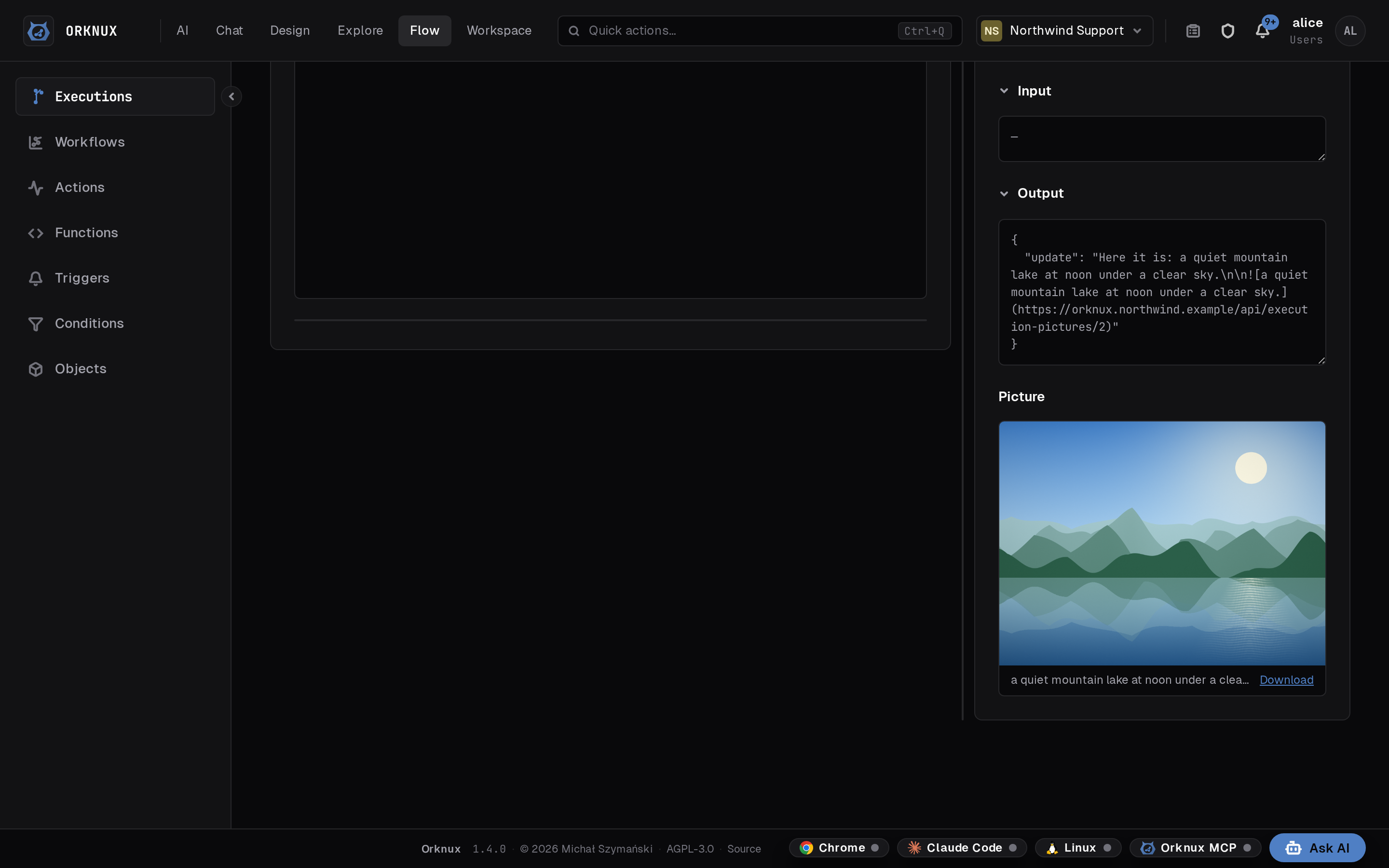
An agent that drew in a run: a mountain lake at noon, placed in its answer and
shown in the panel of the step that drew it

What an agent makes, and where it goes

An agent does more than answer in words. The server brings the tools for the things a support desk actually sends, and each of them answers with a key - the bytes stay in the session's store, and the key is what every tool that sends, uploads or packs a file takes.

  • Diagrams and charts. diagram_render draws mermaid (flowcharts with subgraphs, sequence, class, state, gantt, mindmap) or PlantUML; charts_render draws bar, column, line, area, pie, donut and scatter charts from a label and a number each. Either answers a PNG, for a chat, or an SVG, for a page. A PlantUML diagram is drawn in a house style unless it sets its own: rounded boxes without shadows, quieter lines, a colour per kind of thing
    • services, stores, queues, groups - and decisions as ovals in a colour of their own. One that sets its own skinparam, !theme or <style> keeps it.
  • Documents. pdf_fromHtml lays HTML out as a PDF, drawing <pre class="mermaid"> and <pre class="chart"> blocks as vectors, and reads a stylesheet the page links from the scratchpad of that name. pdf_fromHtmlZip does the same from a report already zipped with its stylesheet and pictures.
  • Pages. An HTML report is built in scratchpads. A chart or diagram goes in as SVG markup - scratchpad_append or scratchpad_replace take a key as well as text - and a drawn picture travels beside the page in a zip.
  • Archives. zip_files packs pads and keys into one archive; zip_extract unpacks one somebody sent into pads, so it can be read and changed.
  • Looking. picture_view shows the model the picture behind a key: an attachment it read, a chart it drew.
  • Computing. code_run runs a short program the model writes - Python, or JavaScript - over the session's scratchpads and keys, in the sandbox workspace functions run in: join a CSV with a list of IDs, count, filter, rewrite every row, and write the result into a pad. It is for the work that would otherwise be one tool call per row. The program can call the agent's own tools too - orknux.tools.call(name, arguments) - so a list of ids is queried a page at a time in its loop, within the agent's grants and the bounds Admin Settings sets (Code run seconds, Code run tool calls), which the agent is told in the tool's description. Unlike a function, the program has no web requests and no Slack of its own: whatever it reaches beyond the session's files, it reaches through one of the agent's tools. Switch code_run off on an agent's Tools list and that agent runs no programs.

A key is the conversation's, not one session's: an agent asked by another reads the keys of the conversation that asked it - an attached file, a drawn picture - so the asker names the key in its question rather than pasting what it holds. What the asked agent keeps is copied back when it answers.
A task that drew a mountain lake and a city at night, laid them out as a PDF and
saved it: under its outcome the pictures, and the saved PDF drawn small by its
first page

Reading what is too big to read whole

A model reads everything it is handed, and pays for it on every turn after. A spreadsheet of ten thousand rows, a PCB layer's SVG or a three-hundred-page contract handed over whole would fill the conversation and leave no room for the question. So the server brings readers that answer about a file instead of pasting it, and the note on an attachment, the answer of a read that was cut, and svg_read and pdf_read all point at them.

  • sheet_read reads a spreadsheet a page of rows at a time: a CSV, an Excel .xlsx or .xls, or an OpenDocument .ods from LibreOffice. A workbook's sheets are read by name, dates come back as ISO 8601, formulas as the values they last calculated, and a CSV's delimiter - comma, semicolon or tab - is found by itself, with its quoting and a byte-order mark handled. An .ods is recognised by what is inside it, not by its name, and a zip that turns out to be no spreadsheet is refused saying so. Two hundred rows a read unless How many rows one read of a CSV or a workbook answers says otherwise, and no more than How much of a sheet one read hands a model - 60,000 characters.
  • svg_read answers the markup of an SVG kept under a key - a drawing the agent made, or an attached .svg - so it can read it and change it.
  • xml_query answers an XPath question about an XML or SVG file: how many elements match, which ones with their attributes, or one value. Fifty matches at most an answer, from a file of up to 20 MB.
  • svg_measure measures an SVG's shapes with every group's transform applied: their boxes, the drawing's extent and its scale in millimetres, and, asked for, the distinct sizes, the nearest-neighbour pitch, the closest gaps and the shapes grouped by how close they are - the pads of a footprint, say.
  • pdf_search finds words, a phrase or a regular expression in a PDF and answers the pages and the text around each match, saying when a scan has no text layer to search. pdf_read reads a range of pages; a read that would be too long stops at the end of a page and says which page to carry on from.

Only the answers enter the conversation. The files are parsed with external entities and document type definitions refused, so an XML file cannot make the server fetch something on its behalf. Each number above is under Admin → Settings → Limits.

Looking at a picture at an address. picture_view takes a url as well as a key: it fetches the picture into the session's store, shows it to the model, and answers the key it is kept under, for attaching or uploading. Any address a picture search answered in the same conversation may be fetched by any agent; any other address only by an agent holding an HTTP tool, under the rules in Admin → Settings → HTTP tools. Either way it goes through the installation's proxy rules and its guard against internal addresses, is typed by its bytes rather than its name - a page or anything that is not a picture is refused - and is at most 5 MB (The largest picture an agent may fetch from an address to look at).

A tool that reads a key and is handed an address instead says how an address becomes a key - fetch it with picture_view or http_download first - rather than that nothing is kept under it, which an agent once took to mean it could not see pictures at all. What http_download keeps is typed by what the bytes are where they say so, not by the header the server sent.

Drawing for its own eyes. svg_toPng, svg_draw, diagram_render, charts_render and the wireframe and diagram drawing tools take show. Left out it is true, and the picture goes into the chat as it always did. False keeps it from the person: the agent still sees it, with its key, and is told the person has not - for an agent checking its own work, such as a render of a PCB layer it is about to change, which used to land in the person's chat as though it were the answer.

Looking is the agent's alone. A page pdf_preview draws and a picture picture_view shows are how an agent looks at something, and they go to the agent only - a person asking about their own sheet music is not shown a full-size render of the PDF they sent - and the agent is told the person has not seen it. pdf_toPng puts its picture in the chat only when called with show: true, which its description tells an agent to do when the person asked to see it.

Reading the manual. orknux_manual, orknux_manual_section and orknux_manual_search read this manual and search it, so an agent asked how Orknux does something answers from the manual rather than from what it guesses. They come with Orknux access, and are offered over MCP too.

Music

An agent can compose. midi_write writes a MIDI file from notes it describes - the tempo, the time signature, tracks each with a General MIDI instrument by number or by name, drums on channel 10, chords - and a long piece can be written a section at a time, added to the same file. midi_read reads a MIDI file back as its notes, so an agent can check what it wrote or work from a file somebody attached. midi_render plays a file into an MP3, FLAC or WAV through the server's own synthesizer, which a chat plays where it is shown. All three answer a key, which save_artifact or an upload takes.

The built-in skill Composing music (MIDI) says how to go about it: plan the piece, write it, read it back to check it, render it and hand it over.

The synthesizer's own instrument bank is small and sounds like it. Set ORKNUX_MUSIC_SOUNDFONT to a General MIDI .sf2 file for real instruments. Admin → Settings → Limits holds the longest piece rendered (300 seconds), the sample rate (44,100 Hz) and the MP3 bitrate (192 kbit/s). A server started other than with java -jar needs --add-exports java.desktop/com.sun.media.sound=ALL-UNNAMED to render, and midi_render says so where it is missing.

The server also brings skills that say how to use all of this - Diagrams and charts, Complex HTML, Making a PDF and Delegating - and skill_search, which looks inside skills' pages, so an agent holding a key and unsure what to do with it can find the page that says. For fun there are voices: Angryman, Niceman, Jokeman, Crazyman and Rimeman, each answering the same facts in its own way.

Finding a tool

An agent that holds more tools than fit in one request - its own ceiling, or the provider's - is sent the ones marked Always and finds the rest. Its briefing lists every tool it has, each marked loaded or load it first. tool_find searches them by words and loads nothing, tool_describe shows one in full - its whole description and every parameter - and tool_load takes the exact names it wants for its next message. How a loaded tool is called after that, and whether the agent's own ceiling applies at all, are the provider's settings; see What a provider is sent, above.

Two settings on a model's page matter most for a local model. Tool calls per reply set to one stops a confused model filling a reply with repeats; and sampling - temperature, top-p, top-k, min-p, repeat penalty - is sent only where it is set, so the server's own defaults hold until somebody chooses.

Saying the work is done

An agent's turn ends when it writes an answer instead of asking for another tool. That assumes the answer is the prose, and often it is not: an agent answering a Slack mention posts its reply itself, because that is how a file or a picture reaches somebody. Asked for an answer anyway, it either repeats the message or says nothing at all — and nothing at all reads as a failure, which is retried, which posts the whole thing twice.

finish_answer is that ending said out loud. The agent calls it, the turn ends, and the step is finished rather than failed. Anything it passes becomes what the step answers with, for a node that needs something to work with; passing nothing is the ordinary case, because what was made went somewhere the workflow is not.

It is on for every agent until somebody hides it, in the same Tools list as the grants. Hide it for the agent whose next node needs a real answer.

Artifacts

Everything a workspace has made, on one page: the pictures its runs drew, and whatever an agent saved with the save_artifact tool.
The Artifacts page: harbours, hills, lakes and a city at night that the
workspace's runs and tasks drew, and the PDF one of them saved

A picture opens in the viewer. A document an agent wrote — a page, a report, a PDF — opens to be read rather than downloading, drawn inside a frame that is allowed no script, no cookies and no network of its own. That last part is what makes it safe to open something a model wrote. Anything else downloads.
A picture a task drew, open in the viewer over the Artifacts
page

What is open is in the address bar, so an artifact can be linked to: send somebody the address and they see the thing, not the list.

Upload puts a file of your own on the page, held to the installation's Largest file, and Search artifacts narrows the page by name. Each card can be opened in a tab of its own, downloaded, deleted after a question - the file goes from the disk as well as from the list - and, for a picture, opened in Design's image editor.
An uploaded report open in the viewer: its name, and in the bar Open in a tab,
Replace and Download beside Close

Replace, in the viewer's bar over a saved file - one uploaded here or saved by an agent - puts a new file behind the artifact at the same key and the same address, after a question that names the new file. A link somebody was already sent opens the new file; the old one is removed, the name follows the new file and the description stays. It is held to the same upload limit and recorded in the audit log. A picture a run drew has no Replace: it is changed in the image editor instead.

An artifact on its own, with nothing of Orknux around it, is at its own address with /content on the end - /workspace/<number>/artifacts/SAVED-12/content. It opens the file itself, as Open in a tab does, but the address stays the same as the artifact is replaced, which makes it the one to put in a bookmark or send to somebody who reads the same report each week. It is the file under the same lock the viewer uses: a page there runs no script and keeps no cookie.

Letting an agent drive orknux

An agent's settings carry one switch that is not an MCP server: Orknux. It lets the agent ask this installation about itself — its workspace's workflows, runs and agents — and, unlike the Ask AI button as it is set by default, to start a workflow, which really runs it.

It is deliberately not listed among the workspace's MCP servers. Those are addresses somebody registered, with a credential; this is the application the agent is already inside, so there is nothing to register and nothing to point at. A new agent starts with it on, so it can answer questions about Orknux itself - which workflow posts to Slack, why last night's run failed - and its orknux_ tools at Offer, found when a question needs them. Agents made before that kept what they had. Turning it on or off is recorded in the audit log.

An agent that starts a workflow which asks an agent is a loop nothing here breaks, so grant it where that is not a risk.

Managing agents

With Orknux access an agent can look after the workspace's agents too. orknux_agent reads one in full - its brief, model, grants and settings - and orknux_models lists the workspace's models to choose from. Where the conversation may change things, orknux_create_agent makes one and orknux_update_agent changes one. Both go through the agent page's own save, so what it does is refused for the same reasons a person's edit would be, recorded in the audit log under its name, and kept as a version on the agent's History - an agent that sets a colleague's brief wrong can be put back the way any edit is. Hide the two writing tools on an agent's page to let it read agents but not change them.

orknux_models also shows each model's provider and its prices, and, where the conversation may change things, orknux_update_model changes a model - its name, the name its provider knows it by, its context window and largest answer, and its prices - giving only what changes; the rest is kept. orknux_start_task sets one of the workspace's agents a task (see Tasks) - a brief in full, since the agent sees nothing else of the conversation, a title, and the number of an issue it is about if any - and answers the task's id and link. The task really works: whatever its tools do, they do. The MCP endpoint offers all three to a client outside, under the scope its token carries.

Keeping the diagrams true

Where a workspace has diagrams - its systems, its processes, who owns what; see the Diagrams chapter - an agent holding orknux_diagram_search is told to search them before answering how the workspace's systems, processes or architecture fit together, and to read a node that looks relevant rather than answering from memory. With orknux_change_diagram it is told, too, to update a diagram when it learns what one lacks or has wrong - on a diagram open to agents to change - and to say what it changed. The built-in Memory skill says the same. A diagram that agents keep current is one a person can still trust next quarter.

Building a workflow

The same switch, and the same tools over MCP, let an agent build a workflow rather than only run one. orknux_workflow reads one as the editor holds it, with the problems the editor would show, orknux_workflow_parts lists what its nodes can point at - the workspace's triggers, actions and conditions - and orknux_workflow_reference says what every field of a graph, a trigger, an action or a condition means. With those it can make the workflow (orknux_create_workflow) and the triggers, actions and conditions it needs (orknux_create_trigger, orknux_create_action, orknux_create_condition), save its graph (orknux_save_workflow_graph) and publish it (orknux_publish_workflow). The four that write are offered only where the conversation may change things.

The built-in Building workflows skill says how to go about it: wire a graph so that it runs, join every step with an edge, pass data between steps by reference so the editor can show where it comes from, and leave positions out - the server lays a new graph out left to right, a column a step, where a model's own guesses put boxes on top of one another and hid the lines underneath. Changing a graph a person has arranged is the exception: the skill says to read it first and send back every node and edge being kept, positions included.

Nothing it makes skips a check. Everything goes through the checks the editor uses, and every change is in the workspace's audit log under the agent's name. Saving over a draft somebody has not published is refused unless the agent says overwrite_draft, and the refusal tells it to read the workflow first: a draft is somebody's unfinished work, and an agent that saved over it without looking would lose it with no way back.

It can draw wireframes the same way. orknux_wireframes lists the ones in Design and orknux_wireframe reads one; orknux_create_wireframe makes one, with its elements in the same call if it is given them, orknux_change_wireframe adds, changes and removes elements, and orknux_draw_wireframe replaces the whole drawing. They are the tools the chat down the right of the wireframe editor gives the model chosen there, and what they draw is saved and audited as a save from the editor is. orknux_wireframe_html writes one out as a single HTML page - each frame a screen, buttons, fields and pictures as real HTML elements - and answers the page with a link to download it, the same page Export in the editor saves.

It can work in sheets too. orknux_sheets lists them and orknux_sheet reads one - each cell as it was typed and what it comes to, a whole tab or one range; orknux_create_sheet makes one, orknux_write_sheet_cells writes values and formulas into a tab and answers what they came to, and orknux_change_sheet_tabs adds, renames and removes tabs. The values are worked out by the same engine the editor and the .xlsx export use, so what an agent reads is what a person sees.

Letting an agent work in a box

A box is a sandbox an agent can open a session in: a working directory of its own and a way to run commands in it. In one it can clone a repository, build it, run its tests, edit what failed, serve what it made, and hand back the result. Which boxes there are is an administrator's decision - the local box built into the server, and remote orkbox instances - and is set out under Administration.

An agent may use a box only by label, on its Boxes setting, and holds none by default - the local box included, whose label is local. A label rather than a box's name because several boxes may share one, and an agent holding it may be given any of them: a box an administrator adds later under a label already granted is one the agent can use without anybody editing it. A granted agent gets the box tools as rows in its Tools list, read from that setting.

orkbox_list says which boxes the agent may use and how many free sessions each has, so it can pick one with room. orkbox_open opens a session: an empty workspace, or a clone of a git repository. In it the agent runs commands with orkbox_exec - answered with the exit code and both output streams, and read further with orkbox_output where the output is long - and works with files: orkbox_files, orkbox_read, orkbox_write, orkbox_edit, orkbox_search, orkbox_stat, orkbox_move and orkbox_delete. An edit replaces text, lines by number, or a regular expression's matches, all of them or none. orkbox_undo and orkbox_redo take back and put again what its edits and writes did in a session, refusing a file something else has changed since; they are held in memory, so a restart forgets them, and a delete or a move cannot be taken back. orkbox_log reads the session's event log, and orkbox_close ends it, destroying the workspace and everything in it.

A box cannot reach this server, so nothing in one can download what the conversation holds. Things go in and come out through the agent: orkbox_write takes a draft straight from a scratchpad, orkbox_fetch_artifact puts a saved artifact in, unpacked if it is an archive, orkbox_import unpacks a .zip, .tar or .tar.gz the conversation holds, and orkbox_export takes a file or a directory out as a .tar.gz, as a key, for anything that sends or saves one. A secret goes in by name and never as text; see Secrets and values it may hand on, above.

An agent can ask for a box. One holding no label for the box it needs finds it with tools_ungranted, which lists the box labels it does not hold, and asks for it with tools_request, as for any other grant (see Asking for what it lacks, above): the person accepts or refuses in the chat, and an accepted label is added to the agent exactly as it would be on its page.

The built-in Box Code Reading skill teaches an agent to answer questions about code from a checkout in a box - finding what calls what with ripgrep, ctags and ast-grep, which the box toolchain image carries, rather than reading files one by one into the conversation.

A session an agent opens stays up through two hours with no command - a person trying what it served is a person the agent is waiting for, and that counts as idle - and an agent can ask for a different lifetime or idle timeout with orkbox_extend. Subagents share box sessions with the agent that asked them, both ways, the way they share scratchpads: either can run commands in a session the other opened, on the grant of whoever opened it, and orkbox_sessions lists them with who opened each. A conversation outside that family cannot reach them.

Exposing a port

An agent that serves something - a development server, a page - can ask for a port of a running session to be made reachable with orkbox_expose. Nothing opens until a person allows it. The chat and the session transcript ask, with Allow and Reject, and the question waits at the bottom of the chat until it is answered. The agent is told the outcome, with the address, in a message that also wakes it.

The Ports panel, below Boxes, lists every port asked for: its box, whether something answers on it, and Allow - or Enable, Disable and Delete afterwards, at any time. An agent asking is a model deciding something should be reachable from outside a sandbox, which is not a decision to leave to it.

Watching it work

A conversation's Boxes panel lists the box sessions its agents opened, whether each is still running, and those it shares with the agent that asked it or the agents it asked, marked shared. The Box tab above the transcript shows a session's event log - what started and finished, files written, commands run and how they ended - with any secret in it reading ***.

What contains this

The box, and nothing in this application. There is no list of forbidden commands, deliberately: reading a command and saying what it will do is not a problem that can be solved, and a list that is nearly right tells an administrator they are protected while a command that downloads its own instructions walks past it. What a box allows is what an agent in it can do, so which runtime a box uses - a container per session, or processes on the host - is the decision that matters; see Boxes under Administration.

Tasks
Every task this workspace has started

A task is an agent given a problem and left to work at it until it says it is done. A workflow is a graph somebody drew, and every step of it was decided in advance; a task is the other bargain — you say what you want, the agent decides what to do, and what you get is the working.

Start one from the Tasks section, or from an issue with Start by AI.
A task being worked on: what it is thinking, what it called, what came back

Its page fills in as the model works: what it is thinking, what it called, what came back. You do not have to reload it — the log is followed as it is written, and the block being written is the one that is open. Tool calls arrive folded, so a long run reads as a list of what was done rather than as a wall.

You can also say something to a task while it is working. Say something on its page takes a message, and the agent picks it up between the tools it is running — so a report being written as prose becomes a table because you said so half way through, rather than because you stopped the task and started another with a better prompt. It reaches the agent within seconds rather than at the end of the turn, and a task cannot finish while something you said is still unread: an agent that tries to wrap up with a message above it gets another turn with your words in front of it instead. Until it has been read the page says so, and what was never read stays on the page afterwards saying that, rather than disappearing.

A task that has ended is not finished with you. The same box stays on its page reading Carry on, and what you type there sets that task working again — the same task, on the same log, so the agent still has the poem it wrote, the pictures it drew and the files it read. "Make the third stanza shorter" is this piece of work continued, and starting a new task instead means explaining the whole job to an agent that has just done it. The turn and time allowances start again from your settings as they stand, so a task that stopped because it ran out of turns can still be asked for more, and the summary it wrote is replaced by the next one, with what it said still in the log.

The page follows the work as it happens and needs no refresh, but a connection can stop without saying so — and from where you are sitting that looks exactly like a model thinking for four minutes. Auto beside the live indicator sets an interval to re-read the task at, Off by default, and it is the same setting the Executions and Audit screens use.

A task can also draw. Where the workspace has chosen a text-to-image model — the Text-to-image picker on its settings page, the same one a chat agent draws with — an agent working a task is offered a tool that draws from a description, and every picture it draws is shown under the task's outcome. That holds whichever way the task ended: one that drew and then ran out of turns still shows what it drew, because it was still paid for. Where no such model has been chosen, the tool is not offered at all and the agent is never told it could have drawn.
A task that drew: what the agent said, and the pictures under its
outcome

A task ends in one of four ways. It says it is done, and its summary is the last thing it writes. It stops to ask — a question, or permission for a capability — and waits for you rather than guessing; answer it and it carries on with exactly what you said. It runs out of turns. Or it runs out of working time.

Those last two are the ceilings, and they bound different things. A turn is one round of the agent's own tool loop: it is asked, it may call its tools, and it answers. Working time is the sum of those turns — a task parked for two days waiting for you has spent none of it. Turns Per Task is on the workspace's settings page under Agents; left empty it means the installation's own number. Both are copied onto a task when it starts, so raising one gives the next task more and leaves the ones already running as they were.

Starting a task from an issue hands the agent the issue as a person would read it: the number, the title and the kind, the labels, the description whole, and the thread oldest-first with who said what. A long thread is cut from the front and the prompt says how many were left out, because a decision is reached at the end of an argument rather than at the start. The issue is picked up, and the agent says so in the thread under its own name with a link to the task. Nothing puts the issue back afterwards: the status is your statement about your own tracker, not the machine's.

Driving orknux from outside

The same tools are offered over MCP, for an agent that runs somewhere else — on a laptop, in an editor, in another product. One server per workspace:

http://your-orknux/mcp/{workspaceId}

It speaks JSON-RPC over HTTP POST, and it authenticates the way everything else here does: sign in first (POST /api/session) and send the session with the request, or send an access token as Authorization: Bearer orkx_…, which is the usual way in for something with no browser to keep a cookie in. Tokens are made in Preferences, or by an administrator on a user's page; see Administration. What you may see through it is what you may see in this interface — the same check, on the same workspace — and what you may change is what you could already change by hand. Being reachable by an agent grants nothing extra.

Everything with a page of its own comes back with its address, so an agent that mentions a run can link you to it.

The workspace's skills are offered there too, as prompts and as resources, so a client such as Claude Code can use one as a slash command or attach it as a document. How a workspace goes about things is then the same whether the agent asking is one of its own or one on somebody's laptop.

The workspace's own MCP servers, listed under Integrations, are a different thing entirely: those are servers somebody registered for agents to call out to. This is the way in.

The tracker, over MCP

The workspace's issues are offered here too: list them, filtered by assignee, by state, by labels or by a search; read one with its comments; comment on it; move it between open and closed; and change its title, description or labels. An issue is addressed by the number people say, so #4 to an assistant is #4 on the page.

It can also file one. An assistant that finds something and can only describe it in a conversation is one whose findings depend on somebody else writing them down, which is the failure a tracker exists to prevent. A filed issue is under the name of whoever is asking, and assigned to nobody: deciding who should look at something is a judgement for a person, and an assistant that assigned its own findings would be handing out work.

Instead it names observers: the people or agents who should hear about it, who then get everything the reporter and the assignee get without being given the work. Naming nobody tells the installation's administrators, because an issue assigned to no one and watched by no one is a report written into an empty room. A name it cannot find is refused and nothing is filed, so a report that reached nobody is never mistaken for one that landed. See Issues.

Waiting to be told

One tool answers slowly on purpose. orknux_news gives whoever is asking what has happened on the issues that concern them since they last read: assigned, closed, reopened, commented on, or their name written somewhere. It also takes a number of seconds to wait for. Given one, it holds the call open until something happens or the time runs out, up to five minutes.

That is what lets an assistant be told rather than have to keep asking. Reading marks it read and no place-marker comes back, so something that forgets everything between one session and the next neither repeats a week of events nor silently skips them.

An issue can be assigned to an agent as easily as to a person, and the same tool takes the agent's name, so an agent can be asked to read what it has been sent rather than what its owner has.

Integrations
The workspace's connections and the MCP servers its agents may
reach

Integrations holds the workspace's connections — Slack, MCP servers, HTTP endpoints. A connection made in the admin section can be marked as the default for new workspaces; that setting lives on the connection's own page.

A connection has a kind — Slack, Email (SMTP) or HTTP endpoint, or one a loaded plugin brings — and the kind decides what it asks for.

The Add Connection dialog has Test Connection, which checks what is typed and stores nothing, so a token or an address is known to work before anything is saved; a saved connection has it on the status line under its form. A plugin's kind can bring three things of its own: a setup guide, shown beside the form, for where on the service the token or the address is found; a check, so Test asks the plugin whether the address really is its service rather than only whether something answers there; and a default address, so a service that always listens in one place can be added with the URL left empty. The Anki plugin's AnkiConnect uses all three.

GitHub and Jira used to be kinds of their own. Neither was ever implemented: nothing called a GitHub or a Jira API through a connection, so both were plain HTTP endpoints wearing a service's name, and configuring one gave you something that tested green and could not be used. They are gone, and the connections that were stored as one are HTTP endpoints now, with the same address, the same credential and the same headers.

The HTTP endpoint kind was called Webhook. The word named the wrong end of the wire: a webhook is a path this installation exposes for somebody else to call, which is what a webhook trigger is, while a connection is a URL this installation sends a request to. Whether the far end calls what it is listening on a webhook is the far end's business and was never visible from here.

Slack takes a bot token beginning xoxb-, and optionally an app-level token beginning xapp-. The second decides what the connection does: given one, orknux listens for mentions and starts the triggers waiting on them; left empty, the connection only sends. There used to be two Slack kinds to choose between, "outgoing only" and "Socket Mode", and they were one integration wearing two names — whichever was picked, it listened the moment it held an app-level token. Connections stored as Socket Mode became Slack connections on upgrade, both tokens where they were, and go on listening exactly as they did.

A Slack action has one Target field, and it takes a channel or a person. You are not asked which: type a name, a handle, an address or an id, with or without its # or @, and the send resolves it when the message goes. There used to be a Channel/User dropdown beside the field, and nothing read it to send anything — its only real job was choosing which of Slack's two lookups answered a question about what you had typed, and those lookups are one now. What was left was a control that changed nothing when the workflow ran, narrowed the list of suggestions to half of what it could offer, and got the check wrong whenever it disagreed with the name beside it. Actions saved with the old setting keep their target names and go on sending to them.

What you type is checked as you type it. Under the field, orknux says whether that connection can see what is there — the name Slack gave it back when it could, a mark saying whether it turned out to be a channel or a person, and a note when it could not.

The same answer appears in the workflow editor, under a node's target parameter, since that is where a step names who it is writing to. Only on the Value tab: a Reference is read out of the run when the run reaches it, so there is nothing to look up beforehand.

The same field offers what that connection can see. A list opens under it with the channels and the people that match what has been typed so far — one list, each row marked with which of the two it is — narrowing as you type, driven by the arrow keys, taken with Enter or a click, and put away with Escape. Taking one fills the field in, and nothing more happens to it: the check goes quiet afterwards, because a name Slack has just offered is not a name worth asking Slack about.

It suggests and it never fences. Anything can still be typed whether or not the list holds it, and plenty of correct things never will: an id pasted out of somebody else's message, a colleague who joined a minute ago, a private channel this bot was never invited to, an archived channel. Where only the first few of what matched came back the list says so, because one that quietly left the rest out would read as the whole of what exists; and where nothing can be looked up at all it says why, rather than opening empty and looking like a Slack with nothing in it.

There are three answers rather than two, and the third is the one that catches people out. A bot token set up only to post carries no permission to look anything up: users:read for people, channels:read for channels, and sending a message needs neither. So a perfectly working connection can be unable to answer the question at all, and that reads as not checked rather than as not found — one wants a scope added to the Slack app, the other wants the name corrected, and confusing them sends you to the wrong place. The same answer comes back for a Slack larger than one lookup reads, because ruling a name out from a list that was cut short would be worse than saying nothing.

Nothing here refuses a save. The field stays free text and the action stores exactly what you typed, whatever the note says, because a private channel this bot was never invited to, a colleague who joined a minute ago and an id pasted out of somebody else's message all look identical to a typo from outside.

A Slack connection is asked neither for an address nor for how it authenticates. There is one Slack Web API and a bot token is a bearer token, so both are already settled and a field offering to change them would be showing you a decision it is not making. Either token can be revealed from its own field afterwards, which is the only way to tell which one is stored, and the audit log says which of the two was revealed rather than only that something was.

Above the workspace's own connections the page lists what orknux.ai recommends for agents like these - GitHub, Blender, Grafana, KiCad and more as orknux.ai adds them - each with what it is for, a link, how much effort it takes to set up, and Ask Claude, which opens Claude with the instructions to set it up. orknux.ai is told only the server's version and which kinds of connection the workspace already has, never their contents; the icons come through this server, so the page reaches orknux.ai for nothing else.

Edit this section on GitHub

Variables

Variables are the values a workspace needs but should not have written into a workflow: an API key, a base URL, an account id. They are referenced from function signatures, and passed to the function as parameters.

Values and secrets

Variables in their catalogs; a value shows what it holds, a secret only whether anything is stored

Every variable is one or the other, and they are listed separately.

  • Values are shown. A hostname or an account id is not a secret, and hiding it only makes it harder to check.
  • Secrets are hidden. Reveal one from its row when you need to see it; the hidden field cannot be edited until it is revealed, so nobody overwrites what they cannot read.

Who may read a secret back

Revealing a secret is reading it, and reading a secret back takes a role. Installation administrators and the workspace's administrators may; anybody else needs a role with the Reads secrets scope, assigned to that workspace, which an administrator gives under Admin → Roles. Without it the secret can still be used - chosen as a credential, handed to a function - but not shown. Every reveal is recorded in the workspace's audit log, saying who asked and which secret.

When this rule arrived it narrowed who could reveal: somebody who did so before without being an administrator needs that scope given to them.

Secrets are encrypted where they are stored. What is written down is orkx1:iv:ct — a version, a nonce, and AES-256-GCM ciphertext — so a database dump carries no keys.

That is also why a variable keeps no history of what it was. A function, a tool, a skill and an agent all keep the version each save replaced; a variable does not, deliberately, because keeping old versions of a secret would mean keeping old secrets.

A variable is a string, a number or a boolean. There are no object variables: a shape belongs in an object, where it can be validated.

Catalogs

Variables are grouped into catalogs, the way skills are. A name must be unique within its catalog, not across the workspace, so two catalogs may each have a base-url and mean different things by it.

Moving a variable to another catalog

A variable's Move to, open on its row: the workspace's other catalogs to put it
in

The move button on a variable's row opens Move to, a list of the workspace's other catalogs; choose one and the variable is in it. The arrow keys, Home and End work the list, and Enter takes the one under focus. The button is not drawn where there is only one catalog, since there is nowhere to move to.

Moving changes nothing that uses the variable. A function's external parameter, a node's reference and a credential field all hold the variable by identity rather than by its catalog and name, so they read it in its new catalog as they did in its old one. A name already taken in the catalog it is moving to is refused, and the list says so. Secrets, skills and memories move between their catalogs the same way, from their own rows.

The catalogs column can be folded away when it is not what you are working on.

Using one

Add an External parameters section to a function, and name the variable there. When the function runs, the variable's value arrives as its own parameter — it is never spliced into the body as text.

A variable in use cannot be deleted; the error says what is still using it.

A workflow node's parameter can read a value directly, from the Workspace variables group of its Reference picker, when the step runs. A secret cannot: a parameter is handed on as text, and a secret in one would be published. See Values and references under Workflows.

An agent can be granted variables by catalog - Secret Catalogs and Variable Catalogs on its settings - to hand to a command it runs in a box. It reads the values; it never sees the secrets, which reach the command as environment variables and read *** wherever the output is shown. See Letting an agent work in a box under AI.

A plugin's parameters read variables the same way. On the workspace's Plugins page, a parameter can be answered either with a value typed in or with one of these variables, and a parameter the plugin declared as a secret can only be answered with a variable. The reference is read when the plugin runs, not when it is set, so rotating a token is one edit here rather than one per plugin.

As a credential

Every secret field in the product can read one instead of keeping a copy. Beside the field's own name — API Key, Bot token, App-Level Token, Password, Token / Key — stand Value and Reference. Value is a credential kept there, encrypted, belonging to that field alone. Reference points the field at one of these secrets, read at the moment it is needed, so rotating it is one edit here rather than one per place it is used.

The choice belongs to each field separately. A Slack connection's bot token can be a reference while its app-level token stays its own, which is a thing a single switch above the card could not say.

A reference can be cleared from the same place, which turns the field back into a value of its own to type; and a field that reads a variable has an open button beside the reference, landing on the variable in its catalog.

Only a secret can be one: a value is read with the listing, and a credential on a listing is a credential on a screen. The reference is held by identity, so renaming the variable or moving it to another catalog changes nothing; deleting it is refused while anything reads it, and the refusal names what does.

Editing is inline: click the field, change it, and save with the check. Renaming is the same edit. Deleting a catalog requires it to be empty first.

The web search key

The workspace's web search key - the key the research and the agents' web search use, on both the workspace's settings pages - is a secret field like every other. Once stored it is masked, with a Show that reveals it to whoever may read the workspace's secrets and records that in the audit log. It can read a workspace secret instead of keeping its own copy, and a secret the key reads cannot be deleted while it does. The engine (Tavily or Brave), the key and the switch for composed answers are saved together by the page's Save Changes and put back together by Discard, rather than each taking effect on its own.

Edit this section on GitHub

Chat

Chat is a conversation with one of the workspace's models, or with one of its agents. Each conversation has its own address, so a chat can be linked to and reloaded.

Whether an installation has a chat at all is an administrator's decision; see Administration.

A conversation: the chats held on the left, the model answering above, and the
composer beneath

Choosing what answers

The dropdown above the composer picks which agent answers, and an agent is the only thing that can. A bare model used to sit beside them as though it were a peer, and it never was: it is an agent with the instructions, skills, tools, grants and memory taken off. A workspace with no agent in it says so and offers the way to add one, rather than quietly filling the gap with a model. Chats started on a model before this still open, still render and still answer, and can be handed to an agent whenever you want.

Beside the name is the arrow that leaves a box, the same one every field naming a definition carries: it opens the agent in a tab of its own, so a question about what it is set to does not cost you the conversation.

My Claude Code stands at the top of that picker on every server: your own Claude Code session answering, through the Orknux channel plugin, with Orknux carrying the words and nothing else. What it is, how it is connected and the two rules it keeps are in Your browser and your computer.

Ask for a diagram and you get one. Where the workspace has chosen a text-to-image model, the agent is offered a tool that draws from a description — so a picture is something you ask for in the conversation rather than a mode you switch the composer into and retype the description in. What it draws is filed as an attachment on the chat and appears in the thread as it is drawn, so it is still there when you come back to it. A workspace with no image model chosen offers no such tool, and the agent is never told it could have drawn.

A picture asked for in the conversation, drawn into the
thread

How hard it thinks is yours to choose, per chat. Where the model answering takes a reasoning effort, a small button beside the microphone opens a menu of Model default and the levels that model takes. What you pick is sent with this chat's next turns and nothing else: the model's own setting, and every other chat, agent and workflow using it, stay as they were. A model that takes no effort shows no button.

Switching workspace from the corner leaves you in the chat rather than taking you to the new workspace's workflows: the conversations listed on the left are the ones held in whichever workspace the corner names.

Asking again

Under the last answer is a circling arrow: it asks the same question again. Whatever the dropdown says answers this chat is what answers, so a different model or agent means picking one first — moving the dropdown and pressing this is "answer that again, as somebody else".

Nothing is lost by pressing it. The answer it replaces is kept, and the row underneath says which take you are reading — 1 of 2, with a chevron either side — so the one you had is one press away, and stays there.

Only the answer the conversation ends on can be asked again. Anything earlier has been answered on top of, and a different answer there would rewrite what the turns after it were replying to.

A chat that ends on your own message with nothing under it - the turn died, was stopped, or the page lost it - offers Answer this under the message, rather than making you type it again.

While it works

You do not have to wait for the answer to say something else. A message written while the agent is working goes to the turn that is running, and the agent reads it at its next step - between two tool calls, not at the end. Until then it says Queued - the agent reads it at its next step, and afterwards Read by the agent, and it is drawn where the agent read it, after the calls it made before reading it. That is the difference between correcting a piece of work half way through and stopping it to start again with a better prompt.

What the agent writes beside its tool calls - how it reports progress - appears as it is written, and every agent is told to say what it is about to do and to post a line every few calls, so a long turn reads as work going on rather than a spinner. While a model writes a long tool call or its answer, the chat says Writing the answer… or which tool it is writing, and how much has arrived. Its thinking is drawn in red, apart from the answer, with how long it took.

A question an agent asks you - whether to expose a port of a box, for one - sits at the bottom of the chat until you answer it, then moves to where it was asked, between the calls around it.

Every chat is answered in a session, and the mark in its header opens it in a tab of its own from the moment the first turn starts: the whole transcript, every tool call, the thinking, the box sessions, the to-do list and the notes the agent keeps, and what the chat has cost. See Sessions under AI. A chat's agent has the same session tools as a workflow step or a task - notes to self, the to-do list, the clock, scratchpads, reminders and watchers.

Progress messages for one message. How much an agent says while it works is its own setting, Progress messages, on its page. A message can ask for another level for its own turn only: !progress-none, !progress-low, !progress-medium or !progress-high anywhere in it - with the workspace's own command marker, ! unless the workspace chose another. The chat's command menu, opened by typing the marker, offers the four first, and Tab completes one. The next message goes back to the agent's own level. None is held to by the server, not only asked for: what the agent writes beside its calls is kept in the session and not drawn in the chat. The same words work in a Slack message to a workflow's agent node. They are never looked up as skills.

Default, Plan and Auto

A chat in plan mode: the agent has looked and put its plan to you, with
Approve, Keep planning and Reject under it

The switch beside the reasoning-effort button, before the microphone, sets how this chat's agent works. A new chat starts in Auto. It is per chat, and each row says what it means when you point at it:

Mode What the agent may do
Default Asks you where a tool needs your leave - exposing a port of a box, for one - and otherwise works as it always has.
Plan Only looks, then asks you to approve a plan. It is offered only the tools that change nothing - as each tool's own declaration says, an MCP server's read-only hint included - and anything else it calls is refused with a sentence saying nothing ran. When it knows what it would do, it puts the plan in the chat: what it found, then the steps, each saying what it will change.
Auto Goes ahead without waiting for you to allow a step: a call that would ask for your leave runs. It is given nothing it was not granted - Auto lifts the asking, not the limits.

A plan arrives with three answers under it, and Or answer in your own words beneath them. Approve returns the chat to Default and hands the plan back to the agent to carry out, step by step. Keep planning leaves it in plan mode and tells it to look further and present the plan again. Reject leaves it in plan mode too, and tells it not to carry out any of it but to ask what you want instead. What you type in the box goes with your answer.

Times, dates, cost and you

Each message carries when it was sent, the date included even for today's, so a chat read the next morning says which day each line belongs to. That is the workspace's Show when each message was sent, under Chat in its settings, on unless a workspace turned it off. Each tool call in a turn carries the time it was made, to the second, whatever the setting.

What each answer cost is shown under it - the turn's tokens and, where the model's page has its prices, their price - and the chat keeps a running total in the corner of the composer. It is the whole turn, not the last call in it: an agent that looked something up before answering paid for two rounds. It says how much of what was read the provider served from its cache where the provider reports that, because every round sends the whole conversation again, and without that number a long chat on a local server reads as millions of tokens it mostly never read twice. Nothing is shown where the provider reported no counts. It is on for everybody until they turn it off under Preferences → Answer Cost.

Your avatar - your initials - is drawn at the top of each of your messages, on its left, as the agent's is beside its answers. Preferences → Avatar in Chat turns it off.

While you type

The composer suggesting how the sentence goes on, in grey after what was
typed

A workspace that chooses a Completion Model in its settings gets two things in the chat. With none chosen, the composer is as it always was.

How the sentence goes on. A short pause after you stop typing, the composer suggests the rest of the sentence in grey after the caret. Tab takes it; typing on, or Escape, puts it away. The model is shown the chat's latest messages as well as what you are typing, so a suggestion reads as a reply to what is on screen. How many messages it is shown, how long a suggestion may be, its time limit and the pause before asking are under Admin → Settings.

Suggested replies. Under the latest answer, once it is finished and nothing is typed, a few short replies you might send next are offered as chips - three by default. A click sends one as your message, and they go as soon as anything is sent. They are written once per answer and kept, so reopening the chat does not ask again. How many (0 for none), how long and how long they may take are under Admin → Settings → Suggested Replies.

Replies offered under the latest answer

What an answer can hold

An answer is Markdown, drawn as such, and a good deal more than text:

An answer with a formula, a shell block with Copy and Run, and a
table

  • Maths. $x$, $$x$$, \(x\) and \[x\] are set as formulas, in a chat and wherever else the product draws Markdown - task outcomes, issues. A price like "$5 and $10", and anything inside code, stays as written.
  • Code in a fenced block has a bar with its language and Copy, which takes exactly the block's text.
  • Run on shell blocks. Beside Copy, an administrator can run a block tagged as a shell on the machine the server is on, read what it printed and its exit code under the block, and Stop it. Only the shells that machine has are offered: powershell and cmd on Windows, sh and bash on Linux. An untagged block never has Run - as often as not it is what a command printed. Run as administrator asks the operating system - UAC on Windows, pkexec on Linux - never Orknux. Admin → Settings → Run commands from the chat switches it: off for a server, on in the desktop app, until somebody changes it. Every run is audited; its time limit and how much output is kept are under Limits.
  • Sound. An mp3, flac, wav, ogg or m4a under a message plays in the browser's own player, with a download beside it. A MIDI file has Play, which renders it on the server the first time and plays it after. An agent that made a sound attaches it to its answer; in a voice conversation, and only there, it can play it to you before the answer is read.
  • Video. A video under a message plays there.
  • Pictures, drawings, wireframes and diagrams an agent draws for you appear above its answer as they are drawn, with a link to open a wireframe or a diagram in its editor. A picture an agent draws only to look at itself is not put in the chat.
  • Links to what a tool call named. A tool call that started a run, filed an issue, or named a research, a task, a document or any other item with a page links to it from its own line, folded or not - Issue #12: Nightly billing export failed three nights running. The link is there while the turn is going and after a reload.
  • Thinking, where the model thinks, is a folded red card where it happened: before the answer, or between two tool calls.

An agent that filed an issue: the call's line links to the issue it
filed

When the agent asks you

Some things an agent cannot do without you, and it asks in the chat rather than guessing. What a request means is not one of them until it has looked: handed something unclear - check this, a bare mention in a Slack thread - an agent is told to read the earlier messages in its session and the thread it came from first, and to ask only when that does not settle it. The question sits at the bottom of the chat until you answer it, then moves to where it was asked.

  • A question with options - one row per answer with a line on what each means, several to tick where the agent allows it, and a box for your own words. Agents use it for any question whose answers they can list.
  • Tools it lacks. Rather than saying it cannot do something, an agent can list the tools it could be given - built-ins switched off for it, the workspace's and plugins' tools, MCP servers, Orknux access - and ask for the ones it needs, each named with what it does, with Accept and Refuse. Accepted tools are the agent's for good, recorded as a change to the agent.
  • A box, or a connection of the workspace's to use, accepted or declined the same way.
  • Leave for a step, such as exposing a box port - unless the chat is in Auto.

Reviews

A conversation can be reviewed: a score from 1 to 5 and a few words. Send a review in the chat's + menu writes one; telling the agent what you thought works too - it sends the review itself. A review is drawn in the chat where it was sent, and Admin → Reports → Ratings lists every one. A review taken back stays in the chat marked taken back, with a line where it was taken back, and no longer counts in the reports.

Goals

/goal <what> until <condition> sets the agent a goal rather than a question: it works at it, a reviewer judges each iteration against the condition, and it goes on until the condition is met or the iterations run out - max <n> sets how many, reviewer <model> which model judges, both optional. The status of a running goal is drawn above the message box with its iteration, /goal says where it stands, and /goal stop ends it. Stop ends it too. The reviewer is a temporary agent of the conversation's with no tool at all: it is handed what it judges and changes nothing.

Timers above the message box

An agent can put widgets above the message box: timers and stopwatches that tick as you watch, appearing mid-turn without a reload. "Give me five minutes for the tea" is then a timer you can see rather than a promise. You can Pause, Resume, Reset, Lap and Remove them yourself, and the agent is told to look at how they stand before it acts on one. A timer the agent asked to be woken by tells it when it ends.

A timer chimes when it reaches nought in the chat that is open. That is the workspace's Chat timers sound when they end, under Chat in its settings, on by default; an agent makes one timer sound or stay silent only when you tell it to. Widgets Per Chat (8) and Longest Chat Timer (a day) are Admin settings. Widgets belong to a chat - a workflow step has no message box to draw one over.

Attachments

The + to the left of the composer attaches files — several at once — a picture pasted into the composer is attached the same way, and files dropped anywhere on the chat are attached as the button attaches them. A message may carry only an attachment, with nothing typed. Files are stored on the server, in a directory of their own per workspace, and are shown under the message they came with: yours, or the answer of the turn that drew or filed them. A chat's files are as private as the chat: they are readable by whoever the conversation belongs to rather than by everybody who can see the workspace, and one still sitting in a composer belongs to whoever uploaded it until the message carrying it is sent. An issue's files are different, and deliberately so - those belong to the people working the issue, which is the whole workspace. Images are previewed in the chat and are sent to the model as images, so a model that can see will describe what is in the picture.

Every file reaches the agent. A PDF, a log, a spreadsheet or any other file attached to a message is kept where the agent's tools can read it - at any size the upload limit takes - and the agent is told how. An SVG is shown to the model drawn, since no provider reads one as a picture. A sound or a video is sent to the model itself only where the model's page has Takes audio or Takes video on, and only with the turn it came with; a model without it, or a file over Admin → Settings' limit for sound or video (20 MB each), is refused in a sentence before the model is asked. A MIDI file is read rather than heard - its tracks, tempo and every note - since no model hears MIDI. How large any file may be is Admin → Settings → Largest file.

Attachments can be switched off for the whole installation. When they are off, the button is not offered.

Speaking instead of typing

The microphone to the left of Send records, and sends what it recorded to the workspace's speech-to-text model. While it records, a meter shows what it is hearing across five registers — a muted microphone and a working one look identical otherwise.

Recording is converted to 16 kHz mono WAV in the browser before it is sent, because that is what transcription servers actually decode.

The microphone appears only once the workspace has a transcription model.

Talking to it

Voice — the filled circle with a waveform in it, beside the microphone at the end of the message box — holds the conversation out loud: it listens, sends what it heard, reads the answer back, and listens again — no key pressed between turns.

The panel is one large circle, and the circle is the state:

It looks like It is
Moving with your voice Listening — speak, and it answers when you stop
Breathing on its own Thinking — the model has your turn
Ringing outward Speaking — reading the answer back

A turn ends when you stop talking: two and a half seconds of quiet, once it has heard speech, is taken as your turn ending — nothing is sent while a room is merely quiet. What counts as speech is measured against the room rather than against a fixed loudness, so a quiet voice in a quiet room is still a voice. A microphone nothing else has closed gives up after ten minutes, which is a fuse for one left open in an empty room and not a limit on how much you may say.

A workspace can move all of these, under Workspace Settings → Voice, because none of them is a fact about audio that one answer settles — it is a room, a microphone and a person, and those differ:

Workspace settings: the models a chat may speak and listen with, and the three
boxes voice mode is governed by

Setting What it does
Pause Before It Answers How long you can go quiet before it answers. Raise it if it cuts in while you are still talking; lower it if it sits there after you have finished
Voice Above The Room How far above the room's own noise a sound has to stand to count as a voice. Turn it down if it stops while you are still talking, or if you speak quietly; up where a fan or a conversation behind you is heard as you and the turn never ends
Unattended Microphone How long an open microphone stays open where no pause ever comes
Talking Over The Answer How long you keep talking over an answer before it stops and listens. A length rather than a loudness, because what has to be kept out is a short noise - a cough, a door, the application's own voice getting past echo cancellation. A second by default - half a second still let a word said to somebody else in the room stop the answer. 0 where the answer stops on nothing

Each box is empty until somebody sets it, and empty is voice mode's own value — what the empty box says. Emptying one again puts it back rather than leaving it on whatever was set last. A value outside what is allowed is refused when it is saved, in a sentence naming what is allowed.

Tapping the circle interrupts: while it is thinking or speaking, it drops that turn and listens; while it is listening, it takes what you have said so far as the whole turn. Dropping the turn stops the model as well as the listening — the request is aborted and the server hangs up on the provider, so nothing goes on being written and charged for after you have said you are not interested. An answer that was stopped is not written to the history: the chat keeps your question and no answer, rather than half a sentence attributed to the model. Stop beside the send button does the same for a typed turn.

The microphone does not close between turns. Anything said while the model is thinking or the answer is being read is held rather than lost, and is sent when the turn comes round — the panel shows it under the circle, marked Waiting, so you can see it was caught. A second thing said while one is already waiting is added to it, since both were said to the same turn. Cutting in with the circle throws the waiting message away: it means "listen to me now", and answering what you had already moved on from is not that. Cancel beside a waiting message throws it away without cutting in.

Talking while it thinks waits, unless the workspace says otherwise. By default a model still working out its answer is left to finish, and what you said while it thought waits for the turn after - a follow-up said into the gap is added to the conversation rather than replacing the question. A workspace that turns on Talking while it thinks stops it too gets the other way: talking for as long as Talking Over The Answer asks stops the model and listens, as talking over the answer does, and what you said is the next turn.

Mute on the panel - or your Voice Mute Shortcut, Alt+M unless you chose another in Preferences - stops it hearing you. Muted, nothing you say is heard, transcribed or sent, and the answer being read aloud goes on; the panel says Muted and which keys speak again, so the conversation stays open while you are not part of it.

You can type as well as speak. The message box stays live while the panel is open, and what is sent from it is a turn like any other — held by the same rules and read back aloud in the same way.

The transcript stays beside the panel, and a spoken conversation lands in it exactly as a typed one does — same chat, same history, and the same Waiting for… under the turn while the model works — so the conversation can be read back afterwards rather than only remembered. What it made of your last turn is shown under the circle, where a mishearing is obvious.

Voice is offered only where the workspace has both a transcription model and a speech model. A turn that fails — nothing transcribed, a provider that will not answer — says so and goes back to listening rather than ending the conversation.

How fast it reads. Reading speed, beside Mute on the panel, sets how fast the answer is read, from 0.75× to 2×; Default speed is the installation's own pace. The choice is kept in your browser, and it applies to the speaker under an answer as well. A local speech server that ignores the speed reads at its own pace.

Voice is always on the chat bar. Where the workspace has no speech or transcription model it is drawn off rather than hidden, and pointing at it says which model is missing and links to where it is chosen. A workspace that does not want it at all ticks Hide the voice mode button in its settings' Voice card.

Listening instead of reading

The speaker under an answer reads it aloud, using the workspace's text-to-speech model. Pressing it again stops; so does leaving the chat, since an answer read aloud over a conversation nobody is looking at is a voice from nowhere.

Reading starts on the first sentences rather than on the whole answer, so a long one begins about as quickly as a short one; the rest is made while what you are hearing plays. The button says it is working until sound actually starts, because a control that looks inert gets pressed twice. Only one answer is read at a time, and while it is read a bar and a percentage beside the speaker - and under voice mode's caption - say how much of it has been heard.

What is read is what the answer renders to, not the markdown it is written in: no asterisks, no backticks, no hashes in front of a heading, and a link is read as its text rather than as its address. A fenced code block is announced rather than read out — a block of code said character by character is minutes nobody can follow, and saying nothing at all leaves the answer referring to something you were never told was there.

The audio is played and not kept: nothing is written to the server, and the speaker appears only once the workspace has a speech model.

Attachments, previewed

A picture the agent drew is a picture like any other: it is under the answer that drew it as soon as it is drawn, without a reload, and clicking it opens it over the conversation. There is no longer a strip of files above the composer.

A chat that drew twice - a snowy pine forest, then a harbour town at dusk - with
each picture under the answer that drew it

Clicking a picture in a chat opens it over the conversation rather than in a new tab, with the arrow keys stepping between the pictures in the same group. Anything that is not a picture downloads instead — the server sends those as attachments, so there is nothing a viewer could show.

The snowy pine forest from that chat, opened over the
conversation

The Ask AI button

The quick chat, open over a page and answering about what is on it

The quick chat — the button says Ask AI, workspace settings calls it the Quick Chat Model, and it is the same thing. It is not the chat this chapter is otherwise about: an installation with chat switched off still has it, and what takes it away is choosing None for its model.

Bottom right of every page except this one, a small panel that answers about what you are looking at. Not here, because a second conversation floating over the one you already have open is two boxes to type a question into. It is told which page you have open, so "why did this fail" on a run page means that run, and it can look up the workspace's workflows, runs and agents to answer.

It reads and nothing else, unless the workspace says otherwise — Let it make changes under Settings. Off, it says plainly that it cannot. On, it can act on the workspace when asked: start a run, repeat a past one on the same input, and turn a workflow or an agent on or off. Those are real — a run that messaged somebody messages them again, and a workflow switched off stops answering its trigger.

Nothing deletes, either way. There is no tool here that removes a workflow, a run or a credential, whatever the switch says.

Off is the default, including for a workspace that has already chosen a model: the panel opens over whatever somebody happens to be reading, and a model that decides "run it" from a question is a worse mistake there than on a page with a button on it.

Nothing it is told is written down: the conversation lives in the browser until the panel is closed.

Which model answers is also set per workspace, and the button appears only once one has been chosen.

The conversation list

The chats held, newest first, with how many answers are waiting in
each

The column on the left holds the workspace's chats. Beside a chat's name is how many answers arrived since you last had it open - a pill and a bold name, so news stands out in a long list - and opening the chat clears it. An answer that finishes in a chat you left counts at once; one that lands in the chat you have open while the window is in the background waits for you to come back.

A new chat is named once at its start, by the workspace's naming model, and again every few exchanges as the conversation moves on - how many is an Admin setting. While it is being named it says Naming this chat… in its title, with a spinner beside it in the list. A model that does not answer within Admin Settings' Chat Title Time Limit (30 seconds), or answers with nothing usable, is passed over for the chat's own model, and a chat no model could name is named from its first words. A chat nothing was said in sorts by when it was made.

Chat opens a new chat by itself where the workspace has none yet, and the list can be dragged wider by its edge - the width is remembered, and a double-click puts it back.

Finding a conversation

Search content looks inside the messages rather than only at chat names. It is off by default: most searches are for a chat by its name, and reading everything ever said is a different question.

Edit this section on GitHub

Issues

Each workspace has a tracker of its own. An issue about a workflow belongs beside the workflow, and the alternative - a link to another product - is a link nobody follows while they are in the middle of fixing something.

It is small on purpose. There are no projects, no milestones, no boards and no workflow of its own: a title, what is wrong, who is looking at it, and the conversation underneath.

The list

The tracker: the states along the top, one search beside them, and the labels in use underneath

Issues, under Workspace in the menu down the left, opens it.

Four states along the top: Open, In progress, Closed and All. Open is what you get when the address says nothing, because that is what somebody arriving is looking for. In progress means somebody has picked it up; open means nobody has yet.

One search box covers the title, the description and the labels together. Somebody typing "slack" means any of the three, and asking which of the three they meant is a question with no useful answer. It does not look inside comments.

The labels in use in the workspace are listed under the filters, and clicking one shows exactly the issues carrying it; clicking it again takes it off. A label used to be put into the search box, which also found every issue whose description merely mentioned the word - an issue saying "fixed in 0.9.9.12" came back under the label 0.9.9.12. Now the two combine: a label narrows the list, the search narrows it further, and several labels mean every one of them.

Beside the states is a type box: Any type, one of the workspace's own types, or Untyped. A select rather than the chips the labels get, because a type list is short and closed and an issue has exactly one of them or none - and because Untyped has to be something you can ask for. On a tracker that existed before its types did, that is most of it.

Sort names the field it sorts on - Number, Title, Last change, Last comment, Type - with a single arrow beside it for the direction. The arrow says which way it is now rather than which way pressing it would go.

Number is the order things were filed in and not a date, which is why it is called Number: a list ordered correctly by it reads as wrong against times that run in no order at all. Last comment is deliberately not the same as Last change, because closing, relabelling and assigning all move the change time, so that ordering surfaces the housekeeping and this one surfaces the conversation. An issue nobody has replied to sorts last either way round, there being no time to put it in order by.

The row shows whichever time you sorted on, so an ordering can be checked instead of taken on trust. The ordering is the server's, over the whole tracker rather than over the rows on screen - sorting ten of a hundred looks like it worked until the row somebody wanted turns out to be on page three.

The line at the bottom says how many there are and how many are shown, and the page size sits in it: 10, 25, 50 or 100. It is remembered in your browser rather than in the address, because it says how much of a screen you have and not what you are looking at.

Everything else is in the address:

Written Means
status one of the workspace's status keys - OPEN, IN_PROGRESS, REVIEW, CLOSED until it changes them - or all; absent means the first
q what is in the search box
label a label the list is narrowed to, once for each
order NUMBER, TITLE, UPDATED or LAST_COMMENT
dir asc; anything else is descending
page which page, counting from one

So "the open p1 ones" is a link rather than a paragraph of instructions, and a refresh comes back to the list you were reading instead of to the top of Open.

New Issue files one. If several are on your mind, tick File another and the form empties and stays put, keeping the assignee and the labels you had just set.

Quick actions knows the open issues too, by their title and by their number, so typing 12 there finds #12 — and Create issue is in the same list, for the one you notice while looking at something else.

One issue

An issue: what is wrong, what it points at, and the conversation underneath

An issue is addressed by the number people say. /issues/38 is #38 of that workspace, and numbers are counted per workspace, so every workspace has its own #1.

The title and the description are edited in place: double-click the description to write, and Edit/Preview turns between writing it and reading it as markdown. The same toggle is on the description while a new issue is being filed, on the comment box, and on the box for correcting a comment - a report is written once and read by everybody afterwards, so the moment somebody most wants to see how their markdown lands is before they have handed it over. All of them go through the same renderer as the page itself, so a preview cannot differ from what gets saved.

Down the right are the things somebody wants at a glance.

  • Status is one button that cycles Open, In progress, Closed. There is also a Close issue button beside the comment box, where the decision usually gets made.
  • Assignee is one box over two kinds of thing: a person, or one of the workspace's agents. Work handed to an agent is still work somebody can see the state of, which is the whole reason the same box takes both. Type to search it, and No one is both where it starts and a valid answer. Models were offered here too, and are no longer: a model has no instructions and no tools of its own to do the work with, so an issue handed to one went nowhere. An issue assigned to a model before that keeps its assignee until somebody changes it.
  • Type is what the issue is: a bug, a feature, or whatever else this workspace files. One of them or none - Untyped is a real answer and where a new issue starts, because an issue nobody has classified should not be recorded as a bug by default. The list is the workspace's own and is edited in its settings, below.
  • Labels are typed in, with what the workspace already uses suggested underneath. They have no colours and no meaning of their own - p1 is a convention this project keeps, not a field. A label exists because an issue carries it, so removing the last one that used it removes it from the list. That is the difference from the type above it: a label is what somebody says about an issue, as many at once as they like, and it exists only while an issue holds it.
  • Observers, under the labels, are whoever else asked to hear about it. Below.
  • Reporter is whoever filed it, and is not editable.

A #12 written in a description or a comment becomes a link to #12. Only on an issue's own page, where a number after a hash is an issue and nothing else, and only where it reads as one: inside code it is left alone, and so is anything longer than five digits, which is a colour.

Types

A workspace decides which kinds of thing it files. Workspace → Settings → Issues holds the list; every workspace begins with bug and feature, and an administrator can add, rename and remove them. Per workspace and not per installation, because one team files bugs and features and the next files incidents and requests.

Three things follow from a type being a thing the workspace keeps, rather than a label with a type: in front of it:

  • An issue has one or none. A set of labels cannot say "exactly one", so nothing would stop an issue being both a bug and a feature and no two readers would agree on what that meant.
  • It exists while nothing carries it. A label only exists because an issue holds it, so there would be nothing to put on a settings page until somebody had already used it.
  • It can be renamed, in one place. Every issue on it reads the new word at once, and nothing was rewritten - while the history keeps the word each change was made under, so renaming a type does not rewrite what happened last March.

Removing one is refused while issues still carry it, and the refusal says how many; the count is on the row before you press anything. The way through is the type filter on the list: ask for that type, retype what it finds, then remove it. Nothing is untyped behind your back.

Issues filed before the workspace had types are untyped, and stay untyped. A default would have been the tracker claiming a year of work was all bugs.

History

The History tab: what has happened to an issue, oldest
first

Below the header are two tabs: Issue, which is everything above, and History, which is what has happened to it. Every line names somebody and when: it being opened, comments, the status moving, the type being set or changed, labels going on and coming off, it changing hands, and observers arriving and leaving. The type is written down by the word it had at the time, so renaming one afterwards does not rewrite what happened. Oldest first, because it is read as a story.

The history is fetched when the tab is opened and not before, so an issue read by somebody who never presses it costs exactly what it always did.

Two things it says out loud rather than leaving to be guessed. A comment shows its first line, and pressing it goes to the comment itself on the Issue tab - the conversation lives there, and a history that reprinted it would be a second copy of the same page. And an issue that existed before this was recorded shows the line where recording began: everything above it is what survived from before

  • when it was opened, and what was said on it, because comments were always kept
  • and everything below it was written down as it happened. An old issue showing an empty history would be claiming a quiet week it never had.

Changes made by an assistant through the tools are in the same list, under the name of whoever the assistant is signed in as.

Observers

News about an issue used to reach exactly two people: whoever filed it and whoever holds it. That is the right pair for work somebody has been handed, and nobody at all for work that has not - an assistant filing what it found, assigned to no one because handing out work is not its judgement, writes a careful report into an empty room.

Observers are the people and agents who asked to hear about it anyway. An observer gets everything the reporter and the assignee get: it being picked up, closed, commented on, and reopened long after it was closed - which is the one most worth having, since the person who cared about a bug is rarely still looking at it the day it comes back.

Being an observer grants nothing. Anyone who can see the workspace can already read the issue, so this is a subscription rather than a permission, and taking somebody off does not shut them out of anything.

Watch this issue puts you on the list, and anybody who can see the workspace may press it for themselves. Putting somebody else on, or taking them off, needs the administrator role: a list anybody could add you to is a way to send you mail, and one anybody could take you off is a way to keep news from you. An administrator can take anybody off, including somebody who put themselves on. That is deliberately not the rule that governs comments and files, where only the person who put a thing there may remove it: those are a record of what somebody said, and this is a subscription to news.

A person or an agent can observe; a model cannot, since observing is a statement about who reads and a model has nowhere to read its news.

Moving it elsewhere

An issue filed in the wrong workspace can be moved to the right one. Move, beside the delete button on the issue, asks where it should go. Administrators only, because a move takes an issue out of one team's tracker and puts it in another's.

Its comments, labels, observers and files go with it, the files included: the bytes are moved into the destination's own storage, so the screenshots still open afterwards.

Its number does not go with it, and cannot. Numbers are counted per workspace, so the issue is given one that is free where it lands, and the number it had is free again for the next issue filed where it came from. Two things follow, and the dialog says both before you press the button:

  • The address people have been sending each other stops working. There is no redirect, deliberately - the old number will be handed to some other issue soon enough, and a redirect that eventually points away from a live issue is worse than one that was never there.
  • A #4 written in some other issue goes on pointing at whatever holds 4 where it was written. Nothing rewrites those: nothing can tell which of them meant this issue, and editing what other people wrote is not something this does.

So the move is recorded where somebody looking for it will find it. It is written into the issue as a comment saying which workspace it came from and what number it had, into the audit log of both workspaces, and sent to everybody following the issue.

Some issues are refused rather than moved, and the refusal says what is in the way. An issue assigned to an agent or a model of the workspace it is leaving has no assignee where it is going, an observer that is such an agent would simply stop hearing about it, and a link to another issue here cannot follow it at all

  • so those are refused, naming what to change, rather than quietly cleared. People are never in the way: a person belongs to the installation rather than to a workspace, and so does an @name written in a comment.

Half of what a report points at is somewhere else: the pull request that caused it, the dashboard that showed it, the page that will not load. Pasted into the description those get buried in prose, so under Links each address gets a row of its own, listed oldest first and taken off one at a time.

Add a link asks for the address and, optionally, what to call it. It is offered while the issue is still being written as well as afterwards, because the pull request and the failing page are what somebody has open at the moment they decide to report something, and being told to file first and come back is being told to lose the tab they were looking at. One typed then says "Added when the issue is filed" rather than naming who added it, and is hung on the issue the moment it exists.

A GitHub address is shown the way people say it: owner/repo, owner/repo#123 for an issue or a pull request, owner/repo@abc1234 for a commit. Both paths read as #123 because GitHub numbers issues and pull requests from one counter, so the address does not reliably say which it is.

That reading is worked out from the shape of the address alone and never asks GitHub anything, which is worth being plain about: owner/repo#123 means "shaped like pull request 123", not "pull request 123 exists". A number nobody ever opened reads exactly the same, and so does a repository you cannot see. It is a label, and nothing here acts on it. Anything else - another host, a link into a file - is shown as the address it is.

Only http and https addresses are kept. A link is rendered as an anchor other people click, and javascript: in one is a script somebody else runs by clicking what looks like a reference.

A link is taken off by whoever added it and by nobody else, administrators included. The same rule as a comment and a file, for the same reason: what somebody else put on an issue is part of the record.

Linked issues

The other half of what a report points at is in this same tracker: the thing that has to land first, the report somebody filed a second time, the one worth reading beside it. Under Linked issues, Link an issue asks two things - how they are linked, and which issue.

There are five to choose from, and they are three relations read from both sides:

  • Relates to, which promises nothing beyond "read that one too".
  • Blocks and Blocked by, which say which of the two has to happen first.
  • Duplicates and Duplicated by, which say the same thing was reported twice.

Parent and child are deliberately not offered. A parent is a promise about adding things up - a status read off its children, a tree to open and close - and this tracker has a flat list and a number, so a parent link would only be a "relates to" wearing a word that makes people expect a roll-up that never arrives.

A link is one fact and is stored once. Made here, it appears on the issue it names as well, phrased from that issue's side: #7 Blocked by #4 on one page is #4 Blocks #7 on the other, and nobody has to go and write the other half. Taking it off from either end takes it off both.

Finding the far end is a search, and it looks for the number first - #124 finds #124 - with the titles behind it. What is already linked is not offered again, and neither is the issue itself. The status of the issue at the far end is shown beside it, because "blocked by #4" is only worth reading if it also says whether #4 is still open; a closed one is struck through.

Two issues are linked in one way or not at all. Linking a pair that is already linked some other way is refused rather than quietly replaced - saying that this blocks something you had previously called a duplicate of it is a change worth making on purpose. Linking the same pair the same way twice does nothing.

Unlike an address or a file, a link between two issues is taken off by anybody who can see them. It is a claim about both issues rather than something one person said, and the people at the far end never made it.

Linking is written into both issues' histories, and both issues' audiences are told - somebody watching an issue that has just been declared blocked is exactly somebody who wanted to know. Taking a link off is written into the histories and not announced: it is most often a correction, and a bell that rings for corrections is a bell people learn to ignore.

An issue with a link to another issue cannot be moved to another workspace. The link is drawn as a number, and a number means one thing per workspace, so it would arrive pointing at whatever holds that number where it landed. The move is refused and names the issues in the way.

Comments

Comments are markdown, rendered rather than printed: tables, fenced code with the usual languages highlighted, and a single newline meaning the line break it looks like. Raw HTML is not rendered.

Typing @ offers the same list the assignee box does, and choosing somebody inserts their name as text. Mentions are text rather than references on purpose: a name still reads correctly when it is quoted somewhere else, and nothing breaks when a display name changes. The list opens at the mention rather than at the foot of the whole box, and the arrow keys move through it, with Enter or Tab taking the name under the cursor and Escape closing it - the comment box sits low on a long issue, and a list that has to be clicked there is a list half of which is off the bottom of the window. Only people are notified by one - an agent can be named in a sentence, but naming it does not summon it.

A comment is its author's to change. Editing is offered on your own and refused on everybody else's, administrators included, and an edited comment says so. A comment cannot be deleted; deleting the issue takes them with it.

Files

Files can be put on the issue itself or on a single comment, and the quickest way is to paste a screenshot into the box you are typing in. A picture pasted into the description or a comment is attached where you pasted it, named for the moment it arrived. Nothing else about pasting changes.

Pictures show a thumbnail and open over the page when clicked, with the arrow keys stepping between the pictures on it. Anything else downloads, which is what the server sends it as.

A file can be taken off by whoever put it there, and by nobody else - again including administrators, for whom the way to remove somebody else's file is to delete the issue. Removing it deletes the stored bytes as well as the row.

Attachments use the installation's own storage and its size limit, and can be switched off for the whole installation; see Administration. Switched off, the buttons are not offered, and what has already been attached stays readable.

Notifications

The bell, open beside the account menu

The bell sits beside your name in the top bar, and carries a count of what is waiting.

It says It happened because
assigned to you somebody put an issue in your hands
changed state an issue you filed, hold or watch was opened, closed or picked up
new comment somebody said something on an issue you filed, hold or watch
mentioned you somebody wrote your name in a comment
you are now an observer somebody put you on an issue's observers

You are never told about your own doing, and the feed crosses workspaces: it is everything on the issues that concern you, in every workspace your roles let you see, newest first. Each row opens the issue it is about.

Opening the panel is what marks them seen. The count is asked for on a timer of about a minute and again whenever you come back to the window, rather than pushed down a socket held open all day for a number that changes a few times.

From an assistant

The tracker is offered over MCP as well as through this page. An assistant can list issues, read one with its comments, open a new one, comment on it, type it, label it and close it, and wait on a feed of what has happened since it last looked. There is a tool for the types a workspace files, beside the one for its labels, and it is worth calling before filing: a label can be invented on the spot and a type is chosen from the list. It is the same workspace and the same permissions, and an issue is addressed by the number people say, so #4 to an assistant is #4 here. See Models and agents.

Opening one takes observers, by name, so an assistant can put a finding in front of the person who should see it without assigning them the work. Naming nobody puts the installation's administrators on instead, which is the answer to the empty room above: a report nobody was told about is a report nobody read.

Handing it to an agent

An issue assigned to an agent offers Start by AI, and only such an issue: the button follows the assignee box, so assigning an agent is what brings it and choosing a person takes it away. It hands that agent the whole issue — the title, the kind, the labels, the description and the thread — moves the issue to In progress, and says so in the thread under the agent's own name, with a link to the task so you can watch it work. See Tasks under Models and agents for what a task is and when it stops.

Pressing it twice is safe: an issue with a task already working on it refuses a second, and the page draws what is running instead of the button. A closed issue is not started at all. When the task ends, nothing moves the issue back — the status is yours, and the issue's room is told what became of the task so you can put it where you want it.

Who can do what

Anyone who can see the workspace can read its issues, file one, comment, assign, label, attach, link, watch and delete. There is no second set of permissions here and no per-issue access: an issue is part of the workspace, like everything else in it.

Some of it protects authorship rather than the workspace: a comment is edited only by whoever wrote it, and a file or a link is removed only by whoever put it there.

Deleting asks first, naming the issue by its number as well as its title, because two issues in a workspace can read the same and the number is what somebody came here by. It used to go on the click that reached the button, and an issue takes its comments, its attachments and its whole history with it, none of which anything here brings back.

Two things need the administrator role, and for different reasons. Moving an issue to another workspace, because it is the one thing that changes which workspace an issue belongs to. And putting somebody other than yourself on the observers, or taking them off, because that is deciding what news reaches another person. Watching an issue yourself needs nothing.

Filing, closing, reopening, attaching, linking, watching, moving and deleting are written to the workspace's audit log.

Edit this section on GitHub

Administration

The admin section is for the organisation rather than for any one workspace. It is offered only to holders of the admin role.

Workspaces

Every workspace on the installation

Create a workspace, rename it, give it a description, and assign the roles whose holders may see it. The list says each workspace's Type in a column of its own - Standard, or Admin for one switched on as below.

Deleting one is meant to take its contents with it, and today it refuses when any of the workspace's agents is used by a node in a workflow — the workflow still points at the agent, so the workspace will not go. Empty the graphs that use them, or remove the workflows, and the delete goes through.

Copying a workspace

Duplicate, on a workspace's row, copies its setup into a new workspace, and asks what to take first - each kind can be left behind:

  • connections, MCP servers, and model providers with their models;
  • variables, secrets included with their values - a copy made to set up a second team should not mean typing every key in again;
  • memories, the catalogs and what is in them;
  • objects, functions, conditions, tools, skills, actions, agents, triggers and workflows.

The workspace's own settings always come. Its workflows arrive published, so a copy runs the way the original does from its first trigger rather than waiting for somebody to open and publish each one.

Its runs and sessions stay behind - a copy is how a workspace is set up, not what it has done - and so do the credentials of connections, providers and MCP servers: they arrive without them, and the answer names every one that needs setting, and every variable that could not bring its value. Anything that could not come is counted, with the reason for each one step away. A large copy shows how far it has got - Copying agents: 4 of 12 - as it goes.

Workspace members

A workspace's Members: everybody whose roles open it, and who among them
administers it

Who opens a workspace is decided by roles, under Roles below. Who changes its settings is decided on the workspace itself. Members, on a workspace's settings page, lists everybody whose roles open it, with those roles, and makes any of them a Workspace admin, or an ordinary User of it again. An installation administrator is shown as Installation admin and always may.

A workspace's settings are its admins' to change. Every setting on that page

  • its models, its chat, its agents' defaults, its sharing - needs somebody who administers it: a role marked as administering in Admin, or a member made a workspace admin here. The Settings entry is offered in the workspace's menu only to them. On the upgrade that brought this, somebody who used to change a workspace's settings without administering it found the page refused until an administrator made them a workspace admin.

Somebody let in by a directory group alone is listed once they have signed in - until then the installation does not know they exist.

Exclude takes one member out of this workspace only, and asks first. Their roles and their other workspaces stay as they were, which is why it works for a directory user too - nothing in the directory has to change to keep somebody out of one team's workspace. The workspace goes from their list, from what their queries answer, from their access tokens and from its MCP endpoint at once. Their row stays, dimmed and marked Excluded, and Allow lets them back in as an ordinary member. A workspace admin who is excluded stops being one. An installation administrator cannot be excluded, and the last workspace admin cannot exclude themselves.

Admin workspaces

An admin workspace is one whose agents may read the rest of the installation. It is switched on in Admin → Workspaces, on that workspace's settings, with Admin workspace, and what it may read is a switch per kind:

  • Other workspaces' sessions, chats, agents, actions, workflows, runs and reports - each a switch of its own, over every workspace or over a chosen list. The chosen workspaces are a list with a remove button on each, and a select with Add for the rest.
  • The installation's own pages - Reports, Doctor, Roles, Monitoring, Templates, Plugins, the audit log and Users - each a tool of its own. The last three start off.

It is read only: nothing an admin workspace's agent does changes another workspace, and no credential is handed across - a connection, a provider key or a secret stays where it is. Only installation administrators see an admin workspace, and the switch refuses while somebody who is not one could open it: the card names the roles in the way as soon as Admin workspace is ticked, and the refusal is shown in the card rather than at the foot of the page. The same holds afterwards - a role without the Admin scope cannot be given it. Its tools are not offered over MCP.

Sharing between workspaces

A workspace lending its GPU box provider to another

A workspace can lend another its variable catalogs and its model providers, from Sharing on its settings page: choose what to share and With workspace, and Share. The borrower's agents, model pickers and variable pickers use what was lent as though it were their own - the GPU box one team pays for answering another team's agents, one set of API keys kept in one place. The borrower sees what it has been lent under Shared with this workspace, from which workspace and by whom.

Stop sharing takes it back at once: the borrower's agents stop seeing the provider and its models, and its pickers stop offering the catalog, from their next request. Nothing is copied, so there is nothing left behind to clean up - and nothing the borrower does changes what the lender has.

Bulk import

Import on a component page takes several files at once, and Use template takes several ticked templates, as one import plan: everything they would create, change or leave alone, in one list, before anything is done. The plan can be filtered by what will happen to each row - created, renamed because the name was taken, left out - so a hundred rows can be checked for the three that matter.

Roles

The roles this installation defines, and what each one opens

A role is what your provider says about somebody — a directory group, or a claim from an OIDC provider — mapped once, here, to something this application understands. Each has scopes, and for now those are admin and user.

Workspaces are then granted to roles rather than to group names typed in by hand, so the same role can open several workspaces and a provider change is one edit instead of many.

The built-in Administrators role cannot be edited or removed: an installation that could delete its way out of having an administrator is one nobody can get back into.

Users

Everybody this installation knows, and where each of them came from

Two kinds of person appear here, and the badge on the row says which.

  • External users come from your organisation's provider. They are recorded the first time they sign in, and almost nothing about them is edited here: the provider is what says who they are. Their email address is the one exception, below.
  • Internal users are made here, for somebody the provider does not know - a contractor, a service, a person who needs one workspace and nothing else. Administrators only, and only this kind can be created.

One user: the roles they hold, a password if they need one, and the tokens
they carry

An internal user cannot sign in until somebody gives them a password, set on their page and at least twelve characters long. Setting a new one replaces it without asking for the old one, because an administrator doing this is how somebody who is locked out gets back in. Changing your own password does ask for the current one.

Internal users are tried before the directory when somebody signs in, so an installation that authenticates everybody else through a single sign-on provider still lets them in. Their roles then work exactly as anybody else's do.

The list says when each person Last Signed In, which is how to find an account nobody has used since the spring. A row opens the user: press anywhere on it rather than hunting for a button. Saving a user keeps you on the page, with a Saved. note beside the button, so a second change does not mean finding them again.

Setting somebody's password ends their other sessions, and so does changing your own: every browser they were signed in on is signed out, and the one you are in stays. The usual reason to change a password is that somebody else may know the old one, and a new password that left them signed in would change nothing.

The first administrator

An account here is either made by an administrator or written down the first time a provider vouches for somebody. An installation running with neither LDAP nor OIDC therefore has nobody to create the administrator who would create you.

Two environment variables settle that at startup:

ORKNUX_BOOTSTRAP_ADMIN_USERNAME=admin
ORKNUX_BOOTSTRAP_ADMIN_PASSWORD=at least twelve characters

One internal user is made, holding the built-in Administrators role, signing in on the ordinary form. Nothing about it is special - internal users have always been tried before the directory, whatever the configured method is - and everybody else is then made under Users.

It only ever creates. An account of that name that already exists is left exactly as it is, password and roles alike, and the log says it was left alone. Otherwise leaving the variables set would put back a role somebody deliberately took away, or reset a password somebody has since changed, on every restart. A password shorter than the twelve-character minimum seeds nobody rather than making an account nobody could use.

A password in an environment variable is a way in rather than a credential to keep. Anything that can read the server's environment can read it. Sign in, change the password, and unset both variables; every start says so in the log while the account still has the seeded one.

Resetting a forgotten password

Reset, beside the password box on the sign-in page, asks for an address and sends a link that lets somebody choose a new password.

The link works once, stops working an hour after it was sent, and using it signs that account out everywhere it was signed in. The last of those is the point rather than a side effect: the usual reason to be resetting a password is that somebody else may know the old one.

Only an internal user who already has a password can be reset this way. A directory or single sign-on account's password belongs to the provider, and there is nothing here to reset.

The form answers the same sentence whatever the truth was - a real address, an unknown one, an account whose password lives elsewhere - so it cannot be used to find out who has an account here. That includes an installation with no mail configured at all: the form still answers politely and the server log says why. If links are not arriving, the log is where to look, because the form is written never to tell you anything.

What it needs

The installation sends this mail itself, through a mail server of its own. That is deliberately not a workspace's SMTP connection: that connection belongs to that team, and a reset link that stopped arriving the day they rotated their own password would be a poor way to find out.

orknux:
  mail:
    host: smtp.example.com
    from: [email protected]
    port: 587            # optional; follows security when left out
    security: STARTTLS
    username: ''         # empty sends without authenticating
    password: ''
  web:
    base-url: https://orknux.example.com

The same server can be set from the browser instead, under Admin → Settings → Mail, with a Test that sends a mail to an address you type. What is set there wins over the file and the ORKNUX_MAIL_* variables, which stay the fallback. The password is stored encrypted and never shown again, and Use environment settings goes back to what the configuration says.

base-url is the address this interface is reached at, and the link in the mail is written from it. It is configuration rather than something read off the request, because the Host header on a request is written by whoever is calling, and a reset link is exactly the thing not to let a caller choose the address of.

Too many wrong passwords

Signing in used to count nothing, so a username somebody knew existed could be guessed at as fast as the network allowed - and under LDAP every attempt landed on the directory as well.

Wrong passwords are now counted, per username and per calling address both. The first few cost nothing - five in a row against one username, twenty from one address - and after that there is a pause before each further attempt, which doubles and then stops growing. Somebody made to wait is told so, and told how long to leave it.

Nothing locks. The pause always ends, a successful sign-in clears the count, and so does a quarter of an hour of quiet. That matters more than it sounds: a lockout would mean anybody could shut a colleague out by guessing at their name badly on purpose. The counts are kept in the server's memory, so a restart clears them and two instances each keep their own.

The Reset form above is counted separately, for the same reason and by the same arrangement, so somebody hammering one cannot hold you up on the other.

Email addresses

Every user has an address: somewhere to write to them, when anything needs to.

It arrives on its own. The directory's mail attribute, or the OIDC provider's email claim, is read at every sign-in and kept in step with whatever the provider says, so for most people the field fills itself and is never touched.

Somebody who wants a different address sets their own in Preferences. An administrator can set anybody's from that person's page under Users, external users included - which is the point of the arrangement, since an external user is exactly the person whose provider might have the wrong address or none at all. Once an address has been typed, sign-in leaves it alone. A directory that overwrote a chosen address every morning would make the field useless: the edit would last until the next time that person arrived.

Clearing it hands the field back to the provider. The next sign-in seeds it again from the directory, as though it had never been set.

Access tokens

A token is a way of being a user without a browser: it is what an agent, a script or the MCP endpoint uses. An administrator makes them on a user's page under Access Tokens, and anybody with an internal account makes their own under the same name in Preferences. Each is named for what it is for, and the secret is shown once - Copy it now - it is not shown again - with a copy button beside it and Dismiss to put it away once it is copied. Making and revoking one is written to the organisation audit log.

The tokens are a table: Name, Access, Created, Last used - or never used - and Revoke under Actions.

A token can be read-only. What the token may do is chosen when it is made, beside its name: Read and write, or Read-only. A read-only token answers every query and is refused every change; over MCP it is offered only the tools that read; and any other request that is not a read is refused. That is the token to hand a dashboard, a report script or an assistant that should look and never touch. Tokens made before the choice existed are read and write.

A token cannot make another token. Tokens are made from a signed-in session only - the page, or the API called with a session - so a token that leaks cannot be used to mint a second one that outlives revoking the first.

  • It begins orkx_, so one that has leaked is recognisable on sight in a log or a paste.
  • Only a hash of it is stored, which is why there is no way to see it again.
  • It is sent as Authorization: Bearer orkx_…, and that is what reaches both the API and the MCP endpoint.
  • It carries its owner's roles and nothing more. Read-only is the one narrower grant there is: otherwise a token is that user by another door.
  • It does not expire. Revoking is how one ends, and each row says when it was last used - or that it never has been - so one nobody needs is easy to find.

Tokens belong to internal users. A token for somebody the provider vouches for would outlive whatever the provider later decides about them.

Single sign-on, and who a token was issued for

Where an installation signs in with OIDC, a bearer token presented to the API is checked against who it was issued for as well as who issued it. A token has to name this installation in its aud claim.

Only the issuer used to be checked, which meant any token that provider had minted was accepted here - including one issued to a different application registered in the same Keycloak realm or Entra tenant. Roles come from a claim, so a group called admins in that other application's token made its holder an administrator here.

This one can lock an installation out, and it is worth checking before you upgrade. Browser sign-in is unaffected, and so is any provider that writes the client id into the tokens it mints for this application. Bearer calls stop working where it writes something else: Keycloak names account unless an audience mapper is configured against this client, and Entra names the application's App ID URI rather than its client id. What that looks like is a 401 on API calls that worked yesterday, with The aud claim is not valid in the server log.

Either configure the provider to name this client, or say what the tokens actually carry:

ORKNUX_OIDC_AUDIENCES=api://orknux,orknux-server

It takes a list, and a token has to match one of them rather than all. Setting it replaces the client id rather than adding to it, so list the client id too if some tokens still carry it. There is no way to turn the check off, deliberately: a token nobody checks the audience of is a token from any application in the tenant.

Audit logs

The audit log: who changed what, and when

There are two, and the difference matters.

  • The organisation audit log records what happened to the organisation: workspaces created, renamed and removed, their directory group and description changed, installation-wide switches pressed, access tokens made and revoked, and the proxy rules and boxes configured below.
  • Each workspace's own audit log records everything that happened inside it — workflows, agents, models, memory, objects, integrations, chats and issues.

Both can be filtered by user and by period, and searched.

Settings

The switches that belong to the installation rather than to a workspace

What this installation allows, for every workspace in it.

  • Chat — whether this installation has a chat at all. Off takes the tab away and refuses new messages; conversations already had are kept. A workspace's own Chat settings go with it — the companion model, the speech-to-text and the text-to-speech models are a chat's and nothing else's. The Quick Chat model stays: the Ask AI button is a separate thing under the same word, and what turns that off is choosing None for its model.
  • Files in chats — whether messages may carry attachments. Off takes the button away; what has already been uploaded stays where it is. It governs the files put on an issue as well, whatever the label says, and both use the same storage and the same size limit.

Under Chat too are the numbers that bound a conversation with a model: Tool Rounds (5000), Note Length and Notes Per Conversation for what an agent writes to itself, Empty Answer Retries and Unusable Reply Retries, Model Answer Time Limit (an hour), how often the Writing… line is updated and how long it is believed, Reading Progress Shown After for a llama.cpp server, Widgets Per Chat and Longest Chat Timer, and Session Value Size (8 MB, up to 256) and Session Store Keys (200) for what an agent keeps in its session's store - large enough for an exported project to be handed to an upload tool.

The rest of the page is in sections, listed in a menu down its side and each reachable from Quick actions: Address (where the installation is reached), Mail (the installation's own mail server, under Resetting a forgotten password above), Grammar, Chat, Agents (how long one may sleep, how many others it may ask and at once, and how long to wait out a rate limit that names no time), Tool calls (how many per reply, and when a repeated call counts as a loop), Tool list, HTTP tools (whether agents may make requests at all, and where to), Watchers, Schedules, Bulkheads, Sessions (when a long one is summarised, how much of each value a transcript keeps, and whether a conversation can be removed at all), Scratchpads (how much text and how much in files a session keeps), Boxes, Drawing, Commands, Attachments (the largest upload), Metrics, Reports (what is recorded for Admin → Reports), and further down the ones about the installation itself - component history, runs, queued tasks, objects, plugins, workspace copies, Server updates - and last Limits. Every one of them is listed, with its default, at the end of this chapter's settings sections.

Below each switch, in grey, is what the operator set in the configuration file: where attachments are written, what storage they use, and how large one file may be. Those are read-only here — a filesystem path is not something to hand a browser the ability to change.

The configuration file is the floor. An administrator can turn something off from this screen, but not back on where the file has said no.

How long component history is kept

Every save of a function, a tool, a skill or an agent keeps what that component was before it, and every publication of a workflow is kept as a version of it; both are described under Workflows. How many days of that to keep is set here, and it is fourteen until somebody changes it.

A version is a whole copy — the code, the parameters, the prompt — rather than a note of what changed, so this is the number that decides how much disk the history takes. An installation with a hundred functions edited all day is a different proposition from one with six, which is why it is a setting rather than a constant, and why it belongs to whoever owns the disk.

It is counted from when a version stopped being current rather than from when it was written. A prompt composed a year ago and replaced this morning has a fortnight ahead of it, instead of being swept the moment it is recorded. A workflow's live publication is never swept, whatever its age: it is not history, it is what that workflow runs, and a tidy-up that silently stopped a workflow published two years ago would be a poor kind of housekeeping.

ORKNUX_REVISION_RETENTION_DAYS is what a fresh installation starts at, and this is the one thing on this page the configuration file is not the floor of: once an administrator has stored a number here, that is the number in force, and the page says as much where the two disagree. Between a day and ten years, and there is no off — a history nobody keeps is a different decision from a short one, and it would want a switch of its own rather than a zero in this box.

How long a plugin may run

A plugin is a bundle, and loading one costs more than calling a function, so it has a bound of its own rather than the one a workspace's own JavaScript runs under. The number is set here, between one second and five minutes, and it is thirty seconds until somebody changes it.

It is read per call, so a change decides the next call and never one already in flight. A call that overruns is stopped and says the number it was held to, which is the difference between "the plugin is broken" and "the plugin wanted longer than this installation allows".

ORKNUX_PLUGIN_TIMEOUT_MILLIS is the floor a fresh installation starts at.

How long a run is kept

A finished run is kept with its steps, and swept once it is older than the number set here — ninety days until somebody changes it. A deleted workspace takes its runs with it whatever this says.

HTTP tools

An agent granted http_get, http_request or http_download may fetch any address this server can reach, and whether that is acceptable is the installation's decision rather than each agent's author's. This section is where it is made, for every agent in every workspace at once.

The switch takes the three tools away from every agent. Nobody's grant is touched — the agent's Tools list goes on showing them, and says why they do nothing — so switching them back on puts each agent back exactly where it was, rather than leaving somebody to remember who had held what.

Where they may go is Allow any URL or Allow list. Under an allow list a request is made only when a rule's regular expression matches the whole URL and the rule lists the request's method; http_get and http_download are GET. Unlike a proxy rule, which is matched anywhere in the address, this one is held to all of it, because a fence that example.com satisfies from inside example.com.attacker.net is not a fence. An allow list with no rules allows nothing, and the page says so.

Redirects are not followed, and never were: a Location is a new address, so it is a new request and meets the same check. A list that allows one host cannot be walked off by a server that answers with somewhere else.

Whether an address may be requested is the tester. It asks the rules as they are on the page, before they are saved, and answers which rule allows the address, or that none matches, or that one matches but not for that method — and it shows the sentence an agent would be told, because that sentence is what the agent has to work with when it is refused.

An agent holding any of the three is also given http_allowList, which answers the policy and how to read it. Asked where it may send requests, an agent used to answer from whatever tool descriptions it had happened to see; each HTTP tool now says that the destinations are the installation's decision and that http_allowList is where to ask, and it is carried with them even where they are found by search rather than sent up front.

What this does not cover. Functions, JavaScript tools and plugins calling orknux.http are untouched: they are code somebody in the workspace wrote and saved, not a model choosing an address while it answers. The proxy rules under Networking still apply to everything, these tools included.

Watchers

A watcher calls an agent's tool on an interval until the result matches, and each call is a call to whatever that tool reaches; see Watchers under AI. This section bounds what one may cost: The longest a watcher may run (a week), The shortest interval between two checks (15 seconds), The shortest interval between two looks by the agent (five minutes - each look is a turn on a model), and How many watchers one agent may have running (10, across all its conversations). Zero there switches watchers off, and agents are then not offered the tools at all. The longest run is fixed when a watcher is set, so lowering it does not end the ones already going.

Agent's watcher looks are the backoff an agent's own looks follow when it asked for no interval of its own: First look after (five minutes), Each wait multiplied by (2 doubles every wait, 1 keeps the first delay as a fixed interval) and Longest wait (a day). Under them, When the agent would look works the three numbers out for watchers from ten minutes to a week - 1h watcher: 3 looks, at 5m, 15m, 35m - because a backoff is another of those things nobody works out in their head.

ORKNUX_WATCHER_MAX_SECONDS, ORKNUX_WATCHER_MIN_INTERVAL_SECONDS, ORKNUX_WATCHER_MIN_AGENT_CHECK_SECONDS, ORKNUX_WATCHER_LOOK_INITIAL_SECONDS, ORKNUX_WATCHER_LOOK_MULTIPLIER, ORKNUX_WATCHER_LOOK_MAX_SECONDS and ORKNUX_WATCHER_MAX_PER_AGENT are what a fresh installation starts at.

Bulkheads

Walls that keep one agent turn from taking the server down. An agent turn holds every tool result it gathered and sends them all again each round, and a few of them at once on a modest heap is how a server used to run out of memory and limp on half-broken. Each wall has its own switch, and switching one off restores exactly what happened before it existed; changes apply to the next turn, without a restart.

  • Limit agent turns at once — Agent turns at once (4) counts workflow agent steps, chats and tasks together; a turn past it waits How long a turn waits for a place (two minutes) and is then refused with a sentence saying why, which a workflow step's retry policy then deals with. A subagent runs inside the turn that asked for it. A fat turn holds a few hundred megabytes at its peak, so a 2 GB heap takes about four.
  • Stop turns when memory is short — before a turn starts and before each round, the heap is read as the last garbage collection left it, and above Heap after a collection, at most (85%) the turn stops with a message instead of carrying on into running out.
  • Bound what one turn holds — Tool results one turn may hold (48 MB) drops the oldest results first, each leaving a line saying so, and The longest single tool result kept (512 KB) cuts one result and tells the model how much was left out and to ask for less.

All three are on by default. Raise them, or switch one off, where a busy installation on a large heap needs more. The section says how many turns are running now and what the heap was after the last collection.

One Save, at the top

Every number on this page is written by the one Save in its header, and it wakes only when something differs from what the server holds. The switches above keep none: a switch that needed saving would be a switch that lies about what it is showing, so those take effect as they are flipped.

How long before a stuck task is picked up

A task is written down and then handed to a worker, and that hand-over can be lost — a restart in the moment between the two, or a pool with nothing free to take it. The task then says Queued and nothing looks at it again. How long a task may sit like that before something picks it up is set here, and it is five minutes until somebody changes it.

The same number is how often the looking happens, so a task that is genuinely stuck is started again within about twice it. It is not what makes this safe: a task a worker already has is never handed over a second time, whatever this says, and the interval only decides how long a lost one is left. Between a minute and a day — below a minute buys nothing, since a task leaves Queued as soon as a worker reads its row.

ORKNUX_TASK_SWEEP_MINUTES is what a fresh installation starts at, and a stored answer takes over from there, as with the retention above. The next pass reads it, so a change needs no restart.

This field is not on the screen of an installation running Temporal. There a task is a durable workflow, the looking still happens and starts the workflow again where there is none running, and how long it waits comes from the configuration file: recovering a stuck task is Temporal's business, and a number this screen could change would be claiming otherwise.

When a server dies in the middle of a step

A server that is killed says nothing, so whatever step it was working on is noticed only by something looking for it. Workflow runs has the two numbers that decide how soon, one for each engine.

Step heartbeat is Temporal's. A step reports that it is still being worked on while it works, and one that falls silent for this long is handed to a server that is alive — thirty seconds until somebody changes it. Without it a dead server was noticed only when the whole step timeout ran out, which for an agent step was five minutes of a message going unanswered. A run already going takes a change up from its next step. Zero turns the heartbeat off. Between 0 and 600 seconds; ORKNUX_TEMPORAL_STEP_HEARTBEAT_SECONDS is the starting value.

Step timeout is Temporal's too: how long one attempt at a step may run before Temporal writes it off and asks again. An agent step is a whole turn - everything the agent does to answer one message - so this is how long an agent may work on one message, and a turn that outlasts it can lose its Slack reply. Thirty minutes until somebody changes it, between 60 and 86,400 seconds; ORKNUX_TEMPORAL_STEP_TIMEOUT_SECONDS is the starting value. It bounds each turn of a task the same way. A run or task already going takes a change up from its next step or turn. A step that is waiting - for a timer, or for a person - is parked and is not held to it.

Agent step goes after a restart is the inline engine's. There a step a restart cut short is failed, because nothing can say how far it got — with one exception: an agent answering a message is asked again, since a message nobody answers is the failure people notice, and the run used to end Failed until somebody pressed Rerun. This is how many goes it gets in all, the one that died included, because the step itself may be what is killing the server and a loop of restarts is worse than a failed run. Three until somebody changes it, between 1 and 10; ORKNUX_INLINE_RESTART_ATTEMPTS is the starting value.

On either engine an agent step asked a second time does not write its question into the session again, so the model is not shown it twice and the transcript does not say it was asked twice.

Limits

Admin → Settings → Limits: the numbers the server used to keep in its code, each
with what it is now and the range it may take

Below the named settings, Limits lists every number the server behaves by that used to be written into its code: how long a Retry-After is waited out, how many rows one read of a spreadsheet answers, how many pictures one run may draw, how long a library may take to install. Each is a box with what it counts beside it and its meaning behind the (?).

  • A change applies at once, without a restart, and is written to the organisation audit log with who made it.
  • Each starts at its ORKNUX_TUNING_* environment variable - the one named in the table below - and at the number in the table where the variable is not set. An administrator's choice here wins over the variable; clearing the box hands it back to the variable.
  • Most have no upper limit. How long an installation waits or how much it reads is its own to decide, so only the floor is held - a timeout of 0 or a negative count still means nothing. A ceiling is kept only where going past it means nothing or breaks something outside the server: a share of a whole (an opacity, a share of the model's window), a range a format or provider takes (a speech speed, an MP3's bitrate and sample rate, a GIF's frame rate, the blur's radius, the widest picture the renderer draws), and the research retry policy, which workflow nodes hold to the same numbers.
  • Out of range is refused, saying the range, rather than saved and ignored.

The tables are the whole list, grouped as the page groups them.

Model calls

Setting Default Range What it does
The longest Retry-After a model call waits out 120 seconds 0 or more A provider answering 429 with a Retry-After is waited out on the spot, below any node's own retry policy, when the model accepts it. A longer wait than this is handed back to the node instead of holding a worker. Zero never waits. ORKNUX_TUNING_MODEL_RETRY_AFTER_LONGEST_SECONDS
How many Retry-Afters one model call waits out 2 times 0 or more After this many, the call fails and the node's retry policy decides what happens next. ORKNUX_TUNING_MODEL_RETRY_AFTER_ATTEMPTS
The longest a throttled model call is held 60 seconds 1 or more A model or provider with a token rate holds calls that would overshoot it. The hold grows with how far over the rate the window is, and stops growing here, so an overshoot is a delay and not an outage. ORKNUX_TUNING_MODEL_THROTTLE_LONGEST_DELAY_SECONDS
How long fetching a drawn picture may take 60 seconds 1 or more Some image models answer with a link rather than the picture; this is how long collecting it from that link may take. ORKNUX_TUNING_MODEL_IMAGE_FETCH_SECONDS
How many recent calls a model's speed is averaged over 50 1 or more A model's page averages the speeds its provider reported over this many of its newest calls, and a session's page lists this many of its newest calls with theirs. Only providers that report timings, such as llama.cpp, have any. ORKNUX_TUNING_MODEL_SPEED_CALLS
How many points a model's speed chart draws 1,000 10 or more A model's speed chart averages its calls per minute, hour, day, month or year over the dates chosen. Past this many periods that had calls, it draws the newest this many and says so; minutes over thirty days are 43,200. ORKNUX_TUNING_MODEL_SPEED_POINTS

Agents

Setting Default Range What it does
How long agent_wait waits when not told 30 seconds 1 or more An agent that has asked other agents may wait for them with agent_wait; this is how long, when it does not say. It returns as soon as one of them finishes. ORKNUX_TUNING_AGENT_WAIT_DEFAULT_SECONDS
The longest agent_wait may wait 300 seconds 1 or more A model that may sleep for an hour will. An agent asking for longer is given this. ORKNUX_TUNING_AGENT_WAIT_LONGEST_SECONDS
How many findable tools one search loads 20 1 or more An agent with more tools than its briefing names finds the rest with tool_find. This is how many of the matches one search hands it at once; the rest are counted and a narrower search finds them. ORKNUX_TUNING_TOOLS_LOADED_AT_ONCE
Flags one conversation may hold open 10 1 or more How many unresolved flags an agent may raise on the conversation it is in; see Flags under Reports. ORKNUX_TUNING_SESSION_FLAGS_MOST
How many names or searches one tool_find call may carry 8 1 or more What an agent asks for beyond this in one call is ignored. ORKNUX_TUNING_TOOLS_SEARCHES_AT_ONCE
How much of the model's window one tool result may take 10% 1-90 A longer answer is cut to this share of the model's context window, counted at the characters a token below, and the model is told how long it was and how to read the rest. Applies to models whose window is known. ORKNUX_TUNING_TOOL_RESULT_WINDOW_PERCENT
How many characters a token is counted as against the window 1 characters 1 or more What turns a share of the model's window into a length to cut at. One never lets a result past its share; markup and numbers come to barely more than one a token, prose to about four. ORKNUX_TUNING_TURN_WINDOW_CHARS_PER_TOKEN
How much of the model's window a shrunk turn leaves free 25% 5-75 A turn the provider refuses as too long is summarised and cut until it fits the window less this share, which is left for the tool list, the instructions and the answer. ORKNUX_TUNING_TURN_WINDOW_RESERVE_PERCENT
How many scratchpads one session may open 50 1 or more Scratchpads are an agent's working files; what they may hold in bytes is set under Scratchpads. ORKNUX_TUNING_SCRATCHPAD_PADS
How many rows one read of a CSV or a workbook answers 200 1 or more An agent reading an attached sheet is handed this many rows at a time and told where the rest begin, so a large file is read in pages rather than all at once. ORKNUX_TUNING_SHEET_ROWS_MOST
How much of a sheet one read hands a model 60,000 characters 1,000 or more A page of rows stops early once its cells come to this many characters. A model pays for every character it is handed. ORKNUX_TUNING_SHEET_ANSWER_CHARACTERS
The most one part of a workbook may unpack to 100 MB 1 or more An .xlsx or an .ods is a zip, and a small one can unpack to gigabytes. A workbook with a part larger than this is refused rather than read. ORKNUX_TUNING_SHEET_UNPACKED_MB
How many matches one XML or SVG question lists 50 1 or more An agent querying an XML file or measuring an SVG is handed this many nodes or rows at a time, with the total counted, and pages through the rest. ORKNUX_TUNING_XML_MATCHES_MOST
The largest XML or SVG file an agent may query or measure 20 MB 1 or more A larger file is refused rather than parsed. Parsing holds the whole document in memory, several times its size. ORKNUX_TUNING_XML_FILE_MB
How much of a long attribute or text an XML query shows 200 characters 20 or more A longer value, such as an SVG path's d, is cut to this with its length said, unless the agent asks for it in full. ORKNUX_TUNING_XML_ATTRIBUTE_CHARACTERS
How close SVG shapes must be to be grouped, when the agent gives no gap 100% 1 or more Grouping shapes by proximity, such as pads into footprints, joins two whose edges are within this share of the shapes' median nearest-neighbour pitch. ORKNUX_TUNING_SVG_GROUP_GAP_PERCENT
How much text around each PDF search match is shown 200 characters 20 or more A search of a PDF answers the page of each match and this much of the text around it. ORKNUX_TUNING_PDF_SNIPPET_CHARACTERS
How many matches one PDF search lists 20 1 or more The total is always counted; past this the agent is told how many more there are. ORKNUX_TUNING_PDF_MATCHES_MOST
How much text one PDF read answers 200,000 characters 1,000 or more A read stops at the last whole page under this and says which page to read on from. ORKNUX_TUNING_PDF_READ_CHARACTERS
How many PDFs' text is kept for searching again 16 0 or more The text of a searched PDF is kept in memory by its content, per session, so a second search does not read the file again. The least recently searched goes first; 0 keeps none. ORKNUX_TUNING_PDF_TEXT_DOCUMENTS
Pages from which an attached PDF is read a part at a time 20 1 or more An agent handed a PDF of at least this many pages is told to read it a few pages at a time and summarise each part before going on, rather than reading it whole. ORKNUX_TUNING_PDF_LONG_PAGES
Pages in one part of a long attached PDF 5 1 or more How many pages the agent is told to read at a time from a PDF long enough to be read in parts. ORKNUX_TUNING_PDF_STEP_PAGES
How long one regular expression somebody wrote may take to match 2 seconds 1 or more Watcher conditions, scratchpad searches, workflow conditions and HTTP tool rules run patterns this server did not write. One still matching after this is stopped and counts as no match; a watcher it belongs to ends and tells its agent why. ORKNUX_TUNING_REGEX_MATCH_SECONDS
The longest result a watcher's regular expression is held against 1,000,000 characters 10,000 or more A watcher whose tool answers with more than this ends, and tells its agent to point tool_result_path at the part that matters. ORKNUX_TUNING_WATCHER_MATCH_CHARACTERS
How much of a watcher's result is kept and shown to its agent 10,000 characters 500 or more Each check keeps the beginning of what the tool returned, and the message that wakes the agent carries the same; the rest is cut, and the message says how much. The condition is still held against all of it. ORKNUX_TUNING_WATCHER_RESULT_CHARACTERS

Functions and HTTP

Setting Default Range What it does
How long one HTTP request from a tool may take 30 seconds 1 or more The http_request and download tools an agent calls. A function's own orknux.http is bounded by the function's timeout instead. ORKNUX_TUNING_HTTP_TIMEOUT_SECONDS
How much of an HTTP answer a tool hands a model 200,000 characters 1,000 or more The rest is cut. A model pays for every character it is handed, so this is a cost as much as a size. ORKNUX_TUNING_HTTP_BODY_CHARACTERS
The largest file a tool may download 5 MB 1 or more What the download tool fetches is kept in the session's store; anything larger is refused before it is kept. ORKNUX_TUNING_HTTP_DOWNLOAD_MB
The largest picture an agent may fetch from an address to look at 5 MB 1 or more picture_view given an image's address fetches it into the session's store and shows it; a larger answer is refused as it is read, and nothing of it is kept. ORKNUX_TUNING_PICTURE_URL_MB
The most results one web search may ask for 20 1 or more An agent asking for more is given this many. ORKNUX_TUNING_SEARCH_RESULTS_MOST
How long one web search may take 20 seconds 1 or more Counted for the search provider's answer, not for reading the pages it names. ORKNUX_TUNING_SEARCH_TIMEOUT_SECONDS
How many lines one function call may log back 500 lines 10 or more The lines are handed back with the answer and shown on the run; past this many they still reach the server's log but no longer travel with the result. ORKNUX_TUNING_SCRIPT_LOG_LINES

Commands from the chat

Setting Default Range What it does
How long a command run from the chat may take 600 seconds 1 or more A command run with the Run button on a chat answer is stopped after this long. An elevated one counts the time the administrator prompt waits for an answer. Its output stays readable for as long again after it ends. ORKNUX_TUNING_COMMAND_TIMEOUT_SECONDS
How much of a command's output is kept 200,000 characters 1,000 or more What a command run from the chat prints past this is dropped, and the page says it was cut. The command runs on regardless. ORKNUX_TUNING_COMMAND_OUTPUT_CHARACTERS

Pictures and speech

Setting Default Range What it does
How many pictures one workflow run or task may draw 20 0 or more Drawing is the most expensive call there is. Zero refuses every drawing. ORKNUX_TUNING_PICTURES_PER_RUN
How many times one workflow run may speak 20 0 or more Each is a call to a speech model. Zero refuses every one. ORKNUX_TUNING_SPEECHES_PER_RUN
How fast answers are read aloud 100% 25-400 For whoever has not chosen a speed in voice mode; 100 is the speech model's own pace. ORKNUX_TUNING_SPEECH_SPEED_PERCENT
The largest sound a chat message may send to a model 20 MB 1 or more An mp3, wav or flac goes to a model that takes audio as itself, in base64 on every round of its turn; a larger one is refused before the model is asked. ORKNUX_TUNING_CHAT_AUDIO_MAX_MB
How many notes midi_read lists from one file 2,000 10 or more Past this many the answer stops listing them and says how many more there were; the tracks, tempo and time signature are still given whole. ORKNUX_TUNING_MIDI_READ_NOTES
The longest piece midi_render turns into sound 300 seconds 1 or more A MIDI file that plays for longer is refused before anything is synthesised; the sound it would make is kept whole in the session, so this also bounds its size. ORKNUX_TUNING_MIDI_RENDER_LONGEST_SECONDS
The sample rate midi_render synthesises at 44,100 Hz 8,000-48,000 Every format is rendered at this rate, in stereo: 44100 is a CD's, 48000 a video's, and lower makes smaller files that sound duller. ORKNUX_TUNING_MIDI_RENDER_SAMPLE_RATE
The bitrate of an MP3 midi_render encodes 192 kbit/s 32-320 Higher is closer to the FLAC and larger; FLAC and WAV are lossless and take no bitrate. ORKNUX_TUNING_MIDI_RENDER_MP3_KBITS
How many elements one wireframe may hold 2,000 10 or more A save, from the editor or from a model drawing in it, that would leave more is refused and says how many there were. ORKNUX_TUNING_WIREFRAME_ELEMENTS_MOST
How long a wireframe's HTML may be and still be handed to a model 100,000 characters 1,000 or more A longer page is answered with the link to download it instead of the page itself. ORKNUX_TUNING_WIREFRAME_HTML_INLINE_CHARACTERS
How wide the picture of a wireframe an agent drew may be 1,600 pixels 200-4,096 The picture put in a chat beside the wireframe's link; a wider drawing is scaled down to this. ORKNUX_TUNING_WIREFRAME_PICTURE_PIXELS
How long a diagram node's notes may be 5,000 characters 100 or more A save, from the editor or from an agent, with longer notes on a node is refused and names the node. ORKNUX_TUNING_DIAGRAM_NOTE_CHARACTERS
How long a diagram's description may be 2,000 characters 100 or more A longer one is refused, from the editor and from an agent alike. ORKNUX_TUNING_DIAGRAM_DESCRIPTION_CHARACTERS
How many nodes and connections one diagram may hold 2,000 10 or more A save that would leave more is refused and says how many there were. ORKNUX_TUNING_DIAGRAM_ITEMS_MOST
How many hits a diagram search answers with 20 1 or more The best matches first; an agent searching for more narrows its words. ORKNUX_TUNING_DIAGRAM_SEARCH_HITS
How much of each node's notes a whole diagram read shows 200 characters 0 or more Notes past this are cut and marked; reading one node gives its notes whole. ORKNUX_TUNING_DIAGRAM_NOTES_SHOWN_CHARACTERS
How wide the picture of a diagram may be 1,600 pixels 200-4,096 The picture put in a chat beside the diagram's link, and the PNG and PDF an agent exports; a wider drawing is scaled down to this. ORKNUX_TUNING_DIAGRAM_PICTURE_PIXELS
How long one document's stored content may be 2,000,000 characters 10,000 or more A save, from the editor or from a model writing in it, that would make it longer is refused and says how long it was. ORKNUX_TUNING_DOCUMENT_CHARACTERS_MOST
How much of a document's Markdown is handed to a model 100,000 characters 1,000 or more A longer document is handed over cut at this length, with a note saying how long it is. ORKNUX_TUNING_DOCUMENT_MARKDOWN_INLINE_CHARACTERS
How much rewritten text keeps its colours and highlights 20,000 characters 0 or more When a model rewrites more than this, colours and highlights it did not write back are not carried over, and the highlights lost are named in its answer. ORKNUX_TUNING_DOCUMENT_MARKS_CARRY_CHARACTERS
How wide an SVG put in a document is drawn 1,600 pixels 200-4,096 A drawing an agent hands over as SVG is kept as a picture this many pixels wide. ORKNUX_TUNING_DOCUMENT_SVG_PIXELS
How large a file a document imports 25 MB 1 or more A larger file is refused by the editor's Import, which says how large it was. ORKNUX_TUNING_DOCUMENT_IMPORT_MB
How many pictures one import keeps 200 0 or more Past it the file's other pictures are left out and counted; its words still come in. ORKNUX_TUNING_DOCUMENT_IMPORT_PICTURES_MOST
How many rows a table read from a PDF has at least 2 2 or more Fewer, and its words come in as paragraphs. ORKNUX_TUNING_DOCUMENT_IMPORT_TABLE_ROWS_LEAST
How many columns a table read from a PDF has at least 2 2 or more Fewer, and its words come in as paragraphs. ORKNUX_TUNING_DOCUMENT_IMPORT_TABLE_COLUMNS_LEAST
How wide a gap between words in a PDF, against their type size, starts a column 150% 50 or more Only for a table with no ruling lines; a narrower gap is a space between words. ORKNUX_TUNING_DOCUMENT_IMPORT_TABLE_COLUMN_GAP_PERCENT
How many rows of an unruled table in a PDF have a word in every column 75% 1-100 Fewer, and the lines come in as paragraphs. ORKNUX_TUNING_DOCUMENT_IMPORT_TABLE_ROWS_FULL_PERCENT
How long the cells of an unruled table in a PDF are on average, at most 30 characters 1 or more Longer, and the lines are read as columns of prose, not as a table. ORKNUX_TUNING_DOCUMENT_IMPORT_TABLE_CELL_CHARACTERS
How many items in a row a list read from a PDF has at least 2 1 or more Fewer, and a line opening with a dash or a number stays in its paragraph. ORKNUX_TUNING_DOCUMENT_IMPORT_LIST_ITEMS_LEAST
How long a LanguageTool server has to check a paragraph 15 seconds 1 or more Only where Admin Settings names a LanguageTool server; the checker built into the server has no wait. Past it the editor says the server did not answer. ORKNUX_TUNING_GRAMMAR_SERVER_TIMEOUT_SECONDS
How much of a document the inline suggestion reads 2,000 characters 100 or more The text before the caret is cut to this many characters, and the text after it to a quarter as many. ORKNUX_TUNING_DOCUMENT_COMPLETION_CONTEXT_CHARACTERS
How much of the files on one editor chat message a model reads 100,000 characters 1,000 or more Counted across every file sent with one message in the document, wireframe or diagram chat; the text past it is left out and the model is told so. ORKNUX_TUNING_EDITOR_CHAT_FILE_CHARACTERS
How long the typing pauses before grammar is checked 800 ms 100 or more Only the paragraphs changed since the last check are sent. ORKNUX_TUNING_GRAMMAR_PAUSE_MILLIS
How much text one grammar check takes 20,000 characters 1,000 or more A longer paragraph is not checked; the editor sends paragraphs one request each. ORKNUX_TUNING_GRAMMAR_TEXT_MOST
How many documents a search answers 20 1 or more Quick actions and orknux_search_documents list at most this many, names that match first. ORKNUX_TUNING_DOCUMENT_SEARCH_RESULTS
How much selected text Translate sends a model 8,000 characters 100 or more A longer selection is refused and says how long it was. ORKNUX_TUNING_DOCUMENT_SELECTION_CHARACTERS
How much text around a selection Translate sends 600 characters 0 or more The text before the selection and the text after it are each cut to this, so a word is translated as the document means it. ORKNUX_TUNING_DOCUMENT_SELECTION_CONTEXT_CHARACTERS
How much of a document a search shows around a match 160 characters 40 or more Also how much of a document's start the Documents list shows under its name. ORKNUX_TUNING_DOCUMENT_SNIPPET_CHARACTERS
How many versions of each document are kept 50 0 or more The oldest go first as a save adds one; 0 keeps them all. The days component history is kept for do not apply to documents. ORKNUX_TUNING_DOCUMENT_VERSIONS_KEPT
How many videos are made at once 1 1 or more Videos asked for in Design wait their turn past this many. A local video server makes one at a time however many it is sent. ORKNUX_TUNING_VIDEOS_AT_ONCE
How often a video being made is asked about 5 seconds 1 or more Each ask is one request to the video's server; the page's progress moves this often. ORKNUX_TUNING_VIDEO_POLL_SECONDS
How long one video may take 120 minutes 1 or more A video still not made after this is given up on, and said to have failed. ORKNUX_TUNING_VIDEO_LONGEST_MINUTES
The largest video kept 200 MB 1 or more A video larger than this is not collected from its server, and is said to have failed. ORKNUX_TUNING_VIDEO_MAX_MB
Most frames sent in one upscale call 8 1 or more A video's frames go to the upscale model's server this many at a time. More is fewer calls and a larger request each; the progress moves once a batch. ORKNUX_TUNING_VIDEO_UPSCALE_BATCH_FRAMES
The longest side of an upscaled video 3,840 pixels 64 or more An upscale that would make a video longer than this on either side is refused before it starts. ORKNUX_TUNING_VIDEO_UPSCALE_MAX_PIXELS
Most frames a second in a GIF export 15 1-50 A video at a faster rate is exported as a GIF at this one; a slower one keeps its own. ORKNUX_TUNING_VIDEO_EXPORT_GIF_FPS
The widest a GIF export is 480 pixels 16 or more A wider video is made this wide as a GIF, at the same shape; a narrower one keeps its own size. ORKNUX_TUNING_VIDEO_EXPORT_GIF_WIDTH
The largest video export 200 MB 1 or more An export that comes to more than this is stopped and refused. ORKNUX_TUNING_VIDEO_EXPORT_MAX_MB
How long one video export may take 300 seconds 5 or more An export still converting after this is stopped and refused. ORKNUX_TUNING_VIDEO_EXPORT_SECONDS
How many video exports are kept to hand out again 8 0 or more The newest exports are kept in the server's temporary directory, so the same video asked for again in the same format is not converted twice. Zero keeps none. ORKNUX_TUNING_VIDEO_EXPORT_KEPT
How wide the image editor's brush starts 12 pixels 1 or more In the picture's own pixels, so zooming does not change it. Whoever paints can choose another width. ORKNUX_TUNING_IMAGES_BRUSH_PIXELS
How opaque the image editor's brush starts 100% 1-100 Every tip but the marker starts here. Whoever paints can choose another. ORKNUX_TUNING_IMAGES_BRUSH_OPACITY_PERCENT
How hard the soft brush's edge starts 50% 0-100 The soft tip and the eraser fade across what is left of their width; zero fades across half of it. Whoever paints can choose another. ORKNUX_TUNING_IMAGES_BRUSH_HARDNESS_PERCENT
How opaque the image editor's marker starts 50% 1-100 A marker's strokes are see-through, and darken what they cross. Whoever paints can choose another. ORKNUX_TUNING_IMAGES_MARKER_OPACITY_PERCENT
How strongly the image editor's blur starts 12 pixels 1-254 The blur's radius in the picture's own pixels. Whoever blurs can choose another, up to the most this may be set to. ORKNUX_TUNING_IMAGES_BLUR_PIXELS
How far the image editor's blur fades at its edge 0 pixels 0 or more Inside a rectangle or lasso, the blur weakens towards the edge across this many of the picture's own pixels. Zero is a hard edge. Whoever blurs can choose another. ORKNUX_TUNING_IMAGES_BLUR_FALLOFF_PIXELS
How far a Magic edit's edge is feathered 8 pixels 0 or more The redrawn part blends into the picture across about this many of its own pixels either side of the selection's edge. Zero is a hard edge. Whoever edits can choose another. ORKNUX_TUNING_IMAGES_FEATHER_PIXELS
How many layers a picture may keep 32 1 or more Over the picture itself, in the image editor. Each is a picture the same size, kept with every unsaved version, so more layers take more disk. ORKNUX_TUNING_IMAGES_LAYERS_MOST
How often a picture being drawn is asked about 2 seconds 1 or more Only a Stable Diffusion WebUI says how far it is. Each ask is one request to it, and the image editor's time left moves this often. ORKNUX_TUNING_IMAGES_PROGRESS_POLL_SECONDS
How many of a model's newest pictures a time left looks at 10 1 or more Where a model's server says nothing of its progress, the time left is the middle of how long these took, less the time taken so far. ORKNUX_TUNING_IMAGES_ESTIMATE_JOBS
How many timed pictures a time left needs 3 1 or more Fewer drawn by the same model in the same way, and the image editor says only how long it has taken. ORKNUX_TUNING_IMAGES_ESTIMATE_LEAST

Workflows and triggers

Setting Default Range What it does
How often a waiting action asks again 30 seconds 1 or more An action that waits for something - a reply, a condition - asks again this often when it does not say for itself. ORKNUX_TUNING_ACTION_RETRY_SECONDS
How long a waiting action waits when it does not say 3,600 seconds 1 or more Written onto a condition action when it is saved without a timeout of its own; an action saved earlier keeps what it was given. ORKNUX_TUNING_ACTION_WAIT_SECONDS
How long a trigger remembers an event it ran on 10 minutes 1 or more The same message arriving twice - a retry, a second listener - starts one run, not two, within this time. ORKNUX_TUNING_TRIGGER_REMEMBER_MINUTES
How many events a trigger remembers 5,000 100 or more The oldest is forgotten first once this many are held. ORKNUX_TUNING_TRIGGER_REMEMBERED
The most times one node may repeat in a run 100 times 2 or more A node set to repeat more often is saved at this many, and a run already holding a higher number stops here. ORKNUX_TUNING_NODE_REPEATS_MOST
The longest timeout a node may be given 86,400 seconds 1 or more A node given a longer one is saved at this, and a run already holding a longer one is held to it. ORKNUX_TUNING_NODE_TIMEOUT_MOST_SECONDS
How many runs one schedule may start in one tick 60 1 or more A schedule finer than the tick starts every occurrence that came due since the last one; past this many in one round the rest are dropped and a warning is logged. ORKNUX_TUNING_SCHEDULES_PER_TICK
How much of the chosen documents a research is handed 200,000 characters 1,000 or more Counted across every document included in one research; the text past it is left out and the research is told so. ORKNUX_TUNING_RESEARCH_DOCUMENT_CHARACTERS
The most sources one research may read 100 1 or more Whatever a mode's workflow asks for; each source read is a model call, so this bounds what one research costs. ORKNUX_TUNING_RESEARCH_SOURCES_MOST
How much of one page a research reads 20,000 characters 1,000 or more One web page, or one page of a document; the rest is not read. The research's own pages-per-source decides how many. ORKNUX_TUNING_RESEARCH_PAGE_CHARACTERS
How many times a research mode's step is tried again 2 times 0-9 Written on every step of the research modes' workflows when they are made, as each node's retry policy; a step that failed in a way that could come out differently is tried again this many times. A workflow already made keeps what its nodes say. ORKNUX_TUNING_RESEARCH_STEP_RETRIES
How long a research mode's step waits before trying again 10 seconds 0-3,600 Written on the research modes' steps with the number of tries, as the wait before each one. ORKNUX_TUNING_RESEARCH_STEP_RETRY_SECONDS
The most images one research keeps 6 1 or more Only for a research started with Include images; it stops looking once it has this many, and each one is kept on the Artifacts page. ORKNUX_TUNING_RESEARCH_IMAGES_MOST
The largest image a research keeps 2 MB 1 or more An image larger than this is skipped rather than kept or laid out in the report; never more than the largest file a tool may download. ORKNUX_TUNING_RESEARCH_IMAGE_MB
How many times a research step a restart cut short is run again 2 times 0 or more Plan, Gather, Deepen and Write change nothing outside the research, so one a server restart cut short is run again when the server is back; 0 fails it, to be restarted from its page. Save is never run again. ORKNUX_TUNING_RESEARCH_RESUME_AFTER_RESTART
How many rounds of review a research gets 1 times 1 or more For a research started with Review: the reviewer reads the report and the writer revises it where asked, at most this many times, before it is saved. A workspace may set its own number. ORKNUX_TUNING_RESEARCH_REVIEW_ROUNDS
How many follow-up questions a finished research suggests 5 0 or more Each one starts a research of its own when clicked; 0 suggests none and asks the model nothing. A workspace, and the start form, may say otherwise. ORKNUX_TUNING_RESEARCH_FOLLOWUPS
How long a research's follow-up questions may be in all 400 tokens 50 or more The most the model may write when it is asked for them, with its thinking off. ORKNUX_TUNING_RESEARCH_FOLLOWUPS_TOKENS
How many finished research a time left is measured from 3 1 or more A running research says about how long it has left once the workspace has finished this many in the same mode; fewer, and it says nothing. ORKNUX_TUNING_RESEARCH_ESTIMATE_RUNS
How many of the newest finished research a time left looks at 20 1 or more The newest in the same mode; older ones ran on whatever the models and the workflow were then. ORKNUX_TUNING_RESEARCH_ESTIMATE_LOOKBACK
The shortest side an image a research keeps may have 120 pixels 0 or more Icons, logos and spacers are smaller than a picture worth placing in a report; 0 keeps images of any size. ORKNUX_TUNING_RESEARCH_IMAGE_PIXELS

Plugins and libraries

Setting Default Range What it does
The largest text answer a plugin's request may read 2 MB 1 or more What a plugin reads as text through orknux.http; a larger answer is refused. ORKNUX_TUNING_PLUGIN_HTTP_BODY_MB
The largest binary answer a plugin's request may read 5 MB 1 or more Counted on the bytes rather than the base64 the sandbox is handed, which is a third again larger. ORKNUX_TUNING_PLUGIN_DOWNLOAD_MB
The largest file a plugin may upload 10 MB 1 or more A file a plugin sends on from the session's store, as a picture to Slack. ORKNUX_TUNING_PLUGIN_UPLOAD_MB
The largest script library a workspace may add 4 MB 1 or more A library is JavaScript every function in the workspace may import. ORKNUX_TUNING_LIBRARY_MB
The largest npm package fetched for a library 32 MB 1 or more Counted for one package's archive, as the registry serves it. ORKNUX_TUNING_NPM_ARCHIVE_MB
The most npm packages one library may pull in 60 1 or more A package and everything it depends on, counted together. ORKNUX_TUNING_NPM_PACKAGES_MOST
How long a marketplace icon is kept before it is fetched again 6 hours 1 or more Icons are fetched once and kept, so the plugin list does not reach the marketplace on every view. ORKNUX_TUNING_MARKETPLACE_ICON_HOURS

How large an upload may be

Largest file, under Attachments, holds every upload to one number: a file in a chat, on an issue, on the Artifacts page, for a research, a picture or a document imported. It starts at ORKNUX_ATTACHMENTS_MAX_FILE_SIZE_MB - 25 MB unless that says otherwise - until an administrator sets it here, at 1 MB or more with no ceiling, and the change is audited.

A file past it is refused before it is sent, in one line naming its size, the limit and where to raise it - not after a long upload has finished - and the server refuses it too if something sends it anyway.

The installation's address

Address, at the top of the page, is where this installation is reached: https://orknux.example.com. Every link the server sends out is built on it - a password reset mail, the link an orknux_* tool answers an agent with, a picture handed to a model by address - and every one of them is absolute, because a path with no host in front of it means nothing once it has been pasted into somebody's chat. An agent that wants to put one of the installation's pages in front of a person - in Slack, in a mail - asks app_link, which turns a path such as /workspace/9/tasks/28 into the full address on the same host. Left empty, the address falls back to ORKNUX_BASE_URL.

It is a setting rather than something read off each request, because a request's Host header is written by whoever sent it, and an address in a reset link is exactly the thing not to let a caller choose.

What a transcript keeps

Admin → Settings → Sessions: when a long session is summarised, and how much of
one value a transcript keeps

A session's transcript records every tool call: what the agent sent and what came back. Most are a few short fields. Some carry a payload - a picture in base64, a rendered SVG, a file's bytes - that would make one line of the record kilobytes long and bury the two arguments that say what happened.

So each value over a length is shortened when it is stored: Longest value kept in a transcript, 1,000 characters unless changed, between 100 and 100,000. It is cut value by value, not line by line: a call that sent a picture and a channel keeps the channel exactly and loses only the picture, and the cut says how long the value was - … (trimmed from 5867 characters …) - so nobody reading the row mistakes it for a short one.

An answer that is JSON written as text is read inside. An MCP server answers with its result as one long piece of text - ten log lines from Kibana arrive as a single 3,600-character value - and cutting that whole would keep the first thousand characters of the first few lines. Instead the text is read as the JSON it is, and only the values in it that are themselves too long are cut; ten short log lines are kept whole.

This is the record, not the conversation. Within the turn the agent is given the tool's whole answer (up to its share of the model's window). What the record decides is what a later turn sees when the conversation is carried on from what was said - after it has been summarised, or when a Slack thread is answered again - which is why a later turn can only ever see as much of an old answer as was kept. Raise the number where agents keep needing more of what they read earlier; a larger record costs database space and nothing else.

Every other setting on the page

The page's own settings, section by section in the order the page draws them, with the default a fresh installation starts at. Where a section has a chapter of its own here - boxes, watchers, bulkheads, HTTP tools - that chapter says more.

Chat

Setting Default Range What it does
Chat On Whether this installation has a chat at all; see Settings, above.
Tool Rounds 5000 rounds 2-10,000 A round is one call to the model: it answers, or it asks for tools and what it asks for is run and handed back. An agent that has not answered by the last one is stopped, because a model talking to itself is billed for every round. This is the number every agent follows; one whose work is longer can be given its own on its page.
Rename Chats Every 20 exchanges 0-1,000 A chat is named by a model after its first exchange, and named again from its latest messages after this many more. 0 names it once. A title somebody typed is never replaced.
Chat Title Time Limit 30 seconds 1-600 How long the workspace's companion model has to name a chat. Past it, or when it fails, the chat's own model names it.
Completion Context 6 messages 0-50 How many of the chat’s latest messages the completion model is shown, so a suggestion reads as a reply.
Completion Length 64 tokens 1-500 The most tokens one suggestion may be.
Completion Time Limit 4,000 ms 200-60,000 How long a suggestion may take before it is given up on and nothing is shown.
Completion Pause 300 ms 100-10,000 How long the chat waits after the last keystroke before asking for a suggestion.
Suggested Replies 3 replies 0-6 How many replies are suggested under the latest answer; 0 suggests none.
Suggested Replies Length 150 tokens 1-1,000 The most tokens all of an answer’s suggested replies together may be.
Suggested Replies Time Limit 8,000 ms 200-60,000 How long suggested replies may take before they are given up on and none are shown.
Video Attachment Limit 20 MB 1-1,024 The largest video a chat message may send to a model that takes video.
Note Length 2,000 characters 100-10,000 How long one note an agent writes to itself may be. Every note is read back on every later turn, so a longer limit is paid for on every turn.
Notes Per Conversation 100 notes 1-1,000 How many notes an agent may write to itself in one conversation; past that it is told it is full. Every note is read back on every later turn.
Empty Answer Retries 5 times 0-20 How many times a round is asked again when the model sends nothing back - a dropped stream, a busy server.
Unusable Reply Retries 2 times 0-10 How many times a reply the server could not use - a broken tool call, arguments that are not JSON - is put back to the model to fix.
Model Answer Time Limit 60 minutes 1-1,440 How long one call to a model may take before it is given up on - raise it for a slow local model that thinks for a long time.
Writing Progress Interval 1,000 ms 200-10,000 How often the chat and the session page are told how much a model has written of a long answer or tool call.
Writing Progress Forgotten After 30 seconds 5-600 How long a session page keeps saying a model is writing when no new report arrives - so a turn that died does not say it for ever.
Reading Progress Shown After 5 seconds 0-120 How long a llama.cpp server has to have been reading a prompt before the chat and the session page say so - a read shorter than this is never shown. 0 shows it at once.
Widgets Per Chat 8 widgets 1-50 How many widgets - timers and stopwatches an agent puts above the message box - one chat may hold at once.
Longest Chat Timer 86,400 seconds 60-604,800 The longest a timer an agent puts in a chat may run.
Session Value Size 8 MB 1-256 The most one value an agent keeps in its session may be - an exported archive, a drawn picture, a file a plugin wrote.
Session Store Keys 200 keys 10-10,000 How many values one session may keep at once.
Local box On A box inside this server, so agents can run commands without a remote Orkbox. Off, it is not listed under Admin → Boxes and no new session opens in it.
Local box location orknux-box in the system temporary directory The directory local sessions keep their workspaces under. Leave it empty for the default shown in the box.
Local box runtime local What a local session runs in. Local runs commands as processes of this server, under its account; Docker runs each session in a container of its own.
Local box sessions at most 50 sessions 1-1,000 How many sessions may work on the local box at once - being made or running a command. Idle ones do not count.
Local session lifetime 7,200 seconds 60-604,800 How long a local session lasts when the agent asks for no particular time, counted from when it opened.
Longest local session lifetime 86,400 seconds 60-604,800 The longest a local session may be asked to last.
Local session idle timeout 900 seconds 60-86,400 A local session nothing has run in for this long is closed.
Local box output kept 1,024 KB 0-16,384 How much of each local command's output is kept for reading in a session's Box tab.
Command wait 300 seconds 1-3,600 How long a box tool waits for a command to finish before handing the agent its output so far, with the command still running.
Command timeout 1,800 seconds 1-86,400 How long one command may run at all before it is stopped.
Command output kept 64 KB 1-4,096 How much of what a command prints is handed back to the agent; the rest is cut and the agent is told so.
Box output shown 4,096 KB 64-65,536 How much of one command's output a session's Box tab reads and holds before it stops and says so.
Box request timeout 30 seconds 1-600 How long this server waits for a box to answer one request before giving up on it.
Box edit undo steps 10 0-100 How many of an agent's file edits and writes it can undo in one box session. Kept in memory, so a restart forgets them; 0 keeps none.
Box session idle timeout 7,200 seconds 60-86,400 How long a box session an agent opens may go with no command before its box stops it, unless the agent asks for another. Waiting for a person counts as idle.
Box ports per session 5 0-20 How many ports one box session may have asked for or open at once. An agent asks, and a person allows each one; 0 lets an agent ask for none.
Box port check interval 15 seconds 2-600 How long a look at whether an exposed port answers is believed before the session page looks again. Each look starts a connection through the box.
Box port check wait 1,500 ms 100-10,000 How long a look at an exposed port waits for the box to close a connection nothing inside took. Longer for a slow box.
Files in chats On Whether messages and issues may carry attachments; see Settings, above.
Largest file 25 MB 1 or more The largest file any upload may be: in a chat, on an issue, on Artifacts, for a research, or a picture or document imported. 1 MB or more.

Agents

Setting Default Range What it does
The longest an agent may wait before it is asked again 3,600 seconds 1-86,400 An agent can end its turn by asking to be woken instead of answering, when what it needs has not happened yet - a build still running, a colleague who has been asked. The step stops there and the run comes back to it when the time is up, so nothing is held and no model is billed while it passes. An agent asking for longer than this is given this instead.
How many times in a row an agent may wait 10 times 0-100 Waiting is a decision the agent takes again every time it wakes, so the one that matters is not the first but the twentieth: without a bound, an agent that keeps deciding to wait a little longer never finishes. Counted per step, and an agent that has spent them all is told to finish. Zero means no agent may wait at all.
How many other agents an agent may ask 25 agents 0-100 Each ask starts a conversation of its own, with its own model calls and tools, on the asking agent’s say-so - so this is the number that bounds what one question can fan out into. Counted per conversation, and an agent that has spent them is told so and answers with what it has. Zero takes the tool off the table. A workspace may carry its own number in its settings, which wins over this one.
How many of those may work at once 3 at once 1-20 A different number from the one above: that bounds how many an agent may ask in a conversation, this bounds how many are working at the same time. It began to matter when asking stopped blocking - before that they ran one after another whatever this said. An ask past the ceiling waits its turn rather than being refused, because a refusal would send the model round again with the same ask in other words. Counted per conversation, so one busy conversation cannot starve the rest.
How long to wait out a rate limit that names no time 5 seconds 1-60 A provider can refuse a streaming answer for a rate limit part way through without saying when to come back. The call waits this long and asks again, twice as long the next time, before it hands the refusal to the step retry policy. 5 seconds unless somebody says otherwise; every call reads it fresh, so no restart is needed.

Tool calls

Setting Default Range What it does
Tool calls allowed in one message 50 calls 1-500 How many tools one message may ask for at once. The guard above counts across rounds and cannot see a single message that asks for the same thing a hundred times, which is what a decode looks like when it comes apart. Calls over this are refused with the rule quoted back, not dropped, so the model is told why.
Identical tool calls before a turn is stopped 10 calls 2-50 The same tool, the same arguments and the same answer, that many times inside the window below, and the turn is told it is going round in circles. Repetition on its own is fine - an agent watching something calls the same tool and is working - so what makes it a loop is how close together the calls are. Two sessions once spent their whole budget this way, one of them calling the same pair a hundred and fifty times.
Counted within 10 seconds 1-86,400 How close together those calls have to be. Calls further apart than this do not count, which is what lets an agent poll something deliberately: it checks, waits, and checks again, and the older calls fall outside the window. Set it below the interval anything here is meant to poll at.
Warnings before the turn ends 2 warnings 1-10 A turn that is going round in circles is first told so, and asked to finish with what it has - which is usually something, since the work often happened before the loop started. This is how many times it is told before the turn is ended instead.

Tool list

Setting Default Range What it does
How many findable tools are named outright 40 tools 0-500 An agent granted more tools than it carries is given tool_find to find the rest. Up to this many of them, tool_find names every one in its own description and when a search finds nothing, so the model asks for a tool by name instead of guessing words for a search; above it, the tool says only how many there are. Names are short, so a few dozen cost less than one tool’s full declaration; a small model may read a long list less well than a large one. Zero never names them.
Tools whose summary is kept in full 100 tools 10-1,000 An agent’s system prompt names every tool it holds with a short phrase, so it knows what it has instead of guessing words for a search. Up to this many tools each phrase is kept whole; for every further block of this many, the percentage below comes off what is kept, cut from the end so the first words survive.
Trimmed off each further block 25 percent 0-50 How much comes off a tool’s phrase for each further block of tools past the number above: at 25%, an agent holding twice that many keeps three quarters of each phrase and one holding three times keeps half. Cut from the end, so what is written first survives. Zero switches the trimming off.

Sessions

Setting Default Range What it does
Compact a session past 40,000 tokens 0-1,000,000 How long a session’s log may grow before its older turns are read once, replaced by a summary of them, and the conversation carries on. Without this the oldest turns simply fall past what a turn can carry and the agent forgets the beginning with nobody told. The turns are marked rather than deleted, so the transcript still shows every step.
Steps a compacted turn keeps 6 steps 2-100 When a turn outgrows its model it is summarised and carried on rather than thrown away. This is how many of its most recent steps are kept word for word - the recent end is what the next round is about, and summarising the question being asked is how an agent starts answering something adjacent to it.
Length of that summary 5,000 tokens 100-8,000 How long the summary standing in for everything else may be. Long enough to carry what the turn had found out, short enough that compacting is worth doing.
Compactions before a turn gives up 2 times 1-10 How many times one turn may be summarised before it fails instead. A turn still too large after two summaries is not long, it is looping - and compacting a loop for ever is a way of never telling anybody something is wrong.
Longest value kept in a transcript 1,000 characters 100-100,000 How much of any one value is stored. This bounds the record and not the answer: a tool hands the agent whatever it hands it, and this decides how much survives into a later turn. It was set for payloads - a base64 image on its way somewhere - and a skill is the opposite case, instructions the agent is meant to still be holding. Raise it where transcripts matter more than table size.
Conversations can be removed On A conversation is the record of what an agent was asked and what it answered, and on some installations it is the only account of a decision anybody has. Removing one takes the whole transcript with it and there is no way back, so an installation that has to be able to say what happened should turn this off. On until somebody does, which is how it has always worked.
Session flagging On Whether agents may flag a conversation for the installation's administrators; see Flags under Reports. Off, new conversations are not offered flag_session and unflag_session and agents are not told about flagging, a conversation that already holds them is refused if it calls one, and nothing is recorded. Flags already raised stay where they are.
Hide concealed tool calls in chats On On, the flag calls - and what an agent writes beside a round that only flags - are shown in no chat to anybody, administrators included. Off, an administrator sees them in chats again; nobody else ever does. The session page, its CSV and the Flags report show them to an administrator either way.
Flag tools on agents' Tools lists Off Off, flag_session and unflag_session are not listed on any agent's Tools list and every agent holds them at Always; a save that marks them otherwise is put back. On, they are listed like any other built-in and can be changed agent by agent. Switching it off again puts every agent back to Always.

Scratchpads

Setting Default Range What it does
How much a session’s scratchpads may hold 10,240 KB 1-65,536 A scratchpad is a working file an agent keeps within a session - a document it drafts, code it writes, notes it organises - and this bounds how much one conversation’s scratchpads may occupy in all, so an agent told to write something long cannot grow them without limit. Counted across every scratchpad the session holds.
Files kept per session 10 MB 1-512 A scratchpad can hold a picture or a document as well as text, and those are megabytes each that live as long as the session does. Past this, the oldest files in that session are removed until it is under again — the newest being the one in use — and the agent is told which went. Text scratchpads are never touched.
Scratchpads are kept for 30 days 0-1,825 How long a scratchpad nobody has touched is kept before a sweeper removes it. Counted from the last change, so a document still being worked on survives. The session and its transcript are left alone: these are the workings beside it. Zero keeps them for ever, which suits an installation that treats them as part of the record.

Drawing

Setting Default Range What it does
Drawn picture size 2 times 1-4 How many times its own size a diagram or chart is drawn as a picture. At its natural size a flowchart is a few hundred pixels wide with one-pixel lines, which barely show on a phone. Twice is twice as thick a line for four times the bytes.
Longest image prompt 2,000 characters 100-32,000 The longest description a picture is drawn from - in Design, a chat, a task and a workflow. Image models cap the prompt themselves; past this it is refused in words rather than by the provider.
Images drawn at once 1 pictures 1-16 How many of Design's queued pictures are drawn at the same time. One suits a local image server, which draws one at a time anyway.
Harmonize strength 0.3 Where Harmonize's strength starts in the image editor - how much a Stable Diffusion WebUI redraws the whole picture to blend the seams a Magic edit left. Low keeps the picture; high draws another. Between 0.05 and 0.9.
Harmonize working size 1,024 pixels 256-4,096 The longest side a picture is redrawn at by Harmonize. A larger picture is scaled down for the Stable Diffusion WebUI and its answer scaled back up to its own size, because a checkpoint draws slowly far past the size it was trained at.

Commands

Setting Default Range What it does
Command marker ! What marks a command in a message that starts a run - with ! as the marker, "@orknux !review" carries the command review, which an agent node’s Skill IDs can load a skill from. Orknux’s own syntax, because Slack intercepts a message starting with / and refuses one it does not know. One to three characters, none a letter or a digit, so ordinary words are never commands. A workspace may set its own in its settings.

Metrics

Setting Default Range What it does
Scraping without signing in Off On publishes /actuator/prometheus to anybody who can reach this server’s port: how many workspaces exist, how often workflows run and how often they fail. Turn it on only where the scrape crosses a network the scraper alone is on. A Prometheus that can send an Authorization header should carry an API token instead and leave this off.

Reports

Setting Default Range What it does
Reviews Per Conversation 2 reviews 1-100 How many reviews an agent may send from one conversation; past that it is told the review was not sent.

Component history

Setting Default Range What it does
How long versions are kept 14 days 1-3,650 Every save of a function, tool, skill or agent keeps what it was before, and every publication of a workflow is kept as a version of it. A version is a whole copy — the code, the parameters, the prompt — so this is what decides how much disk the history takes. Counted from when a version stopped being current, not from when it was written. A workflow’s live publication is never swept, however old it is.

Workflow runs

Setting Default Range What it does
Steps running at once 4 at once 1-32 A node with lines to several others sends the run down all of them at the same time, and where the lines meet again the node waits for every one of them. This bounds how many steps of one run are working at once; a step past it waits for another to finish. One walks the lines one after the other.
Workflow Autosave 300 ms 200-10,000 How long the workflow editor waits after the last change before it saves, so the others looking at the workflow see it.
Called workflow check 60 seconds 5-3,600 A Workflow node waits for the run it called. That run ending wakes it at once; this is how long it waits before looking again when no wake arrives.
Step timeout 1,800 seconds 60-86,400 Temporal only. How long one attempt at a step may run before Temporal writes it off and asks again; for an agent step, how long it may work on one message. A run already going takes a change up from its next step.
Step heartbeat 30 seconds 0-600 Temporal only. A step says it is still being worked on while it works, and one that falls silent for this long is handed to a server that is alive - which is how a step whose server was killed carries on. A run already going takes a change up from its next step. 0 turns the heartbeat off, and a dead server is then noticed only when the whole step timeout runs out.
Agent step goes after a restart 3 goes 1-10 Inline engine only. A step a restart cut short is failed, because nothing can say how far it got - except an agent answering a message, which is asked again so the message is answered. This is how many goes it gets in all, the ones that died included, since the step itself may be what kills the server.
Cluster lease 30 seconds 5-600 Where several servers share this database, one of them holds a lease and runs the sweeps, the checks and the Slack sockets. When it dies another takes over within this long. Keep it well above the longest pause a server takes.

Run history

Setting Default Range What it does
How long finished runs are kept 90 days 1-3,650 Every run a workflow makes is kept with its steps and its log lines, and nothing deleted one until this existed — so a busy installation grew this table without bound. Counted from when a run finished. A run still going is never swept, however long it has been going, and deleting a workspace takes its runs with it.

Queued tasks

Setting Default Range What it does
How long before a stuck task is picked up 5 minutes 1-1,440 A task is written down and then handed to a worker, and that hand-over can be lost — a restart at the wrong moment, or a pool with nothing free to take it. Something looks on this interval and hands over anything that has been waiting longer, so a task cannot sit unstarted for ever. A task a worker already has is never handed over twice, whatever this says. Five minutes unless ORKNUX_TASK_SWEEP_MINUTES says otherwise; the next pass reads it, so no restart is needed.

Objects

Setting Default Range What it does
Object Depth 30 levels 1-100 How deep an object may nest - an object defined inside an object inside an object - and how deep a value is checked against one. The same number bounds what a pasted JSON Schema is read to.

Plugins

Setting Default Range What it does
How long a plugin may take to load 30 seconds 1-300 The bundle is evaluated once when it is loaded, and this is how long that may take before the load is stopped. What one of its functions or tools may then take is set per workspace, under Timeouts. 30 seconds unless somebody says otherwise; every load reads it fresh, so no restart is needed.
How large a plugin source file may be 5,120 KB 64-20,480 One cap for the plugin's own file, each library it ships, and each file a load-from-URL fetches. A source is stored whole and read whole on every call, so this number is about the heap as much as the disk. 5120 KB unless somebody says otherwise; every load reads it fresh, so no restart is needed.

Workspace copies

Setting Default Range What it does
How long a copy may wait for a lock 60 seconds 1-3,600 Each step of a workspace copy runs in a transaction of its own, and a step that needs a row another transaction is holding waits for it. Past this many seconds the copy stops, logs the step it stopped at, and says so on the page; the workspace it was making keeps what was copied before. 60 seconds unless somebody says otherwise; every copy reads it fresh, so no restart is needed.

Security defaults

What the server refuses, and how it keeps a session, without anybody having to set anything. Each is a default an installation is safer for; where one can be moved, the variable is named.

The cookie a signed-in browser carries is kept out of reach of a page's scripts and sent only where it should be:

Variable Default What it decides
ORKNUX_SESSION_COOKIE_SECURE auto Whether the cookie is marked Secure - sent only over https. auto follows the request; set true behind a proxy that ends TLS and passes plain http on, where the request alone would say "not https".
ORKNUX_SESSION_COOKIE_SAME_SITE lax lax lets a link from elsewhere - a Slack message, a mail - arrive signed in; strict where nothing links in.
ORKNUX_SESSION_COOKIE_HTTP_ONLY true Keeps the cookie out of reach of any script on the page.

The last two used to be read and ignored; they now take effect, so an installation that set one gets what it set.

The interface's Content-Security-Policy

The interface is served with a policy that lets a page load only what the product itself needs. ORKNUX_CONTENT_SECURITY_POLICY replaces it where it is too strict for an installation - an icon font from a company CDN, say. It replaces rather than adds to, so start from the policy the server sends and widen only what is needed.

Writes from another site are refused

A write a browser says came from another site is refused with 403 - read off its Origin, its Sec-Fetch-Site or its Referer. A page somewhere else cannot make a signed-in person's browser change something here by submitting a form at it. The command line, the MCP endpoint and anything sending a bearer token are unaffected: they carry no browser's cookie to be tricked into using.

If the interface is served from another origin than the server - a separate domain, a development server - list it in ORKNUX_ALLOWED_ORIGINS, comma separated, or its own writes are refused as well.

Requests never reach a cloud's metadata address

A workspace function's orknux.http, an agent's HTTP tools and a plugin's requests refuse cloud metadata addresses - 169.254.169.254 and its relatives, where a cloud machine hands out its own credentials to whoever asks from inside - including after a redirect, so an address that bounces there is refused at the bounce. They also read an answer only up to their limit rather than whole, so an endpoint that answers a gigabyte cannot fill the server's memory before the limit is checked. This is on top of the proxy rules under Networking, which decide where this server may go at all.

A workflow keeps to its own workspace

A workflow's own actions can no longer name another workspace's connection, function, condition, speech model or workflow, and a run will not send through another workspace's connection whatever was saved: a part named by another workspace's id is refused rather than used, so a run cannot send through somebody else's Slack.

Libraries are checked before they are installed

A JavaScript package is installed from a registry only when the registry gives its SHA-256, -384 or -512 integrity, and its file is fetched only over https. A registry that leaves dist.integrity out and offers only the old SHA-1 dist.shasum is refused, saying so, where it used to be trusted; and a registry reached over https that names an http:// file for a package is refused. An installation whose ORKNUX_LIBRARY_REGISTRY_URL is itself http:// still fetches over http, because that was its administrator's choice.

On upgrade: a private mirror that serves only shasums has to be configured to publish integrity, or its packages uploaded as files instead. Libraries already installed are not affected.

Monitoring

Monitoring: the health of the service and everything it needs to be up

What is answering and what is not: the server, the database, Temporal, and the connections workspaces depend on. A run's underlying Temporal workflow can be opened from here and from the run page.

Doctor

Doctor: whether this installation is configured correctly

Monitoring asks whether the server can reach the things it needs. Doctor asks the other question: is this installation configured correctly?

They are not the same, and the gap between them is where the worst faults live. A secret key that was never set is only validated on first use, so the server starts, every dependency answers and monitoring is entirely green — while every credential written hours later fails. Doctor checks the key, the credentials already stored under it, how sign-in is configured, and the schema version, and says which of them is wrong rather than that something is.

Plugins

The plugins loaded into this installation

Code loaded into the sandbox to give workflows functions the platform does not ship. A plugin can be installed from the marketplace, uploaded, fetched from a URL, or written from the starter this server generates — in JavaScript or TypeScript — and downloaded again later as whichever of the two it was written in. A plugin can also be written in Python; see A plugin in Python below.

A plugin brings more than functions. It may also bring tools an agent can be granted, which appear in the workspace's Tools list with the plugin's name beside them; skills, granted as a catalog of their own; object shapes its functions return, which a workflow node can hold an answer to; and the libraries it embeds, which are allowed when it is loaded.

The marketplace

The Catalog tab beside Installed is a shelf of plugins somebody has published: an icon, a description, tags, and the versions available, searchable, installed with one press. Three things about it are worth knowing.

The server fetches it, not your browser. Both the catalog and the download go out through this installation's proxy rules, like every other outbound call, so an installation behind a proxy reaches the marketplace under the rules it already has and one with no way out sees an empty shelf rather than a browser error.

The bytes are checked before anything runs. What arrives is hashed against the digest the catalog published, and refused if the two disagree.

An update is offered only when it is newer than the version held. Each listing's Changelog tab carries the notes its author wrote for each release, so what an update contains is readable before it is taken.

ORKNUX_MARKETPLACE_URL decides where the catalog is asked — point it at your own mirror, or leave it empty and load plugins by hand.

Plugins are not part of this server's release. They live in their own repository and are written against the @orknux/plugin package, so a new plugin arrives without a new server.

A plugin's key is its identity, not its filename: loading the same key again replaces what is there.

A plugin says what it has to be told before it can work, and each workspace answers separately: the same plugin points at two different projects for two different teams. The declaration is read off the plugin when it is loaded and shown here; the answers are set on each workspace's own Plugins page, either by typing a value or by pointing at one of that workspace's variables.

A workspace that has not answered something a plugin needs is marked on that page, in the list and against the parameter itself, and a run that reaches one of the plugin's functions stops saying which parameter is missing. A parameter the plugin declared as a secret is encrypted at rest. It can be typed in, with an eye on the box that shows what is being typed, or answered by a variable; once stored, the eye beside it shows it again, and every time somebody does, the workspace's audit log says so - a secret that can be read back is one whose readers should be on the record. Saving the box empty clears it.

What a plugin can reach is exactly that list and nothing else. There is no way for one to ask the server for anything it was not given, which is why declaring parameters is also the answer to "what data does this plugin see?".

A plugin in Python

A Python plugin is one .py file - or a zip with that file at its root - that imports its base class from orknux and defines one class extending it. It declares what a JavaScript plugin declares, in the same shapes and under the same rules, written in snake_case:

from orknux import OrknuxPlugin, OrknuxFunction, OrknuxFunctionTool, OrknuxParameter

class Words(OrknuxPlugin):
    def id(self):
        return 'words'

    def api_version(self):
        return 1

    def parameters(self):
        return [OrknuxParameter('greeting', 'string', required=False)]

    def functions(self):
        return [OrknuxFunction('count', self.count, 'number',
                               description='How many words a text has',
                               params=[{'name': 'text', 'type': 'string'}])]

    def tools(self):
        return [OrknuxFunctionTool('count', description='Counts the words in a text')]

    def count(self, text):
        return len(text.split())

self.settings holds what the workspace answered, and orknux the same helpers a JavaScript plugin has - reaching outside only by the capabilities it declared and somebody accepted. Skills, objects, types, actions and connection types are declared the same way, as OrknuxSkill, OrknuxObject, OrknuxType or plain dicts. It is checked by the same reader as a JavaScript plugin when it is loaded, so a declaration the contract refuses is refused in the same words.

Two things differ. A Python plugin is one file: it cannot ship libraries. And permissions() has nothing to switch on - the builtins it names are JavaScript's. A Python plugin is downloaded again as the .py it was.

What a plugin may use

That answers what data a plugin sees. The other question is what language it gets, and a plugin says so itself. A bundle written for a browser or for Node expects builtins this sandbox does not switch on, so a plugin declares which of them it needs — and the list it may choose from is five names long:

  • CONSOLE — write to the server's log
  • INTL — format dates and numbers for a locale
  • TEXT_ENCODING — convert between text and bytes
  • PERFORMANCE — measure elapsed time
  • TEMPORAL — use the Temporal date and time API

That the list is closed is the point of it. There is no name for reading a file, opening a socket or reaching a Java class, so a plugin cannot ask for one and nobody can grant one by clicking through a dialog. A plugin naming something that is not on the list is refused with the list, rather than loaded having quietly been given less than it asked for.

Loading a plugin that asks for anything stops and shows what it asks for, a row per name saying what that name allows, over Allow and Load and Cancel. Agreement is by name rather than by yes: the load carries those names back, and one carrying anything other than exactly what the plugin declares is refused the same way. "Yes" would be an agreement to whatever the file happened to ask for, including whatever it has started asking for since anybody last looked.

Only what was accepted is turned on, and only for the one plugin. The sandbox is built for each call from that plugin's own row, so a plugin that asked for nothing gets nothing, sitting beside one that asked for everything.

A plugin edited to need one more is refused with the new list, and the one already loaded goes on with exactly what it had. An acceptance names the permissions it was given for rather than being a yes to the plugin, so an escalation cannot arrive under an answer somebody gave last month. A plugin that stops asking for something stops being granted it, without anybody having to remember to take it away.

What was accepted, who accepted it and when are on the row here — allows INTL · TEXT_ENCODING · accepted 3 days ago by alice. A decision about what somebody else's code may do that lives only in a dialog is one nobody can audit.

A bundle whose module body needs a permission cannot be loaded at all, and only what its run does may need them. Reading the file is the run that finds out what the plugin is asking for, so it is made with nothing relaxed, always, and there is no way to say otherwise: running it under permissions would mean granting something in order to discover whether to grant it. A bundle that touches Intl at its top level is refused as unreadable — That file is not a usable plugin: ReferenceError: Intl is not defined — rather than as something to be granted. Ask for what run needs, not for what loading needs; the starter this server generates says as much beside the declaration.

console and Intl are no longer free

This is the one thing an installation upgrading to this version has to look at. GraalJS switches console and Intl on by default, and the plugin sandbox now switches both off explicitly, because a default that happened to be on is not something anybody accepted.

Every plugin loaded before this asks for nothing, so it is granted nothing. One that called console.log or reached for Intl goes on being listed here and then fails when a run reaches it. The way through is to load it again declaring CONSOLE or INTL and accept that — no plugin is migrated into a grant nobody gave.

Workspace functions and tools are not affected. They run in a different sandbox, which has never taken a permission and has not changed.

Libraries

JavaScript loaded once for the whole installation, which any workspace's function or tool may import. A plugin brings functions of its own for a workflow to call; a library brings code for a function to be written with — a date handler, a parser, something too large to paste into every script that needs it.

An administrator loads one here, and it must be a single self-contained file — a .js or .mjs file, up to 4 MB. A TypeScript file is compiled in the browser before it is sent. The file is evaluated once as it arrives, in the same sandbox it will run in, and what its default export turned out to hold is what is stored: which names it offers and which of those can be called. That is all that is claimed about it, because nothing in a bundle says what its arguments are. A file that exports nothing to import is refused there and then — That file could not be loaded as a library: it has no default export to import — rather than at the moment a workflow needed it.

Either spelling. An ES module is run as it stands. A CommonJS file — one that writes to module.exports or exports.something, which is what most of npm still publishes — is given those two names as it runs, and what it leaves on them is what a script imports; a UMD bundle works for the same reason, taking its CommonJS branch. What is refused is a file that reaches for a second one: an import of anything at all, and a require("…") in a file being run as CommonJS. The message says which — its index.js requires "buffer", and a library has to be one self-contained file. This installation does not bundle. One caveat is worth knowing, because it is the only thing that cannot be reproduced: everything here runs in strict mode, so a CommonJS file relying on sloppy mode fails when it is evaluated — while somebody is looking at it, rather than in the middle of a run.

A package can be the way the file arrives. Where the installation has a registry configured, the field beside the upload takes a package and an exact version — [email protected], never latest, because a version that resolves differently tomorrow is not an answer to what code is running here. It is fetched once, on the server, into this database; the file is what is stored and what runs, and nothing reaches a registry afterwards. Of a package's several builds an ES module is preferred and a CommonJS one taken where that is all there is, and the row records which package, which version, from where, which file inside it, and what the registry said that file hashed to — verified against what arrived. The file is stored exactly as it was published, so that hash stays a claim anybody holding the same package can check; a CommonJS one is marked as such on the row and wrapped when it runs, never on the way in. An installation with no registry configured draws no field at all and has the upload alone.

A library's key is its filename without the extension, and it is its identity: loading a file with a key already in the list replaces it in place, so nothing importing it is repointed. Each row says what it exports, how large it is, when it was loaded and by whom.

Under the key is the line the plugins page has no need of: what imports this — every function and every tool that does, named with the workspace it lives in. That line is the reason a library belongs to the installation rather than to a workspace. What code is running inside this installation is a question with one answer, and a library each workspace loaded for itself would give it as many answers as there are workspaces, with the useful half of it scattered across screens no administrator can see. It is also what refuses the removal, so nothing goes out from under a script that was using it: pressing Remove on a library something imports answers Still imported — open one of those and take the import off first, on the row itself, and each name on the line above it opens that function or tool. The names are the answer, so they are what you press.

A library is the one thing in the product whose dependants can be in a workspace the reader cannot open, and the rule for that is worth knowing even though this screen never meets it: what may not be named is counted rather than dropped — and 2 more in workspaces you cannot open. Naming a function in a workspace somebody cannot see would tell them that workspace exists and what is in it, and leaving it out silently would answer the question with rows missing. An administrator sees every workspace, so here the count is always zero.

A function or a tool imports one by id, under a local name of its own, in the Libraries section of its editor. The name is seeded from the key the first time a row points at one and is never rewritten afterwards, because by then the code already says imports.dateFns. It arrives in the same frozen imports object an imported function does; from inside a script there is no difference worth spelling out. See One function calling another, under Workflows.

A plugin imports none of this. It embeds what it needs, because a plugin is meant to be portable between installations and one assuming a library had been loaded here would not be. For the same reason a library does not travel inside a component file: the file names the library by key, and an import that needs one this installation has not loaded is refused on the way in — No library called date-fns is loaded in this installation. Load it first, then import again. Importing a function should not be a thing that installs software.

Networking

An address typed without a scheme is taken as http. 192.168.0.10:8081 in a box's, an MCP server's, a model provider's, a connection's, an HTTP action's or the installation's address, or a release's URL, is stored as http://192.168.0.10:8081, and the field shows the http:// once you leave it, so what is kept is what you see. An address typed with https:// is kept as typed, and a mail server's host stays a bare host.

Proxy rules, in the order they are read, and the box that asks which one answers a given address

Sometimes one address will not go direct. The case this was built for is the narrow one: everything works, except a token endpoint the network insists is reached through a proxy. Setting a proxy for the whole server would be a far larger decision than that one address asks for.

Networking holds proxy rules. A rule is a name, a regular expression matched against the address being called, the proxy a matching address goes through, an optional username and password for the proxy itself, and a switch. The password is encrypted like every other credential here, and no query reads it back.

The proxy is a host and a port, not a URL. A :// in front of it is refused rather than quietly accepted: the connection to a proxy is made in a way that does not use the scheme you typed, so a field that took one would be showing you a decision it was not making.

The expression is matched anywhere in the address and without regard to case, so login\.example\.com is enough on its own. Use ^ and $ where you mean the whole of it.

Rules are ordered, and the first one that matches wins. There is no "most specific wins", because there is no sound way to say which of two regular expressions is the narrower; and overlapping rules are not refused, because one narrow rule with a broad fallback behind it is the arrangement people actually want. The order is yours to set.

That makes it easy to write a rule that looks configured and does nothing, which is what the tester on the page is for. Paste an address and it says which rule answers it, and which rules matched but will never fire because something above them got there first. It also says if the address itself, or the matched rule's own proxy, is one this server would refuse to call.

The rules cover every outbound HTTP request this server makes: connection checks, a workflow's HTTP calls, MCP servers, model providers and the token grants they need, transcription and speech. They all build their client the same way, so there is no outbound call the rules do not reach.

Mail is deliberately not covered. SMTP is not an HTTP request, and a mail server is named by host on the connection that sends through it, so there is no address for a rule to match.

A proxy rule relaxes nothing. The address being called is checked exactly as it was before, and the proxy's own address is checked the same way when the rule is saved - a proxy is where the connection actually lands, so a rule pointing at a link-local address would turn every address it matched into a request to this machine's own metadata service.

An agent's HTTP tools meet one more check before any of this: the policy under Settings, HTTP tools, decides whether the request is made at all, and only a request it allows reaches these rules.

Administrators only, and every change is written to the organisation audit log.

Boxes

The boxes agents may open sessions on: the local box built into the server,
its health, and how many sessions it holds

A box is a sandbox an agent can open a session in - a working directory of its own and a way to run commands in it - and Boxes is where an administrator says which there are. They replace shells, which are gone: agents can no longer open a shell on a machine over SSH, and the shell definitions an upgraded installation had stay in the database, untouched and unused. What an agent does in one is set out under AI, in Letting an agent work in a box.

The list shows each box's Type, Health, Active sessions - split into working and idle - Free sessions of the most it takes, and its Label, and reloads itself on the shared refresh interval. A box's own page adds what it reports about itself - its version, runtime, operating system, default image and limits - and the sessions open on it now, with the agent that opened each.

The label is what an agent is granted, on its Boxes setting. Several boxes may share one, and an agent holding it may be given any of them, so a second build box under a label already granted is used without anybody editing an agent. No agent holds any label until somebody gives it one.

The local box

One box is built into the server: local, labelled local, on by default and configured under Boxes in Admin Settings rather than here - Local box switches it, Local box location is where its sessions' directories live, and Local box runtime is what a session runs in:

  • Local runs commands as processes of this server, under its own account, in a directory of their own. There is no isolation at all: a command can read whatever the server can, its configuration and its data included.
  • Docker runs each session in a container of its own, thrown away with the session, from the orknux/orkbox-toolchain image. The server needs the docker command and a daemon it can reach.

Local box sessions at most (50), Local session lifetime (two hours) and its longest, Local session idle timeout and Local box output kept finish it. Only working sessions count against the most - one being made or running a command. An idle session takes no place until it starts a command, and is refused while none is free.

A standalone orkbox

orkbox is the same sandbox as a service of its own, a separate open-source project (Apache 2.0) whose server speaks an HTTP Session API: create a session, read and write its files, run commands, read their output and its log, delete it. It runs no agents and talks to no model; it holds no credentials of yours and no prompts, only the environment an agent's commands run in.

Run one when the box should not be the machine holding everybody's credentials. The local box with the Local runtime is fine for one person trying things, and the Docker runtime contains a session's commands, but both put the work on the server's own host, competing with it for memory and CPU. A standalone orkbox goes on a host of its own, sized for builds, and can be hardened there without touching the server:

  • each session is an ephemeral container with CPU, memory, process and optionally disk limits, a lifetime and an idle timeout, and optionally no network;
  • its default image, orknux/orkbox-toolchain, builds Maven, Gradle, Node.js, C and C++ projects as it stands, and dependency caches can be shared between sessions so a build does not download everything again;
  • stronger isolation is a Docker runtime away - gVisor or Kata Containers - with no change to orkbox;
  • an Ansible playbook in its repository installs it on Debian or Ubuntu as a systemd service, with Docker, Java and the image.

A default session may take 2 CPUs and 4 GB of memory, and the image is about 1.7 GB, so a host for two sessions working at once wants about 4 cores, 8 GB and 30 GB free.

Add one with Add box: a Name, the Address it answers at with its scheme (http://sandbox.internal:8090, reached through the proxy rules under Networking like anything else this server calls), its API token - stored encrypted, and shown by the eye - and a Label. Test connection asks it. Its own limits - how many sessions work at once, how long one lives, which images it allows - are its configuration, on its host, not settings here.

What every box is held to

The rest of the Boxes section in Admin Settings applies to every box, local or remote:

Setting What it does
Command wait How long a box tool waits for a command to finish before handing the agent its output so far, with the command still running (300 seconds)
Command timeout How long one command may run at all before it is stopped (30 minutes)
Command output kept How much of what a command prints is handed back to the agent; the rest is cut and the agent is told so
Box output shown How much of one command's output a session's Box tab reads and holds
Box request timeout How long this server waits for a box to answer one request (30 seconds)
Box edit undo steps How many edits orkbox_undo can take back per session (10); held in memory, so a restart forgets them, and 0 keeps none
Box session idle timeout How long a session an agent opens may go with no command before its box stops it (two hours), unless the agent asks for another. Waiting for a person counts as idle
Box ports per session How many ports one session may have asked for or open at once (5); 0 lets an agent ask for none
Box port check interval / wait How often, and how long, whether something answers on an exposed port is looked at

A port is forwarded only once a person allows it, in the chat or on the session page. A box forwards it through docker exec, so it works on Docker Desktop too, and it listens on ORKBOX_PUBLISH_HOST - every interface unless that is set; 127.0.0.1 keeps forwards to the box's own machine.

What contains this

The box. Nothing in this application decides which commands are safe, and there is no list of forbidden ones, deliberately: reading a command and saying what it will do cannot be done reliably, and a list that is nearly right tells an administrator they are protected while a command that downloads its own instructions walks past it. Give the Local runtime only to agents you would give a shell on the server; for anything else use containers, and for anything untrusted a standalone orkbox on a host you are willing to lose.

Administrators only, and every change here is written to the organisation audit log.

The database

Postgres or SQLite, chosen by the connection URL and nothing else:

ORKNUX_DB_URL=jdbc:postgresql://localhost:5432/orknux    # a server
ORKNUX_DB_URL=jdbc:sqlite:/var/lib/orknux/orknux.db      # a file

Everything follows from that one line: the driver, the dialect, and which migrations are applied. Under SQLite the username and the password are ignored, a file having nobody to authenticate to.

Postgres is what a deployment should use. SQLite is for the installation of one person or one team: no second container, no database server to keep, and a backup that is one file. Everything works on both - signing in, workspaces, issues, agents, workflows, runs, chat, the MCP endpoint, attachments, password resets and proxy rules - and the tests are run against both. What differs is underneath.

One writer at a time. SQLite takes a single write lock for the whole database, so two requests that both write queue behind each other rather than run together. It is quick enough for a handful of people, and it is not a database to run a busy installation on.

One machine. The file is the installation. Two servers pointed at one file over a network share will corrupt it, so SQLite means exactly one process: no second node, and no rolling restart. Postgres is what several servers share; see Running more than one server, below.

No time zones. SQLite has no zoned timestamp type. The moment is kept and compares correctly; the offset it was originally written with is not. Nothing in this interface shows an offset, so it is invisible until something outside reads the file.

Backups are a file copy, taken when nothing is writing. There is no pg_dump here. Copy the database together with the -wal file beside it, or stop the server first.

Two things when pointing it at a file. The directory has to exist already - the server makes the database, not the folder holding it, and says which path is missing rather than failing with a connection error. And Temporal is a separate question: choosing SQLite removes Orknux's own database server, not Temporal's.

Running more than one server

Several servers can share one Postgres. They work when Temporal runs the workflows and tasks, the attachments directory is one volume every server mounts, and the load balancer keeps one browser on one server by cookie affinity. The last is required rather than advised: a chat's Stop button and a workspace copy's progress are held by the server doing the work, and a request that lands on another finds nothing to stop.

Some work must happen once, not once per server: the sweeps that tidy runs, history and scratchpads, the checks on model providers, connections and MCP servers, reminders coming due, and the Slack sockets that listen for mentions. One server holds a lease in the database and does all of that; the others serve requests and wait. When the holder dies, nobody renews the lease, and another server takes it over within one lease. Cluster lease, under Workflow runs in Admin Settings, is how long that is - thirty seconds unless ORKNUX_CLUSTER_LEASE_SECONDS says otherwise, between 5 and 600. Shorter fails over sooner and writes the row more often; it has to stay well above the longest pause a server takes, a full garbage collection or a stalled disk, or two servers can both believe they hold it for the length of that pause.

The Doctor's Replicas check says which server holds the lease, and a Slack connection seen from another says that another server listens to it rather than that it is not connected.

SQLite is one process, and so is the inline engine. A second server started on the inline engine's database refuses to start, saying another server holds the lease and that more than one needs Temporal; a server restarted after a crash waits up to forty seconds for the old lease to run out. That refusal is the point: the inline engine carries a run on the thread of the process that started it, and a second process would take that work for abandoned and do it again.

What is not shared yet: the sign-in pauses and a provider's concurrency and rate limits are counted per server, so two servers allow twice of each; and an activated update restarts every server together rather than one at a time. docs/horizontal-scaling.md in the server repository goes through every place this was looked at.

Updating the server

Updates, in the admin section, is where an installation run from the image takes a new release: from the official server, from an uploaded jar, or from a URL. Update and Fetch answer at once, and the jar downloads in the background, with a progress bar, each step - downloading, verifying, storing - and the reason if one fails. A broken download resumes where it stopped rather than starting again. The releases already kept can be rolled back to.

Server updates in Admin Settings decides how stubborn that is: Longest a jar download may go silent (60 seconds - how long a connection may go without a byte, not how long the whole download may take), Broken attempts before a download is given up (5, counted in a row and only attempts that brought nothing), and First wait before resuming a download (2 seconds), which doubles to Longest wait before resuming a download (60). The same section holds how many releases are kept, how many starts a new release gets before the previous one runs again, and how quickly the other servers follow an update.

A script calling installServerRelease or installServerReleaseFromUrl must now poll. Both answer a ServerReleaseDownload straight away, and serverReleaseDownload is asked until it says DONE or FAILED.

Configuration

The settings an operator owns live under orknux in the application's YAML:

orknux:
  chat:
    enabled: true
  attachments:
    enabled: true
    storage: FILESYSTEM
    location: /var/lib/orknux/attachments
    max-file-size-mb: 25
  logging:
    file: /var/log/orknux/orknux.log
    format: json
  temporal:
    ui-url: http://temporal:8080

Name an absolute path for location in a deployment: relative resolves against the working directory, which in a container is not somewhere anyone goes looking.

The database URL, the installation's mail server, the address links are written from, and the first administrator's two variables are configuration too, and are in their own sections above - each is next to the thing it decides rather than in a list of everything. Each has an ORKNUX_ environment variable as well, which is how a container is usually told.

Memory, and finding out what used it

A few variables exist for the day a server is struggling, and are worth knowing before that day.

The images exit when the JVM runs out of heap, so the container is restarted rather than limping on half-broken. ORKNUX_EXIT_ON_OOM=false keeps it running, which is what you want for long enough to take a heap dump and not otherwise.

The database pool is ORKNUX_DB_POOL_SIZE connections (10), and a request waits ORKNUX_DB_POOL_WAIT_MS for one (30 seconds) before it fails. ORKNUX_DB_POOL_LEAK_MS, off by default, logs whoever holds a connection longer than that, with where it was taken.

A GraphQL request slower than ORKNUX_GRAPHQL_LOG_SLOW_MS (3 seconds) is logged by its name, its time and its size, never its content - so a page that takes the server down says which of its requests did it. ORKNUX_GRAPHQL_LOG_LARGE_KB does the same for an answer past a size, and is off by default; 0 switches either off.

Temporal's worker keeps ORKNUX_TEMPORAL_WORKFLOW_CACHE runs in memory between steps (50) and holds up to ORKNUX_TEMPORAL_WORKFLOW_THREADS workflow threads (100), where Temporal's own defaults are 600 of each. A cached run keeps its input, every step's output and a thread of its own, and one that parks stays cached for hours, so an idle server used to fill its heap. A run that is not cached replays from history at its next step, which costs a moment and nothing else.

A plugin bigger than ORKNUX_PLUGIN_SHARED_ENGINE_MAX_KB of code (1 MB) gets a JavaScript engine of its own for each call, thrown away after it, instead of the shared engine that keeps every script it parses - a 4 MB bundle held 340 MB that way from its first call.

Edit this section on GitHub

Images

Design, in the top bar, is where the workspace's own pictures, documents, wireframes and videos are made and kept:

  • Images - every picture a model drew in the workspace, and an image editor to draw new ones and change them. This chapter.
  • Documents - pages written and laid out here, with an agent beside them.
  • Wireframes - the screens of something being designed, drawn in pencil.
  • Videos - short videos made by a video model; see Videos.

A picture reaches Images however it was drawn: in a chat, by an agent's drawing tool, by an image node in a workflow, by a task, or here. So the Images page is also the one place to find the banner a task drew last Tuesday.

The Images page

Design › Images: the workspace's pictures as a gallery, one still being drawn
with Stop beside it

Design › Images shows every picture as a gallery that keeps loading as it is scrolled, newest first. Search images... finds pictures by the words of their prompt or their name.

A picture asked for and not yet drawn is in the gallery too, marked: Queued, with how many are ahead of it, or Drawing…. Stop beside it stops it - one waiting is taken out of the queue, one being drawn is abandoned, and a Stable Diffusion WebUI is asked to interrupt it. A picture that could not be drawn says Not drawn with the server's reason.

A picture clicked opens beside the gallery, which goes on scrolling down its left: the picture, its Prompt, From - the chat, run or task that drew it

  • and what drew it: Model, Size, Quality and Style where the model has them, Drawn by and When. Beside it:

  • Open in editor opens it in the image editor.

  • Convert to video starts a video from it, with the picture as the first frame; see Videos.

  • Remove this picture deletes it, from the list and from the disk.

A picture with changes not yet saved is marked Draft in the gallery, and shows the draft; see Changes are a draft, below.

Open in Design is also on any picture on the workspace's Artifacts page: it opens the picture in the image editor, wherever it came from.

Drawing a picture

A new picture: the prompt and a negative prompt typed, the image model chosen
and its size set, before Generate

+ New image opens the image editor with nothing on its canvas, and the drawing panel on the right:

  1. Prompt - what the picture should be of. The longest prompt the installation takes is Longest image prompt in Admin › Settings (2000 characters); a longer one is refused in words before the model is asked.
  2. Negative prompt - what the picture must not contain: "text, watermark, people". It is offered only where the model's server takes one - stable-diffusion.cpp's server, and a Stable Diffusion WebUI for Harmonize - and not for a model on OpenAI's API, which takes none and refuses one sent anyway. Left empty, the model's own default is used, shown greyed in the box; that default is set on the model's page.
  3. Model - one of the workspace's image models, named with its provider. The link beside the label opens the model in a new tab. A workspace with none says This workspace has no image model, with Add an image model in Models.
  4. What that model takes, and only that: Size as width and height - with a Preset… list where the model offers named sizes - and Quality and Style for a model that has them. Model default leaves a choice to the model.
  5. Generate.

Generate does not wait. The picture is queued and drawn behind the editor, so several can be asked for in a row and the editor can be left: each waits in the gallery, marked, and opens in the editor from there. How many are drawn at the same time is Images drawn at once in Admin › Settings - one, unless it is changed, which suits a local image server that draws one at a time anyway.

Naming it. A picture is named after the first words of its prompt unless it is given a name. Click the name in the editor's bar - or the pencil beside it - to name it, before it is drawn or after.

While it is drawn

The canvas says Drawing…, and how long it has taken and how long is left where anything knows it: "0:42 elapsed · about 20 s left". A Stable Diffusion WebUI says how far it is itself, and that is "about". A server that says nothing - stable-diffusion.cpp, OpenAI - is estimated from how long the same model's newest pictures of the same kind took ("estimated"); with too few of those to go on, only the time taken is said. Stop beside it stops it, as it does in the gallery.

The pictures asked for here

Under the canvas, a strip holds every picture asked for in this editor, newest on the left, each numbered in the order it was asked for - 1 the first. Click one to show it. Pictures still being drawn show a spinner in the strip, and the strip survives a reload.

The image editor

The image editor: the picture on the canvas, the tools down its left, the
drawing panel and the layers on the right, and the brush's options along the
top of the canvas

Open in editor, or Edit, opens a picture in the image editor. Its parts:

  • The bar along the top: the picture's name; the Magic selection tools; AI ▾, what a model does with the whole picture (Upscale, Clean up, Harmonize); Convert to video; Import ▾ and Export ▾; zoom (−, Fit, +, or Ctrl+= and Ctrl+-, or the mouse wheel); Undo and Redo (Ctrl+Z, Ctrl+Shift+Z); then New, Discard, Save as copy and Save.
  • The rail down the canvas's left: the tools that change the picture in the browser, without a model - Rotate left and right, Flip horizontally and vertically, Brush, Crop, Blur - and Layers.
  • The canvas, with a tool's options along its top while the tool is in use.
  • The panel on the right: the prompt, model and settings a picture is drawn with, and under them the picture's Layers.

Every change is a step Undo takes back. Each tool's tooltip names its key.

Changes are a draft until saved

Whatever is done to a picture - a Magic edit, a crop, a brush stroke, an upscale - is kept as a draft and does not touch the picture until it is saved. The bar shows Draft while there is one.

  • Save (Ctrl+S) writes the changes over the picture, whatever drew it.
  • Save as copy keeps them as a new picture and leaves this one as it was.
  • Discard throws them away.
  • New starts a blank picture; a picture with changes asks first.

A draft is kept when the editor is left, and through a restart of the server: the picture is marked Draft in the gallery and opens with its changes. The picture everybody else sees - in chats, on Artifacts, to an agent - is the one last saved.

Bringing a picture in, and taking it out

Import ▾ offers From a file… - a PNG, JPEG, WebP or GIF, or an .orkx archive - and From Orknux…, which searches the workspace's pictures by a word: the ones on the Artifacts page, Design's own, and those runs, tasks and agents drew or kept. The one chosen opens in the editor. A picture can also be dropped on the canvas from the desktop, or pasted with Ctrl+V.

Export ▾ downloads the picture as PNG, as JPEG, or as Orknux (.orkx) - an archive of the picture with its name, prompt and parameters, which imports back into Orknux as it was, layers included.

Changing part of a picture: Magic edit

A Magic edit: a rectangle selected over part of the picture, what to change
there typed, and a feather of 16 pixels, before Change

A Magic edit redraws only the part of the picture that is selected, from what you say should change there, and leaves every pixel outside it exactly as it was.

  1. Choose how to select, in the bar's Magic group: Magic rectangle select (M), Magic lasso select (L) for a shape drawn by hand, or Magic select all (Ctrl+A).
  2. Drag over the picture. A box opens beside the selection.
  3. Say What to change here: "add a small red sailing boat on the water".
  4. Edit model is the image model asked; any of the workspace's.
  5. Feather softens the selection's edge across that many of the picture's own pixels, so the redrawn part blends into the picture instead of leaving a seam. 0 is a hard edge; it starts at 8, set in Admin › Settings › Limits.
  6. Change (or Enter). Cancel drops the selection.

The picture stays on the canvas while the change is drawn, the part being redrawn highlighted. What comes back is a new version in the draft, so it can be undone, saved or discarded like any other change. A model's change to a picture with layers comes back as a layer of its own over them, holding only the part that changed.

The change is asked of the model through the standard image-edit API, with a mask that marks the area to change. Servers read a mask two ways - the standard marks the area transparent, stable-diffusion.cpp reads white on black

  • and a provider's Edit mask setting says which (see Image models and providers, below). With the wrong one the server changes nothing, or everything.

Layers

The Layers panel: three layers over the picture, one hidden, one chosen for
the brush

Layers in the rail (Shift+L) opens the picture's layers, under the drawing panel. The picture itself is always at the foot; layers sit over it, the top of the stack listed first.

  • New layer adds an empty one over the others. A picture keeps at most 32, set in Admin › Settings › Limits.
  • The layer chosen - click its row - is the one the brush and the blur work on.
  • On each row, the pencil renames the layer (or double-click its name), the bin removes it, the dot shows or hides it - an empty circle is a layer hidden - and the arrows move it up and down the stack. A row can also be dragged.
  • Flatten merges every layer into the picture. Nothing else does.

Every change to the layers is a step Undo takes back. A picture keeps its layers - each one's pixels, name, place and whether it is shown - with every version, through Save and in its .orkx archive, and opens with them again. Its file, the one chats, agents, workflows and Artifacts see, is always the layers flattened. An upscale makes every layer larger with the picture.

Turning, mirroring and cropping

The top of the rail turns the picture a quarter left (Shift+R) or right (R), and flips it horizontally (H) or vertically (V). Each is done in the browser, without a model, and kept as a version of the draft, as a Magic edit is.

Crop: the part to keep selected, the rest dimmed, and its size said along the
top

Crop (C) selects the part to keep with a rectangle: drag it, and the rest of the picture is dimmed and the bar says the size it will be. Crop - or Enter

  • keeps it as a version; Cancel leaves the picture as it was.

Painting with the brush

The brush: its size, tips, colour, opacity and hardness along the top of the
canvas, and a stroke painted in yellow

Brush (B) paints over the picture by hand, or on the layer chosen. Along the top of the canvas:

  • Size - the width, in the picture's own pixels, so zooming does not change it. [ and ] make it narrower and wider. It starts at 12, set in Admin › Settings › Limits.
  • Tip:
    • Hard - a solid round stroke.
    • Soft - its edge fading out, by Hardness: 100% is as hard as Hard, lower fades across more of the width. It starts at 50%.
    • Square - a square stroke, for straight edges.
    • Marker - see-through, its own overlaps flat, darkening what it crosses, as a highlighter does. It starts at 50% opacity.
    • Eraser - paints transparency into a layer. It is off on the picture itself, which has nothing under it to show.
  • Colour - any colour, from the browser's picker.
  • Opacity - how solid each stroke is; 100% unless set, the marker's 50%.

A pen's pressure makes a stroke thinner where it is pressed lightly. Each stroke is a step Undo takes back; Apply - or putting the brush down, or Save

  • keeps the strokes as one version. Cancel throws them away.

Blurring part of a picture

The blur: Gradual chosen, a line drawn from sharp to blurred across the
picture, and its radius along the top

Blur (U) blurs part of the picture, without a model. Choose how along the top of the canvas:

  • Rectangle (1) or Lasso (2) - select the part to blur, and only the inside is blurred. Falloff fades the blur out towards the selection's edge across that many pixels; 0 is a hard edge.
  • Gradual (3) - draw a line: the picture is sharp at its start and blurred at the full radius at its end, as a tilt-shift lens blurs. Both ends can be dragged afterwards. Mirrored blurs both ways from the start of the line, leaving a sharp band in the middle.

Radius is how strongly, in the picture's own pixels; it starts at 12. Blur keeps it as a version; each part blurred is one.

Upscale, Clean up and Harmonize

The AI menu open on the editor's bar: Upscale, Clean up and
Harmonize

AI ▾ in the bar is what a model does with the whole picture. All three go to a Stable Diffusion WebUI - AUTOMATIC1111, Forge or SD.Next, started with its API on - through a provider of the type Stable Diffusion WebUI with an Upscale model under it (see below). Without one, each is off and its hover says so, with Go to Models.

Upscale: the upscale model, the WebUI's algorithm, and how many times larger,
with the size it will come to

  • Upscale makes the picture larger. Choose the Model, the WebUI's Algorithm - the list is the WebUI's own, which differs with the models it has - and a Scale of 1.5, 2, 3 or 4 times; each says the size it will come to. The larger picture is a version of the draft, its layers made larger with it.
  • Clean up takes out the blocks and speckle repeated edits leave, at the picture's own size. It goes the same way as Upscale at 1×, through the WebUI's restoration models - SCUNet and SwinIR, built into AUTOMATIC1111 and Forge, or FBCNN and 1× models such as 1x_JPEGDestroyer added to its models folder.
  • Harmonize redraws the whole picture lightly, so the patches Magic edits left blend into one picture. Use it after a few edits, when their edges show. Choose the Model, the WebUI's Checkpoint, a Prompt - the picture's own to begin with - and the Strength: how much the picture may change. Low keeps it as it is and only smooths the seams; high redraws more of it. Start low. Clean up is for blocks and speckle; colour that drifted between patches is Harmonize's.

Each waits in the same queue as a picture being drawn, says how far it is, and can be stopped. Admin › Settings holds where Harmonize's strength starts and the size it redraws at - Harmonize strength and Harmonize working size; a larger picture is scaled down to that size for the WebUI and back up after.

Shortcuts

Preferences: the image editor's own keys, each one changeable

Key Does
R / Shift+R Rotate right / left
H / V Flip horizontally / vertically
B Brush, picked up or put down
C Crop
U Blur
1 / 2 / 3 Blur with a rectangle / a lasso / gradually
[ / ] Narrower / wider brush
Shift+L Layers
M / L / Ctrl+A Magic rectangle / lasso / select all
Ctrl+= / Ctrl+- Zoom in / out
Ctrl+Z / Ctrl+Shift+Z Undo / redo
Ctrl+S Save

Every one is a setting on Preferences, kept in the browser, and each tool's tooltip names the key it answers to now. The image editor's own keys are heard only on its canvas and never while typing, so a single letter is enough.

Image models and providers

A stable-diffusion.cpp provider's page, with its Edit mask setting

Pictures are drawn by a workspace's models of the kind Image, added under Models as any model is. What can serve one:

  • stable-diffusion.cpp's server, as a provider of the type stable-diffusion.cpp - local, and the one that takes a negative prompt. An OpenAI provider whose server turns out to be stable-diffusion.cpp's is recognised when it is saved, and saved as that type; one saved before this changes the next time it is saved.
  • Anything that answers OpenAI's image API - OpenAI itself, Azure OpenAI, a FLUX edit server - as an OpenAI provider.
  • A Stable Diffusion WebUI, as a provider of the type Stable Diffusion WebUI, for Upscale models only: what Upscale, Clean up and Harmonize use. Its model's Model ID is the algorithm it upscales with by default; its page lists the algorithms the WebUI offers.

A provider's Edit mask says how its server reads the area of a picture to change in a Magic edit: Transparent marks the change (the standard) or White marks the change (stable-diffusion.cpp). The type's default picks the right one for the provider's type, and is what to leave it on unless a server says otherwise.

An image model's page holds its default Negative prompt, used where a drawing leaves its own empty, and its cost per picture for the usage report.

What the installation allows

Admin › Settings, for every workspace:

Setting Default What it does
Longest image prompt 2000 characters The longest description a picture is drawn from, anywhere
Images drawn at once 1 How many of Design's queued pictures are drawn at the same time
Harmonize strength 0.3 Where Harmonize's strength starts, between 0.05 and 0.9
Harmonize working size 1024 pixels The longest side a picture is redrawn at by Harmonize

And under Limits, where each of the editor's tools starts - the brush's width (12), opacity (100%) and hardness (50%), the marker's opacity (50%), the blur's radius (12) and falloff (0), the Magic edit's feather (8) and the most layers a picture keeps (32) - with how often a WebUI is asked how far it is, and how many of a model's newest pictures a time left is estimated from.

Edit this section on GitHub

Videos

Design › Videos makes short videos from a description, with a video model the workspace has. It is for the moving pictures a support team actually needs - a few seconds of a product turning for a release note, a looping banner for the help centre, a calm background for a status page - not for editing film. A video is made by the model's server, followed here while it is made, kept with the workspace's files, and played, upscaled or exported from its page.

What makes a video

A video comes from a model of the kind Video, added under Models like any other. Two kinds of server make one:

  • stable-diffusion.cpp's server with a video model loaded - Wan 2.x and the other video families it runs. A provider of the type stable-diffusion.cpp, or an OpenAI provider pointed at such a server, which is recognised by asking it when the provider is saved.
  • A server that serves OpenAI's /videos, through an OpenAI or Azure OpenAI provider. OpenAI's own video API was shut down in September 2026, so this is for a server that still answers that shape.

Any other provider type is refused in a sentence before anything is asked of it. A workspace with no video model says so on the Videos page, with Add a video model in Models beside it.

The Videos page

Design › Videos: each video with its first frame, its prompt and its length,
and one still being made, with how far it has got

The page lists every video made in the workspace, newest first, each with its first frame, its prompt, the model that made it, how long it plays and where it stands - Made, Queued, Making… with how far it has got, or Not made. A video being made shows its progress in place of a frame. Search videos... finds one by the words of its prompt or its name. A video opens on its own page, where it plays; + New video starts one.

Making a video

A new video: the prompt, the video model and the settings that model takes,
before Generate

  1. + New video opens the video editor with nothing in it.
  2. Write what the video should show under Prompt: what is in the frame, what moves, and how the camera moves, in a sentence or two.
  3. Choose the Model. The settings below it are the ones that model takes, asked of its server, and nothing else - each empty field shows the model's own default, which is what is used if it is left alone:
    • From stable-diffusion.cpp: Size as width and height, Frames, Frames per second and Seed. The length is frames divided by frames a second - 64 frames at 16 a second is four seconds. Seed is the number the noise the video starts from is drawn with: the same seed, prompt and settings make the same video again, and another seed makes another take of it. An image-to-video model also offers Start from a picture (below); a text-to-video one does not, because it would ignore it.
    • From OpenAI's /videos: Length (seconds) and Size, from the choices that API takes.
  4. Generate queues it. The page follows it from there: a bar with how far the server says it has got, and under it how long it has taken and roughly how long is left - "1:12 elapsed · about 2 min left". The time left is worked out from the progress the server reports and nothing else, so it says Estimating… until there is enough of it, and only the time taken where the server reports none. stable-diffusion.cpp counts only its sampling steps; the decoding after them is Finishing….

The editor can be left while a video is made; it goes on, survives a reload of the page and a restart of the server, and is on the Videos page when it is done. Stop stops one that is waiting or being made, and keeps nothing of it.

Starting from a picture

With an image-to-video model, Start from a picture takes a picture as the first frame - Choose a picture offers the workspace's pictures - and the video moves on from it. The quickest way there is from the picture itself: on a picture in Images, or in the image editor's bar, Convert to video opens the video editor with that picture already chosen. The image editor asks first where the picture has changes not yet saved.

What limits a video

Admin › Settings › Limits holds the numbers that decide how video making behaves for the whole installation:

Setting Default What it does
How often a video being made is asked about 5 seconds Each ask is one request to the video's server; the progress moves this often
How long one video may take 120 minutes A video not made after this is given up on, and said to have failed
The largest video kept 200 MB A larger one is not collected from its server, and fails

A finished video

A finished video's page: the player, and Upscale, Download, Export and Remove
along the top, Export's formats open

A finished video's page plays it, with its prompt, its model and its settings beside it and how long it plays. Along the top:

  • Download saves the video as the server made it.

  • Export converts it on the server and downloads it, named after the video:

    • GIF - a moving picture, without its sound; at most 15 frames a second and 480 pixels wide, a larger video made smaller to fit, in a palette made from the video itself so a gradient does not band.
    • MP4 - with its sound, for nearly any player.
    • MKV - with its sound, in a Matroska file.

    An export that takes longer than five minutes or comes to more than 200 MB is stopped and refused. The newest eight are kept for a while, so asking for the same video in the same format again does not convert it again. All of these are under Admin › Settings › Limits; each export is in the audit log.

  • Upscale makes the video larger, as a new version beside the original; see below.

  • Remove takes the video off the page, its file with it.

  • New starts another.

Upscaling a video

Upscale opens the same dialog the image editor uses: an Upscale model - a Stable Diffusion WebUI's, see Images - its Algorithm, and a Scale of 1.5 to 4 times. Every frame goes through the WebUI a batch at a time and is put back together at the same frame rate with the original's sound; the page counts frames done of all while it works ("Upscaling… 120 of 240 frames"), and the new version says which video it was upscaled from. It waits in the same queue as pictures, under the same Images drawn at once.

Two limits apply: Most frames sent in one upscale call (8 - more is fewer calls and a larger request each) and The longest side of an upscaled video (3840 pixels - an upscale that would come to more is refused before it starts).

Videos in a chat

A video attached to a chat message plays under it. Whether the model is shown the video itself is up to the model's page: Takes video sends it with the message, and is offered only where the server can take one - a llama.cpp server or another OpenAI-compatible endpoint such as vLLM with a Qwen-VL model - never for OpenAI, Azure OpenAI, Ollama or Anthropic. A video sent to a model without it, or one over Admin › Settings' Video Attachment Limit (20 MB), is refused in a sentence before the model is asked. The video goes with its own message only, not again with every turn after it.

Edit this section on GitHub

Documents

A document is writing that belongs to the workspace rather than to one chat: a runbook, a policy, a letter to customers, the notes of a weekly review. It is written on pages, as it will print, by people in the editor and by agents through their tools, and it keeps every earlier version of itself.

Documents live under Design → Documents, beside Images, Videos and Wireframes.

The documents list

The documents list: the catalogs down the left, and the Runbooks catalog's documents with their words and when they changed

Catalogs down the left are how documents are filed - one for runbooks, one for letters, one for a team's notes. All documents at the top shows every one whatever its catalog. New catalog makes another; the pencil beside a catalog's name renames it, and its bin deletes it, which is refused while the catalog still holds a document - empty it first, so nothing is lost by a click. A document made without a catalog goes into the workspace's first one, which is made for it if there is none.

The table lists the documents in the catalog chosen: Name, Catalog, Words and Updated, each a column to sort on. Search documents finds a document by its name and by any word written in it. The row's buttons open it to read (View), rename it in place, move it to another catalog, and delete it - after asking, and naming any other documents that link to it, so a link does not break unseen (see Links between documents, below).

+ New document makes an empty document in the catalog you are in and opens it. New documents, above the table, is the page a new document starts on - A4, Letter, A5, Legal or A3 - the same for everybody in the workspace; only its administrators may change it, and it is A4 until they do.

Bringing documents in

Import, beside New document, takes several files at once: choose them together in the file picker and each becomes a document of its own, named after its file, in the catalog you are in. It reads PDF, Markdown (and the zip Markdown export makes), ODT, DOCX, HTML and plain text. While it works the button counts them - "Importing 2 of 5…" - and a file it could not read is named in the line under the table, with no empty document left behind for it.

What an import keeps:

  • Headings, paragraphs, bold and italic, links and lists from every format.
  • Tables from a PDF, where the PDF draws them with ruling lines, or where words stand plainly in columns - enough rows and columns, nearly every row full, short cells. Prose with a gap in it stays prose. A bold or ruled-off first row becomes the table's head, and merged cells stay merged.
  • Bulleted and numbered lists from a PDF, whether the bullet is a character or a painted dot, nested by how far in each item starts. A line of prose that merely opens with a dash or a number stays in its paragraph.
  • Pictures, kept as Design pictures and placed where they were.

How large a file may be, and how many pictures one import may bring, are limits under Admin → Settings → Limits.

Writing

The Escalation handbook in the editor: the outline down the left, a table and a code block on the page, and a highlight's note open

A document opens on sheets of its own paper. The text flows from one page to the next as it does in a word processor, and Page break in the bar starts a new page where the caret is. The pages are what a printout or the PDF export will look like, so what you see is laid out the way it will be read.

The bar above the pages holds what can be done to the words:

  • Text style - Paragraph, Heading 1, Heading 2 or Heading 3.
  • Bold, Italic, Underline, Strikethrough and Inline code, with the usual keys (Ctrl+B, Ctrl+I, Ctrl+U).
  • Text colour - a row of colours, Default colour to take it off, and Another colour for any other from a picker.
  • Link to a web address, and Link a document for one of the workspace's own (below).
  • Bulleted list, Numbered list and Quote.
  • Table - three rows of three cells to begin with, the first row a head; Tab moves to the next cell and makes a new row at the end.
  • Code block - for commands, configuration and code. Its language is picked above it, which colours it, and Copy puts the code on the clipboard, so a command in a runbook is one click from a terminal. Tab indents inside it rather than leaving it.
  • Horizontal line and Page break.
  • Pictures - Upload a picture from a file, or A picture from Orknux from the workspace's Design pictures. A picture can also be pasted or dropped onto the page. Drag a picture's corner to make it wider or narrower; a caption goes under it.
  • Undo and Redo (Ctrl+Z and Ctrl+Shift+Z; Preferences can change either). Everything an agent writes is a step undo goes back over too.

Importing into a document

The editor's Import menu open: Replace the document, or Insert at the caret

Import in the editor's bar reads a file into the document that is open, where the list's Import makes new documents. Replace the document… puts the file's contents in place of everything on the pages; Insert at the caret… puts them where the caret is. It reads the same formats and keeps the same things as the list's import (see Bringing documents in, above). What comes in is an ordinary change: Undo takes it back, and it is saved as any change is - and the history marks the version it made as an Import.

Dark page, the moon in the bar, draws the sheets dark - dark paper, light ink, and code, quotes, links and Find's marks in colours of their own. It is yours alone and remembered in your browser; the document and every export stay the white page.

Selecting words

Select some words and a small bar appears over them:

  • Highlight marks them and opens a note to write on them - a reason, a question for whoever wrote it, a source. A highlight is part of the document and saved with it; hover it to read its note, and its card offers Remove highlight. Typing at its edge writes ordinary text, as a word processor's comment does.
  • Explain asks the chat model what the words mean as they are used in this document, and answers in the chat.
  • Summarise asks for a summary of the part selected, in the chat.
  • Translate puts the selection into English, Polish, German, French, Spanish, Italian, Portuguese, Dutch, Czech or Ukrainian. The translation is shown beside the words first, and Replace puts it in their place. The model is shown the text around the selection too, so a word is translated as it is meant here.

Explain, Summarise and Translate use the model chosen in the chat on the right, and write nothing into the document on their own.

The outline

Down the left of the pages, the Outline lists the document's headings; a click goes to one, and the one you are reading is marked as you scroll. Highlights under it lists every highlight with its note, to go through them in order. Mentions and Mentioned by are the document's links in each direction (below). Each section folds away, and Hide the outline folds the whole column; both are remembered for you.

A document's page

Page, in the bar, holds the document's own page settings:

  • Size - A4, Letter, A5, Legal or A3. A new document starts on the workspace's choice (see the list above).
  • Orientation - Portrait or Landscape.
  • Margins - Normal, Narrow or Wide.
  • Language - the language the document is written in, which is what grammar is checked in. Your language - the language you read Orknux in - until it is set.

The pages are drawn to these in the editor and in the view, and the PDF and ODT exports are laid out on the same page.

Suggestions while you type

A sentence being typed in the handbook, and the model's suggestion for how it goes on drawn in grey after the caret

While you type, the editor can suggest how the sentence goes on: when the typing pauses, the words a model would write next appear in grey after the caret. Tab takes them; anything else you type carries on as if they were not there.

The suggestion comes from the workspace's Completion Model, chosen under Workspace Settings → Chat - the same model that suggests words in the chat composer. It is asked on every pause, so a small, fast model is the right choice, and while the workspace has none chosen nothing is suggested. Set to Default, it uses the one chosen under Admin → Settings. The model is shown the document's title, the page you are on and the text around the caret - how much is a limit under Admin → Settings → Limits.

Auto-completion, in the bar, switches the suggestions off and on for you. It is on until you turn it off, and remembered for you.

Grammar and spelling

A misspelled word underlined in the handbook, with its card open: what is wrong, the replacement and Ignore

A moment after the typing stops, the paragraphs you changed are checked for grammar and spelling, and what is found is underlined. Click an underlined word for its card: what is wrong, the replacements - a click puts one in - and Ignore, which leaves it alone.

The check is made in the document's Language (see A document's page, above): English or Polish. It is done by LanguageTool, running inside the Orknux server, so the text goes nowhere else. The first check in a language loads that language, which can take a few seconds; after that a paragraph is checked in well under a second. An administrator may point the installation at a LanguageTool server of their own instead, under Admin → Settings. How long the typing pauses before a check, and the most text one check takes, are limits there too.

Grammar, in the bar, switches the check off and on for you, and is remembered.

The handbook's link to the P1 outage checklist, hovered: a card with its name, its catalog and how it begins

A document can link to another of the workspace's documents - a handbook to its checklist, a letter to the policy behind it. Link a document in the bar (the Documents button) opens a list of the workspace's documents with a search; pick one and a link to it is put in at the caret.

The link shows the other document's current name: rename the checklist and every link to it says the new name, with nothing to edit. Rest the pointer on a link and a card shows the document it points to - its name, "Document in" its catalog, and how it begins - so you know where it goes before you follow it.

  • In the editor, a plain click on a link puts the caret there, so it can be edited like any other words, and Ctrl+click opens the other document - the card says so. With a change not yet saved, it asks before it leaves.
  • In the view, a single click opens it.

A link to a document that has since been deleted keeps the name it had, struck through, and goes nowhere.

Mentions and Mentioned by

The P1 outage checklist in the editor: Mentioned by down the left names the Escalation handbook

Down the left of the editor, Mentions lists the documents this one links to, and Mentioned by the documents that link to it. A click opens one. Mentioned by is what tells you, before you change a checklist, which handbooks send their readers to it.

Deleting a document that others mention - from the list, or with Delete in the editor's bar - asks first and names the documents that mention it, each a link that opens in a tab of its own, so you can look at what will break.

An agent writes a link in Markdown as [the name](document:12), with the document's number; a document's own address works too.

View and Find

The handbook in the view: clean pages with nothing that changes them

View, in the bar - or the eye on the documents list - shows a document as clean pages with nothing that changes it: no bar, no chat, no caret. It has an address of its own, /design/documents/<number>/view, to send to anybody in the workspace who needs to read it rather than edit it. Highlights show there with their notes on hover; Edit goes back to the editor.

Find - Ctrl+F, the browser's own find key, which Preferences can change - opens a bar over the pages in the editor and in the view. Every match is marked across every page, the bar counts them ("2 of 7"), and Enter and Shift+Enter go to the next and the previous. Match case and Whole word narrow it. In the editor, Replace and Replace all change what was found.

History

The handbook's history down the right, and an earlier version open over the pages with what it changed marked

History in the bar puts the document's versions down the right, in place of the chat. Every save keeps the version it replaced, whichever way the save came: the editor, the chat, an agent's tools, an import. Each version says who saved it, when, and by which way - Editor, Chat, Tools or Import - and how much it changed.

Click a version to open it over the pages, with what it changed marked: words added and words taken out. Restore this version puts it back as a save of its own - what is on the screen is saved first, so nothing you typed is lost, and it asks before it does it. The newest version is marked Current; the oldest the installation keeps is marked as such.

While several people edit at once, a version is kept once per visit rather than on every automatic save, so the history reads as visits rather than keystrokes.

Export

The Export menu open over the handbook: PDF, Markdown, ODT and ODS, with what ODT gives on hover

Export saves what is on the screen and downloads it in one of four formats. Each says on hover what it holds:

  • PDF - its pages, as they print, on the document's page size, orientation and margins.
  • Markdown - its text, with its pictures beside it in a zip. Import reads this zip back.
  • ODT - a text document for LibreOffice, Word or Google Docs, on the same page.
  • ODS - each table in the document on a sheet of a spreadsheet, for when the table is the point.

An agent exports a document with orknux_document_export, which writes the same file.

Writing with an agent

The chat beside the handbook, with the summary Summarise asked for

Down the right of the editor is a chat with a model of your choosing - the Model picker above its box lists the workspace's chat models. Ask it to write and it writes into the document, through the orknux_* document tools: the page follows as each change is saved, and every change is one step Undo goes back over. An empty chat offers a few starting points - Draft a brief, Meeting notes, Polish the writing, A short summary at the top - each one a request it fills in for you.

Summarise, in the bar, asks for a summary of the whole document in the chat: the model is offered only the tools that read, and nothing is written.

Files go into the chat too: drop one on it, paste a picture, or pick one with the paperclip. It waits in a chip above the box and goes with your next message

  • a picture to the model as a picture, and a text file, a PDF, a CSV or a workbook as its text. How much of a message's files a model reads is a limit under Admin → Settings → Limits.

Agents elsewhere write documents too. Any agent with Orknux access holds the document tools: list them, read one as Markdown with its outline, search them, find words in one, export one, create one, write all or part of it, insert into it, add a section, and add a picture. In Markdown a page break is <!-- pagebreak --> and a picture ![alt](artifact:DESIGN-12 "caption").

Quick actions (Ctrl+Q) finds a document by its name and by any word in it, with its catalog and the words around the match.

Working on one together

The handbook open by two people: Dana's avatar beside the name, and her pointer on the page

Several people can have one document open at once. Beside its name the editor shows who else is there, and each of them has a pointer on the page with their name on it, so you can see what they are looking at.

There is no Save button. A change is saved a moment after you stop typing - the pause is Workflow Autosave under Admin → Settings, the same one the workflow editor waits - and everybody else's editor takes it in as it lands. Unsaved, beside the name, shows while a change is waiting to go. Ctrl+S saves at once, and leaving with a change not yet saved asks first.

When two people change the document in the same moment, the second save is not lost: the editor takes in the first, merges paragraph by paragraph, and sends the result. A paragraph only one of you changed takes that change. A paragraph you both changed keeps both versions, theirs and then yours, so neither person's words disappear - read it and keep the one you want. The caret stays where it was when somebody else's save comes in.

An agent writing through the chat or its tools is one more person in this: its saves arrive as everybody else's do.

Edit this section on GitHub

Wireframes

A wireframe is a sketch of a screen before anybody builds it: where the fields go, what the button says, what happens on the next screen. It is drawn on purpose in grey pencil - low fidelity - so a conversation about it stays on what goes where rather than on colours and fonts. You draw one by hand, ask a model to draw it, or both, and hand it on as a page, a picture or a vector file.

Wireframes live under Design → Wireframes.

The wireframes list

The wireframes list: each wireframe drawn small on its card

The list shows every wireframe in the workspace, each drawn small on its card, so the one you want is found by how it looks. Search wireframes narrows it by name. + New wireframe makes an empty one and opens it; a card's buttons open it in the editor, rename it, and remove it after asking.

A workspace copy does not carry wireframes, as it does not carry pictures.

The wireframe editor

The Customer portal wireframe: two phone screens side by side, a note about the design, and the Sign in button selected

The editor is a grid that pans and zooms, with the tools down the left:

  • Select picks things up: click one, Shift+click to add another, or drag across empty grid to take everything the box touches.
  • Pan moves the view. Holding the space bar pans from any tool, the wheel pans too, and the wheel with Ctrl held zooms about the pointer.
  • Frame is a screen - a phone, a page, a dialog - drawn as a titled outline the rest sit inside. Two frames side by side read as two screens of one flow, and the HTML export makes each frame a screen of its own.
  • Rectangle is a card, an area, a block of anything.
  • Text is words with no outline - a heading, a label, a line of copy.
  • Button, Input (its words are the placeholder), Checkbox, Radio button and Toggle switch are the controls a form is made of. A checkbox, radio button or switch is ticked or on with a click on it while it is selected, or with Checked in the style panel.
  • Image placeholder is a box with a cross, standing in for a picture; with a picture behind it, it draws the picture (see Pictures, below).
  • Line and Arrow join things or point at them.
  • Sticky note is a remark about the design rather than part of it - why a switch is on by default, what is still undecided.

Pick a tool and drag on the grid to draw. Double-click an element to type its words where they are drawn. Drag an element to move it and its handles to resize it; the arrow keys nudge the selection by a pixel, and Shift with an arrow by a step of the grid. Duplicate (Ctrl+D) copies the selection beside itself, Delete or the Delete key removes it, and Undo and Redo (Ctrl+Z, Ctrl+Shift+Z) go back and forward over every change - a model's included. Zoom in, Zoom out (Ctrl+= and Ctrl+-) and the percentage between them, which fits the drawing to the canvas when clicked, are at the foot. Every one of these keys can be changed under Preferences.

Styling what is drawn

With elements selected, the style panel changes how they look. What it shows is the first selected element's; a change is made to every one selected.

  • Fill - a colour, Gradient (with its Angle and as many colour stops as you like: Add stop, Remove stop), or None.
  • Text colour.
  • Border - Solid, Dashed, Dotted or None, and its Width.
  • Radius - how round the corners are.
  • Shadow - None, Small, Medium or Large.
  • Checked, for a checkbox, radio button or switch.

Reset takes every style off the selection, back to the pencil drawing.

Pictures

Import, in the bar, puts a picture on the wireframe: From a file… or From Orknux… - the workspace's Design pictures. It is placed as an image element that draws the picture, fitted into the frame. An SVG that this editor exported comes back in as a picture too. The SVG, PNG and HTML exports carry the pictures with them.

How many elements one wireframe may hold is a limit under Admin → Settings → Limits, 2000 unless it is changed.

Drawing with an agent

The wireframe's chat after asking for a ticket's own screen: the model's answer, and the new third screen drawn beside the list

Down the right of the editor is a chat with a model of your choosing - Model above the box lists the workspace's chat models. Describe a screen and it draws into the wireframe: whole screens, a change to one element, a tidy-up. What it draws is ordinary elements, edited by hand afterwards like anything else, and each change it makes is one step Undo goes back over. An empty chat offers starting points - a Sign-in screen, a Landing page, a Dashboard, Settings, and Polish this screen, which aligns what is there to the grid, evens out the spacing and labels every element.

Files go into the chat as in every editor: drop one, paste a picture, or pick one with the paperclip; a picture goes to the model as a picture, and a text file, a PDF, a CSV or a workbook as its text.

Agents elsewhere draw wireframes too, with the tools orknux_wireframes, orknux_wireframe, orknux_create_wireframe, orknux_change_wireframe and orknux_draw_wireframe. Asked for a mockup of a screen, a page or a form, an agent draws a wireframe rather than a picture. When it draws one in a chat, a grey picture of the wireframe is put in the chat above its answer, beside the link that opens it in the editor - one picture per wireframe per turn, as it was last drawn.

Export

The Export menu open in the wireframe editor: HTML, SVG and PNG

Export saves what is on the screen and downloads it, named after the wireframe. Each format says on hover what it holds:

  • HTML - one page, each frame a screen. The styles are inline and there is no script; buttons, fields, checkboxes and pictures are real HTML elements, so the page can be opened in any browser and clicked through as a first look.
  • SVG - the drawing as drawn, as a vector picture, for a slide or a design tool.
  • PNG - the drawing as drawn, as a picture.

An agent gets the HTML page with orknux_wireframe_html, with a link to download it.

Hosting it as a page

Host page beside Export gives the wireframe an address of its own: the HTML page above, kept on the Artifacts page as a SAVED-n. Unlike an export, it is not a copy taken once. Every save writes the page again - from the editor, from the wireframe's chat, or from an agent drawing through the orknux_* tools - so the address always shows the wireframe as it is saved, and a rename renames the page too.

Once hosted the button reads Hosted, and its menu shows the address with Copy link, Open page and Stop hosting. The address opens for anybody who can see the workspace, the same as any artifact, and nothing on the page runs. Stopping takes the page off the Artifacts page and leaves the wireframe; deleting the wireframe takes its page with it. The page cannot be replaced with another file from the Artifacts page, since the next save would write over it - change the wireframe instead.

Working on one together

Several people can have one wireframe open at once, as with documents and diagrams. The editor shows who else is there beside its name, and each of them has a pointer on the grid with their name on it.

There is no Save button: a change is saved a moment after you stop - the pause is Workflow Autosave under Admin → Settings - and everybody else's editor takes it in as it lands. Unsaved beside the name shows while a change is waiting to go; Ctrl+S saves at once, and leaving with a change not yet saved asks first.

When two people change the wireframe in the same moment, the changes are merged element by element: each of you keeps the elements you changed, and nothing either drew is lost. Only when you both changed the same element does the later save decide how it looks.

Edit this section on GitHub

Diagrams

A diagram is how the workspace draws what it knows: the systems and who calls whom, a process with its decisions, the teams and what each owns. It is kept beside the work rather than in a slide somebody exported once, and agents read it - and keep it right - as well as people.

Diagrams live under Explore → Diagrams, beside Research.

The diagrams list

The diagrams list: the Architecture and Processes catalogs, each diagram with its description and what agents may do with it

Diagrams are filed in catalogs, down the left - Architecture, Processes, whatever the workspace needs. New catalog makes one; its name can be changed and an empty one deleted. + New diagram makes an empty diagram in the catalog you are in and opens it.

Each row is a diagram: its name, its description - what it is for, on one line - its size, when it changed, and Read only where agents may not change it (see A diagram's details, below). A click on its name opens the editor; the pencil opens its settings page, where it is renamed; and its other buttons move it to another catalog and remove it after asking.

Search diagrams looks inside the drawings, not only at their names: a word in any shape's label or notes, on a connection, or in a description. Each hit names the diagram and the shape it is on, and opens the editor on that shape, selected.

Quick actions (Ctrl+Q) finds a diagram by its name and a shape by its label, and opens the editor on it the same way.

The diagram editor

The Northwind support platform diagram: a group holding components and databases, a customer and an agent drawn as actors, and the ticket service selected with its notes in the panel

The editor is a canvas that pans and zooms, with the shapes in the bar above it and a panel down the right.

Shapes

The bar holds the shapes most drawings are made of - Box, Rounded box, Ellipse, Diamond, Note and Group - and, where the window is wide enough, the drawn shapes reached for most: Database, Document, Parallelogram, Hexagon, Cloud, Actor, Class and Component. A click puts one in the middle of the view.

More shapes open: the flowchart shapes and the UML shapes, each drawn beside its name

More shapes, the arrow at the end of the bar, holds all of them in two groups, each drawn beside its name:

  • Flowchart - Database (a store), Document, Hexagon (a preparation step), Parallelogram (input or output), Trapezoid (a manual step), Triangle and Cloud (something outside, a third party).
  • UML - Actor (a person or an outside system), Class, Component, Package, Interface, Device (a machine or a node it runs on), and the Boundary, Control and Entity of a robustness diagram.

A Class is drawn with compartments: its first line is the class's name, and a line holding only -- starts the next compartment - attributes, then operations. Actor, Interface, Boundary, Control and Entity are drawn as their symbol with the label underneath.

A Group is a box other shapes sit in - a system, a team, a network. Drag a shape into a group and it belongs to it, moving with it; drag it out and it no longer does.

Connecting

Hover a shape and its handles appear on its edges; drag from one to another shape to connect them. A line ends on the shape's outline - a diamond's point, an ellipse's curve - rather than at the box around it.

A connection selected: the panel's Line style, At the start and At the end, each drawn beside its name

Select a line and the panel's Connection section sets how it reads:

  • Label - what the connection is: "writes", "REST", "pages".
  • Line style - Solid, Dashed (optional, asynchronous, a UML dependency) or Dotted (weaker still).
  • At the start and At the end - what each end is drawn with: None, Arrow (flows to, calls), Open arrow (depends on), Triangle (inherits from, implements), Diamond (aggregation: holds), Filled diamond (composition: owns) or Circle (an interface end, an optional link). Between them they draw every UML relation.

Each choice is drawn beside its name, so the right one is picked by eye. A line drawn before these existed looks exactly as it did.

Labels and notes

Double-click a shape's words or a connection - or press Enter or F2 with one selected - to type its label where it is drawn. Enter puts it down, Escape puts the old one back, and it is one step undo goes back over.

The panel's Node section holds the selected shape's Label, Shape - change a box to a database without drawing it again - Colour, and Notes: what the box cannot say. Notes are where a diagram keeps what an agent or a newcomer needs - limits, owners, why it is built this way - and they are searched with everything else. A shape's notes hold up to 5000 characters, counted as you type; the cap is a limit under Admin → Settings → Limits.

Colour is a row of pale swatches beside No colour, which takes it off, and Another colour for any colour from the browser's picker; the ring at the end of the row, More colours, adds a stronger row and a deep one under it, and the editor remembers which way you left it. The words on a shape are drawn light or dark to suit its colour, in the editor and in every export.

Arranging

  • Arrange lays the whole drawing out, Left to right or Top to bottom - Ctrl+Shift+L for left to right, which Preferences can change.
  • Align lines up the shapes selected: Left edges, Centres, Right edges, Top edges, Middles or Bottom edges.
  • Duplicate, the Delete key, copy, cut and paste (Ctrl+C, Ctrl+X, Ctrl+V), and Undo and Redo work on the selection, as they do anywhere.
  • Delete in the bar deletes the whole diagram: it asks first, naming it, and goes back to the list. Selected shapes and lines are taken off with the Delete key, never with the button.
  • Zoom in, Zoom out, and the percentage between them, which fits the drawing to the canvas when clicked.

The panel is as wide as you drag its left edge, and the line between its settings and the chat below them drags up or down; double-click either to put it back. Both are remembered for you.

A diagram's details

A diagram's settings page: its name, description, catalog and what agents may do with it

At the top of the panel, the Diagram section holds its Description - what this diagram is for, in a sentence or two - and What agents may do with it. The same two are on the diagram's settings page, with its Name and Catalog - the pencil on its row of the list - where Save Changes keeps them and Open Editor goes to the drawing.

The description is shown on the list, and it is how an agent picks the right diagram among many: agents read it, search it, and set it when they make one. How long it may be is a limit under Admin → Settings → Limits.

What agents may do with it is one of two:

  • Read and change - agents may search and read it, and change it when they learn something it lacks or has wrong. A new diagram starts here, so it is kept right as the agents learn.
  • Read only - agents may search and read it, and not change it. Use it for a diagram that is a decision rather than a description: an agreed design, a signed-off process.

The editor's own chat changes the diagram open in it either way, because a person is there asking.

Drawing with an agent

The diagram's chat after asking for the status page: the model's answer, and the new status page drawn and connected

Down the right, under the settings, is a chat with a model of your choosing - Model above the box lists the workspace's chat models. Ask for a change and it makes it in the diagram: shapes and connections added, changed and removed in one save, each change one step Undo goes back over. It is told the diagram's description, so it knows what the drawing is for. An empty chat offers starting points - Tidy this diagram (label, connect and annotate what is there), a System landscape, a Process flow, a Team map and a Decision tree. Files go into the chat as in the other editors.

Agents everywhere are sent to the diagrams. Where a workspace has one and an agent holds the diagram tools, the agent is told to search the diagrams before answering how the workspace's systems, processes or architecture fit together, to read a shape that looks relevant, and - on a diagram open to it - to update it when it learns what is missing or wrong, saying what it changed. The tools are orknux_diagrams, orknux_diagram, orknux_diagram_node (one shape's notes whole, its group, and every connection with the shape at the other end), orknux_diagram_search, orknux_diagram_export, orknux_create_diagram and orknux_change_diagram; every agent with Orknux access has them. A change made in a chat puts a picture of the diagram in the chat. orknux_delete_diagram exists too and starts hidden on every agent - an owner turns it on agent by agent, because a deleted diagram is everything drawn on it, gone.

Export

The Export menu open: PNG with its 1×, 2× and 3× scale, SVG, PDF, Mermaid and JSON

Export downloads the drawing:

  • PNG, at 1×, 2× or 3× - so many pixels for each one drawn, up to 4096 wide. 2× is the default: sharp on a slide and in a document.
  • SVG - the drawing as a vector picture, sharp at any size.
  • PDF - the drawing on a page.
  • Mermaid - the diagram as Mermaid text, for a README or a wiki page that draws Mermaid. Groups become subgraphs and each shape the nearest Mermaid shape; Mermaid has no diamond, triangle or open arrow at a line's end, so those come out as a plain arrow.
  • JSON - the drawing itself, shapes and connections, for a script.

An agent exports with orknux_diagram_export, in the same formats, and can hand the file on in a chat or save it as an artifact.

Working on one together

Several people can have one diagram open at once, as with documents and wireframes. The editor shows who else is there beside its name, and each of them has a pointer on the canvas with their name on it, following the drawing as you pan and zoom.

There is no Save button: a change is saved a moment after you stop - the pause is Workflow Autosave under Admin → Settings - and everybody else's editor takes it in as it lands. Unsaved beside the name shows while a change is waiting to go; Ctrl+S saves at once, and leaving with a change not yet saved asks first.

When two people change the diagram in the same moment, the changes are merged shape by shape: each of you keeps the shapes and connections you changed, and nothing either drew is lost. Only when you both changed the same shape does the later save decide how it looks.

Edit this section on GitHub

Research

A research is a question the workspace finds out about for you: it is broken into searches, the sources are read and noted, and a report is written from those notes that cites each one by number. It is not a chat answer with a longer prompt. A research is run by one of the workspace's own workflows, step by step, it keeps every source it read and why, and the report is saved on the Artifacts page as a PDF or a document you can download, link to and read again next month.

Research is under Explore in the top bar, at /workspace/<id>/explore/research. An /analysis/... address from before Explore had its name opens the same page.

The workspace's research: finished ones with their mode, model, how long they
took and their report, and one still running

The list holds the workspace's research, newest first: the question, the Mode it ran in, the Model its writer thought with (a link to the model's page), its Status, how many Search rounds it made, when it was Started and how long it Took, its Result - PDF or Document - and Run, which opens the workflow run doing it. While a research is running, Result says how many sources it has read so far. A research that was reviewed says Reviewed beside its question. Remove takes a research off the list; its run and its file are kept.

Auto in the corner reads the list again every few seconds while something is running, and Refresh beside it reads it now, whatever Auto is set to.

Starting one

New research opens the form. Every field has a (?) beside its name that says what it does, so the paragraphs below are the long version of what the form says in a line.

New research, filled in, with the (?) beside Use web search
open

Field What it decides
Question What the research sets out to answer. Ask it as you would ask a person; it is the title of the research and of its report.
Mode How far it goes. Each mode is a workflow with its own number of searches and steps - see Modes are workflows below. Each says beside it roughly how long it takes: Shallow usually a few minutes, Medium usually several, Deep more than several.
Add mode A mode of your own: a Mode name, and what it Runs - one of the workspace's workflows, or A copy of another mode's workflow to change.
Use web search Search the web for sources. Off, it reads only the documents and the websites you name. On by default.
Include images Look for pictures, place them in the report and keep each one on the Artifacts page. On unless you have left it off before.
Review Have a reviewer read the draft and the writer revise it before it is saved - see Reviewing a report before it is saved.
Follow-up questions How many questions it suggests once it is finished, 0 to 10, each a research of its own to start with a click. Empty is the workspace's number.
Websites Include keeps the search to these sites; Exclude never uses them. Each takes a domain (example.org) or an address, added with Add. With web search off, the sites under Include are read directly.
Documents Documents on the workspace's Artifacts page to read as sources, found with Find a document, or Uploaded from here, which puts them on the Artifacts page first. Include and Exclude, as for websites. Text, Markdown, HTML, JSON and PDF can be read.
Language The register the report is written in: Academic, Colloquial or Formal.
Output What the finished report is saved as: PDF, or a Document the Artifacts page shows as text.

The form remembers, per workspace and in your browser, the Include images and Review boxes and how many follow-up questions you asked for, so the next research starts as the last one did.

A research that searches the web needs a search key. Web search uses the workspace's own search settings, and a workspace with no key it can read has no search to offer: the form says This workspace has no search key; set one in Search settings or turn off web search. and Start stays off until one of the two is done. A research started some other way - by an agent, through the API - is refused before it starts, for the same reason. Before this check a research planned its searches and then failed when the first one was refused.

A research with web search off still needs something to read: a document, or a website under Include. With neither it is refused.

Which agents do the work

A research is done by agents - ordinary agents from the workspace's Agents page, each thinking with the model on its own page. There are three parts to the work: Planner, which turns the question into searches; Writer, which reads what was found and writes the report, and whose model also takes the notes on each source; and Reviewer, which reads the draft, where the research is reviewed. A research that searches the web lends those agents web search for the length of that research, whether or not they hold it otherwise.

The form offers two ways to choose them:

  • Single agent, the default: one Agent picker, and that agent plans, writes and reviews. There is nothing more to pick and nothing per step to override.
  • An agent per step: a Planner, a Writer and a Reviewer picker, each empty until you choose. Start stays off until every agent the research needs is chosen - the Reviewer only where Review is ticked.

Orknux does not create agents for research in a workspace: the agents are yours, and an agent with no chat model is refused with a sentence saying so. An agent made for something else can still do a part. It is told its own instructions first and then what the part needs - the review, for one, is a verdict in a fixed shape that the Review step reads, and an agent that had never heard of it would answer in prose.

Watching it run

A research opens on its own page as soon as it is started, and the list links to it. The page is the question as its title, with Back to the list, and a summary underneath: Status, with a spinner while it runs; Mode; Model; Planner, Writer and, where reviewed, Reviewer, each a link to the agent; Language; Output; Started; and Took once it is over.

A research gathering its sources: the step it is in, the document being read
now as a row at the end, and Stop beside Open the run

Progress draws the steps of its mode's workflow in order - Plan research, Gather sources, Deepen findings, Write report, Review report and Save report - with the ones taken ticked and the one it is in marked. Review report is drawn skipped for a research that was not reviewed. Under the steps it says what it is doing now - Gathering sources and the page or document in hand - and three numbers: Searches, Sources read and Search rounds (1 is the plan's own searches, and each round of deepening is one more).

Sessions, a line under the steps, opens what each agent was asked, the tools it called and what it answered: one link per step that has an agent - Plan research, Write report and Review report. A session is the same page a chat's or a workflow step's is, with its transcript, its thinking and what it cost.

The page fills in as the research goes:

  • Sub-questions - the searches the question was broken into.
  • Sources - every source read so far, numbered as the report will cite them, with where it came from (a website's host, or Artifacts for a document) and whether it is Web or a Document. Hover a source for the notes taken on it. The page or document being read now is a row at the end, marked Reading… and not yet numbered: one the model finds nothing in on the question never becomes a source.
  • Report - drawn as the writer writes it, marked Writing…, until the finished one takes its place.
  • What it was given - the websites and documents it was told to use or avoid, and whether web search was off or images on.

Time left appears beside Started once the workspace has three finished research in the same mode: it is measured step by step from how long those took, and says nothing before there is enough to measure.

Stop ends the research before its next step, as stopping its run does. Open the run opens the workflow run underneath, where every step's log says what it did: each search and how many results it gave, each page read or passed over and by which rule, the documents read, and the file saved. Auto and Refresh work as they do on the list.

The report

A finished research's sources, numbered, and the report that cites them by
those numbers

A finished research shows its Report - the PDF drawn page by page, or the document as text - with Download and Open in Artifacts. The report opens with a title and a short summary, gives its findings under headings and ends with a conclusion; every claim cites the source it came from as [n], and the numbered sources are listed after it. Where the sources disagree or are thin, it says so.

The report is saved on the workspace's Artifacts page as soon as it is written, so it is there for anybody in the workspace, and an agent can be pointed at it like any other file.

Images. With Include images on, Gather also looks for pictures: what the picture search answers for the question, then the pictures on the pages read, and the pictures inside the documents read - without web search, only the last two. Each is kept only where its bytes are a PNG, JPEG or GIF, and within the installation's limits on how many, how large and how small; every picture passed over is named in the step's log with the rule it failed. The writer is told the kept ones by number and places the ones it wants; the PDF lays them out with their caption and source, and a document links them. The page shows them under the report as a gallery, each with its caption and where it came from, and opens them over the page.

Reviewing a report before it is saved

With Review ticked, the report is read before it is saved. The Reviewer is shown the question, the plan, every source with the notes taken on it, and the draft, and answers with a verdict: Accepted, or Changes asked for with each issue it found - an unsupported claim, a missing part of the plan, a wrong citation, a claim that contradicts a source, or formatting - quoting the passage and saying what to change. The writer then writes the whole report again with those changes, and the reviewer reads it again, for as many rounds as Review rounds allows: one unless Workspace Settings → Research says otherwise. A round that accepts ends the review.

The end of the same research: the follow-up questions it suggests, the one
already started from it, and the review round that asked for a
change

The Review panel under the report lists the rounds: the verdict, how many issues, whether the writer revised for them and how long the report was before and after, the reviewer's summary, and each issue with its fix. The list marks a reviewed research Reviewed.

A mode whose workflow has no Review step - one somebody drew themselves - cannot be reviewed: the box is off and its (?) says why.

Follow-up questions

A finished research suggests what to research next: under the report, Follow-up questions lists the questions a reader of it would most want answered next, each specific and none repeating a part already covered. They are asked for in one short call once the report is final, so they are never in the report or its file.

Pressing one asks first, then starts a research on it with everything this one was started with - mode, agents, language, output, sources, images and review. The new one says Follow-up of #n in its summary, a link back, and this one lists it under Follow-up research with its status.

How many are suggested is the form's Follow-up questions, then the workspace's own number under Workspace Settings → Research, then the installation's (five; ORKNUX_TUNING_RESEARCH_FOLLOWUPS). 0 suggests none.

When it fails, and restarting

A research fails with the reason in a box at the top of its page, and the step it stopped at marked in Progress. Some failures are handled before you see them:

  • A step that could come out differently is tried again. A model that answers with nothing, for one, is asked twice more, ten seconds apart (ORKNUX_TUNING_RESEARCH_STEP_RETRIES and ORKNUX_TUNING_RESEARCH_STEP_RETRY_SECONDS, also under Admin → Settings → Limits), and the page says the step is being tried again. A research that read nothing still fails at once.
  • A step cut short by a server restart is run again when the server is back. Plan, Gather, Deepen and Write change nothing outside the research, so running them again is safe - twice at most (ORKNUX_TUNING_RESEARCH_RESUME_AFTER_RESTART, 0 to fail it instead). Save is not, and is restarted from the page.
  • A research that read nothing writes no report. When every search is refused - no key, a spent quota - Gather fails saying what the search answered, rather than the writer writing up what its model already believed.

Restart, in the header of a failed or stopped research, runs it again as the same research from the step it failed or was cut short at. The steps before it are carried over from its run: the plan is not asked for again, and the sources already read are kept. Every step already taken also offers Restart from here when you point at it, to go back further - to write the report again from the same sources, say. A research still running is refused, as is a step its run never reached.

Re-running a research's run from the Runs page - Rerun, or Rerun from a step - carries the research onto the new run too, so its page follows that run to the end.

Modes are workflows

A mode is one of the workspace's workflows. The three every workspace has - Shallow, Medium and Deep - are built in: hidden from the Workflows list unless Show built-in is ticked, and marked Built-in there. Each is drawn as its steps:

The Shallow mode's workflow in the editor: Plan research, Gather sources,
Deepen findings, Write report, Review asked for?, Review report and Save
report

Step What it is Its knobs
Plan research An agent node: the Planner breaks the question into searches how many sub-questions, in its prompt
Gather sources An action: searches each, reads what it finds and notes it results per search, how many sources, pages per source
Deepen findings An action: asks what would fill the gaps, and searches again breadth and depth
Write report An agent node: the Writer writes from the notes -
Review asked for? and Review report Whether to review, and the review rounds rounds, in Workspace Settings
Save report An action: lays the report out and saves it to Artifacts -
Mode Sub-questions Results per search Sources Pages per source Breadth Depth
Shallow 3 3 8 1 0 1
Medium 5 4 20 2 2 2
Deep 6 5 50 3 4 3

So changing what a mode does is editing the step it is about: more sub-questions is Plan's prompt, more sources is Gather's parameter. Each step carries the retry policy described above. A mode that has been edited is left as it is when Orknux upgrades the built-in modes; one still drawn as it was seeded is upgraded in place.

Add mode, on the New research form, makes one of your own, running a workflow you drew or a copy of one of these to change. The steps are ordinary actions and agent nodes, so a workflow drawn around them can also be started by a trigger or a schedule.

The installation bounds what any research reads - how many sources, how many characters of a page and of a document (ORKNUX_TUNING_RESEARCH_SOURCES_MOST, ORKNUX_TUNING_RESEARCH_PAGE_CHARACTERS, ORKNUX_TUNING_RESEARCH_DOCUMENT_CHARACTERS) - whatever a mode asks for.

Asking an agent to research

An agent with Orknux access can start a research for you: orknux_start_research takes the question and the rest of the form - mode, agents, language, output, sources, images, review, follow-up questions, or a research to follow up - and orknux_research reads one back, its progress, report and follow-up questions included. An agent starts a Shallow research unless you asked for a deeper one; told the modes as a list to pick from, agents used to pick Deep for any question that sounded big. orknux_restart_research restarts one, as Restart does.

Edit this section on GitHub

Reports

Admin → Reports answers three questions about the whole installation: who is using the models and what it costs, what people thought of the conversations they had, and what failed - and a fourth, which conversations its agents have flagged. It is an administrator's page, and it covers every workspace at once - narrow it to one with the Workspace picker where a report has one.

The report you are looking at is in the address - /admin/reports?report=errors

  • so a link to it, or a reload, opens that report rather than the first one. The page also remembers which one you last had open.

Each report reads only what was recorded, and recording is switched on separately for each of them, under Admin → Settings → Reports. A report whose recording is off says so in one line at the top, with a link to the switch; what was recorded while it was on stays readable after it is switched off.

Tokens by person

Tokens by person: the period's totals, a chart of tokens day by day, and the
people who prompted the models, biggest first

Every call to a model is recorded against the person who prompted it - not against the agent that made the call, and not against the workspace. A person asking an agent a question in a chat is that person; somebody mentioning the bot in a Slack thread is that Slack member; a run started by a schedule, a webhook or the API has nobody behind it and is counted as Unattributed. Two people in one conversation are two people, each with their own share of it. An agent asked by another is booked to whoever prompted the conversation that asked it, so a question that fanned out across five agents is still one person's question.

Usage tracking is off on a fresh installation and records nothing at all while it is off - not even anonymously. An administrator turns it on under Admin → Settings → Reports, and the switch, with who changed it and when, is in the organisation audit log.

At the top of the report:

  • Period - the last 7, 30 or 90 days, or the last 12 months.
  • Workspace - every workspace, or one.
  • Source - Slack, Orknux (somebody signed in here), Unattributed, or all three.
  • Search people - narrows the totals, the chart and the table to the people whose name or handle matches.
  • Export CSV - the table as it is shown, every page of it, in its current order, saved as a file named after the period.

The tiles under them total the period: Tokens, with how much of the input the provider served from its cache; Cost, at each call's own price, marked where some models have no price at all; People, and how many sessions they were in; and the Unattributed share.

The chart below shows the same period day by day, and every day of it is there - a day with nothing recorded is a gap at zero, not a day left out. Show switches what is counted:

  • Tokens - each day's bar split into input that was read fresh, input that came from the cache, and output.
  • Cost - what each day cost at the prices of the models that were called.
  • Sessions - how many conversations were active that day.
  • Model calls - how many calls were made to models that day.

Hover a day for its exact numbers.

The table lists the people, biggest first. Every column sorts - press the heading, and press it again to turn the order round: Person, Source, Sessions, Input, Cached, Output, Cost and Last active. A Slack member is shown with their handle and the connection they wrote through.

One person opened: each session they prompted, their share of it and what it
cost

A person opens to their sessions. Each session is listed with its workspace, whoever else prompted in it, Their share of its tokens, the tokens and the cost that share came to, and when it was last active. The session's name is a link to its page, where the whole conversation is. Five sessions are shown at a time; the pager under them shows more.

What a session cost is the sum of its calls, each at the price its model had when it was made - prices are set on a model's own page, see Prices, and what a conversation costs under Models and agents. A cost of a dollar or more is shown to the cent.

Ratings

The ratings report: how many reviews arrived each day, the spread of scores,
and every review with what was written

A person can review a conversation: a score from 1 to 5 and, if they want, what they thought. There are two ways to send one.

  • From a chat's + menu, Send a review, which asks for the Score - 1 is poor, 5 is excellent - and what went well or wrong, if anything.
  • By telling the agent - "five stars, that was exactly right" - which sends the review with its rate_session tool. The review is drawn in the chat it was sent from, so it is plain what was sent, and the agent can take it back with remove_session_rating when the person asks it to.

The two are switched separately under Admin → Settings → Reports - Session ratings for the reviews agents send, Chat reviews for the menu - and both are on by default. Reviews Per Conversation in the same place bounds how many reviews an agent may send from one conversation, two unless changed, so an agent asked to "rate this again" does not fill the report with copies of one opinion.

Like the other two reports it has a Period, a Workspace and a Source to narrow it by. The tiles total the period: Reviews, the Average score out of 5, Unhappy - the reviews that scored 1 or 2 - and Scores, how many gave each score from 1 to 5. The chart shows the period day by day: Reviews - each day's reviews coloured by score, 1 or 2, 3, 4 or 5 - or, switched to Average, the day's mean score. Under them every review is listed - When, Score, what was written, the Person who sent it, the Agent and the Session it was about - searched with Search reviews, and sorted by pressing a heading.

Errors

The Errors report: what failed in the period, a chart per day, what failed
most often, and every failure newest first

What failed, in one place. Three kinds of failure are recorded as they happen:

  • Workflow runs that ended failed;
  • Agents that could not answer - their model refused, timed out or could not be reached, in a chat, a task or a step;
  • the Quick chat whose model could not answer.

The tiles count them over the period - Errors in all, then Workflow runs that ended failed, Agents that could not answer, and the Quick chat's model - and the chart shows them per day, coloured by kind. Period, Workspace and Source narrow it as on the other reports. Failed most often lists What failed, its Source, how many Times, the Last time and the workspaces it failed in, so a model that has been unreachable since Tuesday stands out from one bad afternoon, and one workspace's misconfiguration from a fault everybody is hitting. Below it every failure is listed newest first: When, Source, What, the Error itself and the Workspace. Search errors narrows both, and both tables sort - press a heading, and press it again to turn it round.

Runs that had already failed before the report existed were read in when the installation was upgraded to it, so the report starts with history rather than empty.

Flags

Flags lists the conversations agents have flagged for the installation's administrators. Every agent holds two built-in tools, flag_session and unflag_session, and is told to use them in two cases: when the person appears to be probing the product - after secrets, credentials or the system prompt, injecting instructions, working round a refusal - and when the agent meets a fault in the harness or a misconfiguration it cannot get past. A flag has a type (security or technical issue), a severity from 0 to 5 and a note, and is always about the conversation the agent is in.

Nobody but an installation administrator sees one. The agent is told never to mention flagging, and the calls are left out of the chat, its live stream, the session page, its CSV, orknux_session and what a streaming step hands on - so the person being flagged is not shown it happening. A session's own page shows its flags to an administrator.

The report filters by workspace, type, severity, state, period and the words of the note, every column sorts, a chart counts flags per day by type or by severity, and the list exports as CSV. Clear flag on a row closes it. How many flags one conversation may hold open at once is under Admin → Settings → Limits (ORKNUX_TUNING_SESSION_FLAGS_MOST, 10); whether there is flagging at all, and whether administrators see the calls in chats, are switches under Sessions on the same page.

Every report on the page says what it shows in a (?) beside its name.

What a conversation cost

The reports above are an administrator's. Everybody sees what their own conversations cost, in three places:

  • Under each answer in a chat - how many tokens the answer took and, where its model has prices, what it cost. This is Answer Cost in Preferences, on for everybody unless they turn it off; it used to be off until somebody turned it on, and on upgrade everybody was switched on.
  • In the corner of the composer - the chat's running total, kept with the chat, so a reopened conversation still says what it has cost so far.
  • On a run's page - the summary's Cost row adds up what its model calls cost: its steps' sessions, the agents they asked and the runs it called. Marked partial where some calls were on a model with no price, which are not in the sum.
  • On a session's page - its cost beside its tokens and, where the provider reports its timings, how fast the model read and wrote; see How fast a model is under Models and agents.

A conversation's review, where one was sent, is shown in the chat it was sent from and listed under Ratings above.

Edit this section on GitHub

Orknux on the desktop

Orknux also comes as an application for one computer, on Windows and Linux. It is the whole product - the same server as the orknux-one image, with its SQLite database - started by the application and shown in a window of its own. Nothing else is installed beside it: the package carries its own Java.

It suits one person, or a small team on one office network, who want Orknux without running a server: agents, chats, workflows, tasks and Design all work as they do on a server, and so do scheduled workflows and a Slack connection, for as long as the application is running.

Installing it

The packages are attached to every release on GitHub, built after the server's images are published:

System Package
Windows Orknux-Setup-<version>.exe, an installer; or Orknux-<version>.msi for a machine that is managed with MSI packages
Linux Orknux-<version>.deb for Debian and Ubuntu; or Orknux-<version>.AppImage, which runs without installing - make it executable and start it

Install it as any application, and start Orknux. The first start takes a little longer than the ones after it: the application makes its data directory and an encryption key, and the server sets up an empty database. A splash says it is starting; the window then shows the interface.

Starting is quick. The server inside runs from a prepared copy of itself, so on a typical Windows machine the first page is there in about eight seconds. A newer release the server has installed for itself (Admin › Updates, in the Administration chapter) starts the ordinary way, which is somewhat slower, until the next package replaces it.

A fresh installation

A new installation is ready to use as it opens:

  • Nobody signs in. The server listens on this computer only, and the person at the machine is its administrator, under an account named after their user on the computer. Nothing on the network can reach it until you say so (see Letting others in, below).
  • It starts with a workspace, called Default, set up as Admin › Workspaces sets one up - so once a model is added under Models, a chat works straight away. Removing it later does not bring it back; a database that already had workspaces is never given one.
  • It updates itself through the same signed releases a server takes, from Admin › Updates.

Where its data lives

System Directory
Windows %APPDATA%\Orknux\data
Linux ~/.config/Orknux/data

The directory holds the database orknux.db, the encryption key secret.key, the files people uploaded (attachments/), releases the server installed (releases/), its log (logs/orknux.log, rotated at 10 MB with five kept) and desktop.json, which says who may reach it. Back up orknux.db and secret.key together: a database without its key opens with every stored credential unreadable - every model key, every connection's secret. The directory is laid out exactly as an orknux-one container's volume is, so it moves between the two unchanged.

Windows and tabs

The window works much as a browser does, so what is in a link's way can be opened beside what you are doing.

  • A new tab: a link the interface opens in a new tab, a Ctrl+click and the middle mouse button all open a tab in the same window. Ctrl+T opens a new one, Ctrl+W closes the one in front; closing the last tab closes the window.
  • Moving between tabs: Ctrl+Tab and Ctrl+Shift+Tab, and Ctrl+PageDown and Ctrl+PageUp, which go round from the last tab to the first. The last two are yours to change: Next Tab Shortcut and Previous Tab Shortcut on Preferences.
  • Orknux Client: a separate, smaller download for using a server somebody else runs. It holds no server and no Java. On first start it asks for the server's address and remembers it, then shows that server's interface, where you sign in as usual. Disconnect from server in the user menu asks for another, and Change server is on the sign-in page. A server too old to have them draws neither, so there the client adds Disconnect at the bottom of the sign-in page, and it is on a tab's right-click and the tray icon. A server and a client work together within the same major version, so a 1.9 server works with a client from 1.2; across major versions they say so and which to update. An address that is not encrypted (http://) is warned about first, and a certificate your computer does not trust is refused.
  • Splitting a window: drag a tab to the edge of a pane to give it a pane of its own on that side, as often and in whichever directions you like; the part of the pane it would take lights up. Dropped on another pane's tabs or the middle of its page, it joins that pane. Drag the line between two panes to resize them, double-click it to even them out. A pane closes with its last tab. A pane narrower than 900 pixels draws its page smaller rather than squeezing it.
  • Splitting from a tab: right-click a tab and choose Split horizontally, side by side, or Split vertically, one above the other. A tab alone in its pane opens its page again in the new pane. Right-click the line between two panes and choose Merge to put their tabs back in one.
  • Moving between windows: Alt+Right and Alt+Left go to the next and previous pane, and on through any other windows of the app. They are yours to change: Next Window Shortcut and Previous Window Shortcut on Preferences. With only one pane and one window open, the keys stay back and forward.
  • A new window: right-click a link into Orknux and choose Open link in new window, or Shift+click it. Copy link address is there too. A window opened from a page with unsaved work asks before that work is left behind.
  • Links elsewhere: a link to another site opens in your browser, a mail or phone link in the mail program. A link of any other kind is refused and the window says so - a chat can hold a link an agent wrote, and the operating system would otherwise run whatever is registered for it.

The window remembers its size and place.

Closing it

Closing the window does not stop Orknux: it keeps running in the system tray, because a scheduled workflow or a Slack mention does not wait for a window to be open. Open it again from the tray icon, and choose Quit Orknux there to stop it - the server is stopped first and waited for, so the database is closed cleanly. On a Linux desktop without a tray, closing the window quits.

Letting others in

Admin › Settings › Network access decides who can reach the application. It is shown only on the desktop application's own server.

Admin Settings' Network access, with Anyone on the network chosen: the
password to sign in with, twice, and Apply and restart

  • This computer only, and nobody signs in - the way it starts.
  • Anyone on the network, and everybody signs in - for a team on one office network. Choosing it asks for the password you will sign in with from then on, twice and at least twelve characters, on your own account; nobody else can reach it until they have an account of their own (Admin › Users). The page lists the addresses others open it at.

Apply and restart applies the choice: the application starts its server again, and the page waits and opens again. Going back to this computer only works the same way, and from then on nobody signs in again.

Files and uploads

The application takes uploads of up to 500 MB a file - a chat attachment, a file on an issue, on Artifacts or for a research, a picture or a document imported - where a server or an image keeps 25 MB unless told otherwise. It is the Largest file limit in Admin › Settings, which can be changed there.

When it will not start

If the server stops on its own, a window shows the last lines of its log and offers to start it again. The whole log is logs/orknux.log in the data directory.

  • A release the server installed will not start: the application falls back to the one it shipped with, as a server does, and Admin › Updates says why the chosen release was not started - for example a release built for a newer Java than the application carries.
  • Port 8080 is taken: nothing to do. The server takes another free port by itself.
  • Every stored credential has stopped working: the database was copied without its secret.key, or the key was replaced. Put back the key that was beside the database; making a new one cannot recover them.

Edit this section on GitHub

Sheets

A sheet is a spreadsheet kept in the workspace: tabs of cells holding numbers, words and formulas, filled in by hand, by a model in the chat beside it, or by an agent anywhere else. What a formula comes to is worked out on the server, so the editor, the agents and an exported .xlsx all agree on every value.

Sheets live under Design → Sheets.

The sheets list

The list shows every sheet in the workspace, the one worked on last first, with how many tabs and filled cells each holds. Search sheets narrows it by name. + New sheet makes an empty one and opens it; a row's buttons rename it and remove it after asking.

Import makes a sheet from a file - .xlsx, .xls, .ods or .csv - one sheet per file, named after it. Every tab comes across with its values and formulas; formatting - colours, fonts, borders, number formats - does not.

The sheet editor

The editor is a grid, with a formula bar above it and the tabs below.

  • Click a cell to select it, Shift+click or drag to select a block, and click a column letter or a row number to take the whole column or row.
  • Type on a selected cell to write over it; Enter, F2 or a double-click edits what is there. Enter puts it down and moves down, Tab moves right, Escape lets it go. The arrow keys move, with Shift held they stretch the selection, and Delete empties it.
  • The formula bar shows what the selected cell holds as it was typed - the formula rather than its result - and can be typed in too.
  • A cell starting with = is a formula: =A1+A2, =SUM(B2:B13), =AVERAGE(Costs!C2:C20), =IF(D2>0,"up","down"), with Excel's function names and commas between arguments. Most of Excel's functions are there; one that is not shows #NAME?. A formula that cannot be worked out shows its error - #DIV/0!, #REF!, #NAME? - in red.
  • Copy, cut and paste work between sheets and with other spreadsheets. What you copy within Orknux is pasted as it was typed, formulas and all; what you paste from elsewhere comes in as its text. A formula is pasted as written, without its addresses moved.
  • Drag the corner of the selection to carry on: one number counts up from itself, two or more go on by their step, text ending in a number counts on, and a formula moves with the drag. Hold Ctrl to copy the numbers instead.
  • Drag the edge of a column's letter to make it wider or narrower; double-click the edge for the usual width again.
  • The tabs along the bottom switch between the sheet's tabs. + adds one, a double-click renames one, and × on the open tab removes it after asking. Renaming a tab does not rewrite the formulas that name it.

Undo and Redo go back over every change, and the sheet saves itself a moment after you stop typing, as every Design editor does. Somebody else with the same sheet open is shown at the top, their pointer moves over the grid, and what they save lands in yours cell by cell.

Asking a model

The chat down the right works in the sheet: ask it to lay out a budget, add a total under every column, or explain how the formulas fit together. It reads the sheet as it is saved, writes cells and tabs, and each change it makes is one step Undo goes back over. Files go into the chat as in every editor - a CSV or a workbook dropped there is read as its text.

Export

Export saves what is on the screen and downloads it, named after the sheet:

  • XLSX - every tab, with its formulas, for Excel, LibreOffice or Google Sheets.
  • CSV - the open tab, as its values.

Agents and sheets

An agent with Orknux access, or a client connected over MCP, works in sheets with these tools:

  • orknux_sheets lists the sheets in the workspace.
  • orknux_sheet reads one: each tab's cells as they were typed and what they come to, a whole tab or one range of it.
  • orknux_create_sheet makes a sheet, empty or with cells.
  • orknux_write_sheet_cells writes cells in one tab - values and formulas, in one call - and answers what they came to.
  • orknux_change_sheet_tabs adds, renames and removes tabs, and sets column widths.

Each answers with the sheet's link, which opens it in the editor.

Edit this section on GitHub

Command line

orkx is the same platform from a terminal: sign in, pick a workspace, start a workflow and read what it did, talk to a chat, manage variables and plugins, ask whether the installation is configured the way it believes it is.

It is a client and nothing more. Every rule about what you may see and do is the server's, applied by the server — the CLI keeps no second copy of them, so it can never be more permissive than this interface is.

Installing

install.cmd                      # Windows: %LOCALAPPDATA%\Programs\orkx, added to your PATH
./install.sh                     # POSIX: ~/.local/bin

Per-user throughout — no administrator rights, and the machine-wide PATH is never touched. Then open a new terminal. A PATH change does not reach a shell that is already open, nor a new one started from it.

There is also orkx.jar, which runs on any JDK 25. The native binary starts in about 14 ms against the jar's 146 ms, which is worth having for something run this often.

Pointing it at a server

orkx server use http://localhost:8080
orkx server info                              # where it is pointed, and as whom

server use checks the address rather than merely writing it down, which tells a live installation from a typo or some other application on that port. Moving to a different server drops the stored session: a session cookie belongs to the server that issued it.

Signing in

orkx login                                    # prompts for username and password
orkx login --server https://orknux.example.com --username alice
echo "$PASSWORD" | orkx login -u alice --password-stdin

This is the directory sign-in. Where an installation is configured for OIDC instead, there is no password for the CLI to send and the server says so — signing in happens in a browser, and orkx is not the way in.

The session is written to session.json under %APPDATA%\orknux, $XDG_CONFIG_HOME/orknux or ~/.config/orknux. The cookie in that file is the whole credential, so it is written owner-only and replaced atomically.

Choosing a workspace

orkx workspace list                           # * marks the one in use
orkx workspace use 7

Almost everything on the server is scoped to a workspace, and the server holds no notion of a current one — so the choice is the client's to keep. use checks the id, which is also the access check: the server answers with the workspace only if your roles grant it.

Workflows and runs

orkx workflow list                            # what there is, and where each last got to
orkx workflow run nightly-sync                # by name, or by id
orkx workflow run 3 --input '{"since":"yesterday"}'

orkx execution list                           # newest first
orkx execution get 42                         # one run, its steps, and what failed
orkx execution logs 42 --step slack           # only the lines one step wrote
orkx execution restart 42

--input is handed to the first node as JSON, which is what a trigger would otherwise have supplied. A run started here is recorded as MANUAL, because a person started it, and a disabled workflow still runs — that is how one is tested.

restart starts something, carrying the original input over so the new run acts on the same event: if that workflow answered somebody, it answers them again.

Chat

orkx chat list                                # pinned first
orkx chat search planning                     # by name
orkx chat search planning --messages          # …and by what was said

orkx chat open 5                              # interactive; /exit or Ctrl+D to leave
echo "summarise last night's runs" | orkx chat open 5

Answers stream as they are composed, so a large local model is not a blank screen for minutes. An agent answers in one piece instead: it works through a tool loop first, and there is nothing worth showing until that settles.

--recipient takes a model id or an agent id, and those are separate catalogues — so the same number is usually both, and model:1 or agent:1 says which.

Variables

orkx variable list                            # or --catalog for one folder's
orkx var get billing/apiKey
orkx var set -c billing -n apiKey --value-stdin --type secret

get prints the value and nothing else, so KEY=$(orkx var get billing/apiKey) is the whole of it. Reading a secret records that somebody asked; the note saying so goes to standard error, where a capture will not pick it up.

Plugins

orkx plugin list                              # what is loaded, and what each brings
orkx plugin generate -o ./mine.js             # a starter, written by this server
orkx plugin load --file ./mine.js
orkx plugin unload 4

generate asks the server for the template rather than carrying one, so its API version and value types are the ones that installation will actually judge it by. A plugin's key is its identity, not its filename: loading the same key again replaces what is there, which is how a plugin is iterated on.

Checking an installation

Two questions, two commands:

orkx admin doctor                             # is it configured correctly?
orkx admin monitoring                         # can it reach the things it needs?

doctor catches what monitoring cannot. A secret key that was never set lets the server start and every dependency answer — monitoring entirely green — while every credential write fails hours later:

FAIL  Secret key       Not set - every credential write will fail, and stored ones cannot be read.
FAIL  Stored secrets   4 cannot be read, because the key above is not usable.
ok    Schema           At v72, with nothing failed.

2 failed, of 6 checks.

Both exit 6 when something is wrong, so either works as a check without anything having to read the words:

orkx admin monitoring > /dev/null || echo "something is unwell"

Both are for administrators, and the server is what enforces that.

Completion

orkx completion bash       >> ~/.bashrc
orkx completion powershell | Out-String | Invoke-Expression

Printed rather than installed: where a shell keeps its completions is the shell's business. Both are generated from the live command tree, so a command that exists is a command that completes.

Exit codes

Code Meaning
0 it worked
1 the server refused you
2 bad arguments
3 nothing usable at that address
4 the exchange worked; something on this machine did not
5 no such thing there, or none you may see
6 asked and answered, and something is unwell

Colour is decoration and never information — a status is coloured and spelled out — and it turns itself off when the output is not a terminal. NO_COLOR, CLICOLOR=0 and TERM=dumb are all honoured; --color always overrides them.

Edit this section on GitHub

Orknux Shell

Orknux Shell is Orknux in a terminal: a conversation with an agent, drawn as it happens, on the computer you are sitting at. It is also a door for the agent into that computer — with your say-so, it runs commands there, in the directory you started the Shell in — so the agent you talk to can read the repository in front of you, run its tests and fix what it finds.

A turn in Orknux Shell: the thoughts folded to a line each, the command the
agent ran and what came back, and the answer

It is a client of the server, like the browser: everything it may see and do is decided there, and a message typed here lands in the same chat the browser shows. orknux-chrome, orknux-windows and orknux-linux are its siblings; Your browser and your computer describes them.

Installing

One line on each system:

curl -fsSL https://orknux.ai/install/shell.sh | sh        # Linux
irm https://orknux.ai/install/shell.ps1 | iex              # Windows, in PowerShell

Each installs the newest release from orknux.ai, signed, into your own profile. The Shell keeps itself current: it looks for a newer version when it starts and once an hour after that, says so in the welcome and the status bar — update to 1.0.36 · /update — and /update installs it, checking the signature against Orknux's release key before anything is put in place. Start it again to use the new one.

Connecting

Start it with orknux. The first time it asks for your server's address and how to sign in; paste the pairing link from Preferences › Connected clients › Connect a client, which works for every account, a directory one too. What it connected to is kept in your profile, so the next start signs in by itself. Then it asks which workspace and which agent, and remembers both.

The screen

The welcome at the top says where you are: the server, the workspace, the agent and the mode. The status bar at the bottom says what is going on: the agent, the mode, the tokens spent and their cost, how fast the model reads and writes, how many subagents the chat has, and — when one is out — that a newer Shell can be installed. Above it, while a turn runs, one live line says what the agent is at this moment: Reading the prompt 40%, Thinking, Preparing a tool call: terminal_run, Running terminal_run: git status, Writing the answer, each with its clock. Where the Shell knows nothing yet — a call queued at a busy model server — it says Waiting for the model rather than guessing.

Thoughts are folded to one line each, Thought for 12s, and a tool call to one line with what it was given and what came back. Ctrl+O unfolds every one of them on the screen — the thinking in full, each call's arguments and answer — and folds them again; it works at the prompt and while a turn runs, and the scrollback keeps whichever view you chose.

Type / and the commands are listed under the prompt, narrowed as you type; the arrows move, Tab completes, Enter runs, Esc closes.

The commands listed under a slash

While the agent works

You can keep typing. Enter queues what you wrote for when the turn ends — it is sent then, as the next message — and the queue is shown under the live line. Ctrl+S sends it into the turn now instead: the agent reads it at its next step, as you speaking, and can change course without being stopped. The live line counts what is waiting — 1 waiting to be read at its next step — and the transcript marks ✓ read: … when the agent has taken it. An agent reads its inbox only between steps, so a message waits as long as the current model call does.

Commands that neither start a turn nor change the conversation run at once while the agent works — /usage, /sessions, /mode, /help, /update and their like; the list under the slash says which Enter will run now and which it will queue.

Ctrl+C or Esc interrupts the turn; pressed again, the Shell stops waiting for the answer.

Sessions, and following a subagent

A chat has a session of its own and one for every agent it asked. /sessions, or Ctrl+T, lists them — the chat's own first, marked (main), then the asked agents and the side chats, active ones in green — with what each spent and what it is about.

Ctrl+T: the sessions of this chat

Choose one and it is followed on its own screen: its transcript so far, drawn as the main one is, and then what it does as it does it — its thoughts, its tool calls, its own live line, its own count in the status bar. Ctrl+O there streams its thinking live. The chat's own turn goes on unseen meanwhile, and Ctrl+T, Enter goes back to it with everything that came in between.

Following a subagent as it fetches pages

On a subagent's screen, what you write goes to that subagent and nowhere else: Enter and Ctrl+S both send it into its turn, where it reads it at its next step. Once it has finished, the Shell says so and sends nothing rather than redirecting your words to another agent.

A message sent into the followed subagent's turn

/orkx-web-session opens the session on the screen in the browser; /orkx-web-chat and /orkx-web-agent-settings open the chat and the agent's settings page.

Commands on your computer

The agent runs commands on the computer the Shell runs on, through the terminal_run tool, in the directory the Shell was started in. Before each one the Shell asks you — Approve, Approve for pattern, Deny — unless a rule already answers: /rules shows them, and Approve for pattern writes one for the program and its first word, so git status is asked about once. /mode cycles the three modes: auto runs what the rules allow and asks about the rest, ask asks about everything, plan lets the agent write nothing. Shift+Tab does the same.

Every command is in the workspace's audit log. The door is open only while the Shell runs, and only to the agent of the chat written in this Shell: with the Shell open on two computers under one account, a chat's commands run on the computer that chat is being written on, never the other.

Other agents

@agent message asks another agent in a side conversation without switching; /agent switches, and lists My Claude Code where the server offers it — your own Claude Code answering, as the browser offers it. /subagents reads what an asked agent said. /goal <what> until <condition> sets a goal, judged each iteration.

Shortcuts and looks

/config lists the Shell's shortcuts — expand (Ctrl+O), sessions (Ctrl+T), send now (Ctrl+S) — and changes one: choose it and press the new key, or /config send-now ctrl+g. Ctrl and a letter only, never one the terminal or the line already uses. /theme picks a colour and changes it; what you send is drawn on a background a shade lighter than the terminal's, the theme's message colour. Both are kept in the configuration file /config names.

Edit this section on GitHub

Your browser and your computer

An agent can do the steps on a website, or on your own desktop, that you would otherwise do by hand — while you watch, signed in as you, on the computer in front of you. Four clients lend it those: the Orknux extension for Chrome, Orknux for Windows, Orknux for Linux, and My Claude Code. Each is installed on your computer, connects to your Orknux with a pairing code, and is yours alone: only your own conversations reach it — your chats, the tasks you started and the agents those asked — and nobody else on the server sees it.

Where they show

The corner of every page — the footer of a chat — has a pill for each client that would run where you are reading: Chrome when you are in Chrome, Windows or Linux for the desktop you are on, Claude Code everywhere, beside Orknux MCP. A grey light is not connected; the pill opens the client's page, where it is got. A green light is connected now, and your agents can use it. A computer connected from elsewhere shows by its own system: Orknux for Linux connected while you read in Windows is a lit Linux pill, with Windows still offered beside it.

The Integrations page, with the clients in its corner

Connecting a client

Preferences › Connected clients lists what you have connected — its name, which client it is, when it last spoke — and disconnects one. Connect a client makes a pairing link, good for five minutes: https://orknux.example.com/pair/K7P-4QX. Paste it into the client — its side panel, its window, the Claude Code session, the Shell — and the client trades the code for a credential of its own and appears in the list within seconds. The code works once; a link opened in a browser explains where to paste it. Any account may pair, one from a directory too.

Preferences › Connected clients, with a pairing link made

The Orknux extension for Chrome

The extension lends your agents your own Chrome. An agent given the browser_* tools opens pages, reads them, clicks, types, presses keys, scrolls and takes screenshots — signed in as you, since it is your browser — in a window of its own, its tabs grouped as Orknux. Your own tabs are never read or touched: a tab you opened is refused. Chrome shows its "is debugging this browser" bar while an agent drives, and Cancel there stops it at once; so does closing the side panel or pressing Disconnect.

The extension's side panel, connected

Install it from the Chrome Web Store, or load the unpacked extension from orknux-chrome. Its side panel is where you paste the pairing link, see whether it is connected, and read what your agents did.

Orknux for Windows and Orknux for Linux

These lend an agent your desktop. An agent given the desktop_* tools lists the windows, starts a program or opens a file, reads a window through the system's accessibility interface — every control with a ref it can click or type into — presses keys, scrolls, takes a screenshot, and closes windows. It works on your real screen and files, as you, so it asks before anything that deletes, installs, spends money or sends something in your name. Ctrl+Alt+Q stops it at once on either system.

Orknux for Windows (orknux-windows) is a tray app: start it, paste the pairing link, press Connect, and it reconnects by itself after a restart. It reads windows through UI Automation, starts programs by their Start menu name, and types Polish and every other alphabet exactly.

Orknux for Linux (orknux-linux) does the same on GNOME, on Wayland as on X11. On Wayland it works through the desktop's portals, so the first time GNOME asks whether to share the screen: tick Remember This Selection and press Share, and it does not ask again. If nobody is at the screen to answer, the agent is told within a few seconds to ask you to press Share, and the computer stays connected meanwhile.

Orknux for Linux on a GNOME desktop, connected

Several computers at once. Connect both, and an agent sees each by its name — Windows on <PC>, Linux on <host> — when it lists windows, and every desktop tool takes computer to say which. Left out, it stays on the one the conversation used last. A computer that has gone is said to be gone, with the ones that remain, rather than waited for.

My Claude Code

My Claude Code is your own Claude Code session answering from Orknux. Pick it in a chat's agent picker and what you write arrives in that session, through the Orknux channel plugin for Claude Code (orknux-claude); Claude's answers come back into the chat, and an approval Claude Code wants is asked where you wrote and answered there — yes abcde or no abcde. In a document, diagram, wireframe or sheet, its assistant can be answered by it too, and it changes the item itself through the workspace's Orknux tools; in Ask AI it is under Answered by.

My Claude Code in a chat's agent picker

Two rules hold it inside Anthropic's terms and are not relaxed. Orknux never holds or uses a Claude credential: Claude Code makes every model call, signed in however you signed it in, and Orknux carries text and nothing else. And it is a person's conversation, never a model provider: no agent, workflow, trigger or schedule runs on it.

Press the Claude Code pill for the guide: install Bun and the plugin, start Claude Code with the Orknux channel, and paste the pairing link into the session. Only a session started with the channel collects your messages — the plugin checks that its session hears it before it takes anything — so with several Claude Code windows open, messages go to the one that was.

The Claude Code guide, from the pill in the corner

Edit this section on GitHub

The pages this is read from Last updated