orknux

Documentation

Read from the pages orknux keeps beside its own screens, so this is what main says about itself rather than a second account of it that could drift.

Getting started

Orknux runs work that would otherwise be somebody's job to remember: an event arrives, a workflow decides what to do about it, and a record of what happened is kept. This page is the short version of everything the rest of these pages go into.

Running it

If somebody has already put an Orknux in front of you, skip this.

deploy/compose.yaml in the server repository is a whole installation in one file: the server, the interface, Postgres, a directory to sign in against, and Temporal, from the published images. Three lines:

curl -O https://raw.githubusercontent.com/michjak-szymanski/orknux-server/main/deploy/compose.yaml
export ORKNUX_SECRET_KEY="$(openssl rand -base64 32)"
docker compose up -d

Then open http://localhost:8080 and sign in as alice / password. That one port is the only one published: the interface forwards /api, /graphql and /mcp to the server, so the browser only ever talks to one address. The first start takes a minute or two while Temporal and the server apply their schemas.

ORKNUX_SECRET_KEY has no default, and the stack refuses to start without one. That refusal is deliberate. Every credential the server is trusted with - a model provider key, a Slack token, an MCP secret - is encrypted with that key, so changing it or losing it leaves all of them unreadable, with nothing to do but enter them again by hand. It is the thing to get right before you save your first provider key rather than after, and it belongs wherever you already keep secrets, backed up somewhere other than the database it protects.

That file runs Postgres, which is what a deployment should use. An installation for one person or one team can run on a SQLite file instead and drop the container entirely; see The database under Administration for what that costs.

If you only want to look at Orknux, there is a smaller way in still. orknux-one is the server, the interface and a SQLite file in one container, with nothing to supply and nothing to copy:

docker run -d --name orknux -p 8080:8080 -v orknux-data:/var/lib/orknux orknux/orknux-one

It writes its own encryption key on the first start and prints an administrator's password in the log. Use it to try Orknux, to develop against and to show somebody - and not for work whose runs matter, because there is no Temporal in it: a restart in the middle of a run fails the step it was on — an agent answering a message apart, which is asked again — and nothing else resumes. It has no directory and no single sign-on either. This manual describes the product rather than that container, so the pages that follow are true of it except where they are about those things; deploy/README.md sets out the whole trade.

The compose.yaml at the root of the repository is a different file and not a smaller version of this one. It brings up only the dependencies, for working on Orknux rather than for running it.

deploy/README.md, beside the file, is the full account: what each service is there for, what to change before the installation holds anything real, and what to look at when it does not come up.

Signing in

The sign-in screen

Accounts come from your organisation's provider - there is no sign-up form, and nobody signs themselves up. Depending on how the installation is configured, that is either a directory you sign in to with the same username and password you use elsewhere, or a single sign-on provider that answers for you. An administrator can also make an account here for somebody the provider does not know; see Administration.

Reset, beside the password box, is for a forgotten password on one of those locally made accounts. It sends a link to the address on the account; the link works once and stops working an hour after it was sent, and using it signs that account out everywhere. A directory or single sign-on password belongs to the provider, and there is nothing here to reset.

Wrong passwords are counted. Enough of them in a row bring a pause that grows before each further try, and you are told how long to leave it. Nothing locks - the pause always ends, and getting it right clears the count - because a lockout would let anybody shut a colleague out by guessing at their name badly on purpose.

What you can see afterwards depends on the roles your provider's groups and claims are mapped to.

Workspaces

The workspace, with its catalogue down the left and the workflows it holds

A workspace is where the work lives. Everything with a name — workflows, agents, models, variables, connections — belongs to exactly one workspace, and nothing leaks between them.

Which workspaces you see is decided by the roles you hold. Administrators see all of them and are the only ones who can create one.

A workspace you cannot see is one you cannot address either. Anything named by an id your roles do not reach answers exactly as an id nobody ever used does: there is no such thing. That holds whether you were reading it or changing it. It is a strange answer the first time you meet it, and it is the right one - the alternative tells anybody with an account roughly how much this installation holds and what of, one number at a time.

The top bar carries the whole of it. On the left, beside the mark, are the four parts of the product you work inside. Each one opens a menu of its own down the left-hand side:

  • AI — what a model is given to work with: agents, models, tools, skills, memory and the sessions its agents have kept.
  • Workflow — the work itself and what it is made of: executions, workflows, actions, functions, triggers, conditions and objects.
  • Workspace — what the whole of it is set up with: variables, plugins, issues, the audit log, integrations and settings.
  • Chat — talking to a model, with your workspace's agents and tools within reach. Can be switched off for an installation.

A page belongs to exactly one of them, so opening a link somebody sent you lights the part it lives in and puts that menu beside it. Nothing changed address when the sections were split up: a bookmark saved before still opens the same page.

On the right, in front of your account: the workspace picker, then Docs, then Admin - the organisation, its workspaces, its connections and what this installation allows, offered only to administrators - and the notification bell.

The picker is there on every screen, including the docs and the admin section, which are exactly the places somebody wants to get back to a workspace from. Changing it keeps you where you are when that means anything: a list stays the same list in the workspace you moved to, while a page about one particular thing falls back to its list, since issue #4 somewhere else is a different issue or none at all.

The menu down the left collapses to its icons, by the round handle on the edge of the column. It stays collapsed until you open it again, on every page and in every workspace, because the pages that most need the width - a graph, a long issue - are the ones you stay on.

Each workspace also keeps a tracker of what is wrong with its work; see Issues. The bell beside your name is where anything that concerns you on one of them turns up, whichever workspace it happened in.

Finding things

Quick actions, open on a word: a page, something to start, a tool and four
issues, in one list

The box in the middle of the top bar is Quick actions. Open it with your Quick Actions shortcut — Ctrl+Q unless you have changed it in Preferences — type a few letters, and press Enter.

It knows every page in the current workspace and the admin ones, and it knows what the workspace holds: a trigger, a function, an agent, a variable and the catalog it is in are all reachable by name, and so is an open issue, by its title or by its number. Each row says what kind of thing it is, so two things with similar names can be told apart before you press Enter.

And it holds a few things to start — Create issue, Create function, Create condition — each marked with a plus, and each offered before you type anything at all. Those are what it is named after.

The same box also remembers where you have been. Your Recently Opened shortcut — Ctrl+Shift+E unless you have changed it — opens it straight onto the last dozen things you had open in this workspace, newest first; the three most recent sit above the list whenever you open it any other way. It keeps addresses and nothing else, in this browser rather than against your account, so something renamed since you last opened it is listed under the name it has now and something deleted is not listed at all.

Your first workflow

  1. Open Workflows in a workspace and create one.
  2. Give it a trigger — what starts it. A schedule, a message on a connection, or a webhook.
  3. Add nodes to the canvas and join them: actions do things, conditions choose between paths, agents ask a model, objects assemble a shape for the next node to read.
  4. Watch the Things to fix panel. It refreshes as you edit and lists what is still missing — an unset parameter, a node with nothing feeding it.
  5. Publish it. Publishing takes a copy of the graph, and that copy is what a trigger runs; a workflow nobody has published has nothing to run.
  6. Enable the workflow. Every run then shows up under Executions, with the graph, the steps, and what each one passed on.

Your own preferences

Preferences: what belongs to you rather than to any workspace

Preferences belong to the person signed in rather than to any workspace — the theme and the language among them — so they follow you into every workspace you can see. The interface is in English and in Polish; what the server refuses is said in the same language, because a form that asks in one and refuses in another is worse than one that asks in English throughout.

Every keystroke this application listens for is set here too: Quick Actions, Save, Format, Turn Node, Add Node, Undo, Redo, Duplicate Node and Publish. Each is changed by pressing the keys you want rather than by picking from a list, because which keys are free depends on your browser and your machine and not on this application. All of them but Turn Node and Add Node have to carry a modifier: a bare letter would fire while somebody was typing, and those two are only ever heard on the canvas, which is not a text field.

Edit this section on GitHub

Workflows

A workflow is a graph: a trigger at the top, nodes underneath it, and edges saying what runs after what. It runs when its trigger fires, and only while it is enabled. What it runs then is the copy that was published, which is not always the graph you are looking at; see Draft and published, below.

The list

Workflows, under Workflow in the menu down the left, is every workflow the workspace has, with when each of them last ran and when it is next due.

Sort names the field it sorts on — Name, Last run or Switched on — with a single arrow beside it for the direction. It starts at A to Z rather than at the newest, because a column of names is read that way round. The ordering is the server's, over the whole list rather than over the rows on screen: sorting ten of a hundred looks like it worked until the row somebody wanted turns out to be on page three. Next Run is a column and deliberately not something to sort on — it is the soonest of however many cron expressions the workflow's triggers carry, worked out one workflow at a time, and nothing has ever written it down to order by.

The line at the bottom says how many there are and how many are shown, and how many at a time sits in it: 10, 25, 50 or 100. The order is in the address, so "the ones nobody has run" is a link rather than a paragraph of instructions; how many at a time is remembered in your browser instead, because it says how much of a screen you have rather than what you are looking at.

The editor

The workflow editor: the graph on the canvas, what can be added along the top, and the selected node's settings on the right

The canvas is the workflow. Drag nodes to arrange them, drag from a node's handle to another node to join them, and select a node to open its panel on the right. An edge is dragged by either of its ends: take hold of the arrow and drop it on another node's input to send it somewhere else, or take hold of the other end to change where it leaves from. A line dropped on nothing goes back where it was, and one dropped on wiring the graph already has is left alone.

Lines are routed for you, and where two nodes sit awkwardly a line can run through whatever is between them. A line is pulled through points: a small handle at its middle, or its label where it has one. Drag a point and the line bends to follow it.

A line takes as many points as it needs, because a line that has to get round two things cannot be bent through one. Double-click the line to put a point where you clicked — it goes into the gap you aimed at, so a line already bent twice can be bent again between those two — and double-click a point to take it off. Taking the last one off leaves the line running where it was routed.

A point that has focus can be worked from the keyboard: the arrow keys nudge it, Delete or Escape takes it off, and + puts another one after it. Delete there means this point rather than this line, which is what the canvas would otherwise have done with it.

Where a line has been pulled to is remembered by your browser and nowhere else. It is an arrangement of your own view: a colleague opening the same workflow sees the lines routed as they were drawn for them, and it does not travel with an export. A line deleted from the graph forgets its points, so drawing it again starts it straight.

  • Things to fix lists what is not yet valid, and refreshes as you edit. A workflow with entries here can be saved but should not be trusted to run.
  • Parameter connections are drawn as labelled edges: where a node reads a value from an earlier one, the edge says which fields travel along it.
  • Input and output dots are told apart by shape: an input is hollow and an output is filled, a socket and a plug. A turned node moves where each dot sits, so where it sits cannot be what tells you which it is. Shape rather than colour, because colour is already carrying which of a condition's two ways out is which.
  • Icons can be given to any node. A node made from a definition inherits the definition's icon.
  • Nodes resize, and long text wraps rather than spilling.

Working in it

  • Undo and redo step back and forward through what you have drawn: Ctrl+Z and Ctrl+Shift+Z, with Ctrl+Y heard for redo as well. They are ignored while a caret is in a text box, where the browser's own undo is the right one.
  • Save is Ctrl+S, and the button says which key it is listening for.
  • Run stands between Save and Publish and starts the workflow as it is on screen, saving first if there is anything unsaved, and then opening the new run's page. That page is where the steps, their inputs and the log are, which is what pressing Run was for; going back to the list to hunt for the newest row is a detour past it. A start that is refused - a graph with no nodes has nothing to run - is said beside the workflow's name and leaves you in the editor, because there is no run at the other end to go and look at.
  • A node can be turned, three ways that are one act: the Turn button, a rotate arrow standing just off the selected node's top-right corner, Facing in its panel, or R on the canvas. The button is there because turning is something somebody does four times in a row, and a panel on the far side of the screen is a long way to go for that. It moves where the lines join the node - left to right, top to bottom, right to left, bottom to top - and changes nothing about what runs. A long chain simply reads better down a screen than off the side of one. Each node is turned on its own, so a graph can bend where it needs to.
  • A node can be copied: Duplicate in the toolbar, or Ctrl+D on the canvas. The copy points at the same action, trigger, condition, agent or object - two nodes running one action is the ordinary case - and carries its description, its icon, which way it faces and what it passes on. It is not wired to anything: a copy joined to everything the original was joined to is rarely the graph anybody wanted, and for a condition it is not even clear which of the two answers the copy's lines should leave by. It is named after what it was copied from - Fetch the order copy, then copy 2 - so no two nodes read identically, and it lands a little below and to the right rather than under the original.
  • Pickers are typed into rather than scrolled. Agents, triggers, actions, objects, conditions, functions and connections all narrow as you type, with the arrows to move and Enter to take.
  • Beside each picker is New, which opens the builder in a panel down the left rather than over the canvas: what you are making and the graph you are making it for stay on screen together. A trigger, an action, a condition, an object and an agent can each be made this way, and what you make is chosen into the node as soon as it exists.
  • The way out, the mark beside the picker on a node that already points at something, opens it in that same panel — a trigger, an action, a condition and an agent alike. Reading a node is a question about the graph, and answering it by taking the graph off the screen is a poor answer. An object is the exception and opens its own page, because its fields are given there and a panel has nowhere to put them. It is still a link, so Ctrl, Cmd, Shift or the middle button opens the definition's own page in a tab of its own.
  • Anything that navigates is a link. Clicking one saves the graph and goes; Ctrl, Cmd, Shift or the middle button opens it in a new tab and leaves what you were doing where it was.

The builder, open down the left: what is being made, and the graph it is being
made for, on screen together

Every one of those keystrokes is yours to change, in Preferences.

Kinds of node

Node What it does
Action Calls something outside: an HTTP request, a message on a connection.
Condition Chooses which edge to follow, on an expression over what it was given.
Agent Asks a model, with the workspace's skills and tools available to it.
Function Runs JavaScript on the values handed to it.
Object Assembles a named shape, field by field, for later nodes to read.
Session Names the conversation the agent it leads to keeps, so what is said outlives the run.
Image Draws a picture from a description, with the workspace's text-to-image model.
Decision Asks a decision model or a chat model typed questions about what reached it, and can branch on the answer.

Each kind can be inline — defined in this workflow only — or made from a definition in the workspace catalogue, which several workflows can share. Editing the definition changes every workflow using it.

A session node is the one kind nothing may lead into, and it leads only to an agent. It carries two parameters: sessionKey, which is what the conversation is called, and sessionKeyPrefix, which is optional and is what it is filed under. Both are values or references like any other parameter, so a key read from the event — the ticket a mention names, the customer an order belongs to — gives each of them a conversation of its own, and a run a week later that computes the same key carries on where the last one left off. An agent with no session node beside it answers and forgets. What is kept is on the workspace's Sessions page, described under AI.

An image node keeps its prompt where you typed it, and passes the picture on beside what reached the node rather than in place of it — so a node after it still has the payload it would have had, with the drawing added. What it drew is shown under that node in the run log, and is on the workspace's Artifacts page afterwards. A workspace with no text-to-image model chosen cannot run one, and the node says so rather than failing somewhere further in.

An image node selected in the editor: the model it draws with, the size, and
the prompt

The run where it drew: the picture in the panel of the node that drew it

A decision node runs on either kind of model. A decision model is any server that speaks the Jev format (POST /v1/systemone), hosted or on your own hardware; it is faster and its confidence is calibrated. Add one under Models as a provider of the type Decision model (Jev format), with its address and a key if the server asks for one, and give it a model of the kind Decision named as the server names it. A chat model works with any provider, but the probabilities it gives are its own estimate rather than calibrated ones. The answers come back in the same shape whichever answered, so the branches behave the same - though a decision model's calibrated confidence runs lower, so it clears the same threshold less often.

The node sends a state — what reached it, or a value or reference you map instead — and asks one or more questions about it, each under a key of your choosing:

Question What comes back
Choice One of the options you name, with a probability for each.
Score A level on the scale you give, lowest first.
Yes or no The probability that the statement holds.

Each answer is passed on under its key with its confidence, and whether it was sure — whether it cleared the node's threshold. A node that branches on a choice question draws one line per option and one more, Unsure, which is the way out when the answer is under the threshold. A node can branch on a yes or no question instead, and then draws Yes, No and Unsure: Yes or No when the answer clears the threshold, Unsure when it does not. Draw a line for every way out; one left without a line is warned about when you save, because a run that takes it stops there.

The catalogue

A definition made once and used by several workflows lives in the workspace's catalogue, listed under Workflow in the menu down the left.

The action catalogue: what each action calls, and what it hands
back

Actions are the calls out — an HTTP request, a message on a connection, a function, a wait. Each declares its inputs and outputs, and those are what a node pointing at it is offered to map.

An action is a page too, at /actions/<id>, with a new one written at /actions/new — for the reasons a condition is one, and for one more: this form names a connection, a mail server, a function or a condition, and Open definition beside each of those opens it in a tab of its own. The page also says which workflows run this action, above the Danger Zone that removes it.

Conditions: the question each one asks, and what it asks it
of

Conditions are the questions: a property, a check, and the values to check against. A condition node follows one edge or the other on the answer.

A condition on its own page: what it asks, and what it asks it
of

A condition is a page, at /conditions/<id>, and a new one is written at /conditions/new. That matters because an address can be kept: a half-written condition survives a reload, can be sent to somebody, and opens in a tab of its own from the list.

A condition can ask a function instead of a property, and then Open definition sits beside the picker and opens that function in a new tab rather than in this one. The form you are in is holding edits nobody has saved, and in the workflow editor the same form is a panel beside the graph - a jump in the same tab would take both off screen.

It is the same form wherever it is: this page, the editor's node panel, the trigger dialog and the action form all draw it, so there is one thing to learn rather than two that drift apart.

The workspace's functions

Functions are JavaScript called from an action node with the arguments that node maps to them.

The function editor: the source, the parameters it takes, and what it
returns

A function is written in TypeScript and stored together with the JavaScript compiled from it, so what runs is always what was written. Its parameters are declared rather than guessed at, and the workspace variables it may read are granted one by one — naming a secret is not enough to reach it.

The objects a workspace has declared

Objects are the shapes that travel between nodes: named fields with types, which an object node fills in and later nodes read field by field.

One function calling another

What was written once and pasted into three functions can be written once. A function may import other functions of the same workspace, and so may a tool. The rows are in the Imports section of the editor's side panel: pick the function, and give it a name for this code to call it by. Add Import makes another row.

The code reaches them through one frozen object called imports, keyed by the names you chose:

export default function shout(word: string) {
  return { said: imports.upper(word) };
}

Nothing about the imported function's own signature moves, because an import is not an argument. A script that imports nothing has no imports object at all.

The row holds an id and the name is your own word for it, and holding those two apart is the point of the whole thing. Rename the imported function and the calling code is untouched: the row still points at the same function, and the call still says what it always said. The reverse follows as well — changing the name in the panel does not rewrite your code, so the calls have to be changed to match.

A function reached through two others is evaluated once, because its state is one state. The editor knows what an import takes and returns, so a call with the wrong arguments is underlined before it is saved.

What is refused, and when

An import that cannot work is refused where somebody is looking rather than mid-run, so the save is what fails.

  • A loop is refused, and the refusal names it however many functions it goes round — That import would make a loop: slug imports title imports slug. Only functions can be in one; nothing imports a tool.
  • A plugin's function cannot be imported — Weather is provided by a plugin, so it cannot be imported. Point an action at it instead. It does not run in this sandbox. The picker does not offer one either.
  • Two imports cannot share a name — This already imports something called "upper" — and a name has to be one JavaScript can be called by.
  • Another workspace's function is answered There is no function 41 to import, which is what a function that never existed is answered. A catalogue is the workspace's, and an id from elsewhere is not a thing to be told about.
  • A function something imports cannot be deleted. See Deleting something in use, below.

Libraries — JavaScript an administrator loads for the whole installation — are imported the same way, in a Libraries section beside Imports, and arrive in the same imports object. They are described under Administration.

Sending mail

A workflow can send email, and it takes two things: a connection that knows the mail server, and a Send Email action that says what to send.

The connection is made under the workspace's Integrations, as Email (SMTP). It holds the host, the Security it speaks (STARTTLS, TLS, or none at all), the port, and the From Address every mail sent through it comes from. A login is optional: leave the username empty and it sends without authenticating. The password is encrypted where it is stored, like every other credential here. Test Connection opens a session and authenticates without sending anything, so a wrong password is found before a workflow finds it.

The action takes To, Subject, Body, Cc and Reply To. To and Cc each take several addresses, separated by commas or semicolons. The body is plain text. What is written on the definition is where each node starts, and a node may say something different, which is how one Send Email serves several workflows.

The from-address is the connection's and is not a parameter: a provider that has not authorised an address will refuse the message however good the password is.

Mail does not go through the installation's proxy rules. Those match an address and cover outbound HTTP, and a mail server is named by host here rather than by URL; see Administration.

A node with nothing to send - no recipients, or neither a subject nor a body - is skipped rather than failed. A server that refuses the message fails the step, and the failure says whether trying again is worth anything.

Making an HTTP request

An HTTP action takes a method, a URL, a body and its headers, and the headers are rows rather than a blob of JSON. Each row is a name, a switch reading Value or Reference, and the thing itself.

Value is used exactly as written. Reference points the row at one of this workspace's variables, which is read when the action runs and is shown nowhere else - not back in this form, not in a run's record, not in the text of an error. That is the reason the switch exists: a bearer token in a header used to be pasted in as literal text, into a field that was never a credential field, stored unencrypted, and readable by anyone who could open the action.

A variable a header names counts as in use, so deleting it is refused with the action named - the same refusal a function's granted variable has always had.

Headers saved before this were a JSON blob and are left exactly as they are until somebody saves the form. One that no longer reads as JSON is not silently dropped: the form says so and keeps the text, because a request that quietly sends no headers at all is worse than one that says it cannot.

Finding a connection from code

A function, a JavaScript tool or a plugin can ask which connections its workspace has with orknux.connections.query({ type, name }), both filters optional. It answers { connections: [...] }, each with its id, name, kind, plugin type, address, how it authenticates, its status and the names of its headers — and for SMTP its port, username, from-address and security.

It never answers a credential. What crosses is built from a list of fields that may, rather than from a connection with the secrets taken out, so a field added to a connection later stays on this side until somebody decides otherwise. The address loses any user:password@, its query string and its fragment, because a token in a query parameter is exactly the shape an incoming-webhook URL takes, and nothing here can tell that parameter from a harmless one.

The answer is the run's own workspace and no other: the script cannot name one, and a call made outside any workspace is refused. A workspace's own functions and tools may call it as they are; a plugin needs CONNECTIONS_QUERY granted by an administrator. A new function's stub names it.

Values and references

Every parameter is either written or referenced. There are no placeholders and no template syntax: what you type is used exactly as typed, and a value that should come from somewhere else is chosen from the dropdown of what is actually in scope.

References are paths — trigger.threadTs, classify.output.label — and the picker only offers paths that exist at that point in the graph. This is why the graph knows which fields travel along which edge, and why it can tell you before you run it that a node is reading something nothing produces.

Objects

An object node declares a shape and fills it in. Pick a shape from the workspace's objects, or define the fields inline, and write or reference each field. What comes out is one value under the node's output name, which the next node can read field by field.

When a node fails

A step that fails stops the run where it happened, which is the right thing when nothing else was going to work either and the wrong thing when the failure was a provider having a bad minute. So an action and an agent each carry two settings of their own, in the node's panel. Nothing else does: a condition that does not hold has answered, and an object node assembles what it was already handed.

Retries is how many goes in all rather than how many extra ones — one is the single attempt every step has always had. Beside it, initial wait is what the node leaves before its second attempt, and multiplier is what that wait is multiplied by after each one: 1 repeats it, 2 doubles it, and 1.5 grows it without doubling. A provider asking to be left alone is then left alone for longer each time instead of being knocked on at the same interval.

Under the three is a line saying what they come to — "up to 5 attempts over about 2m" — because the numbers compose in a way nobody works out in their head, and that sentence is the one worth reading before saving.

Three more sit behind Ceiling, jitter and budget, and most nodes never need any of them:

  • Maximum wait stops the curve growing past a number you choose. It is only offered where the wait grows, since a wait that repeats cannot reach a ceiling. No single wait ever passes an hour whatever is set here.
  • Jitter is how much of a wait may be taken off it at random — 0 is none, 0.25 takes off up to a quarter, 1 draws each wait from anywhere up to what the curve asked for. It only ever shortens, so every other number stays the most that can happen. It is what stops a hundred runs that failed on one outage all coming back at the same instant, which is how a service that is struggling gets held down.
  • Budget is a wall clock: give up after this long whatever you are doing. It is the only setting that can stop a node with attempts still in hand, and the only one that counts the work as well as the waiting — five attempts at a request that times out after a minute is five minutes of run that none of the waits above account for. A node that reaches it stops there, and says so in the run's log.

A node saved before any of this had a fixed wait, or that wait doubling, and means exactly what it meant: doubling is a multiplier of 2, and a fixed wait is a multiplier of 1.

A failure that is already settled never spends an attempt. A request refused for what it said will be refused the same way in ten seconds; only the failures that might come out differently — a timeout, a rate limit, a connection that dropped — are asked again. Worth knowing before you turn retries on for an agent: every attempt is another call you are billed for, and nothing here caps that.

A rate limit is waited out before any of that, and spends no attempt: the call is made again after the time the provider asked for, or after a short doubling wait where it names none. That includes the one Azure sends inside an answer it has already begun streaming with a 200, which used to be read as a settled refusal — so an agent step failed on the first rate limit of a busy hour.

When it fails is the other one. Off, a failure ends the run. On, the node grows a second handle and the run carries on down whatever is wired to it, drawn as a red If fails line beside the green If works one — so the graph says what to do about a failure rather than the run simply stopping. Both ways out can be renamed, the same as a condition's two, because the words beside the handles are most of what makes a graph legible. The step records its failure either way; what changes is whether anything happens next. Switching it back off takes the failure line with it, since a line leaving by a door that is no longer there could not be saved.

What a component was

Every save of a function keeps the version it replaced, and so does every save of a tool, a skill and an agent. History is that list: who saved it, when, what it was called then if the name has changed since, and — when a row is opened — the code or the prose it held. It sits in the panel beside what you are editing for a function, a tool and a skill, and on the agent's own settings page. Restore this version makes an older one current again.

The list is fetched when the panel is opened rather than with the component. A tool edited fifty times in an afternoon is fifty copies of its source, and none of that is wanted by somebody who came to change a description.

Restoring asks nothing first, deliberately. It keeps what it displaces exactly as a save does, so the button that made the mistake is the button that takes it back, and a dialog guarding an undoable act is a dialog people learn to dismiss. What the editor was holding is read again afterwards, because a form left with the version from before the restore would put that version straight back on its next save.

A component's history begins with the first save after this arrived. Nothing from before it was kept, there having been nothing keeping it.

How long these are kept is an administrator's setting, fourteen days unless it has been changed; see Administration. A version is a whole copy of what the component was rather than a note of what changed, which is why there is a number on it at all.

A workflow has a history too, and it is versioned by publishing rather than by saving; see Draft and published, below. Variables are deliberately not versioned. Their values are encrypted, and keeping old ones would mean keeping old secrets.

Trying a function before a workflow uses it

A function's editor has a run mark in its corner. It opens a window with a field per parameter, each offered as the type that parameter has — a number field for a number, and a JSON box only for the shapes that have no spelling as a plain word.

What runs is what is stored, not what is in the column: the same sandbox an action node would use, the same imports and libraries, and the workspace's variables it is granted resolved the same way. So save first to try a change, and the window says so when the column has moved on.

The variables it is granted are fields too, each left blank meaning the workspace's own value. Fill one in and the run is given that instead — which is how you test a signature check against a secret nobody may read back, or on a workspace where the variable has not been set yet. Nothing that runs on its own can pass one, and the workspace's audit names the ones that were given by hand, so a run that behaved differently from the real one is never mistaken for it.

Leaving with something unsaved

The function, tool, object and skill editors hold work the server has not been told about, and all four used to lose it without a word: a link followed, a Back press, and twenty minutes were gone.

They ask now. The question is only asked where something has actually changed — what is on screen compared against what was loaded, rather than a flag set by the first keystroke, so somebody who types a character and deletes it is not stopped by it. It offers to save and go as well as to go anyway, because the alternative is three gestures for the answer almost everybody wants. A save the server refuses leaves you where you are with the reason on the page, since leaving on a save that did not happen is exactly the loss the question exists to prevent.

Closing the tab or reloading is the browser's own warning rather than this one. Asking is the whole of what a page may do about it there.

Deleting something in use

Deleting a definition that something still points at used to go through, and what it left behind was a workflow that stopped working with nobody having touched it. An action calling a function that is gone, an agent granted a tool that no longer exists, a webhook checked against a shape nobody kept: each of those fails later, somewhere else, and says nothing about the delete that caused it.

The delete is refused instead, and the refusal names what is in the way — Act is used by the published workflow Answer, so it cannot be deleted. It covers actions, agents, conditions, functions and triggers, which are pointed at by an id, and tools, skill catalogs and memory catalogs, which are granted to an agent by name. A variable is refused for the same reason where an action's header references it, which is new: a header pointing at a variable that is gone would send an empty one. The way through is to change what is in the way first: take the node off the graph, take the grant off the agent, and the delete goes through. It is the rule a variable has always had.

A function another script imports is refused as well, and that is a second sentence rather than the same one — slug is imported by title, the tool Summarise. A caller is a node you repoint; an importer is code somebody has to open and change. Naming both kinds says which job it is.

A published copy counts as well as the graph on the canvas. A workflow published months ago goes on calling the definitions its nodes name, so an action whose node was taken off the canvas and never republished is exactly the case that asking the drawing alone would have let through.

And the same answer is on the thing's own page, before anybody tries. A function, a tool, an agent, a condition, a trigger and an object each carry a Used by panel, under the History one, listing what points at them — and every row opens that thing, so being told an action is in the way is also being taken to it. A published copy is marked as one, because redrawing the canvas will not move it. Nothing pointing at it says so in words rather than leaving an empty box: Nothing uses this yet.

It is deliberately the same list the refusal is worded from. A panel saying a function is used by nothing, followed by a delete refused for two reasons, would be worse than no panel at all — so there is one question asked in one place, and the sentence and the list cannot drift apart.

A grant is a name rather than an id, which is why a tool or a catalog is refused even though nothing would have been left dangling by it. Nothing dangles, and that is the problem: the agent's screen goes on listing a grant that now means nothing, and a name can be bound again — make a tool called weather tomorrow and every agent still holding that grant is handed whatever it now does, which nobody chose.

Objects are the deliberate exception, and only half an exception. A function's parameters, a tool's parameters and a node on a canvas name an object as an annotation: losing it degrades what the editor draws above the code, on the screen where somebody would fix it, and no run resolves it. A webhook's input object is not an annotation but the contract every arriving request is checked against, and a request that matches nothing is answered 404 — so an object a webhook names is refused, and so is one another object's field points at.

Draft and published

Saving and publishing are two different acts, and the difference decides what an event actually runs.

  • Save writes the draft. The draft is the graph on your screen, and editing a published workflow puts it back into draft.
  • Publish takes a copy of the draft and stores it. That copy is what runs from then on, and it does not change again until it is published again.

What runs which:

Started by Runs
A trigger, a schedule, a webhook the published copy
The API, and an assistant over MCP the published copy
Run, pressed by a person the draft

Run uses the draft because that is what pressing it means: the graph on my screen, now. Everything else uses the published copy, because a half-finished edit saved at five o'clock should not be what answers a webhook at six.

A workflow that has never been published has nothing to run. Its trigger fires, finds no published copy, and the firing is recorded as a failure in the trigger's history. The badge beside the workflow's name in the editor says Draft or Published, and Publish stays lit while there is anything left to publish - a graph that was never published, or one edited since it was.

Publishing saves first, so what is published is always what is on screen. A graph with no nodes in it is refused: Add at least one node before publishing.

Every publication is kept. The workflow's settings page lists them — when, and by whom — marks the one that runs as Live, and Restore puts an older one back into service. Restoring publishes that graph again rather than reviving its row, so the list only ever grows and a rollback is something that happened rather than a gap where something used to be; the row it adds says which publication it copied.

Restoring does not touch the draft on the canvas. The draft is what somebody is in the middle of, it is not versioned, and overwriting it would destroy unpublished work with nothing to get it back from. What changes is what triggers and schedules run — and the badge reads Draft while the two differ, rather than pretending the canvas is what is running.

So a workflow's versions are its publications and not its saves: a draft is a draft. The way back from a save you regret is still the editor's own Discard, which puts the graph back as it was last saved.

How long publications are kept is the same administrator's setting that governs the rest of the component history, and the live one is never swept whatever its age — it is not history, it is what the workflow runs. See Administration.

What is published is the graph, not the components it calls. The copy holds the nodes, what each one passes and the arrows between them - and, for the function, agent or condition a node names, only which one. Editing that function changes what the published workflow does the next time it runs. Nothing is republished and the badge does not change, because the graph did not. If you need a published workflow to keep behaving exactly as it does, take a copy of the function rather than editing the one it calls.

Running

The executions list: every run, how it ended, how long it took and what started it

Enable the workflow to let its trigger start it. Each run appears in Executions with:

  • the Run column, which opens that run — its graph, its steps, timings, and what each step passed on;
  • the Workflow column, which opens the definition it ran from;
  • the execution id, for matching against logs.

Removing a workflow leaves every run of it here, and those runs say so. The name stays on the row and on the run's own page, because it is the only record of what ran, with removed beside it and nowhere to click: the editor would answer No workflow assignment with id 373, which reads as a broken page rather than as a workflow somebody deleted. The Workflow filter is built from the workflows the runs actually name rather than from the ones the workspace still lists, so those runs can be singled out instead of only scrolled past, and the removed ones are marked (removed) in it — the filter gains the reach without passing them off as live ones.

One run: its summary, and the graph as it ran with each node marked by how it
went

Opening a run shows the graph as it ran, each node carrying its own outcome and timing, with the log underneath.

Re-run puts the same event through the workflow again. The input is carried over, because a re-run starting from nothing is a run with nobody left to answer, and the point of it is the thing that happened put through a graph you have changed since. It is recorded as manual however the first run started, since a person pressed it, and it runs the same kind of graph the first run did: the draft for a run somebody started by hand, the published copy for one a trigger started. Re-running what a webhook did against a half-finished edit would not be re-running what the webhook did.

Re-running from a step

A run that failed at the last node of six should not have to redo the five that worked. For a node that sends a message, files a ticket or takes a payment, doing it again is not a repeat but a second occurrence, so the safe thing to do with a fixed node further down was often to do nothing at all.

Select a node on a finished run's page and its details offer Re-run from here. The workflow starts again at that node, carrying what the earlier run had produced by the time it reached it. The steps ahead of it are not performed again: they appear in the new run as what they were, marked Carried over, showing the earlier run's status and times. Leaving them blank would have read as a run that never started, and a step saying it completed at 09:14 when the run began at 11:02 is a lie unless something on it says where it came from.

It refuses, and says which, wherever starting there would mean guessing: a step that never ran, a node the graph no longer has, a branch the earlier run did not take, a condition whose answer was not recorded, a run that has not finished, and a node edited since to read something the earlier run never produced. A run that quietly reads blank where the earlier one read a channel is worse than being told it cannot be started.

A run made by either kind of re-run says where it came from: a Started from → Run #N row under the Run ID, linking back to the run it was started from.

Runs are carried out by Temporal, so a run that fails part-way is retried according to the workflow's settings rather than silently lost. Administrators can open the underlying Temporal workflow from the run page and from Monitoring.

Edit this section on GitHub

Triggers

A trigger is what starts a workflow. One workflow, one trigger. Triggers live in the workspace catalogue, so the same trigger can start more than one workflow.

Kinds

The triggers a workspace has defined

  • Schedule — a cron expression. Fires whether or not anybody is looking. The form reads the expression back in English under the field as it is typed — and says instead that it cannot be parsed, or that it names a date which never comes round, which is the moment that warning is any use. The hint beside the field names the six positions, seconds first, in the order the server reads them.
  • Connection — something arriving on an integration: a Slack message in a channel the workspace is connected to.
  • Webhook — an HTTP request to a path on this installation.
  • Manual — somebody presses Run.

What a Slack connection trigger needs

A Mention arrives on any working bot token, because every Slack app that can be mentioned is already subscribed to app_mention — it is what the app was set up for. A Message and a Reply need two more things, and they are configured in two different places on Slack's own site. Missing either one gives the same symptom: the trigger is enabled, a workflow instances it, its log is empty, and nothing ever happens.

1. The event, under Event Subscriptions. In api.slack.com → your app → Event Subscriptions → Subscribe to bot events, add the events for the conversations you want to hear:

Conversation Event
Public channels message.channels
Private channels message.groups
Direct messages message.im
Group direct messages message.mpim

A new app has only app_mention in that list. This is the one that catches people out, because adding the scope in the next step feels like it should be enough and is not: a scope says what the token is allowed to read, and a subscription says what Slack will trouble itself to send. Without the subscription Slack sends nothing, so there is nothing to be allowed to read.

2. The scope, under OAuth & Permissions. channels:history for public channels, and groups:history, im:history or mpim:history for the other kinds. Slack adds the matching scope for you when you add the event above, but check it: a token that predates the change carries the old scopes until the app is reinstalled to the workspace, which is the step people skip. A bot token set up only to post carries none of them.

Add the bot to the channel as well. A subscription and a scope do not put it in a room it was never invited to.

What the product can and cannot tell you. It asks Slack which scopes a token holds and says so where it matters: the trigger's row in the list is marked Will not fire, its own settings page prints the reason under the Action picker, and the connection's page says what its token cannot do. Nothing is marked where Slack said nothing about scopes at all — an absence nobody reported is not an absence.

It cannot see your event subscriptions. Slack exposes an app's subscription list to no bot token, so a connection with every scope granted and no subscription looks, from here, exactly like one nobody has written to. What it does instead is say when something did arrive: the first reply that reaches a reply trigger without being an answer to one of its watched bots leaves a line in the trigger's own log. So an empty log means Slack has sent nothing — go and look at Event Subscriptions — and a log with one line in it means delivery works and the trigger is watching the wrong bot.

Webhooks

A webhook trigger takes two things:

  • a URL, which is a path on this installation. It must be relative — absolute URLs are refused, because the endpoint is served here and nowhere else.
  • an input object, which is the contract. A request whose body does not match that shape is answered 404, the same as a path nobody has claimed: an endpoint that only half exists is not an endpoint.

A body that is not JSON at all gets the same 404, and so does a path whose trigger is switched off. The point is that every no reads alike. The endpoint is open to the internet by necessity - a build server cannot sign in - so anything that answered a real path differently from an absent one would let a stranger map out which paths this installation has armed, one request at a time. Nothing is lost by it: the owner is told, in the trigger's own history, which of those it actually was.

A body is capped at 1 MB. Anything larger is refused with 413 before it is read, and never reaches a trigger or its history - an anonymous caller should not get to choose how much memory a request costs. ORKNUX_WEBHOOK_MAX_BODY_SIZE raises it where a sender genuinely posts more.

Authentication

Webhook authentication is chosen per trigger.

  • None — the endpoint is open. Anybody who knows the path can fire it.
  • Function — a workspace function is called with the request, and must return a boolean. true fires the trigger; anything else is answered 401, and the refusal is written to the trigger's history.

The 401 is deliberately not folded into the 404 above. By the time it is answered the caller has already sent something shaped like the contract, which is not a thing found by guessing - and an integration whose credential has expired is owed the difference between "you are not who you say" and "there is nothing here".

GitHub and Microsoft Teams

Neither is a connection type, and neither needs a release of this application to support. Both are plugins — github and teams in the orknux-extension repository, loaded on the Plugins screen — sitting in front of a webhook trigger and checking the signature the sender puts on every delivery. A host that changes its signature scheme is a new version of that file.

For GitHub: load the plugin, point its webhookSecret at one of the workspace's variables, and give the trigger's URL to the repository. Pull requests, review comments and pushes then start workflows, and the plugin names what arrived so a condition can tell one from another.

Teams is the same shape with one thing to know: it has no equivalent of Slack's socket, so the receiving half needs this installation to be reachable from Microsoft. A message starts a workflow by way of a Teams outgoing webhook aimed at a webhook trigger; answering is an HTTP request action against Graph, and the Graph token lives in a workspace variable that has to be refreshed about hourly. Each plugin's README has the setup.

What a trigger runs

A trigger starts the workflow's published copy. Editing and saving a graph does not change what fires tonight; publishing does. See Workflows.

A workflow that has never been published cannot be started by a trigger at all. The firing still happens and is still recorded, saying it started none of the workflows it was for - which is the thing to look for when a schedule appears to be doing nothing.

Switching one off

A trigger carries an Enabled switch, in three places: the toggle on its row in the list, and the same switch on the form that creates one and on its own settings page. Off is not deleted — the definition stays, the workflows pointing at it stay pointed at it, and nothing starts. A new trigger arrives switched on unless the form is told otherwise, which is worth doing for a webhook defined before its caller exists.

Nothing that fires reads it later than it has to: an arriving event and the scheduler's tick only ever look at enabled definitions, and a request to a switched-off webhook is answered 404 like any other path nobody has claimed. Whichever switch is used, the workspace's audit log says so in the same words.

History

Every trigger keeps a history: when it fired, what set it off, and what came of it. It is a table, the same shape as the audit log, and it records failures as well as successes — a request that failed authentication, a payload that did not match the contract, or an error raised while the trigger ran. If a workflow is not running when you expect it to, this is the page that says why.

Edit this section on GitHub

Models and agents

Providers and models

Providers with their endpoints and status, and the models reached through them

A provider is somewhere models are reached: an OpenAI-compatible endpoint, whether that is OpenAI itself, a local llama.cpp or vLLM server, or a proxy of your own. A model is one model on one provider.

Add a model from Models in a workspace. The dialog asks for the type first, because the rest of the form depends on it:

  • Chat — the models a chat or an agent can talk to. Adding one usually discovers what the provider offers and lets you pick from the list.
  • Transcription — speech to text. Provider is an OpenAI-compatible API, given as a server URL and an optional key. No model discovery is attempted: a transcription endpoint is not required to have a model list.

Transcription models never appear in the chat model dropdown. They are for hearing, not for answering.

The model list shows each model's type, its provider, and whether it is switched on. Usage over time is charted on the model's own page.

A provider on its own page: where it is, how it authenticates, and what it
said when it was last asked

A provider has a type of its own, and there are four: OpenAI, Anthropic, Azure OpenAI and Ollama. It decides how the address is built and how the key is sent rather than which company answers, so anything speaking the OpenAI shape at an address of its own is an OpenAI provider with that address typed into its endpoint. That is how Google's models are reached: the endpoint is https://generativelanguage.googleapis.com/v1beta/openai with a Gemini key, and the model list, chat, streaming and tool calls all behave. There is no Google type, and there is no Custom one either. Custom said only that we had not heard of the service, which sounded like a promise to speak whatever it speaks and sent an OpenAI request every time; providers stored as it are OpenAI providers on upgrade, endpoint and key untouched, and nothing about the calls they make has changed.

Ollama takes the address the daemon listens on — http://localhost:11434, which is where an operator naturally points it. Its OpenAI-compatible half lives under /v1 and the type adds that segment itself, so nobody has to know it, and an endpoint already written .../v1 is left as it is rather than doubled. That segment used to be yours to remember: pointed at the bare port, a provider that was perfectly correct reported "No model list — check the endpoint" about an endpoint that was right.

The key a provider calls with is one of two things, and they are exclusive. It is either the provider's own value, which is what nearly every provider has and what has always happened here; or it is read from one of the workspace's variables — a secret, not a value — that somebody else maintains. Every provider type offers both.

The choice belongs to the field, not to the form. It sits beside the name of the box it decides — Value or Reference, next to API Key, or next to Client Secret where the authentication method makes it one — and only the control belonging to the half chosen is drawn: a box to type into, or a list of the workspace's secrets to pick from. That is on purpose and it is not only tidiness. A form holding a key and a reference at once is a form somebody fills in twice, and the pair is refused; and where something asks for two secrets, as a Slack connection does with its bot token and its app token, each one answers for itself rather than both being decided by a switch above them.

Reading a secret is worth it wherever one key is behind more than one provider. Three providers on one OpenAI key meant typing it into each of them, and rotating it meant remembering which ones; pointed at a secret instead, the rotation is one edit on the Variables page. The secret is read at the moment the provider is called, so a new value is in use immediately, with nothing to save here.

The reference is held by identity rather than by name. Renaming the variable, or moving it to another catalog, does not disturb the provider — and deleting it is refused while any provider reads it, naming the ones that do. Only a secret will do: a value is returned with the variable listing, and a key on a listing is a key on a screen.

A provider reading a secret has no key of its own to reveal; reveal it from the Variables page, where the reading is recorded against the secret.

A provider's page is also where it is tested. The status is the answer to the last check, not a guess: a provider with no credential fails the check rather than waiting to fail at the first question. Where the credential is a reference that has come apart — a restore, or a database edited by hand — the provider says so in words about the variable, on its row and on its page. That is deliberate. A provider that cannot read its key fails a check exactly the way an unreachable one does, and "check the endpoint" is the wrong afternoon.

Every configured provider is asked the same question every few minutes, so that "Connected" means today rather than the day somebody last pressed the button. That is right for a provider you pay for and wrong for an endpoint that is only sometimes running — a model server on a laptop, a box started for an afternoon — where being off is the normal state and the sweep leaves a failed row and a connection refused in the log every five minutes. Automatic checks on the provider's page turns that off for that provider alone. It stops the timer and nothing else: Test Connection still runs, and so does every chat and task that uses the provider.

A model's own page carries the two numbers that decide how much can be put in front of it: its Context Window, which is how much it reads at once, and its Max Output, which is the most it will write in one answer. Both are in tokens, both are as the provider states them — nothing here asks the model — and either can be left empty, which means not recorded rather than zero. They belong to the model and not to the provider: one provider serves models whose windows differ by an order of magnitude, so a single number kept beside the key would be wrong for all but one of them. The window is what a session's memory is a share of, so a model with none recorded leaves every agent on it with the built-in allowance, and setting a share against it is refused until the number is there.

Workspace models

Two model choices belong to the workspace rather than to a conversation:

  • the companion model, used for the small jobs nobody should have to pick a model for — naming a chat, for instance. Clearing it switches those jobs off rather than falling back to something you did not ask for.
  • the speech-to-text model, used by the microphone in chat. Only a transcription model will do.

Both are set in workspace settings, by anyone who can see the workspace.

Agents

The workspace's agents

An agent is a model with a brief: instructions, and access to the workspace's skills, tools and memory. Agents can be used from chat and as a node in a workflow, where their input comes from the parameters the node is given.

  • Skills are written instructions the agent can draw on, grouped into catalogs.
  • Tools are things the agent can call, including MCP servers connected to the workspace.
  • Memory is what a workspace has written down for its agents to read.

Everything this card names is defined somewhere else in the workspace, and every one of them carries the mark that opens it: the model beside its picker, and a catalog, a tool or an MCP server at the end of its own row. They open in a tab of their own, so going to read what something is does not throw away a form that has not been saved — and pressing one grants nothing.

One agent's settings: its brief, the model it answers on, and the share of
that model's window its sessions are given

The connections it holds

An agent is granted connections by name on its Connections setting, and a grant is its permission to name one. That is the whole list it may use, wherever a connection is named: in what its briefing tells it it holds, in what find_connections answers, and in the connection argument it passes to a plugin's tool. A plugin's Prometheus or Jenkins tool used to accept any connection of that kind the workspace kept, granted to the agent or not; now a connection it does not hold is refused as though it did not exist, and the refusal and the tool's own description list only the ones of that kind it was given. An agent holding none is pointed at its Connections setting rather than told something failed.

find_connections is offered to every agent that has it on, however many connections it holds. It used to appear only past six, so an agent's tools changed with a count nobody sees, and an agent holding none could not ask whether it held any — it now gets an empty answer and a note saying where connections are granted. A short grant is still recited in the briefing.

A workflow node and the editor's Run have no agent, so they keep the rule they always had: any connection of the right kind in the workspace.

Skills and tools

The workspace's skills, in the catalogs they are grouped into

A skill is written instruction — how to answer in a thread, when to escalate somebody — kept as markdown that opens with a frontmatter header naming it. That header is what an agent reads to decide whether the skill applies before it reads the rest.

The skill editor

Agents are granted whole catalogs rather than single skills, so adding a skill to a catalog gives it to every agent already holding that catalog. It is also why a catalog an agent holds cannot be deleted, and the refusal names the agents: a grant is a name, so nothing would have broken loudly — the agent would simply have stopped knowing what the catalog held. A single skill carries no grant and deletes as it always did. See Deleting something in use under Workflows.

The workspace's tools

A tool is JavaScript an agent may call while it answers. Unlike a function, which a workflow node calls with arguments it mapped, a tool is offered to the model and called if the model decides to. A tool an agent has been granted cannot be deleted while the grant is there, for the reason a skill catalog cannot.

A tool may import the workspace's functions, so logic a workflow already has need not be written a second time for an agent to reach it. Its editor has the same Imports and Libraries sections a function's has, and the code calls them the same way — imports.name(…). Nothing imports a tool: the direction is one way, which is also why a tool cannot be caught in an import loop. It is set out under Workflows, in One function calling another.

The tool editor

Beside Validate is a wand, and it is the quickest way to get help with what is on the screen. It opens the quick chat with this tool already in hand, so a question about the code does not have to describe the code first. What comes back, when the answer is a change, is drawn against what the tool says now, with Accept and Reject underneath it.

Accepting compiles the change in the browser and saves it, exactly as Save does - what runs is the JavaScript stored beside the TypeScript it came from. Nothing is written before that, and whichever you press is said back into the conversation, so a change that will not compile can be answered rather than silently dropped. The function editor's wand works the same way.

Keeping what they were

An agent, a tool and a skill each keep the version they replaced every time they are saved, and each has a History beside it: who saved it, when, what the prompt or the code said then, and a button that puts it back. A tool's and a skill's are in the panel beside the editor; an agent's is on its settings page, under the form and above the way to delete it.

It is the same mechanism a function has, and it is set out under Workflows, in What a component was — including how long a version is kept, which is an administrator's to decide. It is worth most here: a prompt is written by trying something, and without this the version that worked is only in somebody's memory of what they typed.

Memory

What the workspace has written down, in the catalogs it keeps them in

A memory is a fact about this workspace that nobody should have to work out twice — that the export runs at 02:00, that one customer asked never to be phoned. It is the other half of a skill: a skill says how to work, a memory says what is true here.

Memories live in catalogs, and agents are granted whole catalogs, exactly as they are for skills. Adding a memory to a catalog gives it to every agent already holding that catalog, and nothing has to be granted again.

An agent that holds at least one catalog is offered a tool called memory_search, and only the catalogs it was granted are searched. So memory is not pushed into every prompt: the agent asks when it thinks there is something to know, the same way it reaches for any other tool.

It can write as well as read. memory_save files something new, or rewrites a memory by its title; memory_update corrects one - new content, a new title, or both - and memory_delete removes one that is wrong or out of date. All three write only into catalogs the agent was granted, and the audit log names the agent that did it.

A memory catalog an agent holds cannot be deleted either, and the refusal names the agents holding it. Removing one memory from a catalog is not the same act and is not refused: the catalog is what an agent is granted, so deleting one takes the whole folder from everybody at once.

Each catalog has its own search, a filter by who wrote a memory and a sort, since a catalog somebody has been adding to for a year is longer than a page.

Sessions

Every conversation this workspace's agents have kept, and how much was said in
each

A session is one running conversation, kept apart from any single run. An agent node answers and, ordinarily, forgets: the next run starts from nothing. A session is what makes the second run remember the first.

Nothing on this page creates one, and there is no button that suggests otherwise. A session appears the first time an agent node carrying a sessionKey runs, and every later node that computes the same key writes into the same conversation. Where that key is set is the session node in the workflow editor, described under Workflows. The key is what a conversation is called; the optional prefix is what it is filed under, and the two are shown together as prefix:key. Keys belong to a workspace, so two workspaces both keying on standup are keeping two separate conversations.

Because the key is usually computed rather than typed, one workflow keeps as many conversations as it has things to talk about. The workflow these pictures are taken from keys on the ticket a Slack mention names, so each ticket has a thread of its own and a second question about the same ticket continues the first.

One session, narrowed to what was said: a question, the answer, and the same
ticket asked about again a run later

Opening one shows the transcript, oldest first, a day at a time. Every line names somebody and says what kind of line it is:

  • User — what was put to the agent. On a workflow node that is the node's own name, since the node is who asked.
  • Agent — what it answered.
  • Tool — a call the model made, with the arguments it sent. Not what came back, which is why that line is often JSON and often long.
  • System — a note from orknux itself, such as an agent that could not answer and why.

A long line is folded to a few lines with the full length on the button that opens it, so a transcript with a thousand-line tool call in it is still readable. The search, the four kind filters and the sort apply to the transcript rather than to the list of sessions — and with none of the four picked you are looking at every kind, not at nothing. The picture above has User and Agent ticked, which is why the tool calls the agent made between the two answers are not in it.

What the agent is handed on its next turn is the recent User and Agent lines, not the whole transcript and not the tool calls: enough of the conversation to carry on, without a fortnight of it arriving in one prompt.

How much of it is Session Memory, on the agent's own settings card. It is a share of the context window of the model that agent uses — one number, from which how many turns come back, how much of them, how much of what its tools last returned and how much of any single result are all worked out. A share rather than a count because the window is what the budget is spent out of, and on the agent rather than on the installation because what a sensible budget is depends on what that agent's tools give back: one reading whole files needs a different allowance from one reading issue lists, and both may be pointed at the same model.

Left at Default an agent has set no share of its own, and what it gets then is decided one step further out. Moving the slider shows what the share works out to against the model chosen just above it, in tokens — approximate ones: they are counted in characters, the only unit every model agrees on, and reported at four characters to the token. A share the model cannot give is refused before it is saved, with a sentence naming that model and its numbers, because the alternative is finding out on somebody's turn when the provider refuses the request. Choose the model first: until there is one, there is no window to take a share of and the slider says so by staying where it is. The mark beside the picker opens that model's page in a tab of its own, which is where its window is recorded and where a refusal about a window that is not recorded is put right.

There are three steps, and they are consulted in this order: the agent's own share, then the workspace's default, then the built-in allowance. An agent that has answered for itself is never overruled by the two below it. One that has not follows Default Session Memory on the workspace's settings page, under Agents; and where the workspace has decided nothing either — which is what every workspace does until somebody sets it — the fixed built-in allowance applies, which is what every agent had before any of this could be set. So an agent at Default says which of the two it landed on, under the slider: the workspace's 25%, or the built-in allowance.

Agents in workspace settings: the share every agent that has set none of its
own gets, and the model the figures under it are for

The workspace's default is set the same way, on the same track, and it is a percentage for the same reason — except that here the argument is stronger, because a workspace runs several models at once whose windows differ by an order of magnitude, and a share is the only unit that can be stated once and mean something against all of them. Which is also why it is judged on the bounds alone: refusing a default because the smallest model in the workspace could not give it would refuse a setting that is right for every other model in it, and for agents that may never use that one. The refusals that name a model still happen, against the model an agent actually uses, where its budget is worked out. To see what the default would mean on any one of them, pick it under Worked Out Against — the figures are that model's, and changing the picker changes nothing that is saved.

Continue in chat is how a person joins a conversation the agents have been having. The chat it opens is bound to this session and holds what was already said, so what you tell it is written back here and the next run to read the key finds it. It shows the tool calls too, drawn between the turns they were made between and marked as calls rather than as anything anybody said — a chat is opened to work out what an agent did, and an answer with no sign of the lookup that produced it reads as the agent having simply known. The model is still not given them, for the reason above: the calls are on the page, not in the prompt. Calls made in the chat itself stay on this page, which is where the whole conversation is. Remove session takes the conversation and every line in it, and says so before it does; nothing makes a session again by hand, because a session exists only because a run computed its key.

When a session grows long

A session past a size - 40,000 tokens unless a workspace or Admin → Settings says otherwise, and zero turns it off - has its older turns summarised into one line of the log, which the model is given in their place. Nothing is deleted: the turns it summarised stay on the page, marked, and the summary says what they held. Before this, the oldest turns quietly fell out of what the agent could see.

Asking another agent

An agent granted others may put a question to one with ask_agent, and the question runs on its own while the asker carries on: agent_wait waits for what it asked, agent_asks reads what came back, and agent_list says what each agent it may ask can do - its model, tools, skills and connections - so it asks the one that holds the tool the work needs. Each ask is a session of its own, listed under the one that asked.

An agent that ends its turn before the answer comes is not left without it. The answer is delivered to its session: read between two steps if it is still working, and otherwise it wakes the agent - a workflow step waits rather than finishing, a chat answers again on its own, a finished task carries on.

Reminders

timer_set is a reminder an agent sets for itself: "tell me in 30 seconds to check the build". It does not end anything - the agent carries on - and when the time is up it is told, with the note it left, the same way an answer arrives. Up to the installation's longest wait ahead.

Drawing, and looking

An agent can look at a picture and can make one.

Looking needs nothing switched on. A picture already on the conversation — pasted into a chat, shared in the Slack thread a run is answering — is handed to the model as an image rather than described to it, so "what is wrong with this screenshot" is a question with an answer. What is not a picture is named on the payload instead and fetched by the agent if it wants it.

Drawing is a tool, and a grant. Where the workspace has chosen a text-to-image model, an agent may be given the drawing tool in its editor, the same way it is given anything else — it appears in the Tools list with everything else it could be granted, and can be switched off there. A chat agent draws into the conversation; an agent in a run files the picture against the step that drew it, where the run log shows it under that node.

A picture asked for in a chat, drawn into the thread by the agent's drawing
tool

Every tool Orknux brings itself is in that list, under Built in: the note an agent writes to itself, its to-do list, the clock, its scratchpads, saving a file, finding a connection, asking another agent, finishing a turn, drawing and the picture link. Each has the same Hide, Offer, Always control as a workspace's or a plugin's tool, and an agent starts with all of them on and Always. The built-ins that come with a wider grant — the skill tools with the skill catalogs, the memories with the memory catalogs, the orknux_ tools with Orknux access, the shells with shell access — are rows too, so the list is complete, but they read that grant and are switched where it is switched.

What the tool hands back to the model is a key, not a link: the picture's bytes go into the session's own store, and a key is what a tool that uploads a file takes. That is the difference between a picture somebody is shown in Slack and a picture filed where they are not looking — a link pasted into a chat is punctuation, not a delivery.

Putting one in the middle of the text. A key is not an address, so an agent that wants the picture at a particular point in what it writes asks for one: picture_link in a run, task_picture_link in a task. Both take the key and answer with markdown to place. The row is on in the agent's Tools list until somebody hides it — the switch is for an agent whose answers are read somewhere this installation is not, where an address here resolves to nothing for the reader.

An agent that drew in a run: a mountain lake at noon, placed in its answer and
shown in the panel of the step that drew it

What an agent makes, and where it goes

An agent does more than answer in words. The server brings the tools for the things a support desk actually sends, and each of them answers with a key - the bytes stay in the session's store, and the key is what every tool that sends, uploads or packs a file takes.

  • Diagrams and charts. diagram_render draws mermaid (flowcharts with subgraphs, sequence, class, state, gantt, mindmap) or PlantUML; charts_render draws bar, column, line, area, pie, donut and scatter charts from a label and a number each. Either answers a PNG, for a chat, or an SVG, for a page.
  • Documents. pdf_fromHtml lays HTML out as a PDF, drawing <pre class="mermaid"> and <pre class="chart"> blocks as vectors, and reads a stylesheet the page links from the scratchpad of that name. pdf_fromHtmlZip does the same from a report already zipped with its stylesheet and pictures.
  • Pages. An HTML report is built in scratchpads. A chart or diagram goes in as SVG markup - scratchpad_append or scratchpad_replace take a key as well as text - and a drawn picture travels beside the page in a zip.
  • Archives. zip_files packs pads and keys into one archive; zip_extract unpacks one somebody sent into pads, so it can be read and changed.
  • Looking. picture_view shows the model the picture behind a key: an attachment it read, a chart it drew.

A task that drew a mountain lake and a city at night, laid them out as a PDF and
saved it: under its outcome the pictures, and the saved PDF drawn small by its
first page

The server also brings skills that say how to use all of this - Diagrams and charts, Complex HTML, Making a PDF and Delegating - and skill_search, which looks inside skills' pages, so an agent holding a key and unsure what to do with it can find the page that says. For fun there are voices: Angryman, Niceman, Jokeman, Crazyman and Rimeman, each answering the same facts in its own way.

Finding a tool

An agent that holds more tools than fit in one request - its own ceiling, or the provider's - is sent the ones marked Always and finds the rest. Its briefing lists every tool it has, each marked loaded or load it first. tool_find searches them by words and loads nothing, tool_describe shows one in full - its whole description and every parameter - and tool_load takes the exact names it wants for its next message.

Two settings on a model's page matter most for a local model. Tool calls per reply set to one stops a confused model filling a reply with repeats; and sampling - temperature, top-p, top-k, min-p, repeat penalty - is sent only where it is set, so the server's own defaults hold until somebody chooses.

Saying the work is done

An agent's turn ends when it writes an answer instead of asking for another tool. That assumes the answer is the prose, and often it is not: an agent answering a Slack mention posts its reply itself, because that is how a file or a picture reaches somebody. Asked for an answer anyway, it either repeats the message or says nothing at all — and nothing at all reads as a failure, which is retried, which posts the whole thing twice.

finish_answer is that ending said out loud. The agent calls it, the turn ends, and the step is finished rather than failed. Anything it passes becomes what the step answers with, for a node that needs something to work with; passing nothing is the ordinary case, because what was made went somewhere the workflow is not.

It is on for every agent until somebody hides it, in the same Tools list as the grants. Hide it for the agent whose next node needs a real answer.

Artifacts

Everything a workspace has made, on one page: the pictures its runs drew, and whatever an agent saved with the save_artifact tool.

The Artifacts page: harbours, hills, lakes and a city at night that the
workspace's runs and tasks drew, and the PDF one of them saved

A picture opens in the viewer. A document an agent wrote — a page, a report, a PDF — opens to be read rather than downloading, drawn inside a frame that is allowed no script, no cookies and no network of its own. That last part is what makes it safe to open something a model wrote. Anything else downloads.

A picture a task drew, open in the viewer over the Artifacts
page

What is open is in the address bar, so an artifact can be linked to: send somebody the address and they see the thing, not the list.

Letting an agent drive orknux

An agent's settings carry one switch that is not an MCP server: Orknux. It lets the agent ask this installation about itself — its workspace's workflows, runs and agents — and, unlike the AI button, to start a workflow, which really runs it.

It is deliberately not listed among the workspace's MCP servers. Those are addresses somebody registered, with a credential; this is the application the agent is already inside, so there is nothing to register and nothing to point at. Off for every agent until somebody turns it on, and turning it on is recorded in the audit log.

An agent that starts a workflow which asks an agent is a loop nothing here breaks, so grant it where that is not a risk.

Tasks

Every task this workspace has started

A task is an agent given a problem and left to work at it until it says it is done. A workflow is a graph somebody drew, and every step of it was decided in advance; a task is the other bargain — you say what you want, the agent decides what to do, and what you get is the working.

Start one from the Tasks section, or from an issue with Start by AI.

A task being worked on: what it is thinking, what it called, what came back

Its page fills in as the model works: what it is thinking, what it called, what came back. You do not have to reload it — the log is followed as it is written, and the block being written is the one that is open. Tool calls arrive folded, so a long run reads as a list of what was done rather than as a wall.

You can also say something to a task while it is working. Say something on its page takes a message, and the agent picks it up between the tools it is running — so a report being written as prose becomes a table because you said so half way through, rather than because you stopped the task and started another with a better prompt. It reaches the agent within seconds rather than at the end of the turn, and a task cannot finish while something you said is still unread: an agent that tries to wrap up with a message above it gets another turn with your words in front of it instead. Until it has been read the page says so, and what was never read stays on the page afterwards saying that, rather than disappearing.

A task that has ended is not finished with you. The same box stays on its page reading Carry on, and what you type there sets that task working again — the same task, on the same log, so the agent still has the poem it wrote, the pictures it drew and the files it read. "Make the third stanza shorter" is this piece of work continued, and starting a new task instead means explaining the whole job to an agent that has just done it. The turn and time allowances start again from your settings as they stand, so a task that stopped because it ran out of turns can still be asked for more, and the summary it wrote is replaced by the next one, with what it said still in the log.

The page follows the work as it happens and needs no refresh, but a connection can stop without saying so — and from where you are sitting that looks exactly like a model thinking for four minutes. Auto beside the live indicator sets an interval to re-read the task at, Off by default, and it is the same setting the Executions and Audit screens use.

A task can also draw. Where the workspace has chosen a text-to-image model — the Text-to-image picker on its settings page, the same one a chat agent draws with — an agent working a task is offered a tool that draws from a description, and every picture it draws is shown under the task's outcome. That holds whichever way the task ended: one that drew and then ran out of turns still shows what it drew, because it was still paid for. Where no such model has been chosen, the tool is not offered at all and the agent is never told it could have drawn.

A task that drew: what the agent said, and the pictures under its
outcome

A task ends in one of four ways. It says it is done, and its summary is the last thing it writes. It stops to ask — a question, or permission for a capability — and waits for you rather than guessing; answer it and it carries on with exactly what you said. It runs out of turns. Or it runs out of working time.

Those last two are the ceilings, and they bound different things. A turn is one round of the agent's own tool loop: it is asked, it may call its tools, and it answers. Working time is the sum of those turns — a task parked for two days waiting for you has spent none of it. Turns Per Task is on the workspace's settings page under Agents; left empty it means the installation's own number. Both are copied onto a task when it starts, so raising one gives the next task more and leaves the ones already running as they were.

Starting a task from an issue hands the agent the issue as a person would read it: the number, the title and the kind, the labels, the description whole, and the thread oldest-first with who said what. A long thread is cut from the front and the prompt says how many were left out, because a decision is reached at the end of an argument rather than at the start. The issue is picked up, and the agent says so in the thread under its own name with a link to the task. Nothing puts the issue back afterwards: the status is your statement about your own tracker, not the machine's.

Letting an agent run commands on a machine

An agent's settings carry a second switch of that kind: Shells. An agent that has it can open a session on a machine an administrator has configured, run commands in a working directory of its own on it, and close the session - which destroys that directory and everything in it.

It is plural because from where the agent sits the question is "may I run a command somewhere" rather than "may I run one on build-box-3". Which machine a session lands on is decided when it opens, and the answer names it.

This is the one thing here that acts outside the application, and nothing in the application decides which commands are safe. There is no denylist, deliberately: reading a shell command and saying what it will do cannot be done reliably, and a list that is nearly right is worse than none because it tells an administrator they are protected. What contains this is the machine - point a shell at something you are willing to lose, and give the account the least privilege that is useful.

Every command an agent runs is written to the workspace's audit log under the agent's own name, with what it exited with. Which machines there are, and whether there are any at all, is an administrator's decision; see Administration.

Driving orknux from outside

The same tools are offered over MCP, for an agent that runs somewhere else — on a laptop, in an editor, in another product. One server per workspace:

http://your-orknux/mcp/{workspaceId}

It speaks JSON-RPC over HTTP POST, and it authenticates the way everything else here does: sign in first (POST /api/session) and send the session with the request, or send an access token as Authorization: Bearer orkx_…, which is the usual way in for something with no browser to keep a cookie in. Tokens are made on a user's page; see Administration. What you may see through it is what you may see in this interface — the same check, on the same workspace — and what you may change is what you could already change by hand. Being reachable by an agent grants nothing extra.

Everything with a page of its own comes back with its address, so an agent that mentions a run can link you to it.

The workspace's own MCP servers, listed under Integrations, are a different thing entirely: those are servers somebody registered for agents to call out to. This is the way in.

The tracker, over MCP

The workspace's issues are offered here too: list them, filtered by assignee, by state, by labels or by a search; read one with its comments; comment on it; move it between open and closed; and change its title, description or labels. An issue is addressed by the number people say, so #4 to an assistant is #4 on the page.

It can also file one. An assistant that finds something and can only describe it in a conversation is one whose findings depend on somebody else writing them down, which is the failure a tracker exists to prevent. A filed issue is under the name of whoever is asking, and assigned to nobody: deciding who should look at something is a judgement for a person, and an assistant that assigned its own findings would be handing out work.

Instead it names observers: the people or agents who should hear about it, who then get everything the reporter and the assignee get without being given the work. Naming nobody tells the installation's administrators, because an issue assigned to no one and watched by no one is a report written into an empty room. A name it cannot find is refused and nothing is filed, so a report that reached nobody is never mistaken for one that landed. See Issues.

Waiting to be told

One tool answers slowly on purpose. orknux_news gives whoever is asking what has happened on the issues that concern them since they last read: assigned, closed, reopened, commented on, or their name written somewhere. It also takes a number of seconds to wait for. Given one, it holds the call open until something happens or the time runs out, up to five minutes.

That is what lets an assistant be told rather than have to keep asking. Reading marks it read and no place-marker comes back, so something that forgets everything between one session and the next neither repeats a week of events nor silently skips them.

An issue can be assigned to an agent as easily as to a person, and the same tool takes the agent's name, so an agent can be asked to read what it has been sent rather than what its owner has.

Integrations

The workspace's connections and the MCP servers its agents may
reach

Integrations holds the workspace's connections — Slack, MCP servers, HTTP endpoints. A connection made in the admin section can be marked as the default for new workspaces; that setting lives on the connection's own page.

A connection has a kind — Slack, Email (SMTP) or HTTP endpoint — and the kind decides what it asks for.

GitHub and Jira used to be kinds of their own. Neither was ever implemented: nothing called a GitHub or a Jira API through a connection, so both were plain HTTP endpoints wearing a service's name, and configuring one gave you something that tested green and could not be used. They are gone, and the connections that were stored as one are HTTP endpoints now, with the same address, the same credential and the same headers.

The HTTP endpoint kind was called Webhook. The word named the wrong end of the wire: a webhook is a path this installation exposes for somebody else to call, which is what a webhook trigger is, while a connection is a URL this installation sends a request to. Whether the far end calls what it is listening on a webhook is the far end's business and was never visible from here.

Slack takes a bot token beginning xoxb-, and optionally an app-level token beginning xapp-. The second decides what the connection does: given one, orknux listens for mentions and starts the triggers waiting on them; left empty, the connection only sends. There used to be two Slack kinds to choose between, "outgoing only" and "Socket Mode", and they were one integration wearing two names — whichever was picked, it listened the moment it held an app-level token. Connections stored as Socket Mode became Slack connections on upgrade, both tokens where they were, and go on listening exactly as they did.

A Slack action has one Target field, and it takes a channel or a person. You are not asked which: type a name, a handle, an address or an id, with or without its # or @, and the send resolves it when the message goes. There used to be a Channel/User dropdown beside the field, and nothing read it to send anything — its only real job was choosing which of Slack's two lookups answered a question about what you had typed, and those lookups are one now. What was left was a control that changed nothing when the workflow ran, narrowed the list of suggestions to half of what it could offer, and got the check wrong whenever it disagreed with the name beside it. Actions saved with the old setting keep their target names and go on sending to them.

What you type is checked as you type it. Under the field, orknux says whether that connection can see what is there — the name Slack gave it back when it could, a mark saying whether it turned out to be a channel or a person, and a note when it could not.

The same answer appears in the workflow editor, under a node's target parameter, since that is where a step names who it is writing to. Only on the Value tab: a Reference is read out of the run when the run reaches it, so there is nothing to look up beforehand.

The same field offers what that connection can see. A list opens under it with the channels and the people that match what has been typed so far — one list, each row marked with which of the two it is — narrowing as you type, driven by the arrow keys, taken with Enter or a click, and put away with Escape. Taking one fills the field in, and nothing more happens to it: the check goes quiet afterwards, because a name Slack has just offered is not a name worth asking Slack about.

It suggests and it never fences. Anything can still be typed whether or not the list holds it, and plenty of correct things never will: an id pasted out of somebody else's message, a colleague who joined a minute ago, a private channel this bot was never invited to, an archived channel. Where only the first few of what matched came back the list says so, because one that quietly left the rest out would read as the whole of what exists; and where nothing can be looked up at all it says why, rather than opening empty and looking like a Slack with nothing in it.

There are three answers rather than two, and the third is the one that catches people out. A bot token set up only to post carries no permission to look anything up: users:read for people, channels:read for channels, and sending a message needs neither. So a perfectly working connection can be unable to answer the question at all, and that reads as not checked rather than as not found — one wants a scope added to the Slack app, the other wants the name corrected, and confusing them sends you to the wrong place. The same answer comes back for a Slack larger than one lookup reads, because ruling a name out from a list that was cut short would be worse than saying nothing.

Nothing here refuses a save. The field stays free text and the action stores exactly what you typed, whatever the note says, because a private channel this bot was never invited to, a colleague who joined a minute ago and an id pasted out of somebody else's message all look identical to a typo from outside.

A Slack connection is asked neither for an address nor for how it authenticates. There is one Slack Web API and a bot token is a bearer token, so both are already settled and a field offering to change them would be showing you a decision it is not making. Either token can be revealed from its own field afterwards, which is the only way to tell which one is stored, and the audit log says which of the two was revealed rather than only that something was.

Edit this section on GitHub

Variables

Variables are the values a workspace needs but should not have written into a workflow: an API key, a base URL, an account id. They are referenced from function signatures, and passed to the function as parameters.

Values and secrets

Variables in their catalogs; a value shows what it holds, a secret only whether anything is stored

Every variable is one or the other, and they are listed separately.

  • Values are shown. A hostname or an account id is not a secret, and hiding it only makes it harder to check.
  • Secrets are hidden. Reveal one from its row when you need to see it; the hidden field cannot be edited until it is revealed, so nobody overwrites what they cannot read.

Secrets are encrypted where they are stored. What is written down is orkx1:iv:ct — a version, a nonce, and AES-256-GCM ciphertext — so a database dump carries no keys.

That is also why a variable keeps no history of what it was. A function, a tool, a skill and an agent all keep the version each save replaced; a variable does not, deliberately, because keeping old versions of a secret would mean keeping old secrets.

A variable is a string, a number or a boolean. There are no object variables: a shape belongs in an object, where it can be validated.

Catalogs

Variables are grouped into catalogs, the way skills are. A name must be unique within its catalog, not across the workspace, so two catalogs may each have a base-url and mean different things by it.

The catalogs column can be folded away when it is not what you are working on.

Using one

Add an External parameters section to a function, and name the variable there. When the function runs, the variable's value arrives as its own parameter — it is never spliced into the body as text.

A variable in use cannot be deleted; the error says what is still using it.

A plugin's parameters read variables the same way. On the workspace's Plugins page, a parameter can be answered either with a value typed in or with one of these variables, and a parameter the plugin declared as a secret can only be answered with a variable. The reference is read when the plugin runs, not when it is set, so rotating a token is one edit here rather than one per plugin.

As a credential

Every secret field in the product can read one instead of keeping a copy. Beside the field's own name — API Key, Bot token, App-Level Token, Password, Token / Key — stand Value and Reference. Value is a credential kept there, encrypted, belonging to that field alone. Reference points the field at one of these secrets, read at the moment it is needed, so rotating it is one edit here rather than one per place it is used.

The choice belongs to each field separately. A Slack connection's bot token can be a reference while its app-level token stays its own, which is a thing a single switch above the card could not say.

Only a secret can be one: a value is read with the listing, and a credential on a listing is a credential on a screen. The reference is held by identity, so renaming the variable or moving it to another catalog changes nothing; deleting it is refused while anything reads it, and the refusal names what does.

Editing is inline: click the field, change it, and save with the check. Renaming is the same edit. Deleting a catalog requires it to be empty first.

Edit this section on GitHub

Chat

Chat is a conversation with one of the workspace's models, or with one of its agents. Each conversation has its own address, so a chat can be linked to and reloaded.

Whether an installation has a chat at all is an administrator's decision; see Administration.

A conversation: the chats held on the left, the model answering above, and the
composer beneath

Choosing what answers

The dropdown above the composer picks which agent answers, and an agent is the only thing that can. A bare model used to sit beside them as though it were a peer, and it never was: it is an agent with the instructions, skills, tools, grants and memory taken off. A workspace with no agent in it says so and offers the way to add one, rather than quietly filling the gap with a model. Chats started on a model before this still open, still render and still answer, and can be handed to an agent whenever you want.

Beside the name is the arrow that leaves a box, the same one every field naming a definition carries: it opens the agent in a tab of its own, so a question about what it is set to does not cost you the conversation.

Ask for a diagram and you get one. Where the workspace has chosen a text-to-image model, the agent is offered a tool that draws from a description — so a picture is something you ask for in the conversation rather than a mode you switch the composer into and retype the description in. What it draws is filed as an attachment on the chat and appears in the thread as it is drawn, so it is still there when you come back to it. A workspace with no image model chosen offers no such tool, and the agent is never told it could have drawn.

A picture asked for in the conversation, drawn into the
thread

Switching workspace from the corner leaves you in the chat rather than taking you to the new workspace's workflows: the conversations listed on the left are the ones held in whichever workspace the corner names.

Asking again

Under the last answer is a circling arrow: it asks the same question again. Whatever the dropdown says answers this chat is what answers, so a different model or agent means picking one first — moving the dropdown and pressing this is "answer that again, as somebody else".

Nothing is lost by pressing it. The answer it replaces is kept, and the row underneath says which take you are reading — 1 of 2, with a chevron either side — so the one you had is one press away, and stays there.

Only the answer the conversation ends on can be asked again. Anything earlier has been answered on top of, and a different answer there would rewrite what the turns after it were replying to.

Attachments

The + to the left of the composer attaches files — several at once. They are stored on the server, in a directory of their own per workspace, and can be opened from the message they were sent with. A chat's files are as private as the chat: they are readable by whoever the conversation belongs to rather than by everybody who can see the workspace, and one still sitting in a composer belongs to whoever uploaded it until the message carrying it is sent. An issue's files are different, and deliberately so - those belong to the people working the issue, which is the whole workspace. Images are previewed in the chat and are sent to the model as images, so a model that can see will describe what is in the picture.

Attachments can be switched off for the whole installation. When they are off, the button is not offered.

Speaking instead of typing

The microphone to the left of Send records, and sends what it recorded to the workspace's speech-to-text model. While it records, a meter shows what it is hearing across five registers — a muted microphone and a working one look identical otherwise.

Recording is converted to 16 kHz mono WAV in the browser before it is sent, because that is what transcription servers actually decode.

The microphone appears only once the workspace has a transcription model.

Talking to it

Voice — the filled circle with a waveform in it, beside the microphone at the end of the message box — holds the conversation out loud: it listens, sends what it heard, reads the answer back, and listens again — no key pressed between turns.

The panel is one large circle, and the circle is the state:

It looks like It is
Moving with your voice Listening — speak, and it answers when you stop
Breathing on its own Thinking — the model has your turn
Ringing outward Speaking — reading the answer back

A turn ends when you stop talking: two and a half seconds of quiet, once it has heard speech, is taken as your turn ending — nothing is sent while a room is merely quiet. What counts as speech is measured against the room rather than against a fixed loudness, so a quiet voice in a quiet room is still a voice. A microphone nothing else has closed gives up after ten minutes, which is a fuse for one left open in an empty room and not a limit on how much you may say.

A workspace can move all three, under Workspace Settings → Voice, because none of them is a fact about audio that one answer settles — it is a room, a microphone and a person, and those differ:

Workspace settings: the models a chat may speak and listen with, and the three
boxes voice mode is governed by

Setting What it does
Pause before it answers How long you can go quiet before it answers. Raise it if it cuts in while you are still talking; lower it if it sits there after you have finished
Voice above the room How far above the room's own noise a sound has to stand to count as a voice. Turn it down if it stops while you are still talking, or if you speak quietly; up where a fan or a conversation behind you is heard as you and the turn never ends
Unattended microphone How long an open microphone stays open where no pause ever comes

Each box is empty until somebody sets it, and empty is voice mode's own value — what the empty box says. Emptying one again puts it back rather than leaving it on whatever was set last. A value outside what is allowed is refused when it is saved, in a sentence naming what is allowed.

Tapping the circle interrupts: while it is thinking or speaking, it drops that turn and listens; while it is listening, it takes what you have said so far as the whole turn. Dropping the turn stops the model as well as the listening — the request is aborted and the server hangs up on the provider, so nothing goes on being written and charged for after you have said you are not interested. An answer that was stopped is not written to the history: the chat keeps your question and no answer, rather than half a sentence attributed to the model. Stop beside the send button does the same for a typed turn.

The microphone does not close between turns. Anything said while the model is thinking or the answer is being read is held rather than lost, and is sent when the turn comes round — the panel shows it under the circle, marked Waiting, so you can see it was caught. A second thing said while one is already waiting is added to it, since both were said to the same turn. Cutting in with the circle throws the waiting message away: it means "listen to me now", and answering what you had already moved on from is not that.

You can type as well as speak. The message box stays live while the panel is open, and what is sent from it is a turn like any other — held by the same rules and read back aloud in the same way.

The transcript stays beside the panel, and a spoken conversation lands in it exactly as a typed one does — same chat, same history, and the same Waiting for… under the turn while the model works — so the conversation can be read back afterwards rather than only remembered. What it made of your last turn is shown under the circle, where a mishearing is obvious.

Voice is offered only where the workspace has both a transcription model and a speech model. A turn that fails — nothing transcribed, a provider that will not answer — says so and goes back to listening rather than ending the conversation.

Listening instead of reading

The speaker under an answer reads it aloud, using the workspace's text-to-speech model. Pressing it again stops; so does leaving the chat, since an answer read aloud over a conversation nobody is looking at is a voice from nowhere.

Reading starts on the first sentences rather than on the whole answer, so a long one begins about as quickly as a short one; the rest is made while what you are hearing plays. The button says it is working until sound actually starts, because a control that looks inert gets pressed twice. Only one answer is read at a time.

What is read is what the answer renders to, not the markdown it is written in: no asterisks, no backticks, no hashes in front of a heading, and a link is read as its text rather than as its address. A fenced code block is announced rather than read out — a block of code said character by character is minutes nobody can follow, and saying nothing at all leaves the answer referring to something you were never told was there.

The audio is played and not kept: nothing is written to the server, and the speaker appears only once the workspace has a speech model.

Attachments, previewed

A picture the agent drew is a picture like any other: it is in the Files strip above the composer as soon as it is drawn, and clicking it in the thread opens it over the conversation.

A chat that drew twice - a snowy pine forest, then a harbour town at dusk - with
both in the thread and in the Files strip

Clicking a picture in a chat opens it over the conversation rather than in a new tab, with the arrow keys stepping between the pictures in the same group. Anything that is not a picture downloads instead — the server sends those as attachments, so there is nothing a viewer could show.

The snowy pine forest from that chat, opened over the
conversation

The AI button

The quick chat, open over a page and answering about what is on it

The quick chat — the button says AI, workspace settings calls it the Quick Chat Model, and it is the same thing. It is not the chat this chapter is otherwise about: an installation with chat switched off still has it, and what takes it away is choosing None for its model.

Bottom right of every page except this one, a small panel that answers about what you are looking at. Not here, because a second conversation floating over the one you already have open is two boxes to type a question into. It is told which page you have open, so "why did this fail" on a run page means that run, and it can look up the workspace's workflows, runs and agents to answer.

It reads and nothing else, unless the workspace says otherwise — Let it make changes under Settings. Off, it says plainly that it cannot. On, it can act on the workspace when asked: start a run, repeat a past one on the same input, and turn a workflow or an agent on or off. Those are real — a run that messaged somebody messages them again, and a workflow switched off stops answering its trigger.

Nothing deletes, either way. There is no tool here that removes a workflow, a run or a credential, whatever the switch says.

Off is the default, including for a workspace that has already chosen a model: the panel opens over whatever somebody happens to be reading, and a model that decides "run it" from a question is a worse mistake there than on a page with a button on it.

Nothing it is told is written down: the conversation lives in the browser until the panel is closed.

Which model answers is also set per workspace, and the button appears only once one has been chosen.

Finding a conversation

Search content looks inside the messages rather than only at chat names. It is off by default: most searches are for a chat by its name, and reading everything ever said is a different question.

Edit this section on GitHub

Issues

Each workspace has a tracker of its own. An issue about a workflow belongs beside the workflow, and the alternative - a link to another product - is a link nobody follows while they are in the middle of fixing something.

It is small on purpose. There are no projects, no milestones, no boards and no workflow of its own: a title, what is wrong, who is looking at it, and the conversation underneath.

The list

The tracker: the states along the top, one search beside them, and the labels in use underneath

Issues, under Workspace in the menu down the left, opens it.

Four states along the top: Open, In progress, Closed and All. Open is what you get when the address says nothing, because that is what somebody arriving is looking for. In progress means somebody has picked it up; open means nobody has yet.

One search box covers the title, the description and the labels together. Somebody typing "slack" means any of the three, and asking which of the three they meant is a question with no useful answer. It does not look inside comments.

The labels in use in the workspace are listed under the filters. A label is a search somebody has already typed, so clicking one puts it in the box and clicking it again takes it out. That is also why only one applies at a time: there is one search, not a search and a label filter arguing about the same list.

Beside the states is a type box: Any type, one of the workspace's own types, or Untyped. A select rather than the chips the labels get, because a type list is short and closed and an issue has exactly one of them or none - and because Untyped has to be something you can ask for. On a tracker that existed before its types did, that is most of it.

Sort names the field it sorts on - Number, Title, Last change, Last comment, Type - with a single arrow beside it for the direction. The arrow says which way it is now rather than which way pressing it would go.

Number is the order things were filed in and not a date, which is why it is called Number: a list ordered correctly by it reads as wrong against times that run in no order at all. Last comment is deliberately not the same as Last change, because closing, relabelling and assigning all move the change time, so that ordering surfaces the housekeeping and this one surfaces the conversation. An issue nobody has replied to sorts last either way round, there being no time to put it in order by.

The row shows whichever time you sorted on, so an ordering can be checked instead of taken on trust. The ordering is the server's, over the whole tracker rather than over the rows on screen - sorting ten of a hundred looks like it worked until the row somebody wanted turns out to be on page three.

The line at the bottom says how many there are and how many are shown, and the page size sits in it: 10, 25, 50 or 100. It is remembered in your browser rather than in the address, because it says how much of a screen you have and not what you are looking at.

Everything else is in the address:

Written Means
status one of the workspace's status keys - OPEN, IN_PROGRESS, REVIEW, CLOSED until it changes them - or all; absent means the first
q what is in the search box
order NUMBER, TITLE, UPDATED or LAST_COMMENT
dir asc; anything else is descending
page which page, counting from one

So "the open p1 ones" is a link rather than a paragraph of instructions, and a refresh comes back to the list you were reading instead of to the top of Open.

New Issue files one. If several are on your mind, tick File another and the form empties and stays put, keeping the assignee and the labels you had just set.

Quick actions knows the open issues too, by their title and by their number, so typing 12 there finds #12 — and Create issue is in the same list, for the one you notice while looking at something else.

One issue

An issue: what is wrong, what it points at, and the conversation underneath

An issue is addressed by the number people say. /issues/38 is #38 of that workspace, and numbers are counted per workspace, so every workspace has its own #1.

The title and the description are edited in place: double-click the description to write, and Edit/Preview turns between writing it and reading it as markdown. The same toggle is on the description while a new issue is being filed, on the comment box, and on the box for correcting a comment - a report is written once and read by everybody afterwards, so the moment somebody most wants to see how their markdown lands is before they have handed it over. All of them go through the same renderer as the page itself, so a preview cannot differ from what gets saved.

Down the right are the things somebody wants at a glance.

  • Status is one button that cycles Open, In progress, Closed. There is also a Close issue button beside the comment box, where the decision usually gets made.
  • Assignee is one box over three kinds of thing: a person, one of the workspace's agents, or one of its models. Work handed to an agent is still work somebody can see the state of, which is the whole reason the same box takes all three. Type to search it, and No one is both where it starts and a valid answer.
  • Type is what the issue is: a bug, a feature, or whatever else this workspace files. One of them or none - Untyped is a real answer and where a new issue starts, because an issue nobody has classified should not be recorded as a bug by default. The list is the workspace's own and is edited in its settings, below.
  • Labels are typed in, with what the workspace already uses suggested underneath. They have no colours and no meaning of their own - p1 is a convention this project keeps, not a field. A label exists because an issue carries it, so removing the last one that used it removes it from the list. That is the difference from the type above it: a label is what somebody says about an issue, as many at once as they like, and it exists only while an issue holds it.
  • Observers, under the labels, are whoever else asked to hear about it. Below.
  • Reporter is whoever filed it, and is not editable.

A #12 written in a description or a comment becomes a link to #12. Only on an issue's own page, where a number after a hash is an issue and nothing else, and only where it reads as one: inside code it is left alone, and so is anything longer than five digits, which is a colour.

Types

A workspace decides which kinds of thing it files. Workspace → Settings → Issues holds the list; every workspace begins with bug and feature, and an administrator can add, rename and remove them. Per workspace and not per installation, because one team files bugs and features and the next files incidents and requests.

Three things follow from a type being a thing the workspace keeps, rather than a label with a type: in front of it:

  • An issue has one or none. A set of labels cannot say "exactly one", so nothing would stop an issue being both a bug and a feature and no two readers would agree on what that meant.
  • It exists while nothing carries it. A label only exists because an issue holds it, so there would be nothing to put on a settings page until somebody had already used it.
  • It can be renamed, in one place. Every issue on it reads the new word at once, and nothing was rewritten - while the history keeps the word each change was made under, so renaming a type does not rewrite what happened last March.

Removing one is refused while issues still carry it, and the refusal says how many; the count is on the row before you press anything. The way through is the type filter on the list: ask for that type, retype what it finds, then remove it. Nothing is untyped behind your back.

Issues filed before the workspace had types are untyped, and stay untyped. A default would have been the tracker claiming a year of work was all bugs.

History

The History tab: what has happened to an issue, oldest
first

Below the header are two tabs: Issue, which is everything above, and History, which is what has happened to it. Every line names somebody and when: it being opened, comments, the status moving, the type being set or changed, labels going on and coming off, it changing hands, and observers arriving and leaving. The type is written down by the word it had at the time, so renaming one afterwards does not rewrite what happened. Oldest first, because it is read as a story.

The history is fetched when the tab is opened and not before, so an issue read by somebody who never presses it costs exactly what it always did.

Two things it says out loud rather than leaving to be guessed. A comment shows its first line, and pressing it goes to the comment itself on the Issue tab - the conversation lives there, and a history that reprinted it would be a second copy of the same page. And an issue that existed before this was recorded shows the line where recording began: everything above it is what survived from before

  • when it was opened, and what was said on it, because comments were always kept
  • and everything below it was written down as it happened. An old issue showing an empty history would be claiming a quiet week it never had.

Changes made by an assistant through the tools are in the same list, under the name of whoever the assistant is signed in as.

Observers

News about an issue used to reach exactly two people: whoever filed it and whoever holds it. That is the right pair for work somebody has been handed, and nobody at all for work that has not - an assistant filing what it found, assigned to no one because handing out work is not its judgement, writes a careful report into an empty room.

Observers are the people and agents who asked to hear about it anyway. An observer gets everything the reporter and the assignee get: it being picked up, closed, commented on, and reopened long after it was closed - which is the one most worth having, since the person who cared about a bug is rarely still looking at it the day it comes back.

Being an observer grants nothing. Anyone who can see the workspace can already read the issue, so this is a subscription rather than a permission, and taking somebody off does not shut them out of anything.

Watch this issue puts you on the list, and anybody who can see the workspace may press it for themselves. Putting somebody else on, or taking them off, needs the administrator role: a list anybody could add you to is a way to send you mail, and one anybody could take you off is a way to keep news from you. An administrator can take anybody off, including somebody who put themselves on. That is deliberately not the rule that governs comments and files, where only the person who put a thing there may remove it: those are a record of what somebody said, and this is a subscription to news.

A person or an agent can observe; a model cannot. The assignee box takes all three because work can be handed to any of them, but observing is a statement about who reads, and a model has nowhere to read its news.

Moving it elsewhere

An issue filed in the wrong workspace can be moved to the right one. Move, beside the delete button on the issue, asks where it should go. Administrators only, because a move takes an issue out of one team's tracker and puts it in another's.

Its comments, labels, observers and files go with it, the files included: the bytes are moved into the destination's own storage, so the screenshots still open afterwards.

Its number does not go with it, and cannot. Numbers are counted per workspace, so the issue is given one that is free where it lands, and the number it had is free again for the next issue filed where it came from. Two things follow, and the dialog says both before you press the button:

  • The address people have been sending each other stops working. There is no redirect, deliberately - the old number will be handed to some other issue soon enough, and a redirect that eventually points away from a live issue is worse than one that was never there.
  • A #4 written in some other issue goes on pointing at whatever holds 4 where it was written. Nothing rewrites those: nothing can tell which of them meant this issue, and editing what other people wrote is not something this does.

So the move is recorded where somebody looking for it will find it. It is written into the issue as a comment saying which workspace it came from and what number it had, into the audit log of both workspaces, and sent to everybody following the issue.

Some issues are refused rather than moved, and the refusal says what is in the way. An issue assigned to an agent or a model of the workspace it is leaving has no assignee where it is going, an observer that is such an agent would simply stop hearing about it, and a link to another issue here cannot follow it at all

  • so those are refused, naming what to change, rather than quietly cleared. People are never in the way: a person belongs to the installation rather than to a workspace, and so does an @name written in a comment.

Half of what a report points at is somewhere else: the pull request that caused it, the dashboard that showed it, the page that will not load. Pasted into the description those get buried in prose, so under Links each address gets a row of its own, listed oldest first and taken off one at a time.

Add a link asks for the address and, optionally, what to call it. It is offered while the issue is still being written as well as afterwards, because the pull request and the failing page are what somebody has open at the moment they decide to report something, and being told to file first and come back is being told to lose the tab they were looking at. One typed then says "Added when the issue is filed" rather than naming who added it, and is hung on the issue the moment it exists.

A GitHub address is shown the way people say it: owner/repo, owner/repo#123 for an issue or a pull request, owner/repo@abc1234 for a commit. Both paths read as #123 because GitHub numbers issues and pull requests from one counter, so the address does not reliably say which it is.

That reading is worked out from the shape of the address alone and never asks GitHub anything, which is worth being plain about: owner/repo#123 means "shaped like pull request 123", not "pull request 123 exists". A number nobody ever opened reads exactly the same, and so does a repository you cannot see. It is a label, and nothing here acts on it. Anything else - another host, a link into a file - is shown as the address it is.

Only http and https addresses are kept. A link is rendered as an anchor other people click, and javascript: in one is a script somebody else runs by clicking what looks like a reference.

A link is taken off by whoever added it and by nobody else, administrators included. The same rule as a comment and a file, for the same reason: what somebody else put on an issue is part of the record.

Linked issues

The other half of what a report points at is in this same tracker: the thing that has to land first, the report somebody filed a second time, the one worth reading beside it. Under Linked issues, Link an issue asks two things - how they are linked, and which issue.

There are five to choose from, and they are three relations read from both sides:

  • Relates to, which promises nothing beyond "read that one too".
  • Blocks and Blocked by, which say which of the two has to happen first.
  • Duplicates and Duplicated by, which say the same thing was reported twice.

Parent and child are deliberately not offered. A parent is a promise about adding things up - a status read off its children, a tree to open and close - and this tracker has a flat list and a number, so a parent link would only be a "relates to" wearing a word that makes people expect a roll-up that never arrives.

A link is one fact and is stored once. Made here, it appears on the issue it names as well, phrased from that issue's side: #7 Blocked by #4 on one page is #4 Blocks #7 on the other, and nobody has to go and write the other half. Taking it off from either end takes it off both.

Finding the far end is a search, and it looks for the number first - #124 finds #124 - with the titles behind it. What is already linked is not offered again, and neither is the issue itself. The status of the issue at the far end is shown beside it, because "blocked by #4" is only worth reading if it also says whether #4 is still open; a closed one is struck through.

Two issues are linked in one way or not at all. Linking a pair that is already linked some other way is refused rather than quietly replaced - saying that this blocks something you had previously called a duplicate of it is a change worth making on purpose. Linking the same pair the same way twice does nothing.

Unlike an address or a file, a link between two issues is taken off by anybody who can see them. It is a claim about both issues rather than something one person said, and the people at the far end never made it.

Linking is written into both issues' histories, and both issues' audiences are told - somebody watching an issue that has just been declared blocked is exactly somebody who wanted to know. Taking a link off is written into the histories and not announced: it is most often a correction, and a bell that rings for corrections is a bell people learn to ignore.

An issue with a link to another issue cannot be moved to another workspace. The link is drawn as a number, and a number means one thing per workspace, so it would arrive pointing at whatever holds that number where it landed. The move is refused and names the issues in the way.

Comments

Comments are markdown, rendered rather than printed: tables, fenced code with the usual languages highlighted, and a single newline meaning the line break it looks like. Raw HTML is not rendered.

Typing @ offers the same list the assignee box does, and choosing somebody inserts their name as text. Mentions are text rather than references on purpose: a name still reads correctly when it is quoted somewhere else, and nothing breaks when a display name changes. The list opens at the mention rather than at the foot of the whole box, and the arrow keys move through it, with Enter or Tab taking the name under the cursor and Escape closing it - the comment box sits low on a long issue, and a list that has to be clicked there is a list half of which is off the bottom of the window. Only people are notified by one - an agent can be named in a sentence, but naming it does not summon it.

A comment is its author's to change. Editing is offered on your own and refused on everybody else's, administrators included, and an edited comment says so. A comment cannot be deleted; deleting the issue takes them with it.

Files

Files can be put on the issue itself or on a single comment, and the quickest way is to paste a screenshot into the box you are typing in. A picture pasted into the description or a comment is attached where you pasted it, named for the moment it arrived. Nothing else about pasting changes.

Pictures show a thumbnail and open over the page when clicked, with the arrow keys stepping between the pictures on it. Anything else downloads, which is what the server sends it as.

A file can be taken off by whoever put it there, and by nobody else - again including administrators, for whom the way to remove somebody else's file is to delete the issue. Removing it deletes the stored bytes as well as the row.

Attachments use the installation's own storage and its size limit, and can be switched off for the whole installation; see Administration. Switched off, the buttons are not offered, and what has already been attached stays readable.

Notifications

The bell, open beside the account menu

The bell sits beside your name in the top bar, and carries a count of what is waiting.

It says It happened because
assigned to you somebody put an issue in your hands
changed state an issue you filed, hold or watch was opened, closed or picked up
new comment somebody said something on an issue you filed, hold or watch
mentioned you somebody wrote your name in a comment
you are now an observer somebody put you on an issue's observers

You are never told about your own doing, and the feed crosses workspaces: it is everything on the issues that concern you, in every workspace your roles let you see, newest first. Each row opens the issue it is about.

Opening the panel is what marks them seen. The count is asked for on a timer of about a minute and again whenever you come back to the window, rather than pushed down a socket held open all day for a number that changes a few times.

From an assistant

The tracker is offered over MCP as well as through this page. An assistant can list issues, read one with its comments, open a new one, comment on it, type it, label it and close it, and wait on a feed of what has happened since it last looked. There is a tool for the types a workspace files, beside the one for its labels, and it is worth calling before filing: a label can be invented on the spot and a type is chosen from the list. It is the same workspace and the same permissions, and an issue is addressed by the number people say, so #4 to an assistant is #4 here. See Models and agents.

Opening one takes observers, by name, so an assistant can put a finding in front of the person who should see it without assigning them the work. Naming nobody puts the installation's administrators on instead, which is the answer to the empty room above: a report nobody was told about is a report nobody read.

Handing it to an agent

An issue assigned to an agent offers Start by AI. It hands that agent the whole issue — the title, the kind, the labels, the description and the thread — moves the issue to In progress, and says so in the thread under the agent's own name, with a link to the task so you can watch it work. See Tasks under Models and agents for what a task is and when it stops.

Pressing it twice is safe: an issue with a task already working on it refuses a second, and the page draws what is running instead of the button. A closed issue is not started at all. When the task ends, nothing moves the issue back — the status is yours, and the issue's room is told what became of the task so you can put it where you want it.

Who can do what

Anyone who can see the workspace can read its issues, file one, comment, assign, label, attach, link, watch and delete. There is no second set of permissions here and no per-issue access: an issue is part of the workspace, like everything else in it.

Some of it protects authorship rather than the workspace: a comment is edited only by whoever wrote it, and a file or a link is removed only by whoever put it there.

Deleting asks first, naming the issue by its number as well as its title, because two issues in a workspace can read the same and the number is what somebody came here by. It used to go on the click that reached the button, and an issue takes its comments, its attachments and its whole history with it, none of which anything here brings back.

Two things need the administrator role, and for different reasons. Moving an issue to another workspace, because it is the one thing that changes which workspace an issue belongs to. And putting somebody other than yourself on the observers, or taking them off, because that is deciding what news reaches another person. Watching an issue yourself needs nothing.

Filing, closing, reopening, attaching, linking, watching, moving and deleting are written to the workspace's audit log.

Edit this section on GitHub

Administration

The admin section is for the organisation rather than for any one workspace. It is offered only to holders of the admin role.

Workspaces
Every workspace on the installation

Create a workspace, rename it, give it a description, and assign the roles whose holders may see it.

Deleting one is meant to take its contents with it, and today it refuses when any of the workspace's agents is used by a node in a workflow — the workflow still points at the agent, so the workspace will not go. Empty the graphs that use them, or remove the workflows, and the delete goes through.

Duplicating one copies its setup: connections, model providers with their models, MCP servers, objects, functions, conditions, tools, skills, actions, agents, triggers and workflows. Its runs and sessions stay behind - a copy is how a workspace is set up, not what it has done - and so do credentials: connections, providers and secret variables arrive without them, and the answer lists every one that needs setting. Anything that could not come is counted, with the reason for each one step away.

Roles
The roles this installation defines, and what each one opens

A role is what your provider says about somebody — a directory group, or a claim from an OIDC provider — mapped once, here, to something this application understands. Each has scopes, and for now those are admin and user.

Workspaces are then granted to roles rather than to group names typed in by hand, so the same role can open several workspaces and a provider change is one edit instead of many.

The built-in Administrators role cannot be edited or removed: an installation that could delete its way out of having an administrator is one nobody can get back into.

Users
Everybody this installation knows, and where each of them came from

Two kinds of person appear here, and the badge on the row says which.

  • External users come from your organisation's provider. They are recorded the first time they sign in, and almost nothing about them is edited here: the provider is what says who they are. Their email address is the one exception, below.
  • Internal users are made here, for somebody the provider does not know - a contractor, a service, a person who needs one workspace and nothing else. Administrators only, and only this kind can be created.
One user: the roles they hold, a password if they need one, and the tokens
they carry

An internal user cannot sign in until somebody gives them a password, set on their page and at least twelve characters long. Setting a new one replaces it without asking for the old one, because an administrator doing this is how somebody who is locked out gets back in. Changing your own password does ask for the current one.

Internal users are tried before the directory when somebody signs in, so an installation that authenticates everybody else through a single sign-on provider still lets them in. Their roles then work exactly as anybody else's do.

The first administrator

An account here is either made by an administrator or written down the first time a provider vouches for somebody. An installation running with neither LDAP nor OIDC therefore has nobody to create the administrator who would create you.

Two environment variables settle that at startup:

ORKNUX_BOOTSTRAP_ADMIN_USERNAME=admin
ORKNUX_BOOTSTRAP_ADMIN_PASSWORD=at least twelve characters

One internal user is made, holding the built-in Administrators role, signing in on the ordinary form. Nothing about it is special - internal users have always been tried before the directory, whatever the configured method is - and everybody else is then made under Users.

It only ever creates. An account of that name that already exists is left exactly as it is, password and roles alike, and the log says it was left alone. Otherwise leaving the variables set would put back a role somebody deliberately took away, or reset a password somebody has since changed, on every restart. A password shorter than the twelve-character minimum seeds nobody rather than making an account nobody could use.

A password in an environment variable is a way in rather than a credential to keep. Anything that can read the server's environment can read it. Sign in, change the password, and unset both variables; every start says so in the log while the account still has the seeded one.

Resetting a forgotten password

Reset, beside the password box on the sign-in page, asks for an address and sends a link that lets somebody choose a new password.

The link works once, stops working an hour after it was sent, and using it signs that account out everywhere it was signed in. The last of those is the point rather than a side effect: the usual reason to be resetting a password is that somebody else may know the old one.

Only an internal user who already has a password can be reset this way. A directory or single sign-on account's password belongs to the provider, and there is nothing here to reset.

The form answers the same sentence whatever the truth was - a real address, an unknown one, an account whose password lives elsewhere - so it cannot be used to find out who has an account here. That includes an installation with no mail configured at all: the form still answers politely and the server log says why. If links are not arriving, the log is where to look, because the form is written never to tell you anything.

What it needs

The installation sends this mail itself, through a mail server of its own. That is deliberately not a workspace's SMTP connection: that connection belongs to that team, and a reset link that stopped arriving the day they rotated their own password would be a poor way to find out.

orknux:
  mail:
    host: smtp.example.com
    from: [email protected]
    port: 587            # optional; follows security when left out
    security: STARTTLS
    username: ''         # empty sends without authenticating
    password: ''
  web:
    base-url: https://orknux.example.com

base-url is the address this interface is reached at, and the link in the mail is written from it. It is configuration rather than something read off the request, because the Host header on a request is written by whoever is calling, and a reset link is exactly the thing not to let a caller choose the address of.

Too many wrong passwords

Signing in used to count nothing, so a username somebody knew existed could be guessed at as fast as the network allowed - and under LDAP every attempt landed on the directory as well.

Wrong passwords are now counted, per username and per calling address both. The first few cost nothing - five in a row against one username, twenty from one address - and after that there is a pause before each further attempt, which doubles and then stops growing. Somebody made to wait is told so, and told how long to leave it.

Nothing locks. The pause always ends, a successful sign-in clears the count, and so does a quarter of an hour of quiet. That matters more than it sounds: a lockout would mean anybody could shut a colleague out by guessing at their name badly on purpose. The counts are kept in the server's memory, so a restart clears them and two instances each keep their own.

The Reset form above is counted separately, for the same reason and by the same arrangement, so somebody hammering one cannot hold you up on the other.

Email addresses

Every user has an address: somewhere to write to them, when anything needs to.

It arrives on its own. The directory's mail attribute, or the OIDC provider's email claim, is read at every sign-in and kept in step with whatever the provider says, so for most people the field fills itself and is never touched.

Somebody who wants a different address sets their own in Preferences. An administrator can set anybody's from that person's page under Users, external users included - which is the point of the arrangement, since an external user is exactly the person whose provider might have the wrong address or none at all. Once an address has been typed, sign-in leaves it alone. A directory that overwrote a chosen address every morning would make the field useless: the edit would last until the next time that person arrived.

Clearing it hands the field back to the provider. The next sign-in seeds it again from the directory, as though it had never been set.

Access tokens

A token is a way of being a user without a browser: it is what an agent, a script or the MCP endpoint uses. They are made on a user's page under Access Tokens, named for what they are for, and the secret is shown once.

  • It begins orkx_, so one that has leaked is recognisable on sight in a log or a paste.
  • Only a hash of it is stored, which is why there is no way to see it again.
  • It is sent as Authorization: Bearer orkx_…, and that is what reaches both the API and the MCP endpoint.
  • It carries its owner's roles and nothing else. There are no scopes and no narrower grant: a token is that user by another door.
  • It does not expire. Revoking is how one ends, and each row says when it was last used - or that it never has been - so one nobody needs is easy to find.

Tokens belong to internal users. A token for somebody the provider vouches for would outlive whatever the provider later decides about them.

Single sign-on, and who a token was issued for

Where an installation signs in with OIDC, a bearer token presented to the API is checked against who it was issued for as well as who issued it. A token has to name this installation in its aud claim.

Only the issuer used to be checked, which meant any token that provider had minted was accepted here - including one issued to a different application registered in the same Keycloak realm or Entra tenant. Roles come from a claim, so a group called admins in that other application's token made its holder an administrator here.

This one can lock an installation out, and it is worth checking before you upgrade. Browser sign-in is unaffected, and so is any provider that writes the client id into the tokens it mints for this application. Bearer calls stop working where it writes something else: Keycloak names account unless an audience mapper is configured against this client, and Entra names the application's App ID URI rather than its client id. What that looks like is a 401 on API calls that worked yesterday, with The aud claim is not valid in the server log.

Either configure the provider to name this client, or say what the tokens actually carry:

ORKNUX_OIDC_AUDIENCES=api://orknux,orknux-server

It takes a list, and a token has to match one of them rather than all. Setting it replaces the client id rather than adding to it, so list the client id too if some tokens still carry it. There is no way to turn the check off, deliberately: a token nobody checks the audience of is a token from any application in the tenant.

Audit logs
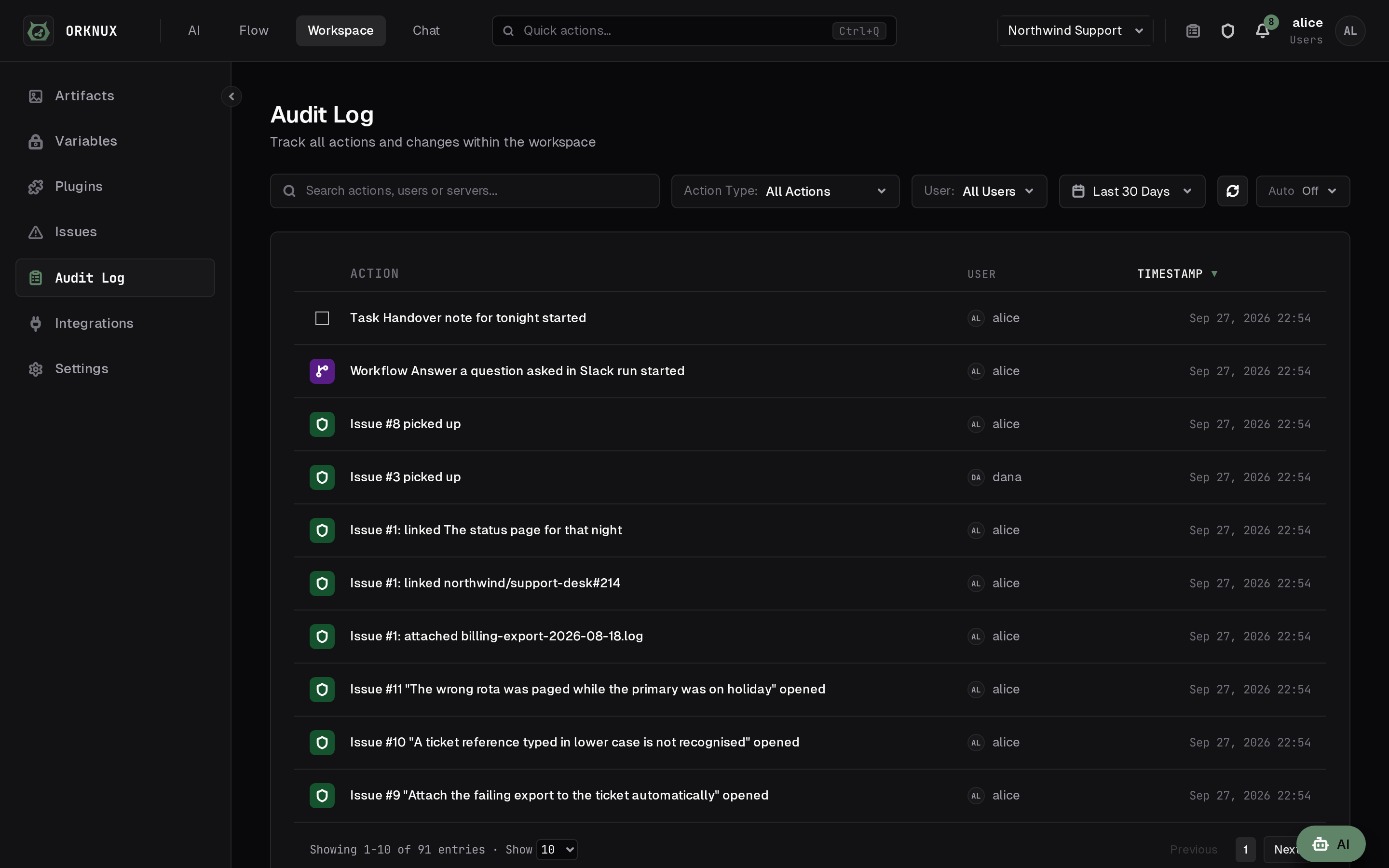
The audit log: who changed what, and when

There are two, and the difference matters.

  • The organisation audit log records what happened to the organisation: workspaces created, renamed and removed, their directory group and description changed, installation-wide switches pressed, and the proxy rules and shells configured below.
  • Each workspace's own audit log records everything that happened inside it — workflows, agents, models, memory, objects, integrations, chats, issues, and every command an agent ran on a shell.

Both can be filtered by user and by period, and searched.

Settings
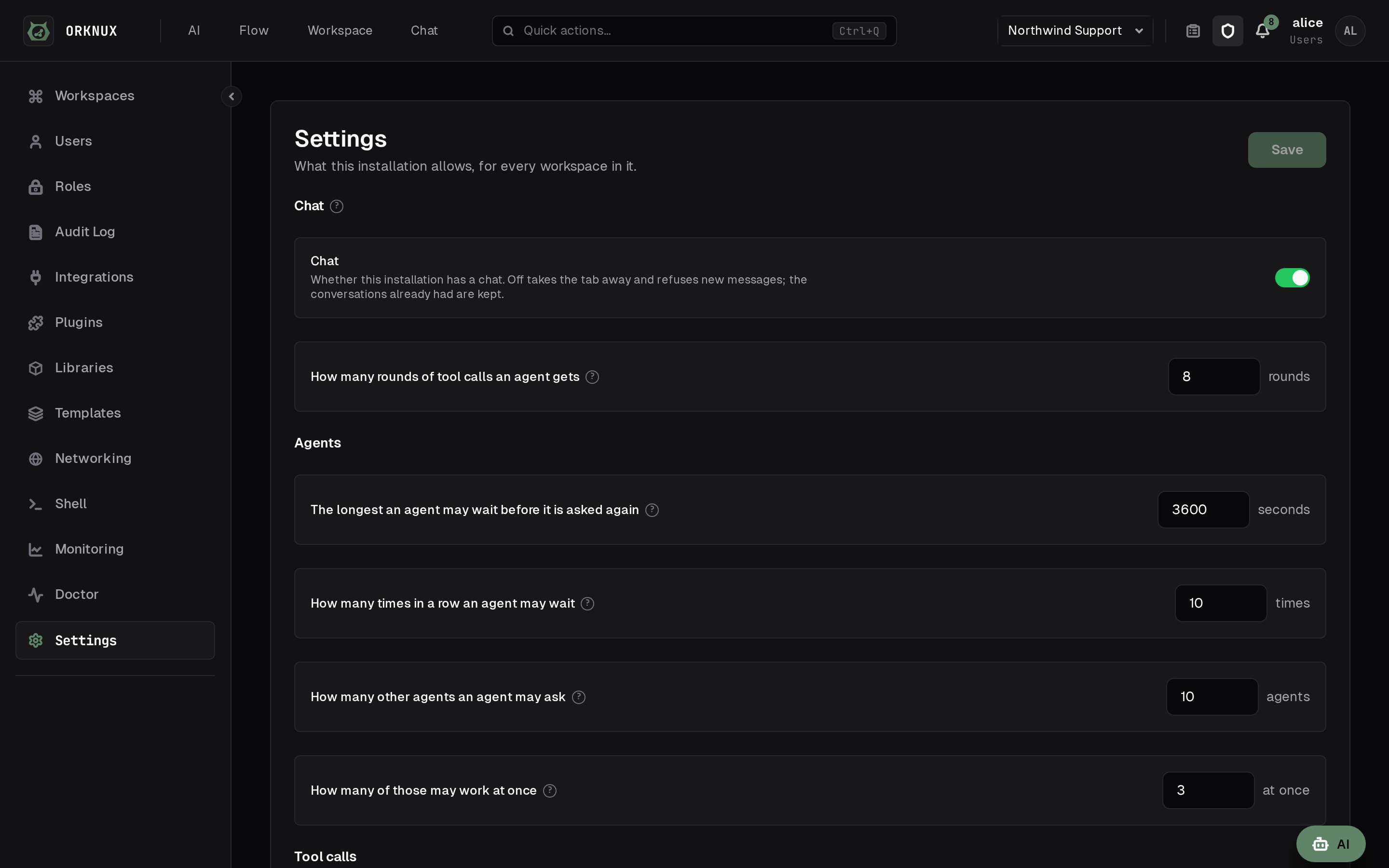
The switches that belong to the installation rather than to a workspace

What this installation allows, for every workspace in it.

  • Chat — whether this installation has a chat at all. Off takes the tab away and refuses new messages; conversations already had are kept. A workspace's own Chat settings go with it — the companion model, the speech-to-text and the text-to-speech models are a chat's and nothing else's. The Quick Chat model stays: the AI button is a separate thing under the same word, and what turns that off is choosing None for its model.
  • Files in chats — whether messages may carry attachments. Off takes the button away; what has already been uploaded stays where it is. It governs the files put on an issue as well, whatever the label says, and both use the same storage and the same size limit.

The rest of the page is in sections, each reachable from Quick actions: Agents (how long one may sleep, how many others it may ask and at once), Tool calls (how many per reply, and when a repeated call counts as a loop), Tool list, HTTP tools (whether agents may make requests at all, and where to), Sessions (when a long one is summarised, how much of each value a transcript keeps, and whether a conversation can be removed at all), Scratchpads (how much text and how much in files a session keeps), Drawing and Commands.

Below each switch, in grey, is what the operator set in the configuration file: where attachments are written, what storage they use, and how large one file may be. Those are read-only here — a filesystem path is not something to hand a browser the ability to change.

The configuration file is the floor. An administrator can turn something off from this screen, but not back on where the file has said no.

How long component history is kept

Every save of a function, a tool, a skill or an agent keeps what that component was before it, and every publication of a workflow is kept as a version of it; both are described under Workflows. How many days of that to keep is set here, and it is fourteen until somebody changes it.

A version is a whole copy — the code, the parameters, the prompt — rather than a note of what changed, so this is the number that decides how much disk the history takes. An installation with a hundred functions edited all day is a different proposition from one with six, which is why it is a setting rather than a constant, and why it belongs to whoever owns the disk.

It is counted from when a version stopped being current rather than from when it was written. A prompt composed a year ago and replaced this morning has a fortnight ahead of it, instead of being swept the moment it is recorded. A workflow's live publication is never swept, whatever its age: it is not history, it is what that workflow runs, and a tidy-up that silently stopped a workflow published two years ago would be a poor kind of housekeeping.

ORKNUX_REVISION_RETENTION_DAYS is what a fresh installation starts at, and this is the one thing on this page the configuration file is not the floor of: once an administrator has stored a number here, that is the number in force, and the page says as much where the two disagree. Between a day and ten years, and there is no off — a history nobody keeps is a different decision from a short one, and it would want a switch of its own rather than a zero in this box.

How long a plugin may run

A plugin is a bundle, and loading one costs more than calling a function, so it has a bound of its own rather than the one a workspace's own JavaScript runs under. The number is set here, between one second and five minutes, and it is thirty seconds until somebody changes it.

It is read per call, so a change decides the next call and never one already in flight. A call that overruns is stopped and says the number it was held to, which is the difference between "the plugin is broken" and "the plugin wanted longer than this installation allows".

ORKNUX_PLUGIN_TIMEOUT_MILLIS is the floor a fresh installation starts at.

How long a run is kept

A finished run is kept with its steps, and swept once it is older than the number set here — ninety days until somebody changes it. A deleted workspace takes its runs with it whatever this says.

HTTP tools

An agent granted http_get, http_request or http_download may fetch any address this server can reach, and whether that is acceptable is the installation's decision rather than each agent's author's. This section is where it is made, for every agent in every workspace at once.

The switch takes the three tools away from every agent. Nobody's grant is touched — the agent's Tools list goes on showing them, and says why they do nothing — so switching them back on puts each agent back exactly where it was, rather than leaving somebody to remember who had held what.

Where they may go is Allow any URL or Allow list. Under an allow list a request is made only when a rule's regular expression matches the whole URL and the rule lists the request's method; http_get and http_download are GET. Unlike a proxy rule, which is matched anywhere in the address, this one is held to all of it, because a fence that example.com satisfies from inside example.com.attacker.net is not a fence. An allow list with no rules allows nothing, and the page says so.

Redirects are not followed, and never were: a Location is a new address, so it is a new request and meets the same check. A list that allows one host cannot be walked off by a server that answers with somewhere else.

Whether an address may be requested is the tester. It asks the rules as they are on the page, before they are saved, and answers which rule allows the address, or that none matches, or that one matches but not for that method — and it shows the sentence an agent would be told, because that sentence is what the agent has to work with when it is refused.

An agent holding any of the three is also given http_allowList, which answers the policy and how to read it. Asked where it may send requests, an agent used to answer from whatever tool descriptions it had happened to see; each HTTP tool now says that the destinations are the installation's decision and that http_allowList is where to ask, and it is carried with them even where they are found by search rather than sent up front.

What this does not cover. Functions, JavaScript tools and plugins calling orknux.http are untouched: they are code somebody in the workspace wrote and saved, not a model choosing an address while it answers. The proxy rules under Networking still apply to everything, these tools included.

One Save, at the top

Every number on this page is written by the one Save in its header, and it wakes only when something differs from what the server holds. The switches above keep none: a switch that needed saving would be a switch that lies about what it is showing, so those take effect as they are flipped.

How long before a stuck task is picked up

A task is written down and then handed to a worker, and that hand-over can be lost — a restart in the moment between the two, or a pool with nothing free to take it. The task then says Queued and nothing looks at it again. How long a task may sit like that before something picks it up is set here, and it is five minutes until somebody changes it.

The same number is how often the looking happens, so a task that is genuinely stuck is started again within about twice it. It is not what makes this safe: a task a worker already has is never handed over a second time, whatever this says, and the interval only decides how long a lost one is left. Between a minute and a day — below a minute buys nothing, since a task leaves Queued as soon as a worker reads its row.

ORKNUX_TASK_SWEEP_MINUTES is what a fresh installation starts at, and a stored answer takes over from there, as with the retention above. The next pass reads it, so a change needs no restart.

This field is not on the screen of an installation running Temporal. There a task is a durable workflow, the looking still happens and starts the workflow again where there is none running, and how long it waits comes from the configuration file: recovering a stuck task is Temporal's business, and a number this screen could change would be claiming otherwise.

When a server dies in the middle of a step

A server that is killed says nothing, so whatever step it was working on is noticed only by something looking for it. Workflow runs has the two numbers that decide how soon, one for each engine.

Step heartbeat is Temporal's. A step reports that it is still being worked on while it works, and one that falls silent for this long is handed to a server that is alive — thirty seconds until somebody changes it. Without it a dead server was noticed only when the whole step timeout ran out, which for an agent step was five minutes of a message going unanswered. A run already going takes a change up from its next step. Zero turns the heartbeat off. Between 0 and 600 seconds; ORKNUX_TEMPORAL_STEP_HEARTBEAT_SECONDS is the starting value.

Agent step goes after a restart is the inline engine's. There a step a restart cut short is failed, because nothing can say how far it got — with one exception: an agent answering a message is asked again, since a message nobody answers is the failure people notice, and the run used to end Failed until somebody pressed Rerun. This is how many goes it gets in all, the one that died included, because the step itself may be what is killing the server and a loop of restarts is worse than a failed run. Three until somebody changes it, between 1 and 10; ORKNUX_INLINE_RESTART_ATTEMPTS is the starting value.

On either engine an agent step asked a second time does not write its question into the session again, so the model is not shown it twice and the transcript does not say it was asked twice.

Monitoring
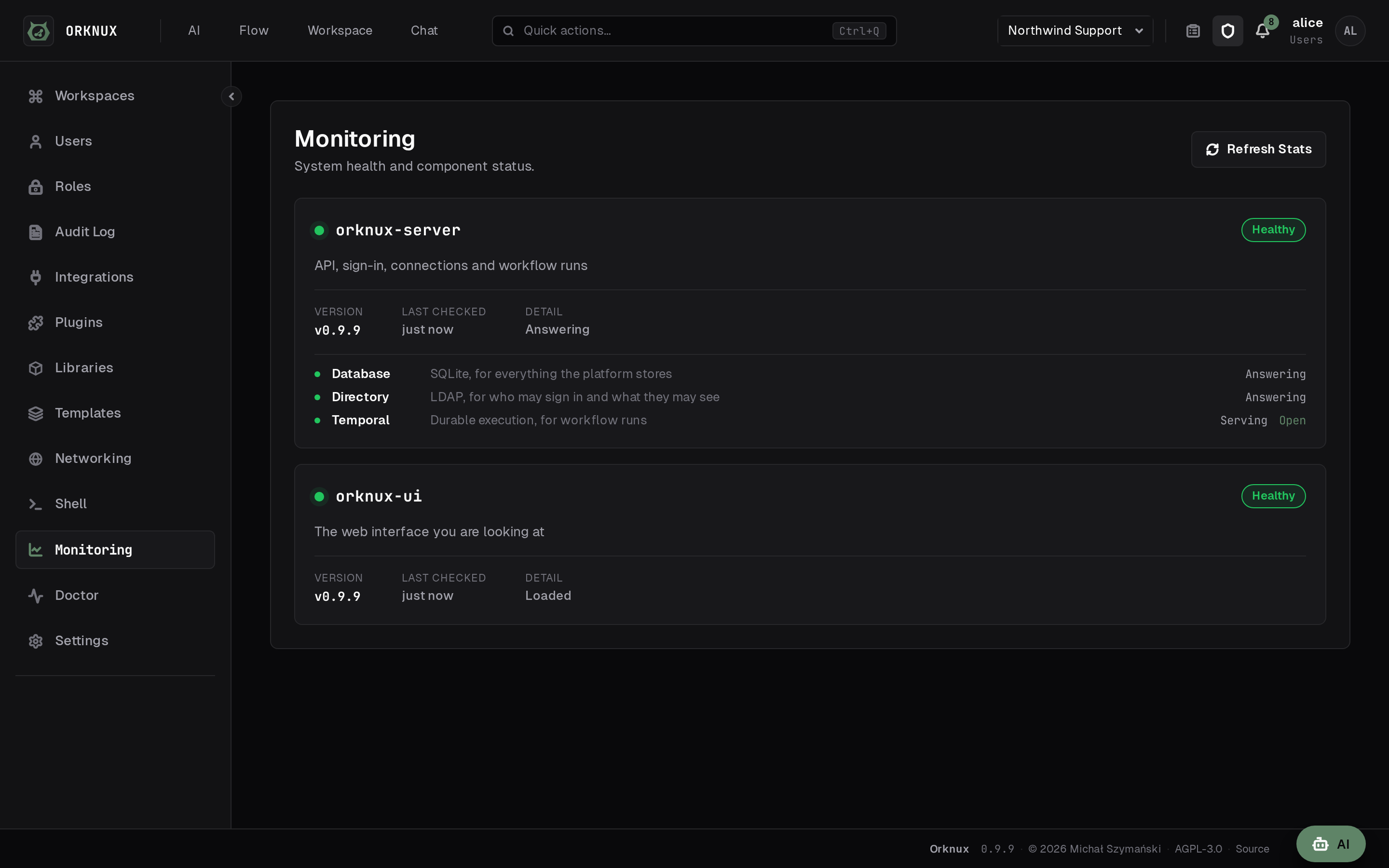
Monitoring: the health of the service and everything it needs to be up

What is answering and what is not: the server, the database, Temporal, and the connections workspaces depend on. A run's underlying Temporal workflow can be opened from here and from the run page.

Doctor
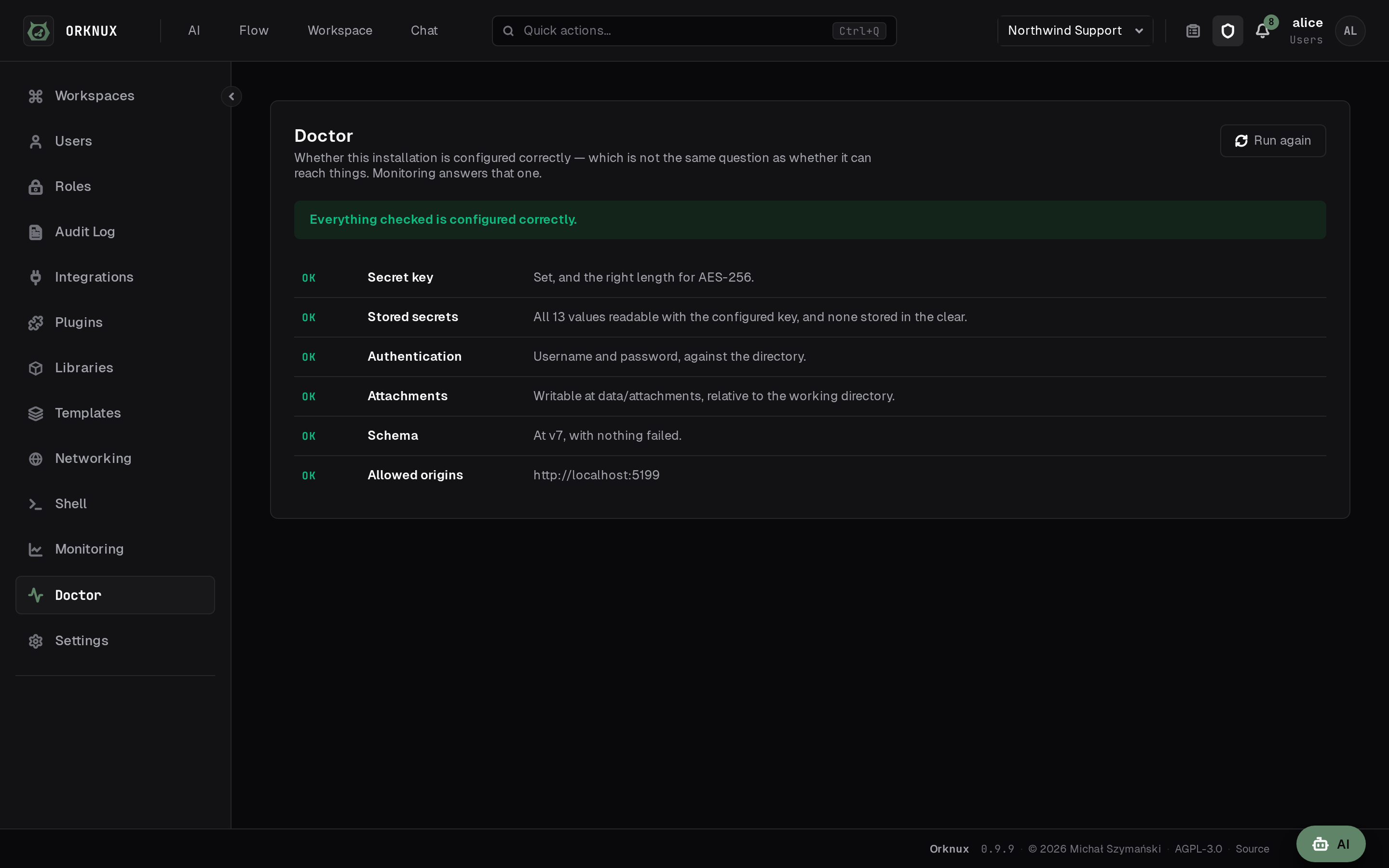
Doctor: whether this installation is configured correctly

Monitoring asks whether the server can reach the things it needs. Doctor asks the other question: is this installation configured correctly?

They are not the same, and the gap between them is where the worst faults live. A secret key that was never set is only validated on first use, so the server starts, every dependency answers and monitoring is entirely green — while every credential written hours later fails. Doctor checks the key, the credentials already stored under it, how sign-in is configured, and the schema version, and says which of them is wrong rather than that something is.

Plugins
The plugins loaded into this installation

JavaScript loaded into the sandbox to give workflows functions the platform does not ship. A plugin can be installed from the marketplace, uploaded, fetched from a URL, or written from the starter this server generates — in JavaScript or TypeScript — and downloaded again later as whichever of the two it was written in.

A plugin brings more than functions. It may also bring tools an agent can be granted, which appear in the workspace's Tools list with the plugin's name beside them; skills, granted as a catalog of their own; object shapes its functions return, which a workflow node can hold an answer to; and the libraries it embeds, which are allowed when it is loaded.

The marketplace

The Catalog tab beside Installed is a shelf of plugins somebody has published: an icon, a description, tags, and the versions available, searchable, installed with one press. Three things about it are worth knowing.

The server fetches it, not your browser. Both the catalog and the download go out through this installation's proxy rules, like every other outbound call, so an installation behind a proxy reaches the marketplace under the rules it already has and one with no way out sees an empty shelf rather than a browser error.

The bytes are checked before anything runs. What arrives is hashed against the digest the catalog published, and refused if the two disagree.

An update is offered only when it is newer than the version held. Each listing's Changelog tab carries the notes its author wrote for each release, so what an update contains is readable before it is taken.

ORKNUX_MARKETPLACE_URL decides where the catalog is asked — point it at your own mirror, or leave it empty and load plugins by hand.

Plugins are not part of this server's release. They live in their own repository and are written against the @orknux/plugin package, so a new plugin arrives without a new server.

A plugin's key is its identity, not its filename: loading the same key again replaces what is there.

A plugin says what it has to be told before it can work, and each workspace answers separately: the same plugin points at two different projects for two different teams. The declaration is read off the plugin when it is loaded and shown here; the answers are set on each workspace's own Plugins page, either by typing a value or by pointing at one of that workspace's variables.

A workspace that has not answered something a plugin needs is marked on that page, in the list and against the parameter itself, and a run that reaches one of the plugin's functions stops saying which parameter is missing. A parameter the plugin declared as a secret cannot be typed in at all - the only way to answer one is a variable, which is encrypted at rest and never shown back.

What a plugin can reach is exactly that list and nothing else. There is no way for one to ask the server for anything it was not given, which is why declaring parameters is also the answer to "what data does this plugin see?".

What a plugin may use

That answers what data a plugin sees. The other question is what language it gets, and a plugin says so itself. A bundle written for a browser or for Node expects builtins this sandbox does not switch on, so a plugin declares which of them it needs — and the list it may choose from is five names long:

  • CONSOLE — write to the server's log
  • INTL — format dates and numbers for a locale
  • TEXT_ENCODING — convert between text and bytes
  • PERFORMANCE — measure elapsed time
  • TEMPORAL — use the Temporal date and time API

That the list is closed is the point of it. There is no name for reading a file, opening a socket or reaching a Java class, so a plugin cannot ask for one and nobody can grant one by clicking through a dialog. A plugin naming something that is not on the list is refused with the list, rather than loaded having quietly been given less than it asked for.

Loading a plugin that asks for anything stops and shows what it asks for, a row per name saying what that name allows, over Allow and Load and Cancel. Agreement is by name rather than by yes: the load carries those names back, and one carrying anything other than exactly what the plugin declares is refused the same way. "Yes" would be an agreement to whatever the file happened to ask for, including whatever it has started asking for since anybody last looked.

Only what was accepted is turned on, and only for the one plugin. The sandbox is built for each call from that plugin's own row, so a plugin that asked for nothing gets nothing, sitting beside one that asked for everything.

A plugin edited to need one more is refused with the new list, and the one already loaded goes on with exactly what it had. An acceptance names the permissions it was given for rather than being a yes to the plugin, so an escalation cannot arrive under an answer somebody gave last month. A plugin that stops asking for something stops being granted it, without anybody having to remember to take it away.

What was accepted, who accepted it and when are on the row here — allows INTL · TEXT_ENCODING · accepted 3 days ago by alice. A decision about what somebody else's code may do that lives only in a dialog is one nobody can audit.

A bundle whose module body needs a permission cannot be loaded at all, and only what its run does may need them. Reading the file is the run that finds out what the plugin is asking for, so it is made with nothing relaxed, always, and there is no way to say otherwise: running it under permissions would mean granting something in order to discover whether to grant it. A bundle that touches Intl at its top level is refused as unreadable — That file is not a usable plugin: ReferenceError: Intl is not defined — rather than as something to be granted. Ask for what run needs, not for what loading needs; the starter this server generates says as much beside the declaration.

console and Intl are no longer free

This is the one thing an installation upgrading to this version has to look at. GraalJS switches console and Intl on by default, and the plugin sandbox now switches both off explicitly, because a default that happened to be on is not something anybody accepted.

Every plugin loaded before this asks for nothing, so it is granted nothing. One that called console.log or reached for Intl goes on being listed here and then fails when a run reaches it. The way through is to load it again declaring CONSOLE or INTL and accept that — no plugin is migrated into a grant nobody gave.

Workspace functions and tools are not affected. They run in a different sandbox, which has never taken a permission and has not changed.

Libraries

JavaScript loaded once for the whole installation, which any workspace's function or tool may import. A plugin brings functions of its own for a workflow to call; a library brings code for a function to be written with — a date handler, a parser, something too large to paste into every script that needs it.

An administrator loads one here, and it must be a single self-contained file — a .js or .mjs file, up to 4 MB. A TypeScript file is compiled in the browser before it is sent. The file is evaluated once as it arrives, in the same sandbox it will run in, and what its default export turned out to hold is what is stored: which names it offers and which of those can be called. That is all that is claimed about it, because nothing in a bundle says what its arguments are. A file that exports nothing to import is refused there and then — That file could not be loaded as a library: it has no default export to import — rather than at the moment a workflow needed it.

Either spelling. An ES module is run as it stands. A CommonJS file — one that writes to module.exports or exports.something, which is what most of npm still publishes — is given those two names as it runs, and what it leaves on them is what a script imports; a UMD bundle works for the same reason, taking its CommonJS branch. What is refused is a file that reaches for a second one: an import of anything at all, and a require("…") in a file being run as CommonJS. The message says which — its index.js requires "buffer", and a library has to be one self-contained file. This installation does not bundle. One caveat is worth knowing, because it is the only thing that cannot be reproduced: everything here runs in strict mode, so a CommonJS file relying on sloppy mode fails when it is evaluated — while somebody is looking at it, rather than in the middle of a run.

A package can be the way the file arrives. Where the installation has a registry configured, the field beside the upload takes a package and an exact version — [email protected], never latest, because a version that resolves differently tomorrow is not an answer to what code is running here. It is fetched once, on the server, into this database; the file is what is stored and what runs, and nothing reaches a registry afterwards. Of a package's several builds an ES module is preferred and a CommonJS one taken where that is all there is, and the row records which package, which version, from where, which file inside it, and what the registry said that file hashed to — verified against what arrived. The file is stored exactly as it was published, so that hash stays a claim anybody holding the same package can check; a CommonJS one is marked as such on the row and wrapped when it runs, never on the way in. An installation with no registry configured draws no field at all and has the upload alone.

A library's key is its filename without the extension, and it is its identity: loading a file with a key already in the list replaces it in place, so nothing importing it is repointed. Each row says what it exports, how large it is, when it was loaded and by whom.

Under the key is the line the plugins page has no need of: what imports this — every function and every tool that does, named with the workspace it lives in. That line is the reason a library belongs to the installation rather than to a workspace. What code is running inside this installation is a question with one answer, and a library each workspace loaded for itself would give it as many answers as there are workspaces, with the useful half of it scattered across screens no administrator can see. It is also what refuses the removal, so nothing goes out from under a script that was using it: pressing Remove on a library something imports answers Still imported — open one of those and take the import off first, on the row itself, and each name on the line above it opens that function or tool. The names are the answer, so they are what you press.

A library is the one thing in the product whose dependants can be in a workspace the reader cannot open, and the rule for that is worth knowing even though this screen never meets it: what may not be named is counted rather than dropped — and 2 more in workspaces you cannot open. Naming a function in a workspace somebody cannot see would tell them that workspace exists and what is in it, and leaving it out silently would answer the question with rows missing. An administrator sees every workspace, so here the count is always zero.

A function or a tool imports one by id, under a local name of its own, in the Libraries section of its editor. The name is seeded from the key the first time a row points at one and is never rewritten afterwards, because by then the code already says imports.dateFns. It arrives in the same frozen imports object an imported function does; from inside a script there is no difference worth spelling out. See One function calling another, under Workflows.

A plugin imports none of this. It embeds what it needs, because a plugin is meant to be portable between installations and one assuming a library had been loaded here would not be. For the same reason a library does not travel inside a component file: the file names the library by key, and an import that needs one this installation has not loaded is refused on the way in — No library called date-fns is loaded in this installation. Load it first, then import again. Importing a function should not be a thing that installs software.

Networking
Proxy rules, in the order they are read, and the box that asks which one answers a given address

Sometimes one address will not go direct. The case this was built for is the narrow one: everything works, except a token endpoint the network insists is reached through a proxy. Setting a proxy for the whole server would be a far larger decision than that one address asks for.

Networking holds proxy rules. A rule is a name, a regular expression matched against the address being called, the proxy a matching address goes through, an optional username and password for the proxy itself, and a switch. The password is encrypted like every other credential here, and no query reads it back.

The proxy is a host and a port, not a URL. A :// in front of it is refused rather than quietly accepted: the connection to a proxy is made in a way that does not use the scheme you typed, so a field that took one would be showing you a decision it was not making.

The expression is matched anywhere in the address and without regard to case, so login\.example\.com is enough on its own. Use ^ and $ where you mean the whole of it.

Rules are ordered, and the first one that matches wins. There is no "most specific wins", because there is no sound way to say which of two regular expressions is the narrower; and overlapping rules are not refused, because one narrow rule with a broad fallback behind it is the arrangement people actually want. The order is yours to set.

That makes it easy to write a rule that looks configured and does nothing, which is what the tester on the page is for. Paste an address and it says which rule answers it, and which rules matched but will never fire because something above them got there first. It also says if the address itself, or the matched rule's own proxy, is one this server would refuse to call.

The rules cover every outbound HTTP request this server makes: connection checks, a workflow's HTTP calls, MCP servers, model providers and the token grants they need, transcription and speech. They all build their client the same way, so there is no outbound call the rules do not reach.

Mail is deliberately not covered. SMTP is not an HTTP request, and a mail server is named by host on the connection that sends through it, so there is no address for a rule to match.

A proxy rule relaxes nothing. The address being called is checked exactly as it was before, and the proxy's own address is checked the same way when the rule is saved - a proxy is where the connection actually lands, so a rule pointing at a link-local address would turn every address it matched into a request to this machine's own metadata service.

An agent's HTTP tools meet one more check before any of this: the policy under Settings, HTTP tools, decides whether the request is made at all, and only a request it allows reaches these rules.

Administrators only, and every change is written to the organisation audit log.

Shell
The machines an agent can be given, and whether each one answers

An agent can be given a machine to run commands on. Shell is where an administrator says which machine, and it is the one thing on this platform that acts outside it.

A shell is an SSH target: a name, a host, a port, the account to log in as, and a private key, with a passphrase if it has one. There is no password field, deliberately. A password is a thing a person types; this is one machine talking to another, and a key can be issued and withdrawn for one account on one host without anybody having to change what they know. The key and its passphrase are encrypted at rest with every other credential here, and no query reads either back.

The machine's own host key is remembered the first time it is seen and checked on every connection afterwards, so a host answering with a different key is refused rather than trusted quietly. Rebuilding a machine means saying to forget the old key on purpose.

The status against a shell is a real connection - the handshake, the key accepted, and a command actually run - so a host that answers on port 22 and refuses every account reads as unreachable rather than as fine.

Giving one to an agent

The switch is on the agent, and it is called Shells, plural. From where an agent sits the question is "may I run a command somewhere", not "may I run one on build-box-3": which machine a session lands on is decided when it opens, and the answer names it. Off for every agent until somebody turns it on, and turning it on or off is written to the workspace's audit log.

An agent that has it gets three tools: open a session, run a command in it, and close it. Opening one gives the agent an empty working directory of its own on that machine and tells it what the operating system is. Closing destroys that directory and everything in it.

Nothing is held open between commands. A session is a row in the database and a directory on the far side, and each command opens its own connection, so a restart loses a socket and nothing else. A session nobody closed is swept after two hours idle and its directory removed - which also catches the ones a previous process would have swept had it lived. A command that has not finished in ten minutes is stopped and says so, and says plainly that the process may still be running, because closing a channel does not kill one. Output past 256 KiB has its middle removed rather than its end - the beginning and the end both survive, and a line in the gap says how many bytes went. That way round because the answer is at one end or the other and almost never in between: a build prints its banners and its downloads first and cannot find symbol last, and an assistant handed only the beginning cannot tell a build that failed from one whose output stopped. A non-zero exit is a result rather than a failure: grep finding nothing exits 1, and an assistant told "that failed" would apologise for a search that worked.

Those two numbers are the installation's, and a machine can be given its own under Limits on its page. A box built to compile things wants longer and more than a switch that answers show interfaces does - the first build on a machine that has cached nothing is minutes rather than seconds, and a build that fails says a great deal more than one that works. Left empty, a machine runs on whatever the installation says, so changing that afterwards moves every machine that never asked for anything different.

Every command an agent runs is in the workspace's audit log, under the agent's own name, with what it exited with.

What contains this

The machine, and nothing in this application.

There is no list of forbidden commands and no classifier deciding which are safe, deliberately: reading a shell command and saying what it will do is not a problem that can be solved, and a denylist that is nearly right is worse than none, because it tells an administrator they are protected while a command that downloads its own instructions walks past it.

Point a shell at a virtual machine or a container you are willing to lose, give the account the least privilege that is useful, and read the audit log.

Administrators only, and every change here is written to the organisation audit log.

The database

Postgres or SQLite, chosen by the connection URL and nothing else:

ORKNUX_DB_URL=jdbc:postgresql://localhost:5432/orknux    # a server
ORKNUX_DB_URL=jdbc:sqlite:/var/lib/orknux/orknux.db      # a file

Everything follows from that one line: the driver, the dialect, and which migrations are applied. Under SQLite the username and the password are ignored, a file having nobody to authenticate to.

Postgres is what a deployment should use. SQLite is for the installation of one person or one team: no second container, no database server to keep, and a backup that is one file. Everything works on both - signing in, workspaces, issues, agents, workflows, runs, chat, the MCP endpoint, attachments, password resets, proxy rules and the shells above - and the tests are run against both. What differs is underneath.

One writer at a time. SQLite takes a single write lock for the whole database, so two requests that both write queue behind each other rather than run together. It is quick enough for a handful of people, and it is not a database to run a busy installation on.

One machine. The file is the installation. Two servers pointed at one file over a network share will corrupt it, so SQLite means exactly one process: no second node, and no rolling restart.

No time zones. SQLite has no zoned timestamp type. The moment is kept and compares correctly; the offset it was originally written with is not. Nothing in this interface shows an offset, so it is invisible until something outside reads the file.

Backups are a file copy, taken when nothing is writing. There is no pg_dump here. Copy the database together with the -wal file beside it, or stop the server first.

Two things when pointing it at a file. The directory has to exist already - the server makes the database, not the folder holding it, and says which path is missing rather than failing with a connection error. And Temporal is a separate question: choosing SQLite removes Orknux's own database server, not Temporal's.

Configuration

The settings an operator owns live under orknux in the application's YAML:

orknux:
  chat:
    enabled: true
  attachments:
    enabled: true
    storage: FILESYSTEM
    location: /var/lib/orknux/attachments
    max-file-size-mb: 25
  logging:
    file: /var/log/orknux/orknux.log
    format: json
  temporal:
    ui-url: http://temporal:8080

Name an absolute path for location in a deployment: relative resolves against the working directory, which in a container is not somewhere anyone goes looking.

The database URL, the installation's mail server, the address links are written from, and the first administrator's two variables are configuration too, and are in their own sections above - each is next to the thing it decides rather than in a list of everything. Each has an ORKNUX_ environment variable as well, which is how a container is usually told.

Edit this section on GitHub

Command line

orkx is the same platform from a terminal: sign in, pick a workspace, start a workflow and read what it did, talk to a chat, manage variables and plugins, ask whether the installation is configured the way it believes it is.

It is a client and nothing more. Every rule about what you may see and do is the server's, applied by the server — the CLI keeps no second copy of them, so it can never be more permissive than this interface is.

Installing

install.cmd                      # Windows: %LOCALAPPDATA%\Programs\orkx, added to your PATH
./install.sh                     # POSIX: ~/.local/bin

Per-user throughout — no administrator rights, and the machine-wide PATH is never touched. Then open a new terminal. A PATH change does not reach a shell that is already open, nor a new one started from it.

There is also orkx.jar, which runs on any JDK 25. The native binary starts in about 14 ms against the jar's 146 ms, which is worth having for something run this often.

Pointing it at a server

orkx server use http://localhost:8080
orkx server info                              # where it is pointed, and as whom

server use checks the address rather than merely writing it down, which tells a live installation from a typo or some other application on that port. Moving to a different server drops the stored session: a session cookie belongs to the server that issued it.

Signing in

orkx login                                    # prompts for username and password
orkx login --server https://orknux.example.com --username alice
echo "$PASSWORD" | orkx login -u alice --password-stdin

This is the directory sign-in. Where an installation is configured for OIDC instead, there is no password for the CLI to send and the server says so — signing in happens in a browser, and orkx is not the way in.

The session is written to session.json under %APPDATA%\orknux, $XDG_CONFIG_HOME/orknux or ~/.config/orknux. The cookie in that file is the whole credential, so it is written owner-only and replaced atomically.

Choosing a workspace

orkx workspace list                           # * marks the one in use
orkx workspace use 7

Almost everything on the server is scoped to a workspace, and the server holds no notion of a current one — so the choice is the client's to keep. use checks the id, which is also the access check: the server answers with the workspace only if your roles grant it.

Workflows and runs

orkx workflow list                            # what there is, and where each last got to
orkx workflow run nightly-sync                # by name, or by id
orkx workflow run 3 --input '{"since":"yesterday"}'

orkx execution list                           # newest first
orkx execution get 42                         # one run, its steps, and what failed
orkx execution logs 42 --step slack           # only the lines one step wrote
orkx execution restart 42

--input is handed to the first node as JSON, which is what a trigger would otherwise have supplied. A run started here is recorded as MANUAL, because a person started it, and a disabled workflow still runs — that is how one is tested.

restart starts something, carrying the original input over so the new run acts on the same event: if that workflow answered somebody, it answers them again.

Chat

orkx chat list                                # pinned first
orkx chat search planning                     # by name
orkx chat search planning --messages          # …and by what was said

orkx chat open 5                              # interactive; /exit or Ctrl+D to leave
echo "summarise last night's runs" | orkx chat open 5

Answers stream as they are composed, so a large local model is not a blank screen for minutes. An agent answers in one piece instead: it works through a tool loop first, and there is nothing worth showing until that settles.

--recipient takes a model id or an agent id, and those are separate catalogues — so the same number is usually both, and model:1 or agent:1 says which.

Variables

orkx variable list                            # or --catalog for one folder's
orkx var get billing/apiKey
orkx var set -c billing -n apiKey --value-stdin --type secret

get prints the value and nothing else, so KEY=$(orkx var get billing/apiKey) is the whole of it. Reading a secret records that somebody asked; the note saying so goes to standard error, where a capture will not pick it up.

Plugins

orkx plugin list                              # what is loaded, and what each brings
orkx plugin generate -o ./mine.js             # a starter, written by this server
orkx plugin load --file ./mine.js
orkx plugin unload 4

generate asks the server for the template rather than carrying one, so its API version and value types are the ones that installation will actually judge it by. A plugin's key is its identity, not its filename: loading the same key again replaces what is there, which is how a plugin is iterated on.

Checking an installation

Two questions, two commands:

orkx admin doctor                             # is it configured correctly?
orkx admin monitoring                         # can it reach the things it needs?

doctor catches what monitoring cannot. A secret key that was never set lets the server start and every dependency answer — monitoring entirely green — while every credential write fails hours later:

FAIL  Secret key       Not set - every credential write will fail, and stored ones cannot be read.
FAIL  Stored secrets   4 cannot be read, because the key above is not usable.
ok    Schema           At v72, with nothing failed.

2 failed, of 6 checks.

Both exit 6 when something is wrong, so either works as a check without anything having to read the words:

orkx admin monitoring > /dev/null || echo "something is unwell"

Both are for administrators, and the server is what enforces that.

Completion

orkx completion bash       >> ~/.bashrc
orkx completion powershell | Out-String | Invoke-Expression

Printed rather than installed: where a shell keeps its completions is the shell's business. Both are generated from the live command tree, so a command that exists is a command that completes.

Exit codes

Code Meaning
0 it worked
1 the server refused you
2 bad arguments
3 nothing usable at that address
4 the exchange worked; something on this machine did not
5 no such thing there, or none you may see
6 asked and answered, and something is unwell

Colour is decoration and never information — a status is coloured and spelled out — and it turns itself off when the output is not a terminal. NO_COLOR, CLICOLOR=0 and TERM=dumb are all honoured; --color always overrides them.

Edit this section on GitHub

The pages this is read from Last updated